
NHTSA ID Number: 10213239
Manufacturer Communication Number: CALFTL54-023
TSB/Document Date: 2022-06-04
Summary
Customer Advisory Letter for Cascadia CTP Not Communicating: Requires Reset.
If the PDF is very large, it may not load in the preview below.
Some older TSBs had multiple PDFs — visit the NHTSA Website to view all PDFs.
If the TSB PDF does not show, download or view it on the NHTSA Website.
Click on the (+) Plus Sign
Then Click on Associated Document(s)
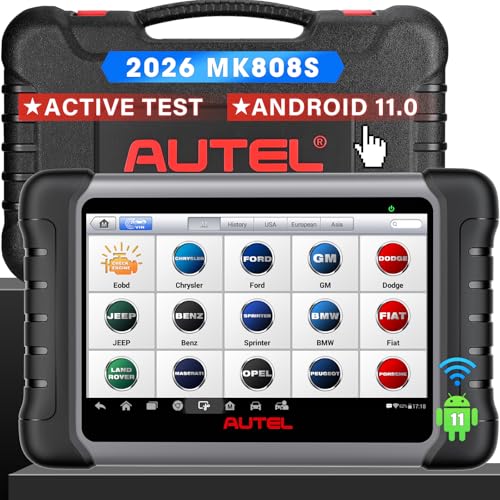
- 💝【Questions? We’re Here Anytime】MK808S is a...
- 🔥🔥🔥【2026 NEWLY RELEASED BI-DIRECTIONAL...
- 【28+ MOST POPULAR RESET SERVICE FOR 150 MAKES】Autel...
- 【ALL SYSTEM DIAGNOSTICS, FACTORY-LEVEL SCANNER】The...
- 【AUT0 SCAN & AUT0V1N, 10X FASTER】How much have you spent...


- 💯【Conta.ct us for Support Directly】If you met any...
- 🔥🔥🔥【2026 AUTEL FLAGSHIP MK900BT MK900-BT, NEW...
- 🚗【3000+ ACTIVE TESTS (50➡3000+), SAME AS MS...
- 🚗【40+ HOT SERVICES FOR 150 MAKES (28+➡40+)】Full...
- 🚗【OE ALL SYSTEM DIAGNOSE, AUTO SCAN 2.0: SCAN LICENSE...
This product presentation was made with AAWP plugin.
Search NHTSA Database for Recalls
Search NHTSA Database for Vehicle Investigations
View Latest Vehicle Investigations
Search NHTSA Database for Vehicle Complaints
View Latest Vehicle Complaints
TSB/Document ID: CALFTL54-023
Replacement Service Bulletin Number:
MFR Communication Date: 2022-05-02
MFR Internal Campaign ID/Software Version:
Communication Type: Service Bulletin/Repair Instructions
NHTSA Components: ELECTRICAL SYSTEM
MFR Component System:
MFR Component Subsystem:
Previous TSB | Next TSB |
D aim ler T ru ck
N o rth A m erica L L C
5/2/2022
C u sto m er A d vis o ry L etter
C A L F T L 5 4 -0 2 3
Subject: New Cascadia CTP Not Communicating: Requires Reset
Make: Freightliner
Model: New Cascadia
Model Year Affected: 2018 through 2020
Build Date Range: Selected Vehicles Built Between March 20, 2018 to February 4, 2020
Our records indicate that you are the owner of certain vehicles; therefore, DTNA has decided to share
the following documentation with you.
Please see the attached communication in this email. We hope you find this information helpful.
D aim ler T ru ck
N o rth A m erica L L C
C u sto m er A d vis o ry L etter
5/2/2022
C A L F T L 5 4 -0 2 3
Subject: New Cascadia CTP Not Communicating: Requires Reset
Make: Freightliner
Model: New Cascadia
Model Years Affected: 2018 through 2020
Build Date Range: Selected Vehicles Built Between March 20, 2018 to February 4, 2020
Work Instructions
1. Park the vehicle, shut down the engine, and apply the parking brakes. Chock the tires.
NOTE: When trying to connect to the CTP01T electronic control unit (ECU), vehicles with Cummins
engines could encounter some challenges if third-party telematics have been added to the vehicle.
Because third-party telematics can communicate using source address (SA) 74, which is the same SA
the CTP01T ECU uses, a conflict can occur which results in the CTP01T not roll calling. If the vehicle is
equipped with a Cummins engine, go to step 2. If not, then continue to step 8.
---------------------------------------------------------------NOTICE ---------------------------------------------------------------DiagnosticLink 8.12 or newer, as well as a reliable internet connection, are required to complete
this procedure. The procedure cannot be performed offline. The loss of an internet connection
may result in failure of the CTP01T activation.
2. From the laptop or device, open DiagnosticLink®. Make sure that DiagnosticLink is set to ‘enable automatic
connection of SAE standard J1708 and J1939 devices.’ See Fig. 1.
Fig. 1, Enabling J1708 and J1939 Device Automatic Connection
D aim ler T ru ck
N o rth A m erica L L C
C u sto m er A d vis o ry L etter
5/2/2022
C A L F T L 5 4 -0 2 3
3. Connect to the vehicle, and select the ‘Standards’ tab from the ‘Identification’ icon, as shown in Fig 2. Note which
added device shows under SA 74. In this example, a Zonar unit was added. If no device is roll calling under SA 74
then go to step 8. If a device is showing under SA 74, go to step 4.
Fig. 2, ‘Standards’ Tab Monitoring SA 74
4. In many cases, third-party telematics can use prewire options supplied with the vehicle. Isolating the third-party
telematics can be achieved by monitoring the device roll calling on SA 74 listed on the ‘Standards’ tab, shown in
Fig. 2, while trying to disable it. Once the device communication or power supply is disabled, the device will no
longer roll call. This eliminates any conflicts with the CTP01T ECU, thus allowing CTP01T to roll call on the
common tab. The options below are provided to help disable customer added third-party telematics, so that the
CTP01T can be properly accessed.
4a. If customers are powering the third-party telematics using wiring provided in module 6TS - TELEMATICS
SYSTEM - WIRING, then disabling the component can be achieved by accessing the VPDM and pulling
the 10 amp fuse F74 that supplies ignition power, along with pulling the 10 amp fuses F75 and F76 that
supply battery power. See Fig. 3.
D aim ler T ru ck
N o rth A m erica L L C
C u sto m er A d vis o ry L etter
5/2/2022
C A L F T L 5 4 -0 2 3
F ig . 3 , V P D M F u s e L o c atio n s fo r M o d u le 6 T S - T e le m a tic s
4b. If customers are powering the third-party telematics using wiring provided in module 786 -POSITIONING &
LOCATION SYSTEMS, then disabling the component can be achieved by accessing the VPDM and pulling
the 5 amp fuse F41 that supplies ignition power, and pulling the 10 amp fuse F17(a) which would supply
battery power. See Fig. 4.
D aim ler T ru ck
N o rth A m erica L L C
5/2/2022
C u sto m er A d vis o ry L etter
C A L F T L 5 4 -0 2 3
F ig . 4 , V P D M F u s e L o c atio n s fo r M o d u le 7 8 6 - P o sitio n in g a n d L o c atio n S ys te m s
4c. Devices mount in many different locations. If the device is still roll calling while monitoring the ‘Standards’
tab for source address 74, it is recommended to consult with the owner or fleet coordinator of the vehicle to
determine where the third-party telematics are installed. Once the device is located, unplugging power and
ground supplies will disable the unit, eliminating its ability to roll call.
5. Once the third-party telematics is disabled and is no longer displaying in the ‘Standards’ tab, connection to the
CTP should be possible. To connect to the CTP, make sure the CTP is selected for ‘automatically connect.’
See Fig 5.
D aim ler T ru ck
N o rth A m erica L L C
C u sto m er A d vis o ry L etter
5/2/2022
C A L F T L 5 4 -0 2 3
F ig . 5 , V a lid a tin g /E n a b lin g C T P A u to m a tic a lly C o n n e cts
6. Validation that the CTP has connected can be confirmed by monitoring the Logged Connections in the lower left
corner of the DiagnosticLink screen under Logged Connections Fig. 6, to see if the CTP shows a green dot. If no
connection is made to the CTP01T then right-click in the Connections window, and select ‘Close Connections.’ If
any failed controller connections remain, shown with a red indicator, right-click and select ‘Clear All Connection
Errors.’ Manually connect to the CTP01T by clicking File > Connect and selecting the CTP01T.
F ig u re 6 C T P L o g g e d C o n n e ctio n s
7. Once connection to the CTP01T has been validated, close the connection and close DiagnosticLink. Go to step
8. If there is no connection to the CTP01T, close DiagnosticLink and disconnect from the vehicle. Reconnect to the
vehicle, and reopen DiagnosticLink. Check again to see if the CTP01T has connected. If the CTP01T connects,
close the connection and close DiagnosticLink. Go to step 8. If there is still no connection to the CTP01T, it cannot
be validated. Contact [email protected] or call (855) 253-0420 and select option 2.
D aim ler T ru ck
N o rth A m erica L L C
C u sto m er A d vis o ry L etter
5/2/2022
C A L F T L 5 4 -0 2 3
---------------------------------------------------------------NOTICE ---------------------------------------------------------------DiagnosticLink 8.12 or newer, as well as a reliable internet connection, are required to complete
this procedure. The procedure cannot be performed offline. The loss of an internet connection
may result in failure of the CTP01T activation.
8. Connect the vehicle to DiagnosticLink 8.12, or newer.
9. Verify the CTP01T software level.
10. Right-click in the Connections window, and select ‘Close Connections.’ If any failed controller connections
remain, shown with a red indicator, right-click and select ‘Clear All Connection Errors.’
11. Manually connect to the CTP01T by clicking File > Connect and selecting the CTP01T.
12. Wait until the CTP01T is fully connected and the connection indicators turn green.
12a. If no connection is made with the CTP01T, close out of DiagnosticLink. Reopen DiagnosticLink, and try
reconnecting to the CTP01T.
12b. If no connection to the CTP01T can be made, contact [email protected], or call (855)
253-0420 and select option 2.
13. Navigate to the ‘Identification’ icon under the ‘Common’ tab and locate ‘CTP01T Device Information;’ review the
software version. See Fig. 7.
D aim ler T ru ck
N o rth A m erica L L C
C u sto m er A d vis o ry L etter
5/2/2022
C A L F T L 5 4 -0 2 3
F ig . 7 , C T P S o ftw are L e ve l in R e d B o x
14. If the software version is 21.34.31 or later, then no additional repair is needed, go to step 33. If the Software
version is not 21.34.31 or later, go to step 15.
15. Using DiagnosticLink version 8.12 or newer, access the troubleshooting tab and select ‘Symptom.’ Click the
Next button, located on the bottom right side of the screen. See Fig. 8.
D aim ler T ru ck
N o rth A m erica L L C
C u sto m er A d vis o ry L etter
5/2/2022
C A L F T L 5 4 -0 2 3
F ig . 8 , S e le c tin g th e T ro u b le s h o o tin g T a b
16. From the vehicle selection options, select the applicable New Cascadia model. If DiagnosticLink has already
connected to the vehicle, only one option will be available. There is no need to pick any other options from this
screen. See Fig. 9 and Fig. 10. Click the ‘Next’ button to continue.
F ig . 9 , S e le c tin g th e A p p lic a b le N ew C a s c a d ia M o d e l
D aim ler T ru ck
N o rth A m erica L L C
C u sto m er A d vis o ry L etter
5/2/2022
C A L F T L 5 4 -0 2 3
F ig . 1 0 , V e rifyin g V e h ic le S e le c tio n
17. Select ‘Telematics,’ then click the ‘Next’ button to continue.
18. Select the ‘CTP not communicating over the air.’ Click the Next button to launch the ‘Advanced Diagnostic’
guided procedure.
NOTE: It is critical to read and follow the instructions in the guided steps. When prompted, make sure the CTP is
the only controller connected to DiagnosticLink. Any other controller connected during this process, including J1939
or J1708, may cause the process to fail.
19. Follow the guided procedure and, at the end, click ‘Finish’ until the final report is created, and the screen returns
to the ‘Troubleshooting’ method-selection screen.
20. Review the report pages, a copy should be saved for your records, click ‘Finish’ to return to the
‘Troubleshooting’ screen, and complete the reset of the procedure. See Fig. 11, Fig. 12, and Fig. 13.
D aim ler T ru ck
N o rth A m erica L L C
C u sto m er A d vis o ry L etter
5/2/2022
C A L F T L 5 4 -0 2 3
F ig . 1 1 , T ro u b le s h o o tin g R e p o rt, P a g e 1
F ig . 1 2 , T ro u b le s h o o tin g R e p o rt, P a g e 2
D aim ler T ru ck
N o rth A m erica L L C
C u sto m er A d vis o ry L etter
5/2/2022
C A L F T L 5 4 -0 2 3
F ig . 1 3 , T ro u b le s h o o tin g R e p o rt, P a g e 3
21. For vehicles in Group 1 on the attached list, disconnect the vehicle from DiagnosticLink, reinstall any pulled
fused or removed connections performed in steps 4a, 4b, or 4c, and go to step 33. For vehicles in Group 2 on the
attached list, do not disconnect DiagnosticLink. Wait five minutes and then continue with the next step.
22. Right-click in the Connections window, and select ‘Close Connections’. If any failed controller connections
remain, shown with a red indicator, right-click and select ‘Clear All Connection Errors.’
23. In DiagnosticLink, click ‘File > Connect’ and then, one at the time, select the following controllers to manually
connect to them.
• ICUC01T
• CGW04T
• CTP01T
IMPORTANT: Any other controllers, other than the three listed above, connected to DiagnosticLink may cause the
initialization process to fail.
24. Wait until all three controllers are fully connected and the connection indicators turn green. See Fig. 14
D aim ler T ru ck
N o rth A m erica L L C
C u sto m er A d vis o ry L etter
5/2/2022
C A L F T L 5 4 -0 2 3
F ig . 1 4 , D ia g n o s tic L in k C o n n e ctio n s P a n e l
25. Navigate to ‘Parameters,’ and allow the parameters to be read. See Fig. 15. Select the ‘Initialize CTP’ tab. See
Fig. 16.
F ig 1 5 R e ad in g P a ra m e ters
D aim ler T ru ck
N o rth A m erica L L C
C u sto m er A d vis o ry L etter
5/2/2022
C A L F T L 5 4 -0 2 3
F ig . 1 6 , ‘In itia lize C T P ’ T a b
26. Under ‘Parameters’ icon and ‘Initialize CTP’ tab, verify the VIN from CTP reads the default
AAAAAAAAAAAAAAAA or the exact VIN from the connected truck. See Fig. 16. Otherwise, the CTP may need to
be replaced with a like part number. The initialization can only occur with a CTP with the exact VIN or default
AAAAAAAAAAAAAAAA.
27. Run the initialization procedure by clicking on the ‘Initialize’ button. See reference #4 in Fig. 16.
28. If prompted, enter user name and password to connect DiagnosticLink to the server
29. Wait until the initialization procedure finishes, and the last line in the Initialize progress text field reads: ‘VIN
written to device and the required data was sent to the server.’ See Fig. 17.
D aim ler T ru ck
N o rth A m erica L L C
5/2/2022
C u sto m er A d vis o ry L etter
C A L F T L 5 4 -0 2 3
F ig . 1 7, ‘V IN W ritte n to D e vic e a n d th e R e q u ire d D ata w a s S e n t to th e S e rve r’ M e s s a g e
30. Within no more than 10 minutes from the end of the initialization procedure, does the CTP show the ‘VIN written
to device and the required data was sent to the server’ message? See Fig. 17.
YES → Take a screenshot of the DiagnosticLink window. Make sure the VIN and the last line in the dialog box
‘VIN written to device and the required data was sent to the server’ are visible in the capture, as shown in Fig.
17. Go to step 31.
NO → Contact the Detroit Connect Operations Support team via email [email protected], or
call (855) 253-0420 and select option 2.
31. Navigate to the ‘Instrumentation’ screen, and select the ‘Chart’ tab at the top of the page. See Fig. 18.
D aim ler T ru ck
N o rth A m erica L L C
C u sto m er A d vis o ry L etter
5/2/2022
C A L F T L 5 4 -0 2 3
F ig . 1 8 C h a rt T a b w ith C T P S e le c te d S h ow in g A c tiva tio n O K
32. Take a screenshot of the instrumentation window ‘Chart’ tab, showing ‘Activation OK.’ See Fig. 18.
33. Disconnect DiagnosticLink and reinstall any pulled fuses or removed connections performed in steps 4a, 4b or
4c.

- 🔥🔥🔥2026 New Functions Making X7HD the Top Dog - Big Surprise!!! ANCEL X7HD truck scanner 10 major functional advantages .✅>Full HDOBD/OBD2 Function ✅>ALL System Diagnostic ✅>42+ Reset Function ✅>Active Test / Bi-Directional Control✅>ECU Coding✅>Graphing Live Data✅>Wide Compatibility ✅>2 Yrs Free Update✅>Remote Operation✅>Bluetooth 5.0 & Wifi In addition, 8 major hardware advantages: ✅>6000 mAh✅>10.1 inch Tablet✅>2G RAM
 ✅>32G ROM (Expandable to 128GB)✅>Data Record & Replay & Print✅>Android 10.0✅>Bluetooth 5.0 & Wifi✅>14 Languages
 - 🚛OEM DPF Forced Regen & Cylinder Cutout Test & more - ANCEL X7HD diesel scanner diagnostic tool not only supports DPF regeneration, DPF reset, DPF related information reset, DPR state reset, DPD forced regeneration etc, which helps you better solve the exhaust aftertreatment system problems, but also supports activate motor to do exhaust air in ABS Automatically. Moreover, it features TPMS activation, cylinder cut-off and learning functions
- 🚛Advanced ECU Coding & Programming - ANCEL X7HD 10.1inch truck scanner diagnostic tool is equipped with advanced ECU coding, supports Level calibration, Idle speed learning and Adjustment, Camshaft timing control learning, Control unit adaptations, Injector Codes, Read/Write VIN, Road speed limit optional vehicle speed set, etc... PLEASE NOTE that ECU codes are not compatible with all vehicles, please send us your VIN# to check vehicle compatibility
- 🚛42+ Reset Functions & Bidirectional Control - 2026 newest top heavy duty truck scan tool, comes with 42+ special services (ECU, Speed Limit and Idle Reset, Oil Reset, Injector Coding, EPB, ABS, SRS, Suspension, Throttle, etc. and always keep growing), which meet all your various needs for service and maintenance
- 🚛10 Inch All Systems Diesel Scanner & Full HDOBD/OBD2 Modes - ANCEL X7HD diesel truck scan tool supports all systems scan, such as Engine, Brake, Retarder, TECU Transmission, Tachograph, ABS, SRS, TPMS, EPB, SAS, ESP, and other vehicle systems, comes with 10 obd2 service modes: read/erase error codes, Data Stream, I/M Readiness, Vehicle Information, Actuations, DTC Lookup, EVAP, view freeze frame, etc

- 【Extensive Compatibility】HD601 heavy duty truck scanner supports 12V & 24V commercial vehicles and all major truck models that comply with standard protocols (SAE J1939, SAE J1708, ISO 14230-4, ISO 15765-4 and ISO 9141-2, ISO 27145-4 and Euro6). Fits for Cummins, Paccar, Detroit, Caterpillar, Freightliner, International, Peterbilt, Ford Heavy Truck, Class 4-Class 8 trucks, etc. It also supports engine diagnosis on most cars, minivans, light trucks and pickups
- 【 Full System Diagnostic】HD601 Diesel Scanner supports all system scans of heavy trucks compliant with standard protocols SAE J1939 & J1708, such as Engine, ABS, Transmission, Braking System, ESP, EPS, Fuel System, etc, It is a great scan tool for Cummins, Caterpillar, Detroit, Caterpillar, Maxxforce, Bendix,Wabash, Wabaco, Haldex, Allison, Eaton heavy trucks, With this truck tool, you can get deep analysis data about the system and do some repairs by yourself, saving much time and money. Note: Only heavy truck vehicles that comply with the above protocol can diagnose the entire system
- 【Enhanced Diesel OBD Scanner】The HD601 Diesel OBD Scanner offers unparalleled diagnostic capabilities for heavy-duty trucks. Beyond code reading, clearing, and live data display, it retrieves vehicle information, freeze frames, and DTCs. With 6, 9, and 16 pin cables, it ensures compatibility with various engines. This scanner's real-world testing prowess ensures comprehensive support for a wide array of heavy-duty truck engines, making it an indispensable tool for truck diagnostics
- 【DTC Library】+【Life Time Free Update】The built-in DTC library allows you to retrieve the codes directly without searching for the definition in the book. Whether you are a professional mechanic or a DIY car owner, HD601 diesel scanner explains the existing problem, makes it easier for you to understand code definitions and helps you locate vehicle faults. Note: This device cannot directly solve the fault. Plus, you get a lifetime free internet updates, so you always have the latest software for diagnostics in English and Spanish languages.
- 【Friendly Design, Easy of Use】This scanner is plug and play, simple and convenient, and very friendly for beginners. With improved buttons for easy menu navigation. The excellent 2.8 inch LCD color screen makes it easy to view the displayed results and gives you a better overview of your car's problem areas and the identified codes. In addition, the processor is super-fast and responds without lagging, providing maximum comfort and efficiency in diagnostic and service work

- Why NEXAS NL102 Truck Scan Tool? The NL102 outshines other truck scanner with its extensive diagnostic features. It offers full system diagnostics for major trucks meeting standard protocols, along with complete OBD2 functionality. Beyond read fault codes, clear codes and live data display, it enables vehicle info retrieval, freeze frame capture, and DTC lookup. Equipped with 6-pin, 9-pin, 16-pin connectors, it ensures broad truck compatibility. Plus, enjoy lifetime free updates in English, Spanish, and French, keeping your diagnostic scanner software current.
- Wide Compatibility - Friendly Reminder: To avoid compatibility issues, please confirm with us via Amazon Messages before purchasing. This heavy duty truck scanner is compatible with all heavy-duty trucks and semi that adhere to standard protocols (J1587, J1939, J1708). It covers a wide range of vehicle models, including Cummins, Detroit, Caterpillar, Freightliner, International, Kenworth, John Deere, Peterbilt, Sterling, Mack, Paccar, Western Star, Mercedes-Benz, Volvo, Scania, MAN, Renault, ERF, Foden, Seddon-Atkinson, Iveco, DAF, SISU, STEYR, ISUZU etc. Equipped with 6-pin, 9-pin, and 16-pin connectors for versatile device compatibility, ensuring stable plug-and-play connections.
- Save Hundreds of Money for All Heavy Duty Trucks – This diesel diagnostic scanner supports accurate full-system scans for all heavy-duty trucks that comply with standard protocols (J1587, J1939, and J1708). It can read and clear trouble codes across a range of vehicle systems, including the engine, transmission, instrument panel, drivetrain, brake system, suspension, ABS, ESP, EPS, fuel system, etc. The truck scanner communicates directly with your truck's computer to provide real-time data stream analysis, letting you pinpoint issues with precision. This cuts down on waste from unnecessary part replacements, saving you time and hundreds or even thousands of dollars.
- All OBD2 Functions + Battery Health Monitoring – Unlike many obd2 scanners on the market that only cover partial OBD2 features, ours gives you full OBD2 capability: read & clear codes, live data, freeze frame data, I/M readiness checks, EVAP tests, on-board monitor, O2 sensor tests, vehicle info, and DTC lookup. That means more detailed insights for pros and DIYers alike. The NL102 isn't just a code scanner – it's a battery saver. Regularly check your car's battery health, and catch issues before it dies completely. No more unexpected no-starts in the driveway or on the road. It diagnoses battery condition accurately, helping you avoid costly last-minute repairs.
- Plug and Play & One-click for DTC: NEXAS diesel scanner is user-friendly. It comes with an intuitive screen and easy-to-understand interface, making it accessible even for non-professionals to get started. And the built-in DTC library in the code reader allows you to directly retrieve codes without searching for definitions in books, making it easier to understand the code definitions and solve problems more quickly.
This product presentation was made with AAWP plugin.
Last update on 2026-05-12 / Affiliate links / Images from Amazon Product Advertising API