
NHTSA ID Number: 10211607
Manufacturer Communication Number: B16018
TSB/Document Date: 2022-05-09
Summary
This bulletin covers the total quality inspection (TQI), including testing, of the navigation system for the 2017 ILX.
Service Bulletin
16-018
March 30, 2016
03397 Version 1
2017 ILX: TQI of the Navigation System
AFFECTED VEHICLES
Year
2017
Model
ILX
Trim Level
All with Navigation
INTRODUCTION
This bulletin covers the total quality inspection (TQI), including testing, of the navigation system for the 2017 ILX.
It includes these topics:
1.
Navigation System Controls
7.
Bluetooth® HandsFreeLink® (HFL)
2.
Voice Control System
8.
AcuraLink Real-Time Traffic Information
3.
Navigation System Setup at the TQI
9.
AcuraLink
4.
Rearview Camera
10.
Pandora® and Aha™ Interface
5.
Troubleshooting
11.
Short Message Service (SMS) Text Message/E-Mail
Function
6.
Map Coverage Areas
For more information about this system, see these resources:
• Owner’s Guide – Besides the one that comes in the Owner Information Kit, this guide is also online. Select Search
by Vehicle, select the vehicle, then enter keyword GUIDE.
• Navigation Manual – Besides the one that comes on the Owner’s CD, this manual is also online. Select Search by
Vehicle, select the vehicle, then enter keywords NAVI MANUAL.
• Owner’s Manual – Besides the one that comes on the Owner’s CD, this manual is also online. Select Search by
Vehicle, select the vehicle, then enter keywords OWN MANUAL.
• Online University – Log in and select SALES. Under Quick Links, select Course Catalog, then enter keyword
NAVI in the search box.
CLAIM INFORMATION
The reimbursement time for the TQI of the navigation system is included as part of the regular TQI of the vehicle.
CLIENT INFORMATION: The information in this bulletin is intended for use only by skilled technicians who have the proper tools, equipment, and
training to correctly and safely maintain your vehicle. These procedures should not be attempted by “do-it-yourselfers,” and you should not assume
this bulletin applies to your vehicle, or that your vehicle has the condition described. To determine whether this information applies, contact an
authorized Acura automobile dealer.
© 2016 American Honda Motor Co., Inc. – All Rights Reserved
Page 1 of 10
1. NAVIGATION SYSTEM CONTROLS
Use the following buttons to operate the navigation system. For more information about them, see “Getting Started” in
the navigation manual.
Page 2 of 10
2. VOICE CONTROL SYSTEM
The navigation system features a voice control system that lets you work most of the navigation, HVAC, and audio
controls with just your voice. To interact with the system, use the Talk and Hang-up/Back buttons on the steering wheel.
The microphone is on the ceiling. This is the primary way to give commands to the system.
Hang-up/Back button – Press and release this button to return to the previous screen.
Talk button – When you press this button, the Voice Portal screen appears. After the beep, give a command and follow
the screen prompts.
Microphone – Picks up your voice commands
NOTE:
• Always press the Talk button and wait for the beep before giving a command.
• If the system does not understand your commands, see “Improving Voice Recognition” in the navigation manual.
3. NAVIGATION SYSTEM SETUP AT THE TQI
The navigation system is basically ready to use when the vehicle is delivered to the dealership. The system has
features to reduce the chance of driver distraction. Some touch screens menus are limited or unavailable (grayed out)
while driving to encourage the use of voice commands for the navigation and audio systems.
Since the navigation system interfaces with other vehicle systems, it is important that all of the systems are initialized.
To initialize the navigation system, follow these steps:
1. Do the regular TQI of the vehicle.
2. You may see the factory In Line Diag screen below. If so, complete the in-line diagnosis by doing the following.
If not, go to step 3.
Page 3 of 10
•
•
•
Select Start Diag.
Press all of the buttons on the steering wheel that are shown in the In Line Diag screen. The icons should
turn green.
Make a loud sound (like snapping your fingers or clapping your hands) by the microphone to complete the
mic test.
When you have completed all of the tests, the icons will be green. Select Exit Diag to exit the screen.
•
Set the power mode to OFF, then to ON to make sure the In Line Diag screen does not reappear.
•
3. Start the engine and park the vehicle in an open area away from trees, power lines, and tall buildings. Remove
loose articles, cell phones, and electrical accessories near the GPS antenna. If needed, press the VOL knob to
turn on the audio-navigation unit. When the Enter code screen appears, press and hold the VOL knob for about
2 seconds. This lets the PCM check that the vehicle’s VIN matches the one saved in the unit. You will hear a
long beep when the unit exits the anti-theft mode. Release the knob.
NOTE:
•
If the audio-navigation unit does not exit the anti-theft mode, enter the anti-theft code using the audio touch
screen display.
Page 4 of 10
•
Anti-theft code labels are no longer included in the vehicle.
•
If you need the anti-theft code, you can get it from the iN (Interactive Network) using the navigation system
serial number. You can easily get that number without removing the audio-navigation unit.
To get the serial number and the code, do this:
-
Press and hold the MENU, NAV, and BACK buttons at the same time.
At the Select Diagnosis Items screen, select Detail Information & Settings, Unit Check, then ECU
Info. The system runs a short diagnostic, then the navigation system serial number appears at the
bottom of the screen.
-
Go to Anti-theft Code Inquiry on the iN and look up the five-digit anti-theft code.
If the code does not work, call the American Honda warranty department at 310-783-3240. Do not call
Tech Line.
4. Once you enter the code, this screen appears, telling you the system is initializing (acquiring its location from
the GPS satellites). Keep watching the screen.
NOTE: Initialization averages about 10 minutes, but it can take as long as 45 minutes. If it completes within
10 minutes, the screen changes to the globe screen.
Page 5 of 10
5. If the system does not initialize within 10 minutes, a second screen (shown below) appears. The system is still
initializing, but it will not automatically change to the globe screen when the initialization is complete. Do not
follow the screen instructions right away. After 30 minutes, try restarting the engine to see if the system
completed the initialization. If it did not, then follow the screen instructions.
NOTE: The initialization screen may appear after battery voltage to the audio-navigation unit has been
disconnected for more than 5 minutes. If this happens, follow the screen instructions. If you are still unable to
get GPS initialization, see the service information for diagnostic information.
6.
When initialization is complete, this screen appears. Select OK.
NOTE: Do not enter a destination yet. For the navigation system to calculate a route, it must align the current
location to a mapped road (map matching). This happens when you start driving.
7. Make sure the SiriusXM® Radio dealer demo account is active by tuning to several channels within the full
channel lineup. To see the full list of channels, go to www.siriusxm.com. If you get those channels, the demo
account is fully active.
NOTE: SiriusXM® Radio is free to clients for the first 90 days. To keep getting coverage after that, they must
subscribe by calling 800-852-9696 or going to www.siriusxm.com. They will need their eight-character radio ID
(shown when tuned to channel 0) and a major credit card.
Page 6 of 10
8. Drive the vehicle at least a half-mile from your dealership and find a safe place to park. Then, set the map scale
to 1/20.
• Make sure the VP (vehicle position) icon moves smoothly as you drive and does not jerk from one point to
another. Also, make sure the icon points in the direction the vehicle is traveling; it should not dog track or
spin.
• After driving a few hundred feet, you should see the name of the road you are driving on at the bottom of
the screen. The system is now map-matched.
NOTE: If the system fails to map-match after driving for more than a couple of miles on a displayed road,
see the service information symptom troubleshooting.
9. With the map screen shown, press and release the Talk button. The Voice Portal screen appears.
10. After the voice prompt and beep, say “Find the nearest Acura dealer.” You should see a list of Acura dealers.
11. Turn the interface dial to highlight your dealership in the Select a place screen, then push the ENTER button.
12. On the following screen, select Set as Destination. The system then calculates a route and shows it as a blue
line. If you are in an area with unverified roads, you may see a blue vector line or a blue/pink dotted line pointing
in the direction of your destination.
13. Follow the voice guidance back to your dealership. It should work even with the audio system turned off.
14. With the map screen shown, check the system interaction with the audio system and the On Demand Multi-Use
Display™ (ODMD). Press and release the Talk button. The Voice Portal screen appears. After the voice prompt
and beep, say “XM channel 115.” The ODMD should show SiriusXM® channel 115.
15. With the map screen shown, check the system interaction with the climate control system. Turn it on by
selecting AUTO. Then, press and release the Talk button. The Voice Portal screen appears. After the voice
prompt and beep, say “Temperature 68 degrees.” The ODMD should show 68 degrees.
16. Make sure the time shown in the navigation display is correct; the system gets it from the GPS satellites.
For areas that do not follow daylight saving time, you may have to adjust the time settings. Go to the System
setting screen, then select Clock, and set Auto Daylight to OFF.
NOTE: If your dealership is near a time zone boundary, set Auto Time Zone by GPS to OFF. The clock then
keeps the home time if the client routinely drives across the time zone boundary.
17. Press the DISPLAY MODE button to make sure the display changes between the Day, Night, and OFF modes.
18. If your dealership is near a metropolitan area that has traffic incident or traffic flow data available (see
ACURALINK REAL-TIME TRAFFIC INFORMATION), do this:
• Turn the interface dial to select one of the traffic map scales (1/20-, 1/8-, 1/4-, 1/2-, 1-, 2-, or 5-mile).
• Use the interface dial to scroll to the downtown area of your city. If your metro area has traffic flow data,
freeways and other main roads should show this data as red, yellow, or green lines in one or both
directions.
• You may see small diamond-shaped traffic incident icons. If so, scroll over one and press in the interface
dial to see the details.
• Partially shown traffic data does not mean a problem with the navigation system. Traffic flow and density
varies from day to day and from one road to another. If your area has traffic, but you cannot see it on the
screen, do a search using keyword TRAFFIC.
Page 7 of 10
19. Clear the HDD to delete any information that was saved during the TQI:
• Set the power mode to ACCESSORY.
• Turn on the audio-navigation unit.
• Press and hold the MENU, NAV, and BACK buttons at the same time until the Select Diagnosis Items
screen appears. Then, release the buttons.
• Select Detail Information & Setting, then Functional Setup.
• Select All Clear. A confirmation screen appears. Select Yes.
• A second confirmation screen appears. Select Yes, again.
4. REARVIEW CAMERA
With the power mode set to ON, shift to Reverse. The rearview image appears on the navigation screen. Make sure the
distance guidelines appear on the screen. Change the camera views by pushing in on the interface dial. Turn the dial to
adjust the image brightness. This adjustment is not affected by the screen brightness adjustment in Setup.
NOTE:
• When in Reverse, only the interface dial works; the other buttons are locked out.
• If the image is foggy or dirty, clean the camera lens.
5. TROUBLESHOOTING
If you think you found any problems with the navigation system during the TQI or after installing replacement parts to
repair it, go to the service information and enter keywords HOW TO TROUBLESHOOT. From the list, select How to
Troubleshoot the Navigation System.
6. MAP COVERAGE AREAS
The map database covers the United States, Mexico, Puerto Rico, and Canada. The map coverage for the U.S.
contains accurately mapped (verified) metropolitan areas and less accurate (unverified) rural coverage.
For a list of current detailed coverage areas by country and state/province, see the navigation manual or go to
www.acuranavi.com. Online, select the Model and Year, Map Coverage, then Map Coverage Details.
You do not need to change the navigation settings when relocating to or from these locations.
7. BLUETOOTH® HANDSFREELINK® (HFL)
HFL works with most Bluetooth®-enabled cell phones to let you receive and make phone calls through the audio system
without ever taking your hands off of the wheel.
With a compatible phone, a simple one-time pairing process using the navigation screen is all it takes to connect the
phone to the vehicle. When you make or receive a call, the audio system will automatically mute, and you will hear the
call through the audio system speakers.
You can pair up to six phones to HFL You view and work HFL functions through the navigation screen. A phonebook
from a compatible phone(s) can be synched with the audio-navigation unit when the phone is first paired.
For a list of approved phones, go to www.acura.com/handsfreelink.
Page 8 of 10
8. ACURALINK REAL-TIME TRAFFIC INFORMATION
Traffic information is available in many metropolitan areas. The amount and type of coverage varies. Traffic incidents
(diamond-shaped icons) are shown on the screen for most major metropolitan cities (typically during daytime
commutes). Many of these cities also show traffic flow, shown as red, orange, or green bands, alongside major roads or
freeways.
The amount of traffic coverage varies from city to city and time of day. The Acura website has a link that provides an
up-to-date list of the current cities with traffic coverage and the actual roads covered within each city. This link includes
a system demonstration that explains traffic flow color bands and incident icons. You can find this link at
www.acura.com/realtimetraffic.
9. ACURALINK
AcuraLink delivers remote services to the vehicle using an embedded cellular module and the client’s smartphone.
The module provides access to emergency services, remote vehicle functions, enhanced navigation services, remote
vehicle diagnosis, and client relation services.
The client’s smartphone provides access to Pandora® and Aha™ and vehicle finder and tracking services through
individual apps.
All of the functions are combined in the vehicle using overhead console buttons along with the navigation screen and
ODMD.
NOTE: Enrollment is required for AcuraLink. On the iN, go to Service, AcuraLink Next Gen, and Enrollment.
AcuraLink System Status Indicator
The AcuraLink System Status indicator shows you the status of AcuraLink. When the system is booted up, the indicator
blinks red, then green one time.
•
•
•
•
Steady Green: The system is ready to use.
Blinking Green: A call is being connected or is in progress.
Steady Red: There is a problem in the system.
Alternately Blinks Red and Green: The self-diagnosis function is in use.
NOTE: If you suspect any problems with the AcuraLink services, run a diagnostic check by pressing and holding the
Hang-up/Back button for up to 5 seconds. The AcuraLink System Status indicator will alternately blink red and green
and you should hear “TCU is OK.”
Page 9 of 10
10. PANDORA® AND AHA™ INTERFACE
Clients can stream Pandora® or Aha™ through the audio system. Clients need to pair their Acura-approved phones to
HFL. To find an approved phone that supports streaming Pandora® or Aha™, go to ww.acura.com/handsfreelink.
The Aha™ app works best if the client downloads the AcuraLink Streams app available in the Google Play Store or the
Apple App Store.
NOTE: Not all approved phones support all of the Pandora® or Aha™ features. Make sure you check the phone’s
supported features on the website to avoid replacing good components in the vehicle during troubleshooting.
For more information about playing Pandora® or Aha™ through the audio system, see “Playing Internet Radio” in the
owner’s manual.
11. SHORT MESSAGE SERVICE (SMS) TEXT MESSAGING/E-MAIL FUNCTION
An integrated SMS text message function lets clients respond to incoming text messages without handling their phones.
Clients who pair specified Acura-approved phones to HFL can get incoming text messages and e-mails, as well as
respond to messages by way of the audio-navigation unit by selecting one of six possible responses.
For more information about text messages, see the owner’s manual. For a list of approved phones, go to
www.acura.com/handsfreelink.
Page 10 of 10

- 💯【Conta.ct us for Support Directly】If you met any...
- 🔥🔥🔥【2026 AUTEL FLAGSHIP MK900BT MK900-BT, NEW...
- 🚗【3000+ ACTIVE TESTS (50➡3000+), SAME AS MS...
- 🚗【40+ HOT SERVICES FOR 150 MAKES (28+➡40+)】Full...
- 🚗【OE ALL SYSTEM DIAGNOSE, AUTO SCAN 2.0: SCAN LICENSE...

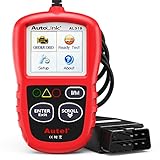
- 【TURN OFF CEL】 This AL319 car scanner diagnostic tool...
- 【EXTENSIVE APPLICATION】 Autel AL319 Compatible with...
- 【FOR END USER & DIYERS】 This error code reader AL319 is...
- 【USER-FRIENDLY DESIGN】 This OBD2 scanner and check...
- 【HIGH-QUALITY SERVICES】 12 months war.ranty from the...
Last update on 2026-06-23 / Affiliate links / Images from Amazon Product Advertising API
If the PDF is very large, it may not load in the preview below.
Some older TSBs had multiple PDFs — visit the NHTSA Website to view all PDFs.
If the TSB PDF does not show, download or view it on the NHTSA Website.
Click on the (+) Plus Sign
Then Click on Associated Document(s)
Search NHTSA Database for Recalls
Search NHTSA Database for Vehicle Investigations
View Latest Vehicle Investigations
Search NHTSA Database for Vehicle Complaints
View Latest Vehicle Complaints
TSB/Document ID: B16018
Replacement Service Bulletin Number:
MFR Communication Date: 2016-03-30
MFR Internal Campaign ID/Software Version:
Communication Type: Service Bulletin/Repair Instructions
NHTSA Components: EQUIPMENT:ELECTRICAL:NAVIGATIONAL SYSTEM(GLOBAL POSITIONING SYSTEM)
MFR Component System:
MFR Component Subsystem:
Previous TSB | Next TSB |
- 💯【Conta.ct us for Support Directly】If you met any issues about: Received a registered device/ Language Changing/ Function not Support/ VCI150 Blueto-oth connector malfunction/ Subscription Renewal, please conta.ct us via 📞autelsupply @outlook. com🛣️, we will provide perfect solution for you. ⚠️Note: Autel MK900BT comes with 1-Year Free Software Update, most features will remain active after update subscription expires. 1. For questions regarding updates or need more useful accessories, please conta.ct us via 📞autelsupply @outlook.com🛣️. 2. If the device fails to charge or turn on, please conta.ct us via 📞autelsupply @outlook. com🛣️, we will handle it promptly.
- 🔥🔥🔥【2026 AUTEL FLAGSHIP MK900BT MK900-BT, NEW MODEL OF MK808S MK900 MX900 MK808BT MX808S】2026 newest Autel MK900BT retains all features of MK808S MX900 MX808S MK808Z MK808Z-BT MK808K-BT, while EXTRA added powerful functions (value 2000+ bucks). The Pro-level Autel MK900BT makes a big leaps: 28+➡40+, 50+➡3000+ Active Tests, 2026 NEW✅CAN FD & DOIP protocols ✅Pre&Post diagnostic report ✅WIFI Print ✅Auto VIN&Auto Scan 2.0 ✅Scan VIN/ License ✅Battery Test (Need purcha.se BT506). If found defect or us.ed, please conta-ct 📞autelsupply @outlook. com📞 get perf-ect solut.ion.
- 🚗【3000+ ACTIVE TESTS (50➡3000+), SAME AS MS906 PRO】Differ from MS906BT MS906 MP808 MK808 MX808 MK808BT only 50 tests, Autel scanner MK900BT escaner automotriz professional offers 3000+ active tests, it can send command to ECUs & monitor actuators operation, quickly locating faulty components. Bidirectional scanning takes your diagnostics to the next level with menu lists 3000+ active tests, such as windows, rear mirrors, sunroof, wipers, fuel injector, coolant fans, radiator fan, AC clutch, coolant pump and more. Note: Functions are not available for all vehicles, please send vehicle VIN to us check compatibility.
- 🚗【40+ HOT SERVICES FOR 150 MAKES (28+➡40+)】Full level-up of OBD2 code reader MaxiCOM MK808S MK808 MK808Z MX808 MK808Z-BT with 28 service, Autel scan tool MK900BT/ MK900-BT offers 40+ maintenance service on 150+ brands 10,000 vehicles from 1996-2025-2026. Hottest Services like: Oil Reset, ABS Bleed, SAS Calibration, Injector Coding, SRS, Throttle Reset, Gearbox Reset, Battery Registration etc. Added 12+ advanced resets: rain slash light sensor reset, HVA.C/ SUS calibration etc. Welcome to send Vehicle Make>Model>Year>VIN>Functions you required to 📞autelsupply @ outlook . com📞 check compatibility.
- 🚗【OE ALL SYSTEM DIAGNOSE, AUTO SCAN 2.0: SCAN LICENSE/ AUTO VIN】2026 new release Autel MaxiCOM MK900-BT scan tool embodies all system diagnostic with its 8in display for all vehicles. Like Sna.p-on tools, it can perform ✔Read/Clear Codes✔Displays 5-in-1 Live Data✔Record & Playback Data✔Retrieve Info on all available systems like ABS ECM BCM SRS TCM etc. In addition to Auto VIN technology, Autel MK900BT adds Scan License/ Auto Scan 2.0 to identify vehicle’s VIN/ license, make, year, model, no need manual input; One-click WiFi Printing of Pre&Post comparison diagnostic reports, highlight root causes of problems.
- 【TURN OFF CEL】 This AL319 car scanner diagnostic tool supports Reading and Clearing DTCs, DTC Look Up, displaying Live Data, Freeze Frame & I/M Readiness, view vehicle information, etc., to figure out the root cause of the Check Engine Light (CEL) and turn it off, helping you catch any potential issues early and avoid excessive costs from unnecessary repairs.
- 【EXTENSIVE APPLICATION】 Autel AL319 Compatible with 7 languages (English, French, Spanish, etc.) and various post-1996 OBD II protocol vehicles (Toyota
 , Nissan, Honda, Ford, etc.), this OBD II scanner provides accurate and fast diagnosis for worldwide car owners.
 - 【FOR END USER & DIYERS】 This error code reader AL319 is “plug and play” and comes with an easy interface. Even if you’re not familiar with vehicle repair, you can quickly take control of this obd2 scanner, and get the information you want.
- 【USER-FRIENDLY DESIGN】 This OBD2 scanner and check engine code reader features a patented One-Click I/M Readiness, TFT color display, built-in speaker, LED Indicator etc. The cable is long enough without being too long and getting in the way. No batteries are needed.
- 【HIGH-QUALITY SERVICES】 12 months war.ranty from the date of purchase and lifetime free update are offered by this Automobile OBDII scan tool. Welcome to contact us via Q&A, email, or hotline, and our after-sale-service team for technical support.
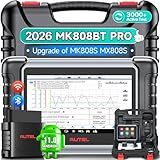
- 👨🎓Tips Before Order: 🚩All function are vehicle-specific - send VIN(17 digits)/Make/Model/Year & needed function via 📞auteldirect @ outlook . com📞 to check before order. 🚩Register tool: a) Follow on-screen guide; or b) Register em-ail on Autel we-b, then bind using SN(back of device) + verification code (find in tool settings or con-tact us via above em-ail). MK808BT PRO comes with ✅English, if need Spanish, please s.end device SN to add. ✅1-year war-ranty. ✅$150 worth 1yr fr-ee updates(New users: ignore renewal alerts). ⚠️📢Post-expiry: Most functions remain functional,for exclusions, refer to A+ Tips. ⚠️Fee for FCA AutoAuth Ga.teway(optional): $50/year, charged by AutoAuth,not Autel.
- 【2026 MK808BT PRO: Same as MK900BT, up of MK900 MX900 MK808S MX808S】Why pay more? 2026 MK808BT PRO functions as MK900BT and saves you 100USD. At same c0st, you now get diagnostic 8X faster and sup-port for 150+ models(1996-2026).💡Dramatically Improved: ✔️Faster & Smarter OS: Android 4.4➡ Android 11 ✔️More Services: 28+➡ 40+ ✔️Bidirectional Control: 50+➡ 3,000+ ✔️Enhanced Hardware: 1/32G➡ 4G/64G ✔️2.4GHz➡ 5G Dual WiFi ✔️Working range: 0.9m➡ 10m+ 🔋Battery test is clear on the large 7in display(BT506 required). 🔔Your Autel scanner is shipped brand new. For any issues(used, damaged, incompatible), e-m-a-il 📞auteldirect @ outlook . com📞 for priority resolution.
- 👍【New Next-Level Bidirectional Control, 50➡3000+ Tests, Covers Daily Repairs】Unlike the Autel DS708 DS808 MP808 MK808 and MX808 car diagnostic scanners, which offer only 50 functional tests, the Autel bidirectional scan tool MK808BT PRO is equipped with over 3000 active tests. These tests are widely used on car subsystems to help technicians quickly check if the car's actuators are functioning properly. Such as ABS, windows, rearview mirrors, wipers, sunroofs, fuel injectors, AC clutches, coolant fans, radiator fans, coolant pumps,etc. Tips📢: All functions are vehicle-specific, not universal to all vehicles,pls send VIN to 📞auteldirect @ outlook . com📞check compatibility before order.
- 👍【28+ Hot Services for 150+ Makes】Autel scan tool MK808BT PRO, upgraded with a BT VCI Mini(valued at 120USD), surpasses the old wired OBDII scanner MK808S MK900, by providing a convenient 33ft wireless working range, offering greater freedom and comfort compared to the 3.3ft cable limit of the MK900 MK808S MX808S car scanner. New features include VIN Check across different modules for comparison and 28+ resets, such as injector coding, ABS autobleed, Oil reset, SAS cali.bration, BMS, throttle relearn, suspension adjustments, etc. ⚠️📢Tips: Service functions are vehicle-specific, not universal to all vehicles, pls send VIN to 📞auteldirect @ outlook . com📞check compatibility before order.
- 👍【All Available Module Diagnosis - OE-Level Scanner】The OE versatile OBDII scan tool MK808BT PRO escaner para autos effectively works with all car systems: ABS, ECM, BCM, SRS, TCM,etc. It identifies vehicles via AutoVIN/manual input/select, like S.nap-on tools, it can ✔read/clear 7000+ DTCs, ✔read ECU info, ✔view 5-in-1 live data, ✔perform active tests, and ✔reset services. ✔Reports can be shared via QR-code and printed, working globally and 21+ multilingual. Supports 150+ US/EU/Asian makes, with ongoing updates from 2024 to 2026. ⚠️Note📢: The AutoVIN function usually works for post-2006 cars, depending on if the vehicle's VIN is stored in the ECU. You can always do manual input/select.
Last update on 2026-06-23 / Affiliate links / Images from Amazon Product Advertising API
This product presentation was made with AAWP plugin.