
NHTSA ID Number: 10201804
Manufacturer Communication Number: 15-236-18R
TSB/Document Date: 2021-10-04
Summary
The following information addresses reprogramming file availability and a software update installation procedure to provide optimization to the new Harman Gen 3.1 Audio and Navigation head units.
If the PDF is very large, it may not load in the preview below.
Some older TSBs had multiple PDFs — visit the NHTSA Website to view all PDFs.
If the TSB PDF does not show, download or view it on the NHTSA Website.
Click on the (+) Plus Sign
Then Click on Associated Document(s)


- Advanced VCI Box, Industry-leading J2534 Pass-Thru...
- High-Speed OEM-Level Diagnostics & Programming: Unlock true...
- Coverage for 17 Car Brands & Ultra Reliability: Works...
- User-Friendly RLink Platform & Expert Support: TOPDON’s...
- 6.6 ft USB-C Cable & Portable Storage Case: The RLink J...
This product presentation was made with AAWP plugin.
Search NHTSA Database for Recalls
Search NHTSA Database for Vehicle Investigations
View Latest Vehicle Investigations
Search NHTSA Database for Vehicle Complaints
View Latest Vehicle Complaints
TSB/Document ID: 15-236-18R
Replacement Service Bulletin Number:
MFR Communication Date: 2021-09-20
MFR Internal Campaign ID/Software Version:
Communication Type: Service Bulletin/Repair Instructions
NHTSA Components: ELECTRICAL SYSTEM
MFR Component System:
MFR Component Subsystem:
Previous TSB | Next TSB |
ATTENTION:
GENERAL MANAGER
q
PARTS MANAGER
q
CLAIMS PERSONNEL
q
IMPORTANT - All
Service Personnel
Should Read and
Initial in the boxes
provided, right.
SERVICE MANAGER
q
© 2018 Subaru of America, Inc. All rights reserved.
SERVICE BULLETIN
APPLICABILITY: 2019-22MY Impreza
2019-22MY Crosstrek (Including Hybrid Model)
2019-22MY Forester
2019MY Legacy/ Outback
2019-22MY WRX
2019-22MY WRX STI
2019-22MY BRZ- Navigation -equipped ONLY
2019-22MY Ascent
SUBJECT:
NUMBER: 15-236-18R
DATE: 12/04/18
REVISED: 09/20/21
Reprogramming File Availability for Optimization of Harman Gen 3.1
and Gen 3.1α Audio and Navigation Head Units
INTRODUCTION:
The following information addresses reprogramming file availability and a software update
installation procedure to provide optimization to the new Harman Gen 3.1 Audio and Navigation
head units utilized in the models as listed above. The procedure will involve either downloading
the software update files from Subarunet (or using those sent directly from Nuspire) and transferring
them onto a flash drive for head unit installation. These files do NOT include Map Update data. It is
VERY IMPORTANT to read and understand this information completely to understand all changes
from prior releases before proceeding.
A time line chart along with a complete list of all the conditions addressed by this and previous
Harman 3.1 and Gen 3.1α software updates is provided in “Appendix A” located at the end of this
bulletin.
IMPORTANT NOTES:
•
If a vehicle presents with a current blank or black screen condition, request an exchange unit.
•
Be sure to locate and re-format any existing USB drives used for updating Harman audio
units in order to fully clear them before adding these new files to them.
•
On BRZ models, this update applicable to HIGH / Navigation-equipped head units only.
•
If a Map update is pending, please follow the instructions posted on Subarunet: Service
Operations & Technical > Forms/Downloads > Navigation System Map Updates and select
the applicable link.
CAUTION: VEHICLE SERVICING PERFORMED BY UNTRAINED PERSONS COULD
RESULT IN SERIOUS INJURY TO THOSE PERSONS OR TO OTHERS.
Subaru Service Bulletins are intended for use by professional technicians ONLY. They
are written to inform those technicians of conditions that may occur in some vehicles,
or to provide information that could assist in the proper servicing of the vehicle. Properly
trained technicians have the equipment, tools, safety instructions, and know-how to
do the job correctly and safely. If a condition is described, DO NOT assume that this
Service Bulletin applies to your vehicle, or that your vehicle will have that condition.
Subaru of America, Inc. is
ISO 14001 Compliant
ISO 14001 is the international standard
for
excellence
in
Environmental
Management Systems. Please recycle
or dispose of automotive products in a
manner that is friendly to our environment
and in accordance with all local, state
and federal laws and regulations.
Continued...
Bulletin Number: 15-236-18R; Revised: 09/20/21
Page 1 of 21
PRODUCTION CHANGE INFORMATION:
These updates (December 2020) apply to the models listed
above equipped with Harman Gen 3.1 and Gen 3.1α Audio and
Navigation head units only.
The latest software version (including all available updates) was
incorporated into production per the starting VIN table to the
right:
Model
Starting VIN
Legacy
TBD
Outback
TBD
Impreza 4-Door
TBD
Impreza 5-Door
TBD
Crosstrek
TBD
BRZ*
TBD
Forester
TBD
Ascent
TBD
*HIGH / Navigation - equipped head units only
PART INFORMATION:
Multimedia System Type
Descriptive Features
6.5 Inch Display Audio System (Base)
No CD slot / Eject Button
6.5 Inch Display Audio System (Base +)
Equipped with CD Player and Eject Button
8.0 Inch Display Audio System (Mid)
Phone Button
8.0 Inch Audio / Navigation System (High)
Map Button but no Phone Button
Reference photos of each head unit faceplate are supplied below:
BASE +
Uses MID
update file
Continued...
Bulletin Number: 15-236-18R; Revised: 09/20/21
Page 2 of 21
Materials Required:
An empty, USB 2.0 or 3.0 storage device (flash drive) will be needed to perform the update
procedure. The device should be dedicated to storing and transferring these updating files only. It
must be a minimum of 16GB or more in size and contain a NTFS file format before downloading the
update files onto it.
IMPORTANT NOTES:
•
NEVER change the update file names after downloading them.
•
NEVER save any other files on the same flash drive.
There are various types of USB flash drive available from many suppliers. If the head unit does NOT
recognize the USB drive during the reprogramming process, due to controller IC type of USB drive
or compatibility with the head unit, clear the file and re-format the flash drive for “FAT32” as outlined
below in Step 2 instead of “NTFS”. If a recognition problem persists, use USB flash drive from
another manufacturer.
Recommended Flash Drives:
•
Kingston®: Data Traveler G3, G4, SE9 or the Hyper-X Series
•
SanDisk®: Cruzer Series, Ultra Flair
•
Transcend®: JetFlash 300, 600 or 790
•
Verbatim®: Store ‘n’ Go
Continued...
Bulletin Number: 15-236-18R; Revised: 09/20/21
Page 3 of 21
SERVICE PROCEDURE / INFORMATION:
REMINDER: Customer satisfaction and retention starts with performing quality repairs.
Step 1- Software Version Confirmation From the HOME screen, touch “Settings”.
After starting the engine, from the HOME screen, touch “Settings”.
•
From the Settings screen, scroll down to and then touch “System Information”.
•
The currently installed software version will be displayed. If the Software Version is
Rel_UA.19.36.70 or Rel_UF.20.28.70, (or before), proceed to Step 2. This version number
is the same for all 4 levels of head unit.
VERY IMPORTANT: If the current version is Rel_UH.20.52.70, Rel_UA.20.38.70, Rel_
UA.20.41.70 or Rel_UH.21.13.70, STOP as the latest version has already been installed and no
update is required at this time.
Continued...
Bulletin Number: 15-236-18R; Revised: 09/20/21
Page 4 of 21
STEP 2- Prepare the USB:
CAUTION: Do not use any USB flash drive which utilizes file organizing software or an operating
system.
VERY IMPORTANT: Before attempting to download any data files, confirm the PC and flash drive
being used is not infected with any virus. The flash drive MUST be formatted for NTFS .
•
Make sure the USB flash drive contains no
other files.
•
Right click on the corresponding
“Removable Disk”.
•
Select “Format”.
•
From the File System drop-down menu,
select “NTFS”
•
Check the “Quick Format” box (if not
already done).
•
Click on “Start” to format the USB flash
drive.
STEP 3- Download the Update Files to the USB:
VERY IMPORTANT: When updating a “Base +” head unit, the “MID” update files must be used.
The files are available for download on Subarunet (see “A” below).
The applicable reprogramming files have also been sent directly to retailers by Nuspire in the same
way a Select Monitor Update would be pushed out. (see “B” below).
Follow “A” when using files downloaded from Subarunet.
Follow “B” when using the files sent directly to the SDS notebook from Nuspire.
Continued...
Bulletin Number: 15-236-18R; Revised: 09/20/21
Page 5 of 21
“A” When using update files downloaded from Subarunet:
Click Here to Access the Downloads for Audio/Navigation Information on Subarunet
IMPORTANT: Files downloaded from Subarunet will be .zip files and must be unzipped before
they can be used. Using the normal audio / navigation system file update download procedure: Go
to Subarunet, select Service Operations and Technical>>Forms/Downloads>>Gen 3/Harman for
Audio/Navi then click on the applicable Hyperlink to download the file(s) to the SDS Notebook or
PC:
BASE- 2020-21 Impreza_Crosstrek_Crosstrek Hybrid & 2019 Legacy-Outback HARMAN AUDIO
UPDATE - DECEMBER 2020
BASE PLUS or MID - 2020-21 Impreza_Crosstrek Crosstrek Hybrid_Forester_Ascent & WRX - 2019
Legacy-Outback HARMAN AUDIO UPDATE - DECEMBER 2020
HIGH - 2020-21 Impreza_Crosstrek_Crosstrek Hybrid_BRZ_Forester_Ascent_WRX & 2019 LegacyOutback HARMAN AUDIO UPDATE - DECEMBER 2020
•
Go to Downloads.
•
CAUTION: After download is complete, NEVER change the file or folder names.
•
Once the files have been downloaded from Subarunet, click on the Downloads folder and then
sort by Date Modified to bring the most recent files to the top of the list.
•
Open / display the contents of File folder, for example (HIGH - 2019-20 Impreza_Crosstrek_
Crosstrek Hybrid_BRZ_Forester_Ascent_WRX & 2019 Legacy-Outback HARMAN AUDIO
UPDATE - DECEMBER 2019).
•
Click on “Extract All Files”.
•
From the dialog box, browse to My Documents then click on “Extract”.
•
Double-click on the required file (for this example, select the file entitled “HIGH - 2019-20
Impreza_Crosstrek_Crosstrek Hybrid_BRZ_Forester_Ascent_WRX & 2019 Legacy-Outback
HARMAN AUDIO UPDATE - DECEMBER 2019”).
•
Copy ONLY the “update” folder then paste (or click / drag) it to the “clean” USB flash drive
as listed (Removable Disk) in the directory.
•
To avoid confusion, label each flash drive with the file contents (e.g. BASE 3.1, BASE PLUS
or MID 3.1 or HIGH 3.1).
•
Go to Step 4.
Continued...
Bulletin Number: 15-236-18R; Revised: 09/20/21
Page 6 of 21
“B” When using update files sent directly from Nuspire:
•
Go to My Documents on the GUI screen to display the list of available update files shown
below.
•
CAUTION: After download is complete, NEVER change the file or folder names.
•
Sort by Date Modified to bring the most recent files to the top of the list. The folder is named:
_Harman Audio-Navi Update Files.
•
Double-click on the required file (for this example, select the file entitled “HIGH - 2019-20
Impreza_Crosstrek_Crosstrek Hybrid_BRZ_Forester_Ascent_WRX & 2019 Legacy-Outback
HARMAN AUDIO UPDATE - DECEMBER 2019”) and the update file will display as
shown.
•
Select the update folder and either copy / paste or click / drag it to the USB flash drive.
NOTE: Do not copy the entire “HIGH-20…” File folder. Copy ONLY the File folder named
“update” to the flash drive
•
Once the folder named “update” is loaded onto the USB flash drive, right click on the drive
and select “Eject”.
•
Remove the USB flash drive after the prompt appears that says “Safe to Remove Hardware”.
•
Mark the USB to indicate the head unit it will update (HIGH 3.1 in this example).
•
Repeat the above steps to create the BASE PLUS or MID 3.1 and HIGH 3.1 USB flash drives
as needed using a separate USB drive for each update folder.
STEP 4- IMPORTANT: Confirm the update folder on the USB flash drive is for the head unit being
reprogrammed ONLY. NEVER install multiple update folders onto the same flash drive at the same
time.
IMPORTANT REMINDER: When updating a “Base +” head unit, the “BASE PLUS or MID 3.1”
update files must be used.
Continued...
Bulletin Number: 15-236-18R; Revised: 09/20/21
Page 7 of 21
•
After confirmation, move to the car and either start the engine or follow the procedure as
outlined in document GR8-1100 on STIS for use of the GR8’s Power Supply Mode.
HIGH - 2019-20 Impreza_Crosstrek_Crosstrek Hybrid_BRZ_Forester_Ascent_WRX & 2019 Leg...
Copy ONLY the folder named “update” to the USB.
•
Never change the folder name from “update”.
•
Confirm there is only a folder named “update” on the flash drive.
CAUTION: Confirm one final time the head unit you are about to update matches the update file
selected. Attempting to install the incorrect update file will disable the head unit.
STEP 5- Update Installation:
IMPORTANT: Always record the customer’s radio station presets and navigation favorites (where
applicable) before proceeding further as they will most likely need to be reset once the update and
re-boot procedures are completed. In addition, some customizable system settings may need to be
reset as they may return to the default setting during the update.
•
With the engine idling (or GR8 connected), plug the flash drive into the USB Port.
IMPORTANT NOTE: If the head unit does not recognize the USB flash drive during the
reprogramming process, this may be due to an incompatible Controller IC in the USB flash drive or
it is otherwise incompatible with the head unit. If this occurs, delete all files from the flash drive and
re-format it to “FAT32”, instead of “NTFS” and reload the appropriate “update” folder to the USB
flash drive. If the USB flash drive is still not recognized, please discontinue the use of that drive and
instead use a USB flash drive from a different manufacturer.
Continued...
Bulletin Number: 15-236-18R; Revised: 09/20/21
Page 8 of 21
•
After the unit “authenticates” the USB flash drive, press “Next” and after the second screen is
displayed, press “Next” again.
NOTE: If an attempt is made to install the wrong “grade” file into the wrong grade head unit
(EXAMPLE: “Base” update file into a “Base Plus or Mid” or “High” head unit), the USB
Authentication error screen below will be displayed:
•
The current and available software version information will be displayed. The Available
Version I.D should be Rel.20.38.70.
•
After confirming the Available Version, press “Install Now” to start the reprogramming
process. The screen will go blank (black) for a brief period after installation begins.
•
Each of the updates (Base, Mid and High) should take less than 10 minutes to install.
Continued...
Bulletin Number: 15-236-18R; Revised: 09/20/21
Page 9 of 21
IMPORTANT NOTES:
• Do not leave the vehicle once the update begins as ignoring pop-up requests may lead to
battery discharge.
•
Do not touch any of the buttons on the head unit while the updating process is taking place.
•
If during the updating an error screen is displayed asking “Do you want to Retry”, press
“Retry” to restart the update.
•
Once the updating process is complete, the head unit will perform a “soft” reboot.
(NOTE: several “hard” reboots are required to fully install the update. This procedure is
covered in Step 6 below.)
•
button to
CRITICAL STEP: After the reboot process completes, press the HOME
return to the HOME screen. (NOTE: If the “install message” is displayed asking if you
want to start the update process again, press “Cancel”, press the HOME button again and
return to the HOME screen.)
STEP 6 - Turn the ignition OFF, open and close the driver’s door then remove the flash drive from
the USB port. If an error screen is displayed asking “Do you want to Retry”, press “Cancel”.
IMPORTANT: Wait AT LEAST 3 MINUTES before proceeding to Step 7.
STEP 7- Verify the newly-installed Software Version ID using the following steps:
•
Turn the ignition back ON. Confirm the “SUBARU STARLINK” screen is displayed. If
“SUBARU STARLINK” screen is NOT displayed on the first screen, system did not fully
enter “sleep mode” and reboot properly. Perform Step 6 again and wait AT LEAST 3
MINUTES before proceeding.
•
In some cases, the radio presets may not appear initially.
•
From the HOME screen, touch “Settings”.
•
From the Settings > General screen, scroll down to and then touch “System Information”.
Continued...
Bulletin Number: 15-236-18R; Revised: 09/20/21
Page 10 of 21
•

- [2026 Top-Tier Hardware and Software Upgrade]: Topdon ArtiDiag900 Lite scanner has enhanced hardware and latest features, including Android 11.0, 5x faster CPU, 10000mAh battery for 12 hours of continuous operation, stable wireless diagnosis with Bluetooth 5.0, 8-inch touchscreen. Added bi-directional control, wireless diagnosis, battery testing (optional), and DTC repair guide
- [TOPDON Bidirectional Scan Tool]: This bidirectional obd2 scanner sends commands to the vehicle's ECU for active testing, enabling users to accurately and quickly locate faulty components such as injectors, coolant pumps, windows, wipers, headlights, mirrors, etc. The bidirectional control scanner is the ideal choice for workshops/automotive repair shops as it significantly reduces mechanic's diagnostic time.
- [Wireless Bluetooth Diagnostic Experience]: The AD900 Lite scan tool comes with a Bluetooth 5.0 VCI, supporting a wireless diagnostic range of up to 33 feet (10 meters), allowing you to diagnose without being confined to cables or tight spaces. Stable and fast wireless diagnosis provides a comfortable repair environment. It also offers VCI cables to increase connectivity options.
- [DTC Repair Guide Function]: Easily diagnose issues with your vehicle and receive guidance on repairs with the topdon scan tool's fault code definitions for all systems,maximize your diagnostic capabilities. This function is compatible with Chrysler
 /Dodge/Jeep/Fiat 2010-2014 and expanding with continual updates,the AritDiag 900 Lite car diagnostic scanner is the must-have tool for any technician or DIY enthusiast.
 - [OE-Level Full System Diagnostics]:AritDiag900 Lite full system diagnostic scanner can scan ALL available modules(Engine, Transmission, Airbag, ABS, ESP, TPMS, Gateway, Steering, Radio, Air conditioning, ect.) to✔read ECU info, ✔read/clear codes, ✔view live data stream, ✔retrieves freeze-frame, ✔perform active tests, and more. With just a simple click, it provides you with accurate and in-depth diagnostics.
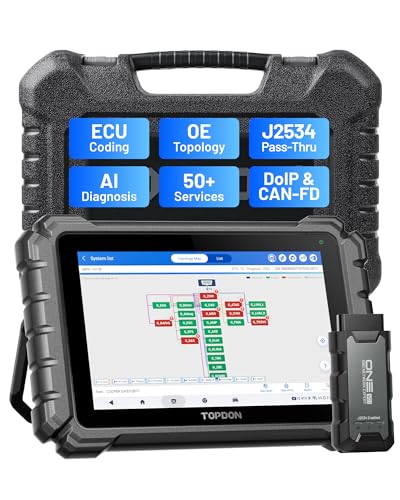
- Dual WiFi & 10.1" Touchscreen: Provides a stable, high-speed wireless link 3x faster than bluetooth, and a responsive, professional interface. Topdon ONE obd2 scanner diagnostic tool ensures smooth, non-lagging diagnostic scan, boosting mechanic efficiency
- J2534 Pass-Thru Support: The included ONE VCI supports the J2534 standard, allowing it to function as a pass-thru device when paired with OEM diagnostic software.Through TOPDON’s RLink platform, technicians can perform dealer-level coding, expanding in-house capabilities without investing in multiple factory automotive scan tools
- OE Topology Mapping: Visualize the vehicle’s ECU network exactly as it’s built.Zoom, pan, and highlight specific modules to pinpoint component issues with precision.Topology mapping displays real-time communication between modules
- Topfix AI Assistant: Covers 5 million plus fault codes and delivers instant causes, symptoms, and repair guidance with professional wiring diagrams for each code.Slashes diagnostic time, boosts first-time fix accuracy, and increases shop revenue
- 50 Plus Service Functions: Covers high-demand services like ADAS calibration, DPF regen, TPMS reset, ABS bleed, and throttle adaptation.Expands your service menu, allows you to charge premium rates, and turns away zero jobs due to lack of tooling. Vehicle-specific functionality may vary.

- Bi-Directional Control, Quickly Locate Problems: Turn your phone into a professional diagnostic tool. You can send commands from your phone to the ECU to test injectors, cooling fans, headlights, A/C clutch, windows, wipers, and more. See which one doesn't respond. Helps you quickly locate the problem and save time. No need to tear things apart, avoid blind disassembly.
- Full System Diagnostics, No Fault Hides: Unlike basic diagnostic tools that only cover 4 systems, TopScan can scan all systems. Read and clear trouble codes, view live data streams, and generate a complete vehicle health report – all issues are clear at a glance. Covers 10,000+ vehicle models and is compatible with 99.99% of vehicles.
- Flexible Subscription, Choose Advanced Features as Needed: TopScan Lite provides free-for-life access to core diagnostics, including full system scan, code reading, performance tests, and repair information. After purchase, advanced features (bi-directional control, service operations, live data, code clearing, and AI functions) are free-for-the-first-year. After the first year, if you want to use advanced features, you need to subscribe on a monthly, quarterly, or yearly basis. As new models and reset functions are updated, the tool will also be continuously upgraded.
- AI Assistant - TopFix: Think of TopFix as your personal AI mechanic. It leverages a repair database and OEM data to deliver clear, step-by-step repair solutions. Features include AI Q&A, one-click translation, and a full repair log, making your diagnostic process simpler and more efficient.
- 8+ Hot Resets, Keep Your Car in Top Shape: One-tap resets for oil, throttle, EPB, steering angle, DPF, ABS, BMS, and airbag. It enables car owners to easily perform essential maintenance, ensuring the vehicle stays in optimal condition and extends its service life.
This product presentation was made with AAWP plugin.
Last update on 2026-05-12 / Affiliate links / Images from Amazon Product Advertising API