
NHTSA ID Number: 10184949
Manufacturer Communication Number: RCB-004-16
TSB/Document Date: 2021-01-04
Summary
Emissions Recall - PM Sensor & Engine ECU Software Enhancement, verify requires the work to be performed by referencing the vehicle by VIN within the Hino Warranty System (DCS) AA2N0
If the PDF is very large, it may not load in the preview below.
Some older TSBs had multiple PDFs — visit the NHTSA Website to view all PDFs.
If the TSB PDF does not show, download or view it on the NHTSA Website.
Click on the (+) Plus Sign
Then Click on Associated Document(s)


- Advanced VCI Box, Industry-leading J2534 Pass-Thru...
- High-Speed OEM-Level Diagnostics & Programming: Unlock true...
- Coverage for 17 Car Brands & Ultra Reliability: Works...
- User-Friendly RLink Platform & Expert Support: TOPDON’s...
- 6.6 ft USB-C Cable & Portable Storage Case: The RLink J...
This product presentation was made with AAWP plugin.
Search NHTSA Database for Recalls
Search NHTSA Database for Vehicle Investigations
View Latest Vehicle Investigations
Search NHTSA Database for Vehicle Complaints
View Latest Vehicle Complaints
TSB/Document ID: RCB-004-16
Replacement Service Bulletin Number:
MFR Communication Date: 2016-07-12
MFR Internal Campaign ID/Software Version:
Communication Type: Service Bulletin/Repair Instructions
NHTSA Components: BACK OVER PREVENTION
MFR Component System:
MFR Component Subsystem:
Previous TSB | Next TSB |
EMISSIONS RECALL
AA2N0 PM SENSOR & ENGINE ECU SOFTWARE ENHANCEMENT
Subject:
PM Sensor & Engine ECU Software Enhancement
Date:
7-12-2016
Bulletin No.:
RCB-004-16
Recall No.:
AA2N0
Affected Models:
Certain 17MYCOE Trucks equipped with a J05 engine
IMPORTANT:
Verify the vehicle requires the work to be performed by referencing the vehicle by
VIN within the Hino Warranty System (DCS).
OVERVIEW:
The PM sensor of the subject vehicle population does not include the following necessary
monitors.
PM sensor tip clogged
PM sensor not in exhaust stream
PM sensor fixed resistance
PM sensor module performance (gain too high)
The following procedure provides direction for reprogramming the PM sensor and ECU
software to include the necessary monitors.
SUBJECT VEHICLES:
Certain 2017MY Hino COE trucks (155, 155h, 195 or 195h) equipped with a J05 engine.
EMISSIONS RECALL
BEFORE YOU BEGIN
- Read and understand all instructions and procedures before you begin the work.
- Read and follow all NOTICES and WARNINGS set forth in this publication. These alerts help
to avoid damage to components, serious personal injury, or both.
- Park the vehicle on a level and solid surface and apply the parking brake.
- Confirm the engine is stopped, the starter switch is in the off (LOCK) position, and the key is
removed.
- Wear safety glasses to prevent eye injuries.
- Place wheel chocks in front of and behind all wheels.
- A battery charger is installed on the vehicle to ensure battery power does not go low during
reprogramming.
-The laptop battery state is fully charged or a remote AC power supply is hooked to the laptop
to ensure the battery power does not go low during reprogramming.
PARTS
PART NUMBER
89663-E3R42A
89663-E3R52A
COE PMS
DESCRIPTION
J05ETP Engine Control Unit (ECU)
Software
J05EUG Engine Control Unit (ECU)
Software
PM Sensor Software
VEHICLE PREPARATION
1. Park the vehicle on a level and solid surface.
QUANTITY
As Required By VIN
As Required By VIN
As Required By VIN
EMISSIONS RECALL
2. Confirm the engine is stopped, the starter switch is in the off (LOCK) position, and the key is
removed.
3. Apply the parking brake.
4. Chock all of the wheels.
EMISSIONS RECALL
PM SENSOR UPDATE WIZARD (PMSUW) PREPARATION
Overview
A special reprogramming application (PMSUW) is required to reprogram the PM sensor. It is
necessary to download the reprogramming application, as well as the new software files which
are required to update the PM sensor to the latest calibration. The PMSUW reprogramming
application needs to be installed on your computer. This may require IT support if access is
restricted regarding installation of programs on your computer’s hard drive.
PMSUW Installation
If using the PMSUW for the first time, download the “ReproTool.exe” file, the
“Conventional_PMS” software file, and the “COE_PMS” software file from the
http://www.Hinonet.net website. Save the files to the hard drive of your computer.
1. Right click on the desktop and select “New”, “Folder”.
2. Name the folder “Hino PM Sensor Software”.
EMISSIONS RECALL
3. Log into Hinonet, go to the “Service” tab, “Tech Assist” then the “Recall Downloads” tab.
4. Double click the “File name PMReproV2.Zip” Select “Save As” and save it to the “Hino PM
Sensor Software” folder on the desktop.
5. Right click on the “File name PMRepro.ZIP” and select “Extract All”.
6. Save the files in the “Hino PM Sensor Software” folder. The PMSUW installation is
complete.
EMISSIONS RECALL
PC PREPARATION
PC Power Management
WARNING: Disable the computer features listed below. Failure to disable these features may
severely damage the vehicle’s PM sensor.
1. Screen saver
2. Energy saving features
a. Monitor
b. Hard disks
c. System standby
NOTICE: The illustrations depict what you will see on your computer screen with regard to the
features which should be disabled. The location on the screen of the features to be disabled
will vary, however, based upon the operating software. Consult your IT department as required.
Interface
It is acceptable to use the DST-I (Software Version 2.0 or later) or the NEXIQ USB-Link™ 2
as an interface to perform this reprogramming procedure. If using a DST-i or NEXIQ interface
for the first time, a driver needs to be installed in order to use DST-i or NEXIQ USB-Link™ 2 on
your computer. The driver for DST-i can be downloaded from the DENSO website and the
driver for NEXIQ USB-Link™ 2 from the NEXIQ website. See below.
DENSO home page: http://www.ds3.denso.co.jp/gnrl/setup/
NEXIQ home page: http://nexiq.com/USBLink2Drivers
EMISSIONS RECALL
PM SENSOR REPROGRAM REPAIR PROCEDURE
1. It is acceptable to use the DST-i (Software Version 2.0 or later) or the NEXIQ USB-Link™ 2
as an interface to perform this reprogramming procedure. To assemble the interface cable,
perform the following steps.
(1) Connect the DLC (Diagnostic Link Connector) cable to the interface.
(2) Connect the USB Cable to the interface.
(3) Connect the USB connector to the USB port on your computer.
NOTICE: DST-i with a software version below 2.0 will not work for this reprogramming
procedure. Also, the original “NEXIQ USB-Link” interface will not work for this reprogramming
procedure.
2. Locate the PM sensor on the passenger side frame rail, above the tailpipe.
EMISSIONS RECALL
3. Disconnect the electrical connector to the PM sensor by pulling the yellow locking tab up
then pulling the connector out.
NOTICE: To prevent damage to the PM sensor, make certain the key is removed from the
ignition switch prior to disconnecting the PM sensor.
4. Connect the male end of the PM sensor reprogramming harness to the vehicle harness
connector. Ensure the yellow locking tab is engaged. Connect the female end of the PM sensor
reprogramming harness to the PM sensor. Ensure the yellow locking tab is engaged.
5. Connect the PM sensor reprogramming harness to the interface (NEXIQ USB Link 2 or
DST-i).
EMISSIONS RECALL
6. Ensure that the power switch on the PM sensor reprogramming harness is set to the “OFF”
position.
7. Insert the ignition key into the starter switch and turn the key to the “ON” position.
8. Open the “ReproTool.exe” application that was saved to the Hino PM Software Folder on
your desktop.
EMISSIONS RECALL
9. Select the “Configuration” icon.
10. Select the “Load Programming File” icon.
11. From the “Hino PM Sensor Software” folder previously saved to your desktop, select the
“COE_PMS_R1.s19” file and then select the “Open” icon.
EMISSIONS RECALL
12. Under “Used Device”, select either DST-i, or USB-Link2 depending on the interface you are
using.
13. Select the “Set” icon.
EMISSIONS RECALL
14. Select the “PC Check” icon.
15. Select the “Check” icon.
NOTICE: Ensure that the driver of the connected interface device (DST-i or NEXIQ USBLink™ 2) is installed and that the interface device is properly connected.
EMISSIONS RECALL
16. The PM sensor can be reprogrammed if “[OK]” is displayed on both top and bottom rows as
shown on the left, below. If OK, select the “Return” icon.
“[NG]” will be displayed on the top row if the driver of the interface device is not installed.
Install the driver as per the manual for the interface and then perform the “PC Check” again.
“[NG]” will be displayed on the bottom row if the interface device is not properly connected.
Ensure that the cables are connected and the interface device is turned on (DST-i has an
ON/OFF switch). Ensure that the correct device is selected for “Used device” under
“Configuration” (step 7, above). Select the “Return” icon to go back to the main menu.
17. Select the “Reprogram” icon.
EMISSIONS RECALL
18. Select the “Connect” icon.
NOTICE: If a connection error is displayed, repeat steps 1-18 and ensure all steps were
performed correctly.
19. Once prompted, turn the power switch on the PM sensor reprogramming harness to the
“ON” position within 10 seconds after clicking the “Connect” icon. Select the “Boot Mode” icon
once it is selectable. Repeat steps 15 through 19 if the “Boot Mode” icon does not become
selectable.
NOTICE: The “Please Wait!” warning will remain flashing throughout this procedure.
NOTICE: The “Turn on Power supply switch on to sensor within 10 seconds” message will be
displayed throughout this procedure. The power switch is to remain “ON” until step 24, below.
EMISSIONS RECALL
20. Select the “Erase” icon once it becomes selectable.
21. Select the “Blank” icon once it becomes selectable.
22. Select the “Program” icon once it becomes selectable.
EMISSIONS RECALL
23. Monitor the programming progress bar. If the progress bar reaches 100% and no errors
are shown, select the “Return” icon and proceed to step 24, below.
”Writing error [Time out]” will be displayed if the programming fails. Close the window and
proceed to step 23a, below.
NOTICE: Skip steps 23a through 23d if programming was successful on step 23, above.
23a. Repeat steps 15 through 17, above. Ensure the PM sensor reprogramming sensor
harness switch is set to the “OFF” position before selecting the “Connect” icon. Select the
“Connect” icon.
23b. Turn the power switch on the PM sensor reprogramming harness to the “ON” position
within 10 seconds after selecting the “Connect” icon as per the instruction on the screen.
EMISSIONS RECALL
23c. Select the “Forced Connect” icon once it is selectable.
23d. Repeat steps 19 through 23, above.
If programming is now successful, proceed to step 24, below.
If programming fails again, repeat steps 23a through 23d once more. If you receive a “Writing
Error, [time out]” after three failed reprogramming attempts, the PM sensor is faulty and will
require replacement. After replacing the PM sensor, validate it has the latest software by
performing steps 25 through 28, below. If the new sensor is not at the latest software level,
repeat this procedure from the beginning to update the software on the replacement PM
sensor.
24. Turn the power switch on the PM sensor reprogramming harness to the “OFF” position.
EMISSIONS RECALL
25. Select the “Sensor Version” icon.
26. Turn the power switch on the PM sensor reprogramming harness to the “ON” position and
select the “Version Check” icon.
NOTICE: If a communication failure message is displayed after selecting the “Version Check”
icon, repeat steps 24 through 26, to validate the sensor version.
EMISSIONS RECALL
27. Verify that the PM sensor software version was updated to the correct level. Refer to the
image below for the proper CAL_ID and CVN of the updated PM sensor software. If the
CAL_ID and CVN match the image shown below, reprogramming was successful. Select the
“Return” icon to go back to the main menu and exit the program.
CAL_ID= 3037H
CVN=0a52H
28. Turn the power switch on the PM sensor reprogramming harness to the “OFF” position,
and turn the ignition key switch to the “OFF/Lock” position and remove the key from the starter
switch.
29. Disconnect the PM sensor reprogramming harness from the vehicle harness connector by
releasing the yellow locking tab. Disconnect the PM sensor reprogramming harness from the
PM sensor by releasing the yellow locking tab.
NOTICE: To prevent damage to the PM sensor, make certain the key is removed from the
ignition switch prior to disconnecting the PM sensor.
EMISSIONS RECALL
30. Connect the electrical connector to the PM sensor. Ensure the yellow locking tab is pushed
down to lock the connector in place.
31. The preferred method to show the recall has been performed is to install a white paint mark
on the PM sensor housing as shown in the photograph below.
32. The PM sensor reprogram repair procedure is complete. Proceed to the engine ECU
reprogramming procedure.
EMISSIONS RECALL
ENGINE ECU REPROGRAM REPAIR PROCEDURE:
1. It is acceptable to use the DST-i or the NEXIQ USB-Link™ 2 as an interface to perform this
reprogramming procedure. To assemble the interface cable, perform the following steps.
(1) Connect the DLC (Diagnostic Link Connector) to the interface.
(2) Connect the USB Cable to the interface.
(3) Connect the USB connector to the USB port on your computer.
2. Connect the DLC cable to the vehicle’s DLC connector. The DLC connector is found under
the dash on the left side of the steering column.
EMISSIONS RECALL
WARNING: Disable the computer features listed below. Failure to disable these features may
severely damage the vehicle’s ECU.
1. Screen saver
2. Energy saving features
a. Monitor
b. Hard disks
c. System standby
NOTICE: The illustrations above depict what you will see on your computer screen with regard
to the features which must be disabled. The location on the screen of the features to be
disabled will vary based upon the operating software. Consult your IT department as required.
3. On your computer, locate the “Hino DX2” icon and open it.
4. Hino DX2 will prompt you for a “User ID” and “Password”. Enter your User ID, password
and then select the “Login” icon.
EMISSIONS RECALL
5. Insert the ignition key into the starter switch and turn the key to the “ON” position.
6. Select the “Reprogramming” icon.
7. Select “300 Series” under the “Vehicle Classification” drop down menu.
EMISSIONS RECALL
8. Select “Engine J-Series” under the “System Classification” drop down menu and then select
the “OK” icon.
9. Inspect the current ECU software level based on the following table:
J05ETP Engine Control Unit (ECU) Software
89663-E3R42A
J05ETP Engine Control Unit (ECU) Software
89663-E3R52A
Does the current ECU software level match one of the software part numbers above?
Yes - ECU software reprogramming is NOT required, proceed to step 22.
No - ECU software reprogramming is required, proceed to step 10.
EMISSIONS RECALL
10. Select the “Click” button.
11. Select the “Browse” icon and locate the appropriate ECU software part number based on
the following table:
J05ETP Engine Control Unit (ECU) Software
89663-E3R42A
J05ETP Engine Control Unit (ECU) Software
89663-E3R52A
EMISSIONS RECALL
12. Select “ECU Program Update” under the “Contents of Work” drop down menu.
13. Select the “Write To ECU” icon.
Note: The “Judgment” should be the color green or the color yellow. If the color red is shown,
reconfirm your software versions and battery status for the vehicle and laptop.
EMISSIONS RECALL
14. Once the ECU programming is complete, the “Finish” icon will be made available to select.
Select the “Finish” icon.
15. Turn the starter switch to the “LOCK” position and remove the key.
16. Insert the ignition key into the starter switch and turn the key to the “ON” position.
EMISSIONS RECALL
17. During ECU software reprogramming, other DTC’s may have been set. These DTC’s will
need to be cleared prior to completing this Emissions Recall. Select the “Diagnosis” icon.
18. Check mark the “Device Classification”. This should automatically check mark the
remaining devices. Select the “Read Out” icon.
EMISSIONS RECALL
19. Select the “Delete All” icon.
20. Select the “Delete” icon.
21. ECU reprogramming is complete. Select the “OK” icon.
EMISSIONS RECALL
22. Select the “New Diagnosis” icon.
23. Select the “OK” icon.
24. Turn the starter switch to the “LOCK” position and remove the key.
25. Proceed to the final inspection section to complete this recall procedure.
EMISSIONS RECALL
FINAL INSPECTION
1. To complete this recall procedure, review the recall and confirm the following:
The PM sensor software reprogramming recall has been completed prior to performing this
procedure.
When reprogramming the PM sensor and engine ECU, DTC’s may have inadvertently been set
in the engine ECU. Make certain that all codes logged as a result of the ECU reprogramming
have been cleared from the Engine ECU, Transmission ECU, ABS ECU, DCU and VCS prior to
releasing the truck back to the customer.
CLAIM APPLICATION
PM Sensor and Engine ECU Reprogramming:
a) Recall No: AA2N0
b) Labor charge: 1.3hr
c) Warranty code: 86311
d) Trouble code: 98
e) Operation code: 86350AOT
f) Original failed part: 9999999999
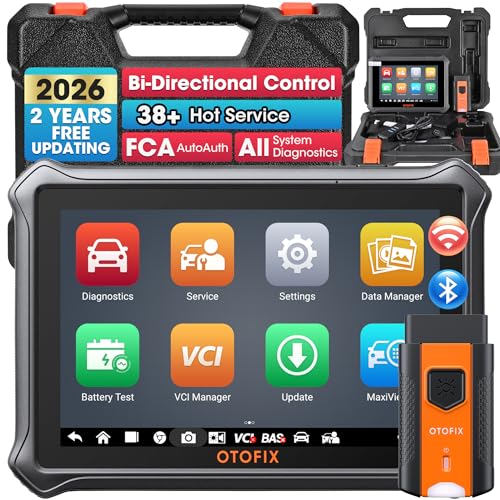
- 🎉[OTOFIX D1 Lite, Perfect Cost-effective Diagnostic Tool]: OTOFIX D1 Lite, a newest bidirectional scan tool from OTOFIX company, is a great choice for DIYers and repair shops. 👉This obd2 scanner diagnostic tool packs all practical functions: OE level all systems diagnoses, Bi-Directional Control, 38+ reset services fixing 99% of common problems, support DoIP & CANDF protocols and FCA
 AutoAuth, high-end hardware configuration. Worldwide vehicles and 🔥2 Years Free Updating🔥 covered.
 - 🎉[Bi-Directional Scan Tool, Active Test]: OTOFIX D1 Lite bluetooth obd2 scanner can also command ECUs and monitor the operation of the actuators to track down the problems of certain parts, like windows, sunroof, wipers, fuel pumps, etc., saving repair time & trouble. This makes OTOFIX D1 Lite the most cost-effective bidirectional scan tool.
- 🎉[2026 Newest, 38+ Hot Reset Functions]: Equipped with 38+ reset functions in one, the OTOFIX D1 lite automotive scanner diagnostic tool allows you to troubleshoot 99% of common vehicle problems. You can use this car diagnostic scanner holding enough functions to easily repair common vehicle models in your repair shops. Including Oil Reset, Injector Coding, Throttle, DPF Reset, SCR Reset, Gear Learning, Clutch Learning, Suspension, etc. Note* Reset functions vary by model.
- 🎉[OE Level Full Systems Diagnostics]: Unlike the 2-system and 4-system diagnostic tools, the OTOFIX auto scan tool can complete comprehensive system diagnostics within 5 minutes. It accesses and scans all available onboard systems like for Engine /AT /ABS /EPB /BMS /TPMS /SRS /SAS /Audio System /BCM /Air Conditioning / etc., to read & clear codes, view live data, and check ECU information. Note: Active test is not involved.
- 🎉[Powerful Hardware Configuration]: Designed with a fashion appearance & a 7” touchscreen and a weight of 463g, this OTOFIX D1 Lite OBD2 diagnostic scanner scan tool is convenient for everywhere and easy to use & store. Android9.0 OS and 2+64GB memory enhance multi-task smoothness and diagnostic operation, no more wasting too much time. 5800mAh battery allows hours-lasting use. WiFi & VCI1 also bring faster communication for your diagnostics.
 AutoAuth, high-end hardware configuration. Worldwide vehicles and 🔥2 Years Free Updating🔥 covered.
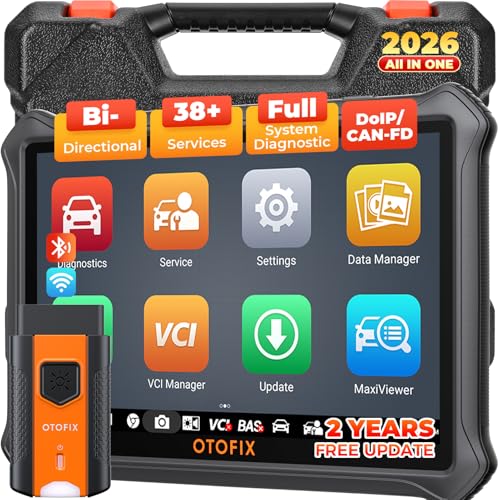
- 🏆【2026 TOP OBD2 Scanner Diagnostic Tool】OTOFIX D1 Lite wireless obd2 scanner has upgraded hardware configuration and car coverage. The newly upgraded D1 Lite with 🔥OS Android 9.0🔥1.5Ghz 4 core high efficiency processor🔥2GB RAM+64GB ROM large storage🔥5800mAh large battery, more stable and longer lasting diagnostics🔥 38+ Reset🔥action tests🔥full system diagnostic🔥Supports MV105 endoscope🔥21+ Language Supports🔥100000+ vehicle coverage to meet all your daily maintenance needs.
- 👍【Bi-Directional Control / Active Test】D1 Lite obd2 scanner has bidirectional control(worth $300+), which is the most beloved feature among mechanic. If your headlights or car windows are broken, going to a repair shop will cost a lot of money. You can use D1 Lite to send execution commands to the ECU module and identify the repair status. Such as ABS, car windows, doors, valves, wipers, headlights, etc., effectively shorten diagnostic time and reduce diagnostic costs.
- 🔥【All Systems Diagnostics, In-depth Checking】This advanced OBD2 Scanner D1 Lite can perform OE-level diagnosis of all systems including engine, transmission, airbag, ABS, ESP, TPMS, gateway, steering, radio, and air conditioning for more than 100 brands. This diagnostic scanner supports essential functions, such as reading ECU version info, reading and clearing fault codes, and reading data streams.With just a simple click, it provides you with accurate and in-depth diagnostics.
- 🏆【38+ Reset Hot Functions】For repair workshops, holding an OTOFIX D1 Lite Auto scanner is a strong advantage over others. Its 38+ maintenance functions provide various solutions for all module repairs, including Oil Reset, TPMS Reset, Injector Coding, Suspension, Throttle Matching, etc., which will usher your repair business to a new pinnacle. Continuously updating will never make the functionality & compatibility out-of-date.
- 🏆【150+ Models, 10000+ Car Coverage & 16 Languages】D1 Lite is a comprehensive car diagnostic scan tool, help you to troubleshoot car issues fast for 95% US, European, Asian auto makes. ✅ With frequent updates and optimizations allow D1 Lite to cover more vehicles to meet your needs. ✅ Multilingual menu allows auto mechanics around the world to use it without language barriers. 🚩Note: Kindly send us the S/N of the device to authorize new language updates before changing the menu language.
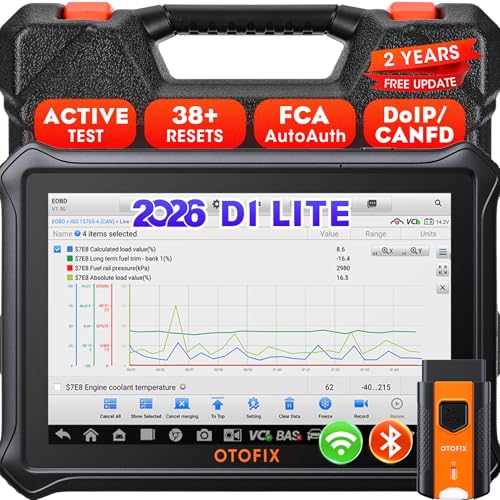
- 【2026 OTOFIX D1 Lite Gives the Best Value for Money】OTOFIX D1 Lite bidirectional scan tool is more FASTER and SMARTER with 2026 Enhanced Hardwares & New Functions! 👍Alternative Bluetooth +USB connect 👍2G+64GB 👍4x ARM Cortex-A35 (1.5GHz) Processor (5X Faster CPU) 👍Android 9.0 OS 👍5G GHz WiFi 👍CANFD&DOIP 👍 FCA AutoAuth 👍38+ Services 👍3K+ Bi-Directional Control 👍Full Systems Diagnose 👍2 Years Update 👍150+ Vehicle Coverage.
- 👍【Active Tests】 OTOFIX D1 Lite is a bi-directional scan tool that can send commands to, and also receive information from vehicle control modules. This way, you can quickly locate and repair faulty auto parts. For Example: send direct commands to ask the vehicle to turn on/off the radiator fan, lights, sound horn, fuel pump, modulate throttle, open/close windows, operate mirrors and more. *Note that only available tests will be displayed in the menu.
- 👍【38+ Service Functions】 OTOFIX D1 Lite scan tool offers 38+ of the hottest service functions that are commonly used for car repairs. That include Oil reset/SAS/EPB/BMS/Throttle/ABS bleeding, and 2065-new SUS/ADBLUE/NOX/Headlamp resets (and more) to help restore your car status after repairs are done. Compared to other diagnostic scanners for cars, the OTOFIX D1 Lite scanner is much more fully-featured. *Note that specific functions available depend on the make/model/year of your car.
- 👍【All System Diagnostics + Cloud Report Management】 This 2026 car scanner OTOFIX D1 Lite provides troubleshooting and data for all ECUs: read/clear DTCs, view graphic live data/VIN, and locate system faults for safe driving. With Cloud Report Management, you can save detailed reports to cloud servers and easily shared them with others via QR codes/emails/text messages. Others can access these reports from any device (smartphones/tablets/PCs …) anytime, and you can better manage repair work.
- 👍【99% Car Coverage】 This one-station car scanner diagnostic for all cars works on 150+ major car brands across the world. 1) It supports CAN-FD/DoIP protocols: compatible with GMCAVALIER/TRAX/Encore/Envision/GL8(LSY)/CT4/CT5 after 2019; Volvo after 2018; Land Rover/Jaguar after 2017; and BM.W F/G all chassis. 2) For models equipped with security modules (such as Renault & 2018+ FCA SGW), its built-in AutoAuth allows you to easily break diagnostic barriers after registration.
This product presentation was made with AAWP plugin.
Last update on 2026-05-13 / Affiliate links / Images from Amazon Product Advertising API