
NHTSA ID Number: 10176163
Manufacturer Communication Number: 2251157
TSB/Document Date: 2020-06-04
Summary
Forest River shared this TSB from our supplier, FireFly, Inc. to our dealers: Firefly Integrations has identified corrupted messages that could be sent on the RV-C communication network. Firefly strongly urges this critical update to your coach’s software to keep all devices on the network communicating correctly.
TECHNICAL SERVICE BULLETIN
Firefly Integrations
1013 Elroy Drive
Middlebury, IN 46540
Technical Service Bulletin: CV1-4
,
5/22/2020
This Notice applies to your vehicle VIN listed above.
Dear Forest River Customer:
Firefly Integrations (who provide the programming and hardware for the switches and touchscreen in your coach) is
alerting you to an issue involving certain Coachmen recreational vehicles. Please see the information below which
describes the issue and provides you with details on the steps you should take to have your vehicle repaired.
WHAT IS THE ISSUE?
Firefly Integrations has identified corrupted messages that could be sent on the RV-C communication network.
Firefly strongly urges this critical update to your coach’s software to keep all devices on the network communicating
correctly.
OWNERS: WHAT SHOULD YOU DO?
Please scan the barcode or follow the link to visit http://www.fireflyint.com/cmctsb042020.html to request the
update kit, free of charge.
We value your time and understand how
disruptive a service appointment can be.
That’s why this update has been specifically
designed for a coach owner to perform
themselves in just a couple of minutes. Easy
to follow written instructions (with instructional
video links) have been included in this
document. As always, if you need assistance,
our knowledgeable Technical Support team is
here to help M-F 8am – 4:30pm EST.
Note: Before visiting the website or calling
for a consultation, please note the GUI and
Logic Controller version numbers (located
on the Settings page of your touchscreen).
Example – GUI and LC 4.23
Page 1 of 5
If you do not feel comfortable performing the update yourself, please contact your dealer immediately and request a
service appointment to schedule the free repair. The vehicle Owner is responsible for making arrangements to
have the work completed. Please state you have been notified by Firefly Integrations of the issue and provide the
TSB number (located at the top of this page) to the dealership. It is also helpful to give the dealership a copy of this
letter when you take your vehicle in for the repair.
You may visit https://coachmenrv.com/dealer-locator to search for dealer locations.
HOW LONG WILL THE REMEDY PROCESS TAKE?
The estimated time of update is .25 hours. However, If a dealership is performing the update, they may need to
keep your vehicle or schedule an appointment with you for a later date to fit into their regular service schedule.
DEALERS: WHAT SHOULD YOU DO?
See the attached service instructions.
MAY FIREFLY INTEGRATIONS ASSIST YOU FURTHER?
CONTACT
Technical Support
Jennifer Holderread (Warranty Mgr.)
HELPFUL CONTACT INFORMATION:
PHONE
574-825-4600
574-825-4600
EMAIL
[email protected]
[email protected]
DEALER REPAIR CODES: All claims should be submitted to Firefly Integrations
UNITED
CANADA
REPAIR
DESCRIPTION
STATES
CODE
CV1-4
CV1-4
70995
CONDUCT REMEDY PER INCLUDED INSTRUCTIONS
ALLOWABLE
HOUR(S)
.25
WHAT IF YOU HAVE PREVIOUSLY PAID FOR REPAIRS TO YOUR VEHICLE FOR THIS PARTICULAR
CONDITION?
If you have already paid for a repair that is within the scope of this service bulletin, you may be eligible for a refund
of previously paid repairs. Refunds will only be provided within the scope of this Technical Service Bulletin.
Please send the service invoice to the following address:
Firefly Integrations
Attn: WARRANTY MANAGER
1013 Elroy Drive
Middlebury, IN 46540
If you have already had this condition remedied at no cost under warranty, please disregard this notice.
PLEASE NOTE: FEDERAL LAW REQUIRES THAT ANY VEHICLE LESSOR RECEIVING THIS SERVICE
BULLETIN NOTICE MUST FORWARD A COPY OF THIS NOTICE TO THE LESSEE WITHIN TEN DAYS.
Sincerely,
Leon Bontrager
President
Firefly Integrations, LLC.
Page 2 of 5
Service Instructions – Firefly Software Update
Tools Needed:
• Flat Screwdriver (for 4.3” touchscreens only)
Parts Required: The Technical Support staff at Firefly Integrations will need to determine the exact hardware
necessary to update your specific coach. You will be sent one of the following hardware items:
• USB Flash Drive – This will be the update method used for most coaches. The USB Flash Drive will be
used to update systems with color touchscreens labeled Bootloader 2V0.
• Programmer Switch – This method will be used to update systems with monochrome touchscreens and/or
color touchscreens not labeled Bootloader 2V0.
It may be necessary to remove the touchscreen from the wall in order to determine the Bootloader version in your
coach. If instructed by Firefly, please see the Screen Removal Procedure below for instructions.
Programmer Switch
Bootloader Version.
USB Flash Drive
Screen Removal Procedure
Press down and pull out.
For Monochrome screens - use your fingers (at the
corners) to pry the screen away from the wall mount.
For Color screens - place your fingers along the top of the
screen and apply pressure “down and out” to “pop” the
screen out of the wall mount.
To Reinstall - line the screen back up with the wall mount
and apply pressure to “snap” the screen back onto the wall
mount.
Pry at all 4 corners.
Page 3 of 5
Flash Drive Update Procedure
If you have been sent a Programmer Switch, please disregard this section and skip to the Programmer Switch
Update Procedure on page 5.
Please note that your Firefly system will reset during the update which will cause all coach lighting to turn off. You
may wish to use a flashlight for additional lighting during the update.
Follow this link (or scan the code) to watch a short video of the update process: https://youtu.be/BUIEpvGLhQs.
1
Remove the touchscreen from the wall.
Be careful not to drop the touchscreen once it breaks free from the wall mount. Do not unplug the Network Cable
from the back of the touchscreen.
2
Plug the Flash Drive into the USB Port on the back of the Touchscreen then perform a power cycle (turn off your
house 12V power for 10 seconds then turn it back on).
2
Network Cable
3
4
5
Once the touchscreen boots back up, the screen will display
as shown. Up to 4 configuration updates may be required.
Tap the first required config update to begin the installation
process (skip any that say No Update Required). Once
the status for the first required update changes to Update
Successful, repeat this process for any remaining updates.
3
Once all configs have been Updated Successfully, tap Exit.
Now, remove the Flash Drive from the screen and perform a
power cycle once again.
To verify the update, check your GUI and LC versions on the
Settings page to ensure that they both read Version 4.25. If they
do not, perform the entire procedure again.
4
5
6
Reinstall the touchscreen (apply pressure to the corners to “snap” it back on the wall mount). The update is now
complete.
Note: it is not necessary to return the Flash Drive to Firefly Integrations.
Page 4 of 5
Programmer Switch Update Procedure
Please note that your Firefly system will reset during the update which will cause all coach lighting to turn off. You
may wish to use a flashlight for additional lighting during the update.
Follow this link (or scan the code) to watch a short video of the update process: https://youtu.be/XOaDjYn5FBM.
This procedure will update your system’s Logic Controller version only. The GUI version will not change.
1
Remove the touchscreen from the wall and disconnect the attached Network Cable.
4.3” Monochrome Touchscreen
1
1
Network Cable
2
Apply pressure to the latch and pull to disconnect the
Network Cable (screwdriver used above).
Plug the Network Cable into the Programmer Switch.
The LED’s beside buttons A and D will illuminate, along with a
solid green Network LED at the bottom of the switch.
3
Press and Release Button A.
The LED beside button A will flash momentarily before turning
solid green once it has completed uploading.
4
2
Press and Release Button D.
Notice: The LED beside button D will not change.
5
Disconnect the Programmer Switch and plug the Network
Cable back into the Touchscreen.
6
Power Cycle the coach (turn off 12V house power for at least 10 seconds before turning it back on).
7
To verify the update, ensure that the Logic Controller version (Settings page) has been updated to the version listed
the programmer switch’s label (V1.7, V2.2, V3.6 or V4.25). If it has not, perform the entire procedure again.
7
8
V4.25
Reinstall the touchscreen (apply pressure to “snap” it back on the wall mount). The
update is now complete.
Note: it is not necessary to return the Programmer Switch to Firefly Integrations.
Page 5 of 5
BULLETIN DE SERVICE TECHNIQUE
Firefly Integrations
1013, Elroy Drive
Middlebury, IN 46540
Bulletin de service technique : CV1-4
, ,>
5/12/2020
Cet avis s’applique à votre véhicule NIV énuméré ci-dessus.
Cher client de Forest River :
Firefly Integrations (qui fournit la programmation et le matériel pour les commutateurs et l’écran tactile de votre
autocar) vous avertit d’un problème impliquant certains véhicules récréatifs Coachmen. Veuillez consulter
l’informations ci-dessous qui décrit le problème et vous fournit des détails sur les étapes ὰ suivre pour faire réparer
votre véhicule.
QUEL EST LE PROBLÈME?
Firefly Integration a identifié des messages corrompus qui pourraient être envoyés sur le réseau de
communication RV-C. Firefly recomende fortement cette mise à jour critique du logiciel de votre coach pour garder
tous les appareils sur le réseau communiquant correctement.
PROPRIÉTAIRES: QUE DEVEZ-VOUS FAIRE ?
Veuillez scannez le code-barres (à partir de votre appareil intelligent) ou suivre le lien pour visiter
www.fireflyint.com/cmc425form.html pour demander le kit de mise à jour, gratuitement.
Nous apprécions votre temps et comprenons à
quel point un rendez-vous de service peut être
perturbateur. C’est pourquoi cette mise à jour a
été spécialement conçu pour un propriétaire
d’autocar ὰ l’exécuter en seulement quelques
minutes. Des instructions écrites faciles à suivre
(avec des liens vidéo pédagogiques) ont été
incluses dans ce document. Comme toujours, si
vous avez besoin d’aide, notre équipe de
soutien technique compétente est là pour aider
M-F 8h - 16h30 HNE.
Remarque : Avant de visiter le site Web ou d’appeler à une consultation, veuillez noter les numéros de
version GUI et Logic Controller (situés sur la page Paramètres de votre écran tactile).
Exemple - GUI et LC 4.23
Page 1 De 6
Si vous ne vous sentez pas à l’aise d’effectuer la mise à jour vous-même, veuillez communiquer immédiatement
avec votre concessionnaire et demander un rendez-vous de service pour planifier la réparation gratuite. Le
propriétaire du véhicule est responsable pour faire des arrangements pour fair acomplire les travaux. Veuillez
indiquer que vous avez été informé par Firefly Integrations du problème et fournissez le numéro du BST (situé
en haut de cette page) au concessionnaire. Il est également utile de donner au concessionnaire une copie de
cette lettre lorsque vous amener votre véhicule pour la réparation.
Vous pouvez visiter https://coachmenrv.com/dealer-locator pour rechercher les emplacements des
concessionnaires.
COMBIEN DE TEMPS LE PROCESSUS DE RECOURS PRENDRA-T-IL?
Le temps estimé de mise à jour est . 25 heures. Toutefois, si un concessionnaire effectue la mise à jour, il
peut avoir besoin de garder votre véhicule ou de planifier un rendez-vous avec vous pour une date ultérieure pour
s’adapter à leur horaire de service régulier.
CONCESSIONNAIRES: QUE DEVEZ-VOUS FAIRE ?
Voir les instructions de service ci-jointes.
FIREFLY INTEGRATIONS PEUVENT-ELLES VOUS AIDER DAVANTAGE ?
Contact
Soutien technique
Jennifer Holderread (Garantie Mgr.)
INFORMATIONS DE CONTACT UTILES :
Téléphone
email
574-825-4600
[email protected]
574-825-4600
[email protected]
DEALER REPAIR CODES: Toutes les réclamations doivent être soumises à Firefly Integrations
ÉTATS
CANADA
Code
Description
HEURE
UNIS
Reparation
ADMISSIBLE(S)
CV1-4
CV1-4
70995
REMÈDE DE CONDUITE PAR INSTRUCTIONS
INCLUSES
.25
QUE FAIRE SI VOUS AVEZ DÉJÀ PAYÉ POUR LES RÉPARATIONS DE VOTRE VÉHICULE POUR CETTE
CONDITION PARTICULIÈRE?
Si vous avez déjà payé pour une réparation qui relève du présent bulletin de service, vous pourriez être éligible
pour un remboursement des réparations précédemment payées. Les remboursements ne seront fournis que
dans le cadre scope du présent Bulletin de service technique.
Veuillez envoyer la facture de service à l’adresse suivante :
Firefly Integrations
Attn: WARRANTY MANAGER
1013, Elroy Drive
Middlebury, IN 46540
Si vous avez déjà eu cette condition corrigée sans frais sous garantie, veuillez ne pas tenir compte de cet avis.
VEUILLEZ NOTER QUE LA LOI FÉDÉRALE EXIGE QUE TOUT BAILLEUR VEHICLE RECEVANT CET AVIS
DE BULLETIN DE SERVICE DOIT TRANSMETTRE UNE COPIE DE CET AVIS AU LOCATAIRE DANS LES DIX
JOURS.
Sincèrement
Léon Bontrager
Président
Firefly Integrations, LLC.
Page 2 De 6
Instructions de service - Mise à jour logicielle Firefly
Outils nécessaires :
• Tournevis ὰ tête plate (pour 4,3" écrans tactiles seulement)
Pièces requises : Le personnel de soutien technique de Firefly Integrations devra déterminer le matériel exact
nécessaire pour mettre à jour votre coach spécifique. Vous serez envoyé un des éléments matériels suivants:
• USB Flash Drive - Ce sera la méthode de mise à jour utilisée pour la plupart des autocar. Le USB Flash
Drive sera utilisé pour mettre à jour les systèmes avec des écrans tactiles couleur étiqueté Bootloader
2V0.
• Commutateur de programmeur - Cette méthode sera utilisée pour mettre à jour les systèmes avec des
écrans tactiles monochromes et / ou écrans tactiles couleur non étiqueté Bootloader 2V0.
Il peut être nécessaire de retirer l’écran tactile du mur afin de déterminer la version Bootloader dans votre autocar.
Si Firefly a reçu des instructions, veuillez consulter la procédure d’enlèvement de l’écran ci-dessous.
Commutateur de
programmeur
Version Bootloader.
USB Flash Drive
Procédure de suppression d’écran
Appuyez et retirez-vous.
Pour les écrans monochromes - utilisez vos doigts (dans
les coins) pour arracher l’écran loin de la monture murale.
Pour les écrans de couleur - placez vos doigts le long du
haut de l’écran et appliquez la pression "vers le bas et
dehors" pour "pop" l’écran hors de la monture murale.
Pour Reinstaller - Enligner l’écran vers le haut avec la
monture murale et appliquer la pression pour enclencher
l’écran de retour sur la monture murale.
Retirer les 4 coins.
Page 3 De 6
Procédure de mise à jour Flash Drive
Si vous avez reçu un commutateur de programmeur, veuillez ignorer cette section et passer à la procédure de mise
à jour du programmeur Switch sur la page 5.
Veuillez noter que votre système Firefly sera réinitialisé pendant la mise à jour, ce qui entraînera
l’arrêt de tout éclairage de l’autocar. Vous pouvez utiliser une lampe de poche pour un éclairage
supplémentaire pendant la mise à jour.
Suivez ce lien (ou scannez le code avec votre appareil intelligent) pour regarder une courte vidéo du procéssus de
la mise à jour: www.fireflyint.com/cmc425video.html.
1
Retirez l’écran tactile du mur.
Veillez à ne pas laisser tomber l’écran tactile une fois qu’il se libère de la monture murale. Ne débranchez pas le
cable Network à l’arrière de l’écran tactile.
2
Branchez le Lecteur Flash dans le port USB à l’arrière de l’écran tactile, puis effectuez un cycle de puissance
(éteignez la puissance de votre maison 12V pendant 10 secondes, puis r’allumez la).
2
Câble réseau
3
Une fois que l’écran tactile et redémarré, l’écran s’affichera
comme indiqué. Jusqu’à 4 Configuration mises à jour
peuvent être nécessaires. Appuyez sur le premier mise à
jour de configuration Obligatoire pour commencer le
processus d’installation (sauter tout ce qui dit aucune mise
à jour requise).
3
L’orsque le statut de la première mise à jour Obligatoire les
modifications apportées à la mise à jour réussie, répétez ce
processus pour Tout mises à jour restantes.
4
5
Une fois que tous les configs ont été mis à jour avec succès,
appuyez sur Sortie. Maintenant, retirez le Lecteur Flash de
l’écran et effectuez un cycle de puissance une fois de plus.
Pour vérifier la mise à jour, reviser vos versions GUI et LC sur la
page Paramètres À s’assurer qu’ils lisent tous les deux la version
4.25. S’ils ne le font pas, effectuez à
5
nouveau l’ensemble de la procédure.
4
Page 4 De 6
6
Réinstaller l’écran tactile (appliquerunepression sur les coins pour le remettre sur la monture murale). La mise à
jour est maintenant terminée.
Remarque : il n’est pas nécessaire de retourner le Lecteur Flash a Firefly Integrations.
Procédure de mise à jour de commutateur de programmeur
Veuillez noter que votre système Firefly sera réinitialisé pendant la mise à jour, ce qui étindra tout
éclairage de l’autocar. Vous pouvez utiliser une lampe de poche pour un éclairage supplémentair
pendant la mise à jour.
Suivez ce lien (ou scannez le code à partir de votre appareil intelligent) pour regarder une courte vidéo du
procéssus de la mise à jour process: www.fireflyint.com/cmc425video.html.
Cette procédure mettra à jour la version Logic Controller de votre système uniquement. La version GUI ne
changera pas.
1
Retirez l’écran tactile du mur et déconnectez le câble réseau ci-joint. Network Cable.
Écran tactile monochrome de 4,3
po
1
1
Câble réseau
2
Appliquer une pression sur le verrou et tirer pour
débrancher le câble réseau (tournevis utilisé cidessus).
Branchez le câble réseau dans le commutateur de
programmeur.
Les boutons À côté de la LED A et D s’illumineront, ainsi
qu’une LED solide du réseau vert au bas de l’interrupteur.
3
Appuyer et relâchez le bouton A.
La LED à côté du bouton A clignote momentanément avant de
devenir vert fixe une fois qu’il a terminé le téléchargement.
4
2
Appuyer et relâchez le bouton D.
Avis: La LED à côté du bouton D ne changera pas.
5
6
Déconnectez le commutateur de programmeur et branchez le
câble réseau dans l’écran tactile.
Cycle de puissance de l’autocar (éteindre la puissance de la maison 12V pendant au moins 10 secondes avant de
le rallumer).
Page 5 De 6
7
Pour vérifier la mise à jour, assurer vous que la version Logic Controller (Page Paramètres) a été mis à jour pour la
version énumérée sur l’étiquette du commutateur de programmeur de (V1.7, V2.2, V3.6 ou V4.25). Si ce n’est pas
le cas, recommencez tout la procédure à nouveau.
7
V4 (V4).25
8
Réinstaller l’écran tactile (appliquer une pression pour le remettre en place sur la
monture du mur). La mise à jour est maintenant terminée.
Remarque : il n’est pas nécessaire de retourner le programmeur Switch to Firefly Integrations.
Page 6 De 6


- [J2534 Pass-Thru Programmer] - TOPDON RLink J2534 is...
- [All-in-One OEM Reprogramming and Diagnostics] - When...
- [Tested, Trusted, and Proven for Accuracy] - TOPDON RLink...
- [One-Click Installation, Continuous Updates] - The exclusive...
- [Works with Windows Compatibility and OEM Software...

Last update on 2026-05-22 / Affiliate links / Images from Amazon Product Advertising API
If the PDF is very large, it may not load in the preview below.
Some older TSBs had multiple PDFs — visit the NHTSA Website to view all PDFs.
If the TSB PDF does not show, download or view it on the NHTSA Website.
Click on the (+) Plus Sign
Then Click on Associated Document(s)
Search NHTSA Database for Recalls
Search NHTSA Database for Vehicle Investigations
View Latest Vehicle Investigations
Search NHTSA Database for Vehicle Complaints
View Latest Vehicle Complaints
TSB/Document ID: 2251157
Replacement Service Bulletin Number:
MFR Communication Date: 2020-05-22
MFR Internal Campaign ID/Software Version:
Communication Type: Service Bulletin/Repair Instructions
NHTSA Components: ELECTRICAL SYSTEM
MFR Component System:
MFR Component Subsystem:
Previous TSB | Next TSB |
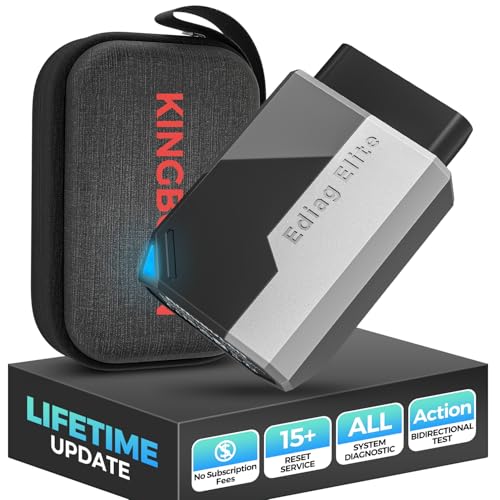
- OBD2 Bluetooth Scanner Lifetime Update: Ediag Elite offers revolutionary Advantage Lifetime Updates with unlimited access to the superior 15+ reset service, bidirectional testing and full system diagnostics.The Ediag Elite is an excellent Bluetooth OBD2 scanner diagnostic tool ideal for DIY's and private car owners.
- Bidirectional Test for Quickly Locating Problems: The Bidirectional Scan tool allows you to send commands directly from your smartphone to your vehicle for active testing. This feature helps to quickly narrow down problems such as air conditioning clutches, windows, doors, sunroofs, etc., reducing diagnostic time for mechanics and helping DIY users locate faults more easily. In addition, Ediag Elite provides fault analysis and repair guidance to help you solve problems efficiently.
- 15+ Maintenance Resets: The current version introduces 15+ popular special features: Oil Reset, Headlight Matching, Bleeding Reset, TPMS Reset, BMS Reset, Gear Box Relearn, Throttle Learning, Injector Coding, SAS Reset and more special functions in system diagnose menu. These functions make it easy for owners to carry out the necessary maintenance and servicing, ensuring that your vehicle stays in top condition, prolonging its service life and preventing common problems and breakdowns. Note: The Special function vary by model& year, Reach us check compatibility.
- Wide Compatibility CANFD & FCA
 Autoauth: Compatible with GM, Ford, Toyota, Chrysler, Honda, Mazda, Nissan, Mitsubishi, Hyundai, KIA with standard OBD2 port from 1996 to newer. More than 100+ car brands and features will be released gradually. Newest Ediag Elite scanner supports CANFD Protocol and FCA cars. Note: Coverage may vary on different vehicle by model& year ,Please contact us to confirm compatibility before purchase.
 - Perfect for Monitoring The Health of Your Vehicle: Ediag Elite is designed to make vehicle maintenance simple and efficient. With intelligent Auto VIN quick recognition, it is easy to connect to your car without the need for manual input. Real-time data is visualized in a variety of formats, including graphs, numeric, meter displays and clear 4-in-1 data charts, allowing you to effortlessly monitor real-time data. Data logging/reporting is available for playback and further analysis
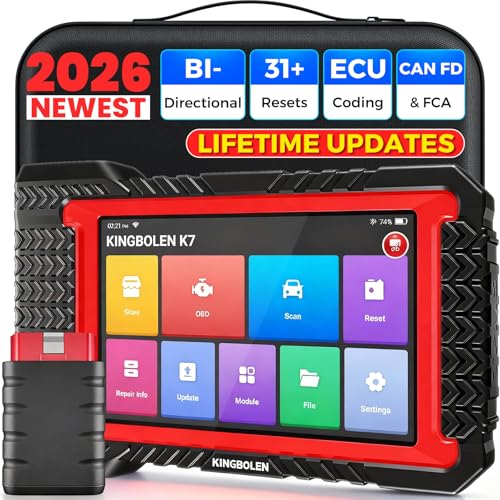
- No Annual Fees & 2026 Upgraded CAN FD: Why pay $199/year or more for updates? The 2026 newest Kingbolen K7 obd2 scanner features have been upgraded to Lifetime Updates without subscription fees, saving you significant costs in the long run. K7 scan tool also adds the CAN FD protocol for the latest GM models (2019+), enabling faster data transfer, reducing the risk of undetected errors
- 2026 Newest Top-tier Car Scanner: Kingbolen K7 diagnostic scan tool is equipped with most capabilities for daily repair/maintenance: Wireless diagnosis via Bluetooth, Bidirectional Test, ECU Online/Offline Code, 31+ Resets, PMI for Ford, Lincoln, Mazda, Global version for 100+ brand vehicles and 17 languages, no area limit, FCA AutoAuth
- OE-Level Full Systems Scan Tool: K7 professional diagnostic scanner with Auto Vin can do one-click to scan ECUs on most of vehicles, like pcm, ecm, eps, bcm, tpms, sas, a/c system... to read/clear code, view live data, freeze frame, read ecu info. 4-in-1 data stream graphics can make data viewing more intuitive. Detailed diagnostic reports will help you easily master the car situation as it can be shared by bluetooth or email! Adding workshop information can help your customers to know more
- Bidirectional Test/Active Test & ECU Code: Stop guessing and start fixing. Bidirectional scan tool Kingbolen K7 can perform real active test that can send commands to the vehicle's ECU to drive the actuators to work, like window, rear mirrors, sunroof, door, solenoids, wipers, headlamp, etc, helping you quickly find out bad parts and pinpoint faulty issues. K7 bidirectional scanner will be a good choice to save money and time on car repairs when performing complex maintenance and repair
- 31 Reset Functions: Avoid expensive dealership visits for simple services. Experience tells us that just a small repair service may cost a lot of money. Kingbolen K7 is a professional diagnostic scanner with 31 common maintenance services like Oil /SAS/EPB/TPMS Reset, Battery Matching, ABS Bleeding, Injector Code, etc. It effectively handles most of the car reset and relearning jobs, perfect for experienced DIYers and mechanics. Note: Functions in the menu vary across vehicles. Kindly check the compatibility before purchase
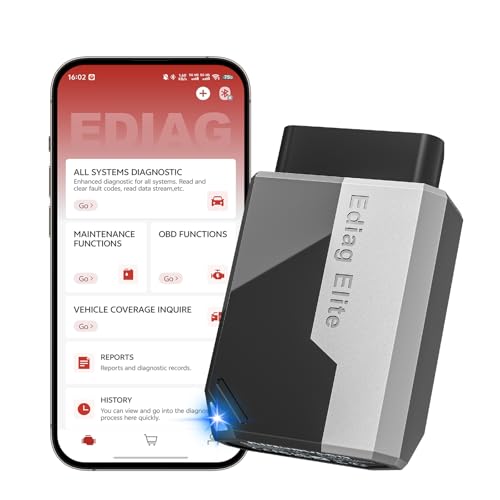
- 【Cost-effective Diagnostic Scan Tool】Lifetime updates without fee, No subscription fee required, No IP restrictions, Ediag Elite bluetooth scanner stands out. It can perform in-depth Full System diagnostics,15+ Reset Services, powerful Active Test, CANFD & FCA AutoAuth. Connect your phone via Bluetooth for diagnosis, providing a faster, smarter and smoother diagnostic experience. Easy to put in pocket, convenient to carry, keep track of the car's status anytime, anywhere. Best bang for your bucks.
- 【15+ Reset Service, Easy Problem Solving】 KINGBOLEN Ediag Elite obd2 scanner diagnostic scan tool comes with 15+ professional reset functions, including: Oil Reset, ABS Bleeding, Injector Code, SAS Reset, TPMS Reset, BMS Reset, AFS Reset, Sunroof Calibration, Brake Reset and more special functions in system diagnose menu. The ideal bluetooth scanner for mechanics and DIY enthusiasts, which can save unnecessary maintenance costs and significantly shorten repair time.
- 【Comprehensive Full Systems Diagnostic】 The Ediag Elite obd2 scanner bluetooth supports full system In-Depth diagnosis. It can read/clear fault codes, read real-time data/freeze frame, module information, and perform testing and reset functions for ECM, BCM, ABS, SRS, TPMS, TCM, BMS, SAS, A/C & RTM systems ect. It works with most car models after 1996, cover more than 150+ car brands. Supports 22 global languages for your convenience(EN, FR, ES, DE, IT, RU, PT, JP, TU...)
- 【Powerful Bidirectional Scan Tool & Active Test】 The obd2 code reader for Ediag Elite can perform real time active test that can send commands to the vehicle’s ECU to drive the actuators to work, such as turn on the radiator fan, modulate the throttle, open/close windows, etc. It can help you quickly find out the bad components and the cause of the fault, which can save you a lot of time. With BT 5.2 wireless connectivity, you can enjoy wireless diagnostics up to 33 feet.
- 【FCA AutoAuth & CANFD Compatibility】 Ediag Elite scan tool offers support with FCA Gateway Access, allowing you to perform protected functions on FCA vehicles, including Chrysler, Dodge, Jeep, Alfa Romeo, Fiat vehicles, etc.(Note:just allows you to access the FCA, but need to have your own FCA account) Supports the CAN-FD protocol, provide high-speed vehicle diagnostic communication and data transfer, working perfectly on GM vehicles produced after 2020, saving $100 to buy a CAN FD adapter.
Last update on 2026-05-22 / Affiliate links / Images from Amazon Product Advertising API
This product presentation was made with AAWP plugin.