
NHTSA ID Number: 10170854
Manufacturer Communication Number: SC-13-001
TSB/Document Date: 2020-02-11
Summary
The current internal software programming for the EV-ECU is incompatible with the Electric Vehicle Supply Equipment charger produced by Clipper Creek. Use of a Clipper Creek charger could potentially damage the internal components within the i-MiEV electrical system. If this damage occurs, it could potentially affect the i-MiEV's ability to start. This bulletin describes the procedures necessary to update the software programming of the EV-ECU to ensure compatibility between an i-MiEV and the Clipper Creek EVSE.
Page 1 of 14
SERVICE CAMPAIGN BULLETIN
SUBJECT:
i−MiEV EV−ECU SOFTWARE UPDATE FOR
CLIPPER CREEK EVSE − SERVICE CAMPAIGN
No:
SC−13−001
DATE:
January, 2013
MODEL:
2012 i−MiEV
CIRCULATE TO:
[X] GENERAL MANAGER
[ ] PARTS MANAGER
[X] TECHNICIAN
[X] SERVICE ADVISOR
[X] SERVICE MANAGER
[X] WARRANTY PROCESSOR
[X] SALES MANAGER
PURPOSE
The current internal software programming for the EV−ECU is incompatible with the Electric Vehicle
Supply Equipment charger produced by Clipper Creek. Use of a Clipper Creek charger could potentially
damage the internal components within the i−MiEV electrical system. If this damage occurs, it could
potentially affect the i−MiEV’s ability to start. This bulletin describes the procedures necessary to update
the software programming of the EV−ECU to ensure compatibility between an i−MiEV and the Clipper
Creek EVSE.
AFFECTED VEHICLES
2012 i−MiEV built from 10/28/2011 − 9/07/2012
CUSTOMER NOTIFICATIONS
A letter will be sent to all owners of affected vehicles requesting them to bring their vehicle to a local
certified Mitsubishi i−MiEV dealer to have their EV−ECU updated to the latest software. A copy of the
customer notification letter appears at the end of this bulletin.
REQUIRED OPERATIONS
Before starting this campaign procedure, CHECK THE WARRANTY SUPERSCREEN to verify if the
vehicle is an affected VIN for this campaign and this campaign procedure has not already been completed.
Repairs must be completed by a certified i−MiEV technician. Please ensure the Main Drive battery’s
charge is properly maintained while the vehicle is not being serviced.
IMPORTANT
Please ensure the Main Drive battery is fully charged prior to vehicle delivery. If the vehicle
cannot be immediately remedied, the Main Drive battery should be charged while the vehicle
is waiting for the update. This will limit customer inconvenience and maximize customer
satisfaction.
Do not charge the Main Drive battery while performing this reprogramming procedure. If the
Main Drive battery is being charged, please disconnect the charging cable before proceeding.
continued
Copyright 2013, Mitsubishi Motors North America, Inc.
(3957)
The information contained in this bulletin is subject to change. For the latest version of this document, go to the Mitsubishi Dealer Link,
MEDIC, or the Mitsubishi Service Information website (www.mitsubishitechinfo.com).
Page 2 of 14
SC−13−001
SPECIAL EQUIPMENT
The following equipment is needed to reprogram the EV−ECU:
D
VCI (Vehicle Communication Interface) − MB991824.
D
MEDIC Laptop computer with A/C power adapter − 520924, or 547708.
D
MUT−III main harness ’A’ (blue connector at the DLC end) − MB991910.
D
USB 2.0 cable − MB991827.
D
Reprogramming Database N12121 or higher
D
MEDIC 3 update at 163 or higher.
D
Standalone MUT−III laptop with Reprogramming CD 01/13 installed.
REPAIR PROCEDURE
For MEDIC 3 users only: (Stand alone MUT−III users go to step 5)
1. Verify the MEDIC 3 is at update 163 or higher.
If your MEDIC 3 update is at least 163, continue with
the REPROGRAMMING PROCEDURE below.
If your MEDIC 3 update is below 163, update your
MEDIC 3 as follows.
Update
number
2. Select the MEDIC 3 “Admin” tab. Click on “Updates.”
Click on
Updates
Page 3 of 14
SC−13−001
3. If the MEDIC Updates screen advises updates are
available, click the “Begin” button.
4. Once MEDIC 3 is at update 163 or higher, continue to
the REPROGRAMMING PROCEDURE on the following pages.
Click on begin
N12121
NXXXXXX
5. Standalone MUT−III Scan Tool Viewer (STV) ONLY:
(MEDIC 3 USERS go to the REPROGRAMMING
PROCEDURE below). Verify that your MUT−III has
the most current version of the reprogramming database:
a. From the MUT−III Main Page:
D
Select “Special Function”
D
Select “ECU Reprogramming”
D
Select “Database File Display−CAN”
D
Confirm the database number displayed at the
top right of the chart is N12121.
(1) If the database number displayed on your
MUT−III is N12121 or greater, continue to the
Reprogramming Procedure below.
(2) If the database number displayed on your
MUT−III is lower than N12121, locate the
Yellow MUT−III Reflash CD 01/13 and follow
the instructions on the CD label to update your
MUT−III.
Page 4 of 14
SC−13−001
REPROGRAMMING PROCEDURE
IN ORDER TO REPROGRAM THE EV−ECU, A BATTERY CHARGER (WITH A CHARGING RATE
NOT TO EXCEED 10 AMPS) MUST BE CONNECTED TO THE VEHICLE’S 12V AUXILIARY
BATTERY DURING THE REPROGRAMMING PROCEDURE. DO NOT ALLOW THE BATTERY
CHARGER TO TIME OUT. CONNECT THE BATTERY CHARGER WHEN INSTRUCTED.
CAUTION
NOTE:
WHEN BATTERIES ARE BEING CHARGED, AN EXPLOSIVE GAS FORMS
BENEATH THE COVER OF EACH CELL. DO NOT SMOKE NEAR BATTERIES
ON CHARGE OR WHICH HAVE RECENTLY BEEN CHARGED. DO NOT
BREAK LIVE CIRCUITS AT THE TERMINALS OF THE BATTERIES ON
CHARGE. A SPARK WILL OCCUR WHERE THE LIVE CIRCUIT IS BROKEN.
KEEP ALL OPEN FLAMES AWAY FROM THE BATTERY.
VCI Stand−alone reprogramming is not available for this procedure. The laptop and
the VCI must remain connected for the entire procedure.
Plastic Nut
1. With the vehicle parked, set the parking brake and
open the hood.
2. Remove the 12V auxiliary battery cover. Unscrew the
plastic nut (pull up while turning).
3. Attach the battery charger (with a charging rate not to
exceed 10 amps) to the 12V auxiliary battery.
NOTE: Ensure battery charger does not time out during this procedure.
NOTE:
Connect the positive (+) terminal of the 12V auxiliary
battery (1) to the positive (+) battery charger cable (2).
Connect the negative (−) battery charger cable (3) to the
designated ground location (4).
Page 5 of 14
SC−13−001
4. Connect MUT−III as follows:
D
Turn the laptop computer on. If you’re running on battery power and the charge indicator in the
lower right hand corner of the screen does not show a full charge, it is recommended that either
the laptop battery be charged prior to beginning, or that reprogramming be completed with the
A/C power adaptor connected to the laptop.
D
Connect the USB cable to the VCI.
D
When the laptop displays the MUT−III main screen, connect the USB cable to the laptop.
D
Connect the MUT−III main harness with the blue DLC connection to the VCI.
D
Connect the blue connector of the MUT−III main harness to the vehicle’s data link connector.
D
Turn the VCI power switch ON. Verify that the indicator lamp in the upper right corner of the screen
is green.
USB CABLE
VCI − LAPTOP
MEDIC−3 / MUT−III
MAIN HARNESS
BLUE END
VCI
CAUTION
MEDIC 3 / MUT−III LAPTOP
DO NOT DISTURB THE HARNESS CABLES OR CONNECTIONS.
INTERRUPTION DURING THE REPROGRAMMING PROCESS COULD
CAUSE THE CONTROL UNIT TO LOSE DATA OR PREVENT FUTURE
REPROGRAMMING. IF THE USB CABLE IS DISCONNECTED DURING THIS
PROCEDURE, A WARNING MESSAGE WILL DISPLAY.
5. Turn the electric motor switch to the ON position.
NOTE: Ensure all accessories are off (e.g. lights, heating
and AC system, audio/navi unit, etc…).
6. From the MEDIC main page,
a. Click on MUT−III
Page 6 of 14
SC−13−001
b. Select “Special Function.”
c.
Select “All DTCs.”
d. Select “Read all DTCs.”
Page 7 of 14
SC−13−001
(1)
e. Make sure the “From 2006MY” field is selected (1).
Click on the car icon at the bottom of the page to
select your vehicle (2).
(2)
f.
(2)
If the VIN listed does not match the vehicle you are
working on, click on the eraser icon at the bottom
of the page (1).
Click on the VIN button (2).
(1)
g. Click on the icon in the lower RH corner of the
screen to have the MUT−III automatically read the
VIN (1). If a message appears saying that the VIN
cannot be read automatically, manually type the
17 digit VIN into the VIN field (2).
(2)
(3)
(1)
When the VIN is entered correctly, click on the
check mark icon to continue (3).
Page 8 of 14
SC−13−001
(1)
h. Ensure the VIN entered is correct (1).
Click on the check mark icon to continue (2).
(2)
i.
Click on the check mark icon at the bottom of the
page to initiate DTC scan.
Confirm scanning for all DTCs by clicking on the
check mark icon when prompted.
j.
When the DTC scan completes, there may be 4
DTCs displayed with codes “U1111” and “U1116”.
This is normal. Proceed with the reprogramming
procedure. If there are separate DTCs displayed,
trouble shoot the DTC’s according to the service
manual before proceeding.
Page 9 of 14
SC−13−001
k.
Click the back arrow icon (1) twice to arrive at the
“System Function” screen. Select “ECU reprogramming” (2).
l.
Select “Automatic Reprogramming (CAN)”.
(2)
(1)
m. In the lower left column labeled “Systems List”,
scroll down and select “No. 8, EV−ECU” (1). Click
on the check mark icon (2) to continue.
(1)
(1)
(2)
(2)
Page 10 of 14
SC−13−001
n. A message will advise you that the system will
“Automatic search the data.”
Click on the check mark icon to search for the updated software.
NOTE:
If a “Complete Reprogramming” message is displayed,
the EV−ECU is already reprogrammed for this
concern. If this message displays, do not continue with
this reprogramming procedure. Click the check mark
to clear the window, then click on the Home icon at the
lower left corner of the screen to return to the System
Select main page.
If a “Complete Reprogramming” message does not
appear, continue with this procedure.
o. The CAN database screen will display.
Confirm the database number at the top right of
the table is N12121 or higher.
Click on the check mark icon to continue.
Page 11 of 14
SC−13−001
p. Confirm reprogramming by clicking on the check
mark icon when prompted. It may take up to 15
minutes to complete the reprogramming.
NOTE: The fog lamps (if applicable) will automatically
be turned on during reprogramming.
q. Once the reprogramming has completed, confirm
the new software version is “9499B05601”. Click
on the check mark icon to continue.
7. Turn the electric motor switch to the OFF position. Wait
approximately 10 seconds, and turn it back ON. Confirm that the “READY” light is illuminated.
8. Turn OFF the electric motor switch. Disconnect the
MUT−III and the battery charger.
9. Reinstall the 12V auxiliary battery cover and plastic
nut. Close the hood.
Page 12 of 14
SC−13−001
Page 13 of 14
SC−13−001
Page 14 of 14
SC−13−001


- [J2534 Pass-Thru Programmer] - TOPDON RLink J2534 is...
- [All-in-One OEM Reprogramming and Diagnostics] - When...
- [Tested, Trusted, and Proven for Accuracy] - TOPDON RLink...
- [One-Click Installation, Continuous Updates] - The exclusive...
- [Works with Windows Compatibility and OEM Software...

This product presentation was made with AAWP plugin.
If the PDF is very large, it may not load in the preview below.
Some older TSBs had multiple PDFs — visit the NHTSA Website to view all PDFs.
If the TSB PDF does not show, download or view it on the NHTSA Website.
Click on the (+) Plus Sign
Then Click on Associated Document(s)
Search NHTSA Database for Recalls
Search NHTSA Database for Vehicle Investigations
View Latest Vehicle Investigations
Search NHTSA Database for Vehicle Complaints
View Latest Vehicle Complaints
TSB/Document ID: SC-13-001
Replacement Service Bulletin Number:
MFR Communication Date: 2013-01-22
MFR Internal Campaign ID/Software Version:
Communication Type: Service Bulletin/Repair Instructions
NHTSA Components: ELECTRICAL SYSTEM
MFR Component System:
MFR Component Subsystem:
Previous TSB | Next TSB |

- Stay Updated with Lifetime Access: This obd2 scanner includes lifetime free software updates for all app service functions. With a single payment, enjoy full access to diagnostics, reset tools, and maintenance features — zero subscription fees. A budget-friendly choice for weekend mechanics, home car owners, and DIYers, supporting vehicles from 1996 onward. Come to us with your VIN to check compatibility.
- Full Bidirectional Control/Active Tests & Stable Wireless Connectivity: This car code reader features full bidirectional control, allowing you to send commands to the vehicle's ECU for active tests on components such as fuel pumps, injectors, A/C clutches, windows, sunroofs, and more. This car scanner diagnostic tool helps DIYers quickly diagnose and test vehicle parts, cutting down troubleshooting and repair time. With BT 4.0 wireless connectivity, you can enjoy cable-free diagnostics up to 33 feet. Stand in your garage and test windows, wipers, or even engine components—all without needing to move around your car.
- Portable Car Scanner with 26 Special Functions: Scheduled vehicle maintenance with the A30M car diagnostic scanner can keep your vehicle in peak condition and save you big on dealership trips. The XTOOL A30M obd2 scanner diagnostic tool features essential reset and relearn functions, such as Oil Reset, EPB Reset (Electronic Parking Brake Release), SAS, ABS Brake Bleeding, Throttle Body Relearn, Injector Coding, Crank Sensor Relearn, Headlight Adjustment, and Tire Size Reset. Note: Service functions may vary by vehicle model – check compatibility beforehand!
- Wide Compatibility CAN FD & FCA
 Autoauth: This obd2 scanner diagnostic tool is compatible with over 85+ car brands from the U.S., Europe, and Asia, providing extensive coverage through a BT connection with your smartphone or iPad. Now upgraded to support the latest protocols, it includes FCA AutoAuth access for Chrysler, Jeep, Dodge, and Fiat (2018+), and supports CAN FD for GM (2020+) models, giving you greater access to newer vehicles and systems. Note: The FCA AutoAuth account is not included with the device. Users must register and pay separately through the official FCA AutoAuth website to access diagnostic functions for vehicles that require it.
 - Up to 8 Live Data Streams Graphing – Real-Time Graphing for Deeper Insight: This car scanner supports up to 8 live data streams simultaneously with intuitive, real-time graphing. Gain comprehensive insights into your vehicle’s performance, making it easier to spot issues, detect trends, and make informed diagnostic decisions with confidence.
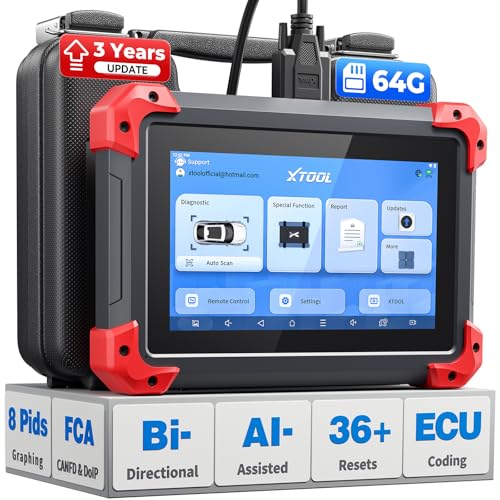
- 2026 Latest Version – Now Upgraded from 32GB to 64GB: XTOOL D7 obd2 scanner diagnostic tool with bidirectional is designed for DIY enthusiasts, professional mechanics. It now offers 64GB storage for smoother operation. Its 5000mAh battery (with 2500mAh 7.3V fast-charging) supports all-day use. With FCA, CAN FD, and DOIP protocol support, it covers more vehicle models and newer systems. A newly added battery voltage reading shows battery status before diagnostics, helping prevent low-voltage tests that could harm the vehicle. The V2.0 Diagnostic Report allows shops to personalize results with logos, customer details, and attachments to build trust and maintain records.
- Save $500+/Year with Pro-Level Diagnostics: Whether you're a DIYer, starting a repair business, or beginning work at an auto shop, XTOOL D7 car scanner offers advanced features typically found only in expensive professional OBD2 scanners - without the high price tag. With 4,000+ Active Tests & Bidirectional Pids, 36+ Special Functions, advanced module resets like SRS Reset, OE-level All-System Scan (one-click), FCA AutoAuth, CAN FD, DoIP, data export, and 8 PIDs graphing, the D7 auto scan tool covers 100,000+ vehicles (excluding Indian models). Includes 3-Year updates and supports the XV200 endoscope to detect em!ssions and intermittent issues.
- Full Bidirectional Advantage Over Other Code Readers & Scan Tools: The XTOOL D7 automotive scanner offers true bidirectional control plus advanced bidirectional PIDs, letting you send commands to components like A/C clutches, fuel injectors, windows, fans and more, while monitoring sensor responses live to catch elusive issues (even those without warning lights). Unlike budget bidirectional obd2 scanners limited to basic active tests,the D7 car fault scanner gives you full bidirectional control to run ABS pump tests, throttle position, turn fan on/off and solenoid tests, etc. No guessing, no extra fees—just smarter diagnostics
- OE-Level Full System Car Diagnostic Scanner with 8 Live Data Graphs: The XTOOL D7 is a pro-grade diagnostic tool that gives you full access to all vehicle systems—just like Snap on scanners & the factory scan tools, it delivers deep, accurate diagnostics you can trust. Easily view live data streams, retrieve freeze frame, and run active tests to pinpoint issues fast. With the ability to graph up to 8 PIDs at once, you can spot performance trends and troubleshoot like a pro. Whether you're a mechanic or car owner, with the D7 auto scanner you can stay ahead of problems and keep your vehicle running at its best
- High-value Automotive Scanner Diagnostic Tool with 36+ Special Function, Module Resets, Relearns, Calibrations, Adaptations & Initializations: XTOOL D7 diagnostic tool packs 36+ common & advanced maintenance, skip the $150 fee for battery registration after replacement, throttle body relearn after cleaning, or TPMS resets post-rotation, Auto bleed after the pad changes, or Electronic Parking Brake. Need to reset the transmission after towing? Crank sensor relearn for GM/for Dodge? Done. D7 also covered advanced functions like Ad~blue Reset, VIN Write, and many more professional OBD2 scanner functions that we can't list here. Text us your VIN + what you need, we’ll check the compatibility
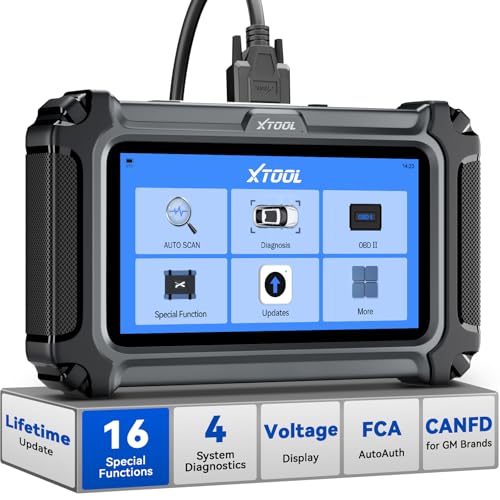
- Comprehensive OBD2 Scanner with 16 Resets: The XTOOL D5S car code reader and vehicle reset tool provides an advanced diagnostic solution with 16 commonly needed reset functions, including Electronic Parking Brake Reset (EPB Reset), SAS, BMS Reset (Battery Test), Throttle Body Relearn, TPMS Reset, ABS Bleeding, Injector Coding, Gearbox Match, Suspension Adjustment, Headlight, Window Initialization, Crank Sensor Relearn and more. Equipped with CAN FD Protocol and FAC AutoAuth, the D5S obd2 scanner diagnostic tool ensures compatibility with a broad range of modern vehicles, allowing users to address common maintenance needs quickly. NOTE: Please Check the Compatibility before ordering.
- 4 Main System Car Scanner & Full OBD2 Diagnostics: The XTOOL D5S car code reader is ideal for home mechanics, DIYers, and professionals, providing access to Transmission/Engine/ABS/SRS systems to read DTCs, Live data can be displayed in text or up to 4 PID data graphs, along with full OBD2 diagnostics to check the engine light on, other obd2 issues and routine maintenance. This car diagnostic scanner ensures you can keep your vehicles in top condition, avoiding costly repairs or unexpected breakdowns. NOTE: Some vehicles display three systems after connection because the transmission and engine of some vehicles are integrated into one.
- Check Engine Code Reader & Real-Time Engine Monitoring: Whether you're a car owner, a DIYer, or run a repair shop, the XTOOL D5S obd2 scanner diagnostic tool makes engine diagnostics fast and frustration-free, reading and explaining trouble codes in seconds—no confusion. Check live data like fuel trim, 02 sensor voltage, RPM, and coolant temp to pinpoint mis~fires, rough idle, or sensor issues. After repairs, simply use the D5S check engine code reader and reset tool to turn off the check engine light and confirm the problem’s fixed—saving time, money, and unnecessary shop visits. - Note: If the check engine light comes back on, it indicates the original problem still exists.
- Portable Car Scanner for ABS and SRS: XTOOL D5S gives you peace of mind when ABS or airbag warning lights come on. It reads and clears ABS codes to help you fix brake sensor, traction control, or wheel speed issues, and supports ABS bleeding after repairs like caliper or master cylinder replacement. For airbag systems, it scans and clears SRS codes related to airbags, seatbelt tensioners, and crash sensors. Whether you're doing repairs at home or running a small shop, the D5S is a cost-effective solution for safety diagnostics. Note: If a fault code returns after clearing, it usually means the issue hasn’t been fully resolved. Please check the compatibility before ordering.
- Transmission Warning Light ON? Here’s the Transmission Diagnostic and Reset Tool You Need: The XTOOL D5S is more than just a basic car scanner—it’s an easy-to-use transmission diagnostic tool. From rough shifts to slipping gears, the D5S lets you read and clear transmission trouble codes, monitor real-time TCM data, and perform transmission resets after fluid changes or repairs. Whether you’re a hands-on car owner or a pro running a busy shop, this OBD2 scanner with transmission functions helps you catch problems early—saving you time, money, and future headaches.. Note: Clearing fault codes is equivalent to a reset on some vehicles, but not all. For help, contact XTOOL Tech Support.
This product presentation was made with AAWP plugin.
Last update on 2026-06-09 / Affiliate links / Images from Amazon Product Advertising API