
NHTSA ID Number: 10165096
Manufacturer Communication Number: 19NA087
TSB/Document Date: 2019-09-23
Summary
This Technical bulletin provides information for dealers/technicians on Radio Software Version V805 Over-the-Air Update Release.
Bulletin No.:
Service Bulletin
Date:
19-NA-087
August, 2019
TECHNICAL
Subject:
Brand:
Cadillac
Radio Software Version V805 Over-the-Air Update
Model:
Model Year:
VIN:
from
to
2019
2019
from
to
Engine:
All
All
XT4
Blazer
Camaro
Colorado
Equinox
Malibu
Silverado
1500 (New
Model)
Volt
Canyon
Sierra 1500
(New Model)
Terrain
Holden
Acadia
Equinox
Involved Region or Country
North America, N.A. Export Regions, Australia, New Zealand
Additional Options (RPOs)
Equipped with Infotainment System RPOs IOS, IOT or IOU
Condition
Some customers may comment on software issues. A continuous improvement software
update is being released with updates made on the following areas: HVAC, Bluetooth,
and general system improvements. Most notable improvements include:
• False Climate Off Message when HVAC is active.
• Delay after ignition on for Bluetooth contacts to download.
• General Bluetooth robustness changes and improvements.
• Radio display shows partial image, vertical lines, or in rare instances may smell a hot
odor or see smoke when entering the vehicle or shifting out of Reverse.
• Static pop from speaker when door is opened.
• Preventative robustness enhancement for RVC.
• Navigation picture display is incomplete on HUD during Active Guidance View.
• Robustness improvements for software update.
• Rare loss of chime at ignition on.
• Australia only – When installing calibration archive to deactivate OnStar, it does not
fully remove OnStar features (Australia).
• Australia only – loss of turn signal indicator click clack (Australia)
Cause
The cause of the condition may be software anomalies.
Copyright 2019 General Motors LLC. All Rights Reserved.
Page 2
Correction
August, 2019
Bulletin No.: 19-NA-087
A new radio software update, version V805, is being released for vehicles equipped with
Infotainment system RPO IOS, IOT or IOU, in addition to providing general robustness
and stability enhancements. This update includes all enhancements from previous
software version releases.
This update can occur remotely through in-vehicle prompts from the radio display.
However, some customers may decline the vehicle update or the update may be
unsuccessful. Along with the vehicles mentioned above, vehicles in unconnected
markets, and fleet customers will need the dealer to reprogram the radio with the new
software package.
Service Procedure
Important: If the remote vehicle update has been
downloaded or installed, DO NOT install the update via
USB. DO NOT attempt to complete the programming
event without reading Determining Where to Start –
Checking for Update Status first to avoid programming
failures or module lockup conditions.
Important: During USB programming, be sure to keep
the vehicle doors closed.
The update procedure in this bulletin includes the
following four sections:
• Determining Where to Start - Checking for Update
Status
• Update Procedure Using Remote Vehicle Update
• Update Procedure Using TIS2WEB (USB
Download)
• Troubleshooting
Important: DO NOT attempt to complete the
programming event without reading Determining Where
to Start – Checking for Update Status first to avoid
programming failures or module lockup conditions.
Determining Where to Start – Checking for Update
Status
The process used for this update is dependent on the
status of the software on the module and if the module
already has a remote install package downloaded. To
verify if an update package is already on the vehicle,
open “Settings” and then scroll to “Updates” on the
radio screen. If an update is shown under the “Updates”
screen, proceed to the Update Procedure Using
Remote Vehicle Update section of this document.
Bulletin No.: 19-NA-087
August, 2019
Page 3
5313331
If no update is shown (see “No Updates Available”
image in next section), go to the “About” screen and
verify the build number (i.e., L206, V507, V509,
V803 etc.). If the build number is less than V805,
proceed with the software update following the Update
Procedure Using TIS2WEB (USB Download) section
of this document.
Page 4
August, 2019
Bulletin No.: 19-NA-087
5313332
Caution: If Vehicle Update screen shows
“Infotainment System Update” (such as the screen
above) do not use TIS2WEB or insert a USB stick. Use
of the USB stick when the Remote Update has already
been downloaded, installed, or paused during
installation could result in program failures or module
lockup condition. The update should be completed
using the Remote Vehicle Update procedure, following
prompts on the infotainment screen. Refer to Update
Procedure Using Remote Vehicle Update after reading
the remaining information in this section if the Remote
Update has already been downloaded to the radio.
• If the remote vehicle update CANNOT be
completed, the radio must be updated through
SPS via USB. Refer to Update Procedure Using
TIS2WEB (USB Download) in this bulletin.
Update Procedure Using Remote Vehicle Update
1. If a remote package is on the system, you may see
the below pop up.
• If the remote vehicle update has not been
downloaded, select “Start Download,” wait for
the download to complete and then follow the
prompts to complete installation.
Bulletin No.: 19-NA-087
August, 2019
Page 5
5313328
2. If no “Start Download” or “Install Now” pop up is
displayed, navigate to “Settings” -> “Updates.” If
there is a remote package on the system, it will
display “Install Now” Or “Start Download.” If the
screen below is shown, then there is no remote
update package on the system. Navigate to
Settings -> About to verify the software version. If
the build number is not V805 or greater, update
via USB.
Page 6
August, 2019
Bulletin No.: 19-NA-087
5313324
Important: During installation, the vehicle will be
disabled and cannot be driven. Features like door
locks, windows and chimes may not work. If you leave
the vehicle, DO NOT lock occupants inside.
Note: Download may pause due to cellular connection
speed. If the download pauses, click resume to
continue. If the download takes longer than 30 minutes,
see the Troubleshooting section.
3. Once the remote vehicle update has completed,
verify there are no updates. Select “Settings”,
scroll down and select “Updates.” If no updates are
available, verify software build is at V805 or greater
in “Settings” -> About screen. If confirmed, no
further action is required.
Update Procedure Using TIS2WEB (USB Download)
Caution: If the Same Calibration/Software Warning is
noted on the SPS Controller screen, do NOT attempt to
program the module. No further action is required.
Caution: Do not use TIS2WEB or insert a USB stick if
a Remote Update has been downloaded to the radio.
Use of the USB stick when the Remote Update has
already been downloaded, installed, or paused during
installation could result in program failures or module
lockup condition.
Note: Carefully read and follow the instructions below.
•
•
•
•
DO NOT attempt to order the calibration number
from GM Customer Care and Aftersales. The
calibration numbers required for this update
procedure are programmed into control modules
via a Multiple Diagnostic Interface (MDI) with the
calibration update. If you cannot access the
calibration, call the Techline Customer Support
Center and it will be provided.
DO NOT program a control module unless
directed to by a service procedure or a service
bulletin. If the control module is not properly
configured with the correct calibration software,
the control module will not control all the vehicle
features properly.
Ensure the programming tool is equipped with the
latest software and is securely connected to the
data link connector. If there is an interruption
during programming, programming failure or
control module damage may occur.
Stable battery voltage is critical during
programming. Any fluctuation, spiking, over
voltage or loss of voltage will interrupt
programming. Install a GM Authorized
Programming Support Tool to maintain system
voltage. Refer to www.gmdesolutions.com for
further information. If not available, connect a fully
charged 12 V jumper or booster pack
disconnected from the AC voltage supply. DO
NOT connect a battery charger.
Bulletin No.: 19-NA-087
•
August, 2019
Turn OFF or disable systems that may put a load
on the vehicles battery such as; interior lights,
exterior lights (including daytime running lights),
HVAC, radio, etc.
• During the programming procedure, follow the
SPS prompts for the correct ignition switch
position.
• Refer to Radio Programming and Setup for
additional information on programming.
Important: For every vehicle that needs to be updated
through USB, be sure to download the files through
TIS2WEB on a USB drive each time for each vehicle.
DO NOT use the same files downloaded from a
previous vehicle. Use a USB 3.0 drive formatted to
FAT32 with a minimum size of 4 gigabytes, however,
16 gigabytes is preferable.
Important: Before downloading the USB update files,
be sure the computer is connected to the internet
through a network cable (hardwired). DO NOT
DOWNLOAD the files wirelessly.
1. Start SPS, select Radio – USB File Transfer and
follow the on-screen instructions.
2. Record the SPS Warranty Claim Code on the
job card.
3. Insert the USB into the vehicle while in Park. On
the radio screen, select “Settings” —> “Updates” or
select “Learn More” on pop up after USB insertion.
4. Select Install Update.
5. Follow on screen prompts to complete the update.
Important: During USB programming, be sure to keep
the vehicle doors closed.
Page 7
Page 8
August, 2019
Bulletin No.: 19-NA-087
5313321
•
Clear DTCs after programming is complete.
Clearing powertrain DTCs will set the Inspection/
Maintenance (I/M) system status indicators to NO.
Troubleshooting
Important: When downloading USB update files, be
sure the computer is connected to the internet through
a network cable (hardwired). DO NOT DOWNLOAD the
files wirelessly.
Important: If having issues with the USB drives, try
using a different brand. The USB drive should be
USB 3.0.
Important: It is normal operation of the Over-the-Air
(OTA) update process for a radio to remain on for
30 seconds after ignition is turned off and retained
accessory power (RAP) has been disabled. The radio
will return to normal power down operations, i.e. off
when RAP is disabled, once the OTA update has been
installed.
Bulletin No.: 19-NA-087
August, 2019
Page 9
Scenario 1: Vehicle conditions are not ideal.
5313329
If the above screen is shown, download the update
through TIS2Web and perform USB update. Upon USB
insertion while vehicle is running, the “Install Now” pop
up will be presented. Ensure the vehicle battery is
being maintained (using EL-49642 or battery
maintainer) while performing this update.
Page 10
August, 2019
Bulletin No.: 19-NA-087
Scenario 2: Consistently Paused Download
5313326
If the above screen is shown and resuming the
download repeatedly fails, a USB update will need to
be performed. Turn the vehicle on, return to the home
screen, and insert USB stick (see previous section). A
pop up should be shown to “Install Now.” Click “Install
Now”, verify the part number is correct and follow on
screen prompts.
Bulletin No.: 19-NA-087
August, 2019
Page 11
Scenario 3: Update Failed. Return to dealer screen.
5313330
1. If the above screen is shown, download the update
through TIS2Web and insert USB stick into the
radio twice (USB stick is not recognized on first
insertion). A blue progress bar should come on the
screen and update will proceed. If this screen
above is shown when trying to update the radio
through USB, reformat to FAT32 on your PC, and
then try to download the update through TIS2WEB
again.
2. After selecting USB File Transfer, if you are
prompted by TIS2Web to select a software P/N
then follow the on-screen instruction to attempt to
gather the software P/N from the A11 Radio using
GDS2 scan tool. If GDS2 indicates the radio is not
communicating, go back to TIS2Web, select A11
Radio, and select when radio displays “Update
failed. Return to dealer. ” to complete the USB
File Transfer programming event.
3. If the screen above is shown again, contact
Technical Assistance (TAC) for further assistance.
Parts Information
No parts are required for this repair.
Warranty Information
For vehicles repaired under the Bumper-to-Bumper
coverage (Canada Base Warranty coverage), use the
following labor operation. Reference the Applicable
Warranties section of Investigate Vehicle History (IVH)
for coverage information.
Labor
Operation
Description
Labor Time
9104411*
Remote Vehicle Update:
TIS2WEB/USB Download
Not Required
0.3 hr
9104234**
Radio Module
Reprogramming with
SPS/USB
0.3 hr
*A warranty claim code is not required for this transaction.
**To avoid warranty transaction rejections, carefully read
and follow the instructions below:
• The SPS Warranty Claim Code must be accurately
entered in the “SPS Warranty Claim Code” field of the
transaction.
• When more than one Warranty Claim Code is generated
for a programming event, it is required to document all
Warranty Claim Codes in the “Correction” field on the job
card. Dealers must also enter one of the codes in the
“SPS Warranty Claim Code” field of the transaction,
otherwise the transaction will reject. It is best practice to
enter the FINAL code provided by SPS.
Page 12
August, 2019
Bulletin No.: 19-NA-087
Warranty Claim Code Information Retrieval
If the SPS Warranty Claim Code was not recorded on
the Job Card, the code can be retrieved in the SPS
system as follows:
1. Open TIS on the computer used to program the
vehicle.
2. Select and start SPS.
3. Select Settings.
4. Select the Warranty Claim Code tab.
The VIN, Warranty Claim Code and Date/Time will be
listed on a roster of recent programming events. If the
code is retrievable, dealers should resubmit the
transaction making sure to include the code in the SPS
Warranty Claim Code field.
Version
1
Modified
Released August 09, 2019
GM bulletins are intended for use by professional technicians, NOT a "do-it-yourselfer". They are written to inform these
technicians of conditions that may occur on some vehicles, or to provide information that could assist in the proper
service of a vehicle. Properly trained technicians have the equipment, tools, safety instructions, and know-how to do a
job properly and safely. If a condition is described, DO NOT assume that the bulletin applies to your vehicle, or that your
vehicle will have that condition. See your GM dealer for information on whether your vehicle may benefit from the
information.
WE SUPPORT VOLUNTARY
TECHNICIAN
CERTIFICATION

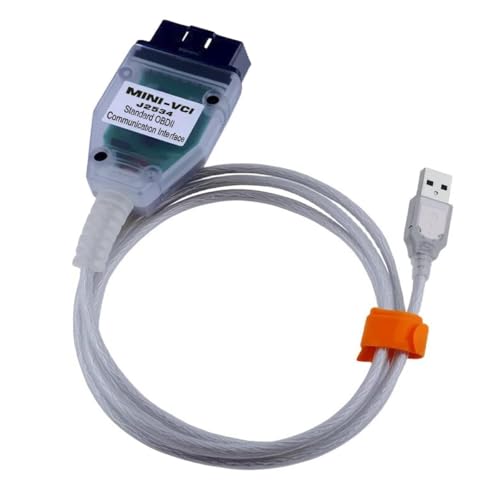
- Advanced VCI Box, Industry-leading J2534 Pass-Thru...
- High-Speed OEM-Level Diagnostics & Programming: Unlock true...
- Coverage for 17 Car Brands & Ultra Reliability: Works...
- User-Friendly RLink Platform & Expert Support: TOPDON’s...
- 6.6 ft USB-C Cable & Portable Storage Case: The RLink J...
Last update on 2026-06-12 / Affiliate links / Images from Amazon Product Advertising API
If the PDF is very large, it may not load in the preview below.
Some older TSBs had multiple PDFs — visit the NHTSA Website to view all PDFs.
If the TSB PDF does not show, download or view it on the NHTSA Website.
Click on the (+) Plus Sign
Then Click on Associated Document(s)
Search NHTSA Database for Recalls
Search NHTSA Database for Vehicle Investigations
View Latest Vehicle Investigations
Search NHTSA Database for Vehicle Complaints
View Latest Vehicle Complaints
TSB/Document ID: 19NA087
Replacement Service Bulletin Number:
MFR Communication Date: 2019-08-09
MFR Internal Campaign ID/Software Version:
Communication Type: Service Bulletin/Repair Instructions
NHTSA Components: EQUIPMENT
MFR Component System:
MFR Component Subsystem:
Previous TSB | Next TSB |
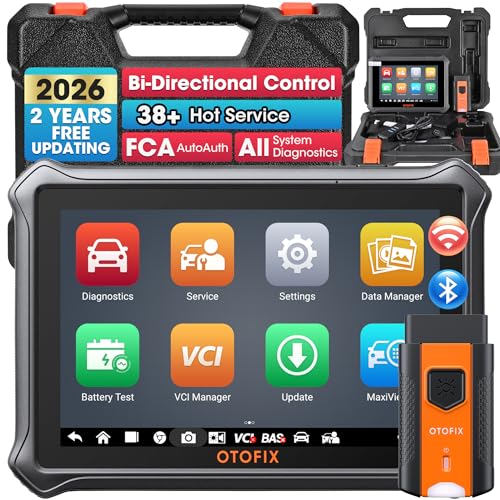
- 🎉[OTOFIX D1 Lite, Perfect Cost-effective Diagnostic Tool]: OTOFIX D1 Lite, a newest bidirectional scan tool from OTOFIX company, is a great choice for DIYers and repair shops. 👉This obd2 scanner diagnostic tool packs all practical functions: OE level all systems diagnoses, Bi-Directional Control, 38+ reset services fixing 99% of common problems, support DoIP & CANDF protocols and FCA
 AutoAuth, high-end hardware configuration. Worldwide vehicles and 🔥2 Years Free Updating🔥 covered.
 - 🎉[Bi-Directional Scan Tool, Active Test]: OTOFIX D1 Lite bluetooth obd2 scanner can also command ECUs and monitor the operation of the actuators to track down the problems of certain parts, like windows, sunroof, wipers, fuel pumps, etc., saving repair time & trouble. This makes OTOFIX D1 Lite the most cost-effective bidirectional scan tool.
- 🎉[2026 Newest, 38+ Hot Reset Functions]: Equipped with 38+ reset functions in one, the OTOFIX D1 lite automotive scanner diagnostic tool allows you to troubleshoot 99% of common vehicle problems. You can use this car diagnostic scanner holding enough functions to easily repair common vehicle models in your repair shops. Including Oil Reset, Injector Coding, Throttle, DPF Reset, SCR Reset, Gear Learning, Clutch Learning, Suspension, etc. Note* Reset functions vary by model.
- 🎉[OE Level Full Systems Diagnostics]: Unlike the 2-system and 4-system diagnostic tools, the OTOFIX auto scan tool can complete comprehensive system diagnostics within 5 minutes. It accesses and scans all available onboard systems like for Engine /AT /ABS /EPB /BMS /TPMS /SRS /SAS /Audio System /BCM /Air Conditioning / etc., to read & clear codes, view live data, and check ECU information. Note: Active test is not involved.
- 🎉[Powerful Hardware Configuration]: Designed with a fashion appearance & a 7” touchscreen and a weight of 463g, this OTOFIX D1 Lite OBD2 diagnostic scanner scan tool is convenient for everywhere and easy to use & store. Android9.0 OS and 2+64GB memory enhance multi-task smoothness and diagnostic operation, no more wasting too much time. 5800mAh battery allows hours-lasting use. WiFi & VCI1 also bring faster communication for your diagnostics.

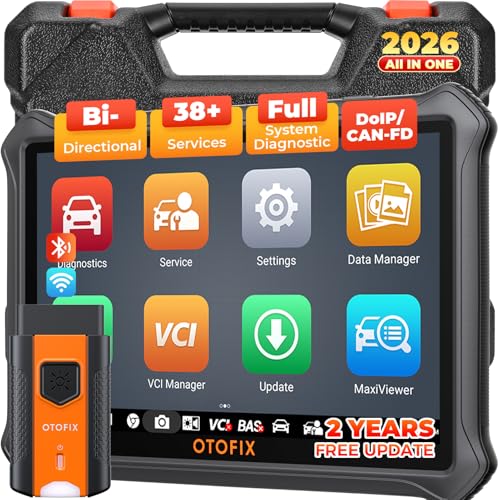
- 🏆【2026 TOP OBD2 Scanner Diagnostic Tool】OTOFIX D1 Lite wireless obd2 scanner has upgraded hardware configuration and car coverage. The newly upgraded D1 Lite with 🔥OS Android 9.0🔥1.5Ghz 4 core high efficiency processor🔥2GB RAM+64GB ROM large storage🔥5800mAh large battery, more stable and longer lasting diagnostics🔥 38+ Reset🔥action tests🔥full system diagnostic🔥Supports MV105 endoscope🔥21+ Language Supports🔥100000+ vehicle coverage to meet all your daily maintenance needs.
- 👍【Bi-Directional Control / Active Test】D1 Lite obd2 scanner has bidirectional control(worth $300+), which is the most beloved feature among mechanic. If your headlights or car windows are broken, going to a repair shop will cost a lot of money. You can use D1 Lite to send execution commands to the ECU module and identify the repair status. Such as ABS, car windows, doors, valves, wipers, headlights, etc., effectively shorten diagnostic time and reduce diagnostic costs.
- 🔥【All Systems Diagnostics, In-depth Checking】This advanced OBD2 Scanner D1 Lite can perform OE-level diagnosis of all systems including engine, transmission, airbag, ABS, ESP, TPMS, gateway, steering, radio, and air conditioning for more than 100 brands. This diagnostic scanner supports essential functions, such as reading ECU version info, reading and clearing fault codes, and reading data streams.With just a simple click, it provides you with accurate and in-depth diagnostics.
- 🏆【38+ Reset Hot Functions】For repair workshops, holding an OTOFIX D1 Lite Auto scanner is a strong advantage over others. Its 38+ maintenance functions provide various solutions for all module repairs, including Oil Reset, TPMS Reset, Injector Coding, Suspension, Throttle Matching, etc., which will usher your repair business to a new pinnacle. Continuously updating will never make the functionality & compatibility out-of-date.
- 🏆【150+ Models, 10000+ Car Coverage & 16 Languages】D1 Lite is a comprehensive car diagnostic scan tool, help you to troubleshoot car issues fast for 95% US, European, Asian auto makes. ✅ With frequent updates and optimizations allow D1 Lite to cover more vehicles to meet your needs. ✅ Multilingual menu allows auto mechanics around the world to use it without language barriers. 🚩Note: Kindly send us the S/N of the device to authorize new language updates before changing the menu language.
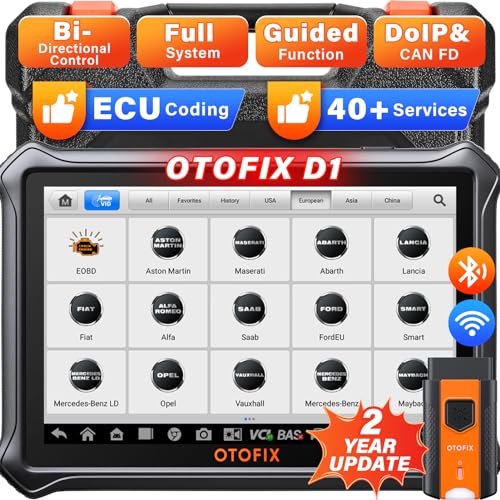
- 2026 Newest Wireless Bluetooth Scan Tool D1: OTOFIX D1 Diagnostic scanner is upgraded version with Enhanced Hardwares & Newest Functions, FASTER and SMARTER! ✅Alternative Bluetooth 5.0 +USB connect✅2G+64GB✅Android 9.0 OS✅5G & 2.4 GHz Dual WiFi✅5800mAh battery👍VAG Guided Function👍ECU Online Coding👍CANFD&DOIP👍40+ Services👍Bi-Directional Control👍Full Systems Diagnose👍2 Years Free Update👍150+ Vehicle Coverage🎁Contact to get gift: otofixaftersales-amz@ outlook.com
- ECU Coding to Unlock the Hidden Features: OTOFIX D1 obd2 scanner diagnostic tool newly adds ECU Coding which can Online Coding(ONLY for VW/Au.di/Sk0da), Variant Coding/Offline Programming, Flash Hidden Functions, Reset Adaptive Data, Match Replaced Components, Customize OE-Settings. Such as: halogen fog lamps retrofitted with xenon fog lamps, different capacity battery retrofit, disbale auto start-stop, sunroof initialization, injector calibration, etc. PS: Coding functions vary by model&year.
- Full Bidirectional Control for Active Car Tests: The D1 OTOFIX scanner also offers bi-directional control, allowing you to perform powerful active tests on car subsystems. This means that you can check the working status and functionality of open & close solenoids, energize injectors, turn cooling fan on & off, and more, all from the device itself.🚩The D1 bi-directional obd2 scanner can quickly help you to check if a system or component goes well,Improving 200% Efficiency.**Note that Active Tests available depend on the make/model/year of your car.
- 40+ Popular Maintenance Functions: OTOFIX D1 obd scanner for car performs 40+ hot services, including Oil Reset, EPB, TPMS, BMS, E.GR, G.PF, D.PF, SAS Calibration, ABS Bleeding, Injector Coding, Gearbox Match, Suspension, Crankshaft Relearn, Power Balance, etc., still growing. Great choice for DIYers, technician, repair shop. 🚩Get MORE special functions from "Car Brand>System>Service". Check compatibility before purchase via 📧 otofixaftersales-amz@ outlook.com.
- OE-Level All Systems Diagnostic + One-Click AutoVIN & AutoSCAN: OTOFIX D1 scanner automotriz gives you the ability to troubleshoot entire car systems including engion system,transmission system,body system,chassis,etc. 🚩One of the standout features of the D1 obd2 scanner diagnostic tool is the one-click AutoVIN & AutoScan function. This feature allows you to quickly and easily scan all diagnosable ECUs with just one click, and identify any problems hidden in your vehicle's systems.
Last update on 2026-06-12 / Affiliate links / Images from Amazon Product Advertising API
This product presentation was made with AAWP plugin.