
NHTSA ID Number: 10161820
Manufacturer Communication Number: 15-221-18R
TSB/Document Date: 2019-07-01
Summary
This bulletin provides helpful information about operating conditions observed in the field for Technicians to use when diagnosing customer concerns which may arise while operating Harman Gen 3.0 and 3.1 Navigation and Display Audio systems. We will continue to add to this bulletin as more information becomes available.
ATTENTION:
CLAIMS PERSONNEL q
IMPORTANT - All
Service Personnel
Should Read and
Initial in the boxes
provided, right.
SERVICE MANAGER
© 2018 Subaru of America, Inc. All rights reserved.
GENERAL MANAGER q
PARTS MANAGER
q
q
SERVICE BULLETIN
APPLICABILITY:
2017-2019MY Impreza
2018-19MY Crosstrek
2018-19MY Legacy and Outback
2019MY WRX and WRX STI
2019MY Ascent
2018-19MY BRZ
NUMBER: 15-221-18R
SUBJECT:
Harman Audio / Infotainment: Harman Generation
3.0 and 3.1 Operating Tips
DATE: 04/11/18
REVISED: 05/10/19
INTRODUCTION:
This bulletin provides helpful information about operating conditions observed in the field for Technicians to use
when diagnosing customer concerns which may arise while operating Harman Gen 3.0 and 3.1 Navigation and
Display Audio systems. We will continue to add to this bulletin as more information becomes available.
Continued...
CAUTION: VEHICLE SERVICING PERFORMED BY UNTRAINED PERSONS COULD
RESULT IN SERIOUS INJURY TO THOSE PERSONS OR TO OTHERS.
Subaru Service Bulletins are intended for use by professional technicians ONLY. They
are written to inform those technicians of conditions that may occur in some vehicles,
or to provide information that could assist in the proper servicing of the vehicle. Properly
trained technicians have the equipment, tools, safety instructions, and know-how to
do the job correctly and safely. If a condition is described, DO NOT assume that this
Service Bulletin applies to your vehicle, or that your vehicle will have that condition.
Bulletin Number: 15-221-18R; Revised 05/10/19
Subaru of America, Inc. is
ISO 14001 Compliant
ISO 14001 is the international standard for
excellence in Environmental Management
Systems. Please recycle or dispose of
automotive products in a manner that is friendly
to our environment and in accordance with all
local, state and federal laws and regulations.
Page 1 of 14
CONDITION# 1: Backup camera inoperative after head unit replacement or battery disconnect
(2016 Dec TechTIPS).
CAUSE: Whenever the Audio / Navigation head unit requires removal on a 2017 Impreza, it is
important the Service Manual procedure be followed. The Service Manual advises to disconnect
the battery before servicing the audio unit. Failure to follow this instruction, can result in a customer
concern of the backup camera becoming inoperative since the service. The reason, when connecting
power to the unit, a self-check is performed. If the backup camera has not been connected yet, the
unit assumes there is no back up camera and renders it inoperative.
RECOMMENDATION: A quick fix for this condition is to remove and reinstall the transit (PDI)
fuse or remove and reinstall the negative battery terminal. The situation can be avoided completely by
following the Service Manual and disconnecting the battery before starting the service.
IMPORTANT CAUTIONS:
•
If swapping an audio system for diagnostic purposes, be sure the DCM remains with the
original vehicle or network communications will be severed.
•
The SXM ESN is assigned by VIN. Moving audio units permanently between vehicles will
disrupt the customer’s SXM services.
Below is an image of what the screen will look like if a line check is performed before the issue is
corrected:
Continued...
Bulletin Number: 15-221-18R; Revised 05/10/19
Page 2 of 14
CONDITION# 2: Display Audio (non-navigation units), clock not synchronized with paired iPhone.
(December 2016 TechTIPS).
CAUSE: NOTE: This information is applicable to iPhone (iOS) users only. If a customer states
the time displayed on their iPhone is not synchronized with the instrument panel clock display, the
information below provides an easy solution. Always ensure the latest software version is installed.
RECOMMENDATIONS: First, select the setting mode for the clock by following these steps:
•
Press the “Home” button on the audio unit display.
•
Press “Settings”.
•
Press “Vehicle”.
•
Select “Clock Adjustment”.
•
Select “Auto”.
Continued...
Bulletin Number: 15-221-18R; Revised 05/10/19
Page 3 of 14
Once “Clock Adjustment” is set to “Auto”, the iPhone “Show Notifications” setting must also be
confirmed as set to ON following the steps below:
•
From the iPhone Home screen, tap “Settings”.
•
From the Settings menu, tap “Bluetooth” and make sure it is set to “On”.
•
Select the device being used (in this case, SUBARU BT) then tap on the blue i icon to
display the device options list.
•
Once “Show Notifications” is switched on, the device and vehicle clocks will synchronize
automatically.
Continued...
Bulletin Number: 15-221-18R; Revised 05/10/19
Page 4 of 14
CONDITION# 3: Clock Setting
Information (December 2016 TechTIPS)
CAUSE: With the release of the 2017
Impreza Harman Gen 3 SUBARU
STARLINK™ 6.5” Multimedia System and
SUBARU STARLINK™ 8.0” Multimedia
Navigation systems, there have been
inquiries about the clock adjustment. There
are two different modes of adjustment
available: Automatic and Manual.
Figure 1 shown here is an excerpt from the
2017 Impreza Owner’s Manual describing
both modes.
RECOMMENDATIONS: Automatic
setting of the clock is accomplished differently between the navigation and non-navigation systems.
As shown above, the navigation system will automatically set the time according to GPS location.
Non-navigation systems utilize a paired smartphone connected via Bluetooth to accomplish the
automatic setting. During the PDI process, it is recommended to manually set the clock on nonnavigation models. This will ensure the correct time is displayed and allows the opportunity to show
the customer the automatic feature should they choose to use it. Please review the Owner’s Manual
for the applicable manual clock setting procedure.
CONDITION# 4: Audio unit stays powered up after ignition switched to Off (February 2017
TechTIPS).
CAUSE: All the new 2017MY Impreza audio systems include a feature where the audio system
stays powered for a period of time after the ignition is switched OFF. If the vehicle has been
equipped with the accessory Rockford Fosgate audio amplifier, some confusion may arise when
comparing audio unit operation of one Impreza to another. Although the audio unit will continue to
operate after the ignition is switched OFF on all models, the power supply for the accessory amplifier
is switched off along with the ignition resulting in the loss of audio output. This may cause confusion
for customers when seeing the audio unit appear to be operating but not hearing any audio output.
NOTE: Later versions of the Rockford Fosgate amplifier used in 2018 MY vehicles no longer share
this characteristic. Vehicles / audio systems equipped with these enhanced amplifiers function like
those equipped with factory-installed amplifiers.
RECOMMENDATION:
Be advised, this is a normal
operating characteristic and
no attempt should be made to
repair or replace any of the
system components. This
operating characteristic is
also briefly described on
pg. 118 of the Multimedia
System guide contained in
the Owner Information Kit
as shown here.
Continued...
Bulletin Number: 15-221-18R; Revised 05/10/19
Page 5 of 14
CONDITION# 5: Keeping the Display OFF during loading.
CAUSE: Customer asks to keep the display off (black screen) following ignition ON.
RECOMMENDATIONS: Press and Hold Power/Volume knob for 4 seconds prior shutting off
engine.
NOTE: Audio will still play following ignition ON but display will remain blank. If customer is
concerned about volume as well as display, see CONDITION# 6 for more details.
CONDITION# 6: Keeping display and Audio OFF during loading.
CAUSE: Customer asks to keep the display OFF (black screen) and audio muted following the
ignition ON step.
RECOMMENDATIONS: Turn Power / Volume knob counter-clockwise bringing the volume
setting to the lowest point prior shutting off the engine. Then, press and hold the Power / Volume
knob for 4 seconds prior to shutting off the engine.
IMPORTANT NOTE: This feature is changed effective with Version 4 software. On Version 4 and
later equipped head units, if the head unit is turned OFF prior to ignition OFF, both the audio output
and display will remain off following ignition ON until the Power/ Volume knob is pressed.
CONDITION# 7: Audio Volume is turned to MAX when monitoring infotainment data monitor
(March 2017 TechTIPS).
CAUSE: If you are monitoring the Infotainment System Data Monitor and the volume level display
(see image below) appears showing the volume level increasing but the sound level remains the same,
this is a normal operating characteristic of the Harman audio units.
RECOMMENDATION: When a Technician accesses the Infotainment System Data Monitor, the
unit enters “Diagnostic Mode” and the volume level will be displayed in this manner. No repairs
should be performed to address this concern as it is a normal operating characteristic.
Continued...
Bulletin Number: 15-221-18R; Revised 05/10/19
Page 6 of 14
CONDITION# 8: Subject vehicle consistently displays multiple horizontal lines across the display
screen each time the backup camera feature is operated. NOTE: This applies to 2017MY Impreza
ONLY.
CAUSE: Investigation found the cause of this condition to be connector R98 not fully connected /
engaged.
RECOMMENDATIONS: Access and disconnect R98 and examine closely for any bent or
displaced terminals. If OK, firmly reconnect and ensure a solid connection. Retest backup camera
operation and confirm a consistent, high-quality image is displayed.
CONDITION# 9: Harman Gen 3 Audio/ Navigation head unit shows an “Advisory Message- No
Signal” notification on the display.
CAUSE: In areas of poor or no SXM coverage, the head unit will display the message as shown
above. It is not a failure condition assuming SXM service is not available.
RECOMMENDATION: No action should be taken to correct this condition.
NOTE: After Ver.3 (2.17.43.xx) software version update, the message ONLY pops up while
displaying the SXM radio screen. On earlier software versions, it will pop up in FM/AM screen.
Continued...
Bulletin Number: 15-221-18R; Revised 05/10/19
Page 7 of 14
CONDITION# 10: Hurricane or Severe Weather warning message is displayed.
CAUSE: The head unit receives information from SXM and displays the message whenever there is
a signal from SXM. If there is no date information from SXM, the details (dates) will not show.
RECOMMENDATION: The display matches data supplied by SXM. NOTE: If the concern is
the frequency the message is displayed, the frequency was reduced effective with Version 3 software
update release.
CONDITION# 11: Android Auto fails to launch after the phone is connected via genuine USB
cable.
CAUSE: Earlier versions of Android Auto have been noted as experiencing this condition. The
app was updated during Nov-Dec 2017. When combined with the Version 2 and later software in
the head unit, stability has been greatly improved. Open Android Auto on the phone and check the
version under “Settings”.
RECOMMENDATIONS: Set Apps to auto update to assure the phone gets the newest version. To
check, go to the Play Store and search for Android Auto. Ensure the head unit has the latest version
software installed.
CONDITION# 12: Weather, Fuel Information, Sports, Stocks information do not display in the
Multi-Function Display (MFD).
CAUSE: Weather forecasts, forecast temperature or highest / lowest temperature, and chances of
precipitation, etc. can be displayed in weather information. A SiriusXM (SXM) services subscription
is required.
RECOMMENDATIONS: Verify an active subscription for SiriusXM (SXM) services has been
extended, after 1-year free trial period. Content using the SiriusXM® Satellite Radio Service is
reset when personal
information is
initialized by
selecting Factory
Data Reset (Factory
Data Reset) on
the “GENERAL
SETTINGS
SCREEN”.
Continued...
Bulletin Number: 15-221-18R; Revised 05/10/19
Page 8 of 14
ADDITIONAL SIRIUS/XM NOTES:
•
SiriusXM U.S. satellite and data services are available only in the 48 contiguous states and
the District of Columbia (DC). SiriusXM Satellite Services are also available in Canada; see
www.siriusxm.ca.
4 month trial of SXM audio was launched beginning with MY12 models equipped with satellite
radio.
• During the trial period, SXM does engage with the customer to let them know about their
trial and when it is going to expire. If SXM does not hear from the customer or receive
some type of payment, they assume the customer is not interested and deactivate SXM
radio after the 4-month trial period is over. SXM offers free listening campaigns which
run several times each year. Whenever there is a concern about SXM outside the trial period,
always confirm the customer subscription is active and current before condemning the head
unit. This still applies for those cases where signal refresh seems to restore function (even
briefly).
3 years of SXM Traffic and Travel Link was launched with MY16 vehicles equipped with
navigation.
3 years of SXM audio + Traffic + Travel Link is only applicable to MY17 Outback Touring
models.
CONDITION# 13: AM station 600 fades in and out and two stations can be heard when listening to
FM station 99.3.
CAUSE: The vehicle is in a weak signal area and is losing reception.
RECOMMENDATION: These issues are scheduled to be addressed by Version 4 software update
projected for release during Summer, 2018.
CONDITION# 14: Volume fades up and down (FM/AM HD radio).
CAUSE: Assuming the audio unit is in HD Radio mode, the vehicle is likely traveling outside of HD
Radio coverage area causing the head unit to switch between HD and Analog mode.
RECOMMENDATION: Turn HD off as shown in the images below.
Continued...
Bulletin Number: 15-221-18R; Revised 05/10/19
Page 9 of 14
CONDITION# 15: Low Fuel Warning advisory message appears on display.
CAUSE: The head unit only displays fuel level information sent to it from the combination meter.
RECOMMENDATIONS: Confirm combination meter and sender functions are operating properly.
Confirm the trip meter is reset following refueling. Confirm ignition key is not being left in the ON /
RUN positions during refueling.
CONDITION# 16: Bluetooth operation concerns when using the Messaging feature.
CAUSE: The customer concern is messaging doesn’t work properly until the head unit has been
restarted. Sometimes, the phonebook also doesn’t work but, this symptom may be more intermittent.
The concern was duplicated using an iPhone 7 with iOS 11.2.2 as well as an iPhone X with iOS
11.2.2 with the same result.
RECOMMENDATION: The next iOS update from Apple reportedly contains a patch to address
this condition.
CONDITION# 17: Apple CarPlay feature has functionality concerns.
CAUSE: Update the Apple iOS version to after iOS 11. iOS 11. has been noted by sources familiar
to have some concerns with CarPlay functionality.
RECOMMENDATION: Await next Apple iOS release update.
CONDITION# 18: CarPlay feature no longer functions after shutting off the engine, even though
the head unit is still powered up.
CAUSE: If this is a HIGH (Navigation) audio unit, this is a normal operating characteristic.
When the ignition is turned off, the USB hub loses power and terminates the connection between the
audio unit and the paired phone.
RECOMMENDATION: This is a normal operating characteristic. Do not replace head unit or
USB hub for this complaint.
Continued...
Bulletin Number: 15-221-18R; Revised 05/10/19
Page 10 of 14
CONDITION# 19: On vehicles equipped with reverse automatic braking (RAB), a red area appears
in backup camera display.
CAUSE: If a customer states they see a red box or area in their backup camera display, the system is
most likely operating as designed. Always perform a visual check of the sensors on the rear bumper
first. If any of the sensors are covered over or obstructed by ice and / or snow, the RAB system may
not function properly and the red area shown in the example photo below will most likely appear.
RECOMMENDATIONS: When this condition occurs, the RAB system is unable to properly
differentiate between what really is an obstacle and what is not. In the image below, the sensor is
iced over and the red area is displayed with no obstacle present. The Owner’s Manual provides a list
of other potential causes for this condition to occur.
Continued...
Bulletin Number: 15-221-18R; Revised 05/10/19
Page 11 of 14
CONDITION# 20: CarPlay and/or Android Auto does not launch consistently.
CAUSE: Possible poor connectivity to USB Media Hub. Harman and SBR investigations have
attributed these issues to use of non-genuine cable connections between the paired phone and USB
hub or, in a limited number of cases, marginal USB hub operation.
RECOMMENDATIONS: New firmware has been released to improve / enhance connectivity.
NOTE: This enhancement assumes use of factory certified connection cable. Aftermarket cables
do not always offer sufficient data connectivity to achieve the desired device function. Always use
a genuine cable. NEVER replace the USB hub unless the condition is verified while using a cable
confirmed to be genuine.
Media Hub Part Numbers: 86257FL00A / 86257FL100 (for MID, HIGH audio units). The BASE
unit part numbers are different: (86257FL10A / 86257FL110) and are not applicable.
CONDITION# 21: The Navigation system’s voice prompt volume stays where it has been reset to
only if the car is off for a short time. After several hours or overnight, it will reset to 10.
CAUSE: This is normal operating characteristic to ensure the driver can hear the navigation prompts
during a later trip. For example, if the customer reduces the voice prompt volume to very low or
OFF, then during the next trip, they (or another driver) may miss critical prompts or think navigation
is not working correctly.
RECOMMENDATION: Please advise the customer they will need to adjust the volume to a
comfortable level whenever using the NAVI guidance feature.
CONDITION# 22: What is Maximum number of contacts the Gen 3.0 head unit can support?
CAUSE: The system has a set storage allowance for downloading and storage of contact data.
RECOMMENDATION: The maximum is approximately 2,000 contacts. The customer can
exceed that number when some contacts do not have phone number information or the size of the
contact’s “file size” itself is small. If more than 2,000 contacts are stored on the phone, only the first
approximately 2,000 contacts will download to the head unit. Again, this may be slightly more or
less than 2,000 depending on the details contained for each contact.
CONDITION# 23: When using the Get an email function, audio output mutes for a moment and
then comes right back on.
CAUSE: Per information received from the service provider (in this case, Verizon), the behavior is
categorized as a normal operating characteristic.
RECOMMENDATION: Turning off alerts for receiving email during driving could be considered
as a possible work around for this concern.
CONDITION# 24: Gen 3 Harman head units do not power OFF, even when the ignition is turned
OFF and the driver door opened. Volume and Tune knobs do not operate, but the touch panel
operates normally (Software version was Rel 2.17.22.30).
CAUSE: Input / Output Controller is not responding to shut down signal from BIU. Suspect an
internal head unit failure.
RECOMMENDATIONS: This condition is scheduled to be addressed by Version 4 software update
projected for release Summer, 2018. Until the software update is available, clear the condition by
performing a capacitive discharge or exchange the head unit.
Continued...
Bulletin Number: 15-221-18R; Revised 05/10/19
Page 12 of 14
CONDITION 25: Map Display “Whiteout”. Map display is either white (blank) or, an incomplete
screen (no roads) is displayed. “Route Calculation Unsuccessful” message is displayed when trying
to calculate a route.
CAUSE: If a MOTA (Map Over The Air update) was performed or attempted previously, the state
map data may have become corrupted. This can occur due to weak a WIFI signal during MOTA
causing the state to disappear (appear white).
RECOMMENDATION: Update the map (again) successfully using a strong WIFI signal or via
USB.
CONDITION 26: Map display not going into “Night” mode in low light (night time / dark)
conditions
POSSIBLE CAUSES: Map display setting may be set to
“Day” instead of “Night” or “Auto” as shown below. If the
instrument panel illumination control knob is set to MAX
brightness (all the way up), the map display will not change
regardless if “Auto” or “Night” mode is selected in the
Settings menu.
RECOMMENDATIONS: From the Settings menu, select
Map Display and either “Auto” or “Night”. If there is no
change, check and lower (if necessary) the illumination
control knob as shown in the illustration to the right and
“Auto” or “Night” mode operation will be restored.
Continued...
Bulletin Number: 15-221-18R; Revised 05/10/19
Page 13 of 14
CONDITION 27: Wrong Head Unit (H/U) part numbers being ordered. Several reports have been
received describing operational issues occurring after installation of the replacement H/U.
CAUSE: In some cases, further investigation revealed an incorrect (or different than the original)
part number H/U was ordered and installed.
RECOMMENDATIONS: When ordering an exchange unit, there are Exchange Component
Identification bulletins for every model year posted on STIS. These bulletins are an excellent
resource to use in combination with the Electronic Parts Catalog (EPC). In the event a new unit is
being installed (e.g. for a new, in-stock vehicle), always order the most up-to-date replacement part
number H/U based on the specific VIN being repaired using the exchange portal and indicate the new
unit is required for an in-stock unit.
IMPORTANT REMINDERS:
•
SOA strongly discourages the printing and/or local storage of service information as
previously released information and electronic publications may be updated at any time.
•
Always check for any open recalls or campaigns anytime a vehicle is in for servicing.
•
Always refer to STIS for the latest service information before performing any repairs.
Bulletin Number: 15-221-18R; Revised 05/10/19
Page 14 of 14
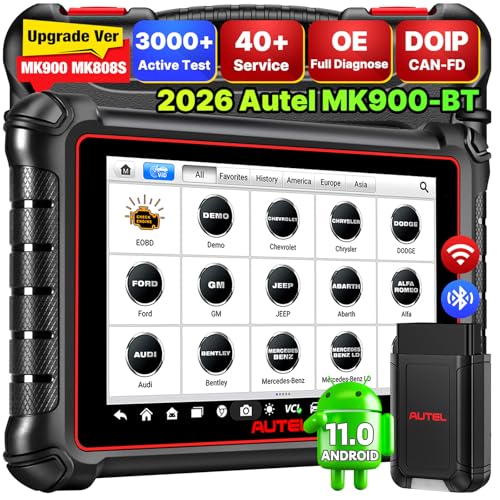
- 💯【Conta.ct us for Support Directly】If you met any...
- 🔥🔥🔥【2026 AUTEL FLAGSHIP MK900BT MK900-BT, NEW...
- 🚗【3000+ ACTIVE TESTS (50➡3000+), SAME AS MS...
- 🚗【40+ HOT SERVICES FOR 150 MAKES (28+➡40+)】Full...
- 🚗【OE ALL SYSTEM DIAGNOSE, AUTO SCAN 2.0: SCAN LICENSE...

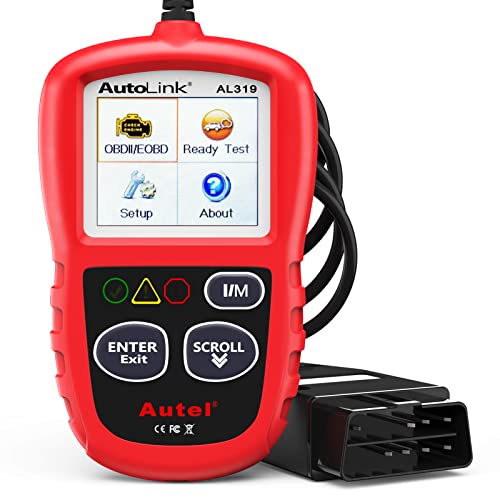
- 【TURN OFF CEL】 This AL319 car scanner diagnostic tool...
- 【EXTENSIVE APPLICATION】 Autel AL319 Compatible with...
- 【FOR END USER & DIYERS】 This error code reader AL319 is...
- 【USER-FRIENDLY DESIGN】 This OBD2 scanner and check...
- 【HIGH-QUALITY SERVICES】 12 months war.ranty from the...
Last update on 2026-06-23 / Affiliate links / Images from Amazon Product Advertising API
If the PDF is very large, it may not load in the preview below.
Some older TSBs had multiple PDFs — visit the NHTSA Website to view all PDFs.
If the TSB PDF does not show, download or view it on the NHTSA Website.
Click on the (+) Plus Sign
Then Click on Associated Document(s)
Search NHTSA Database for Recalls
Search NHTSA Database for Vehicle Investigations
View Latest Vehicle Investigations
Search NHTSA Database for Vehicle Complaints
View Latest Vehicle Complaints
TSB/Document ID: 15-221-18R
Replacement Service Bulletin Number:
MFR Communication Date: 2019-05-10
MFR Internal Campaign ID/Software Version:
Communication Type: Service Bulletin/Repair Instructions
NHTSA Components: EQUIPMENT
MFR Component System:
MFR Component Subsystem:
Previous TSB | Next TSB |

- [Notice] When you receive a used device, it may be a customer return resold by Amazon without inspection. You can exchange it for a new one through Amazon. As this situation is unavoidable, we sincerely apologize. For any issues, contacting us via Amazon's "Messages" is the best way. THINKSCAN 689BT Bidirectional Scan Tool Can Be Used Immediately After It is Turned On, Without Complicated Registration Process, Which is More Convenient & Quick.
- Full Bi-Directional Control & 3000+ Active Tests: Take control and test components like actuators, fuel injectors, relays, and cooling fans in real time. You’ll quickly see if the problem is in the part itself or the control module — saving you hours of guesswork and frustrating trial-and-error.
- Advanced ECU Coding Capabilities: Handle module matching and hidden feature activation with confidence. When you replace an ECU or want to customize settings, this obd2 scanner diagnostic bi directional tool gives you the professional-level capabilities you need without the dealership price tag.
- 34+ Useful Reset and Maintenance Functions: Complete everyday service tasks smoothly with a wide range of helpful reset and maintenance functions. Whether you’re keeping up with regular upkeep or tackling a specific job, this scanner makes maintenance simpler and less stressful for both DIYers and pros.
- Comprehensive Full System Diagnostics: Diagnose every major system — Engine, Transmission, ABS, SRS, TPMS, and more — all in one place. Finally stop wondering if you’re missing something important; get the full picture and clear codes with ease.
Last update on 2026-07-02 / Affiliate links / Images from Amazon Product Advertising API

- Top Reasons to Choose the D7S OBD2 Scanner: XTOOL D7S car scan tool, an upgrade of XTOOL D7, offers comprehensive features for automotive technicians, workshops, and DIY enthusiasts 1. Upgraded Hardware: 2+64GB memory, rear camera, intuitive interface, foldable bracket 2. Complete Diagnostics: FCA
 Autoauth, OE-level all system scan, 39+ maintenance services, 4K+ bidirectional, CANFD/DoIP protocol 3. Advanced Capabilities: ECU c0ding, PMI functions 4. Wide Compatibility: Support 10,000+ models, covering 99% vehicle brands 5. Multi-language: Available in 22+ languages, No IP Restrictions 6. 3-Year Updates: Save 300 bucks on software updates for the latest features and optimizations
 - 2026 Upgraded D7S Car Scanner Features: The newly 2026 D7S V2.0 scanner for car brings exciting features for advanced vehicle diagnostics and enhanced user experience 1. FCA AutoAuth: Now supports FCA SGW module for Chrysler, for Jeep, for Dodge (2018+), for Fiat (2017+), enabling faster vehicle communication without gateway restrictions 2. PMI (Offline ECU Pr0gramming): Allows for Ford, for Lincoln, and for Mazda ECU pr0gramming for new modules 3. Optimized Diagnostic Report 2.0: Personalized reports with logos and customer info for auto shops. Note: Compatibility varies by cars, please check before order
- 39+ Services/Resets/Adaptations/Relearns/Calibrations: XTOOL D7S full system car scanner diagnostic tool tackles 99% of common car issues through its 36+ special functions, including Oil Reset, EPB, SAS, BMS, Throttle Reset, Injector C0ding, ABS Bleed, TPMS Reset, Power Balance, etc and also covers specific-vehicle functions like Crank Sensor Relearn, ABS Initialization, Cylinder Power Balance, Fuel Trim Reset, Idle Relearn etc. This car diagnostic scanner enhances efficiency, making repairs and maintenance hassle-free. Tip: DO NOT for All vehicles, please check compatibility first
- Cost-effective ECU C0ding Scan Tool for Specific Brands: Enhance your vehicle's performance with XTOOL D7S! This obd2 scanner all systems bidirectional offers advanced capabilities at an affordable price, supports online for BMW, for Benz and offline for BENZ, for MIT, along with PMI functions for Ford, for Mazda, and for Lincoln. Ideal for technicians and DIY enthusiasts, this automotive scanner diagnostic tool optimizes vehicle performance and enhances the driving experience. Note: Not for all cars and modules, please send car VIN to check the compatibility before purchase
- OE All System Diagnostic & 8 Pids Graphing: XTOOL D7S is a comprehensive all system bi directional obd2 scanner that delivers dealer-level diagnostics, completely controlling over your vehicle’s performance and health. This automotive scan tool can read and clear DTCs, view live data and ECU information, retrieve freeze frames, and perform active tests and full obd2 functions. This bi-directional scan tool can can identify your vehicle's make, model, and year information with just one click and show up to 8 PIDs live data with options for CSV viewing, playback, and recording for in-depth analysis. It is easy-to-use for both professionals and beginners, helping pinpoint issues efficiently
Last update on 2026-07-08 / Affiliate links / Images from Amazon Product Advertising API

- 【✅Compared to BOSSCOMM IF742, IF745 Offers Full-System Diagnostics】The BOSSCOMM IF745 car diagnostic scanner is an upgraded model of IF742. In addition to supporting all OBD2 Code Reader functions and 6 reset options (ABS/EPB/SAS/BMS/Oil/Throttle), it expands diagnostics from 4 systems (Check Engine/ABS/SRS/Transmission) to vehicle All systems, including Steering, Suspension, and Body Electronics. This provides deeper, more comprehensive diagnostic capabilities.
- 【✨10 OBD2 Functions】The BOSSCOMM IF745 scan tool’s DTC Lookup instantly translates fault codes into user-friendly explanations, its I/M Readiness feature streamlines emissions testing with a single tap, and Freeze Frame lets you pinpoint the exact moment of a fault for in-depth root-cause diagnosis. Combined with a live data dashboard and advanced diagnostics (O2S, OBMon, EVAP), it delivers comprehensive insights for confident troubleshooting.
- 【✨Deep Diagnostics for All Vehicle System Modules】Beyond code reading/clearing and ECU information retrieval, our all-in-one data stream feature lets you inspect all current fault codes and their locations across the vehicle’s systems. This vehicle code reader helps you turn off dashboard warning lights and perform a comprehensive self-check of your car at home—no more back-and-forth trips to the repair shop or hefty inspection fees.
- 【✨6 Essential Resets: ABS Bleeding, Oil, EPB, SAS, Throttle, BMS】The BOSSCOMM IF745 obd2 scanner diagnostic tool swiftly purges air from brake lines to restore braking sensitivity, fine-tunes maintenance cycles to eliminate false alerts, resolves parking brake issues with one-click control, recalibrates steering sensors for stability, optimizes engine idling/acceleration for smoother performance, and deeply resets battery systems to extend lifespan and range via precise parameter adjustments.❗NOTE: Does NOT support bidirectional control, coding, or programming.
- 【✨10,000+ Car Models, AutoVIN, 13 Languages】The BOSSCOMM IF745 vehicle scanner diagnostic tool covers 73+ global car brands and offers support in 13 languages, making it perfect for DIYers, auto mechanics, or as a thoughtful gift. With a single-click AutoVIN feature, it instantly retrieves vehicle serial numbers, streamlining diagnostics for users globally. This adaptable tool balances user-friendliness with precision, catering to both personal and professional requirements.✅Unsure about compatibility? Compatibility will vary on vehicles' model and year, pls reach us via 📧 [email protected] 📧 before purchase.
Last update on 2026-07-02 / Affiliate links / Images from Amazon Product Advertising API
This product presentation was made with AAWP plugin.