
NHTSA ID Number: 10157522
Manufacturer Communication Number: VVT-13-23
TSB/Document Date: 2019-04-08
Summary
Service Information (VAS 5054A Transmitter Head - Bluetooth & EDIC Configuration - ODIS Service Only): Use the procedures in this document to configure a VAS 5054A Transmitter Head on a VAS diagnostic laptop or tablet with ODIS Service ONLY. This document covers VAS 5054A configuration for VAS diagnostic laptop or tablet devices with Windows XP and Windows 7 operating systems.
Service Information
VAS Tester
Number: VVT-13-23
Subject: VAS 5054A Transmitter Head – Bluetooth® & EDIC
Configuration – ODIS Service Only
Date: Dec. 20, 2013
Supersedes VVT-13-11 due to complete revision.
Table of Contents
Page
Section
1.0
Introduction
1
2.0
Preparation - Must Read
2
3.0
Windows® Bluetooth® Configuration
2
3.1
General Information
2
3.2
Procedure – Windows XP
3
3.3
Procedure – Windows 7
7
4.0
EDIC Hardware Configuration
10
4.1
General Information
10
4.2
Procedure
10
VAS 5054A Configuration Settings
12
5.1
General Information
12
5.2
Procedure
12
5.0
1.0 – Introduction
Use the procedures in the following sections to configure a VAS 5054A Transmitter Head on a VAS
diagnostic laptop or tablet with ODIS Service ONLY.
This document covers VAS 5054A configuration for VAS diagnostic laptop or tablet devices with
Windows XP and Windows 7 operating systems.
Note:
Please discard any printed copies of this document after use. Revised versions may be issued
at any time. Always check ServiceNet for the latest version.
Page 1 of 13
ver1.4
© 2013 Volkswagen Group of America, Inc.
All rights reserved. Information contained in this document is based on the latest information available at the time of printing and is subject to the copyright and other intellectual
property rights of Volkswagen Group of America, Inc., its affiliated companies and its licensors. All rights are reserved to make changes at any time without notice. No part of this
document may be reproduced, stored in a retrieval system, or transmitted in any form or by any means, electronic, mechanical, photocopying, recording, or otherwise, nor may these
materials be modified or reposted to other sites, without the prior expressed written permission of the publisher.
Service Information
2.0 – Preparation
Prerequisites
VAS diagnostic laptop or tablet connected to power adapter.
VAS-PC not installed or previously uninstalled.
The latest version of ODIS Service installed and configured.
ODIS Service not running during configuration.
VAS diagnostic tester tablets: On-screen keyboard activated for number entry and USB mouse
connected for easier navigation.
1. Turn on the diagnostic laptop or tablet.
2. Note the Windows operating system logo displayed during startup (Windows XP or Windows 7).
3. Ensure the wireless operation switch is turned ON as applicable:
VAS 6150 & VAS 6150A
VAS 6150B & VAS 6150C
VAS 6160/A
(Front panel behind handle)
(Middle right side behind WIRELESS door)
(Upper left side behind SC/EX door)
4. Record the VAS 5054A Serial Number (S#:) from a label on back of the transmitter housing:
VAS 5054A Serial Number (S#):_______________________
5. Connect the VAS 5054A to a vehicle Data Link Connector (DLC) and switch the ignition ON. The blue
LED on the transmitter head must flash.
6. Proceed with Windows Bluetooth configuration steps in accordance with the installed operating
system. Ref. Section 3.0 below.
3.0 – Windows® Bluetooth® Configuration
3.1 – General Information
The Windows Bluetooth configuration “pairs” the VAS 5054A with the diagnostic laptop/tablet for Bluetooth
(wireless) communication.
Bluetooth configuration procedures differ slightly between Windows XP and Windows 7. Please choose the
procedure that applies in your case:
• Windows XP – Section 3.2 – Page 3.
• Windows 7 – Section 3.3 – Page 7.
Continued …3/
Page 2 of 13
© 2013 Volkswagen Group of America, Inc.
All rights reserved. Information contained in this document is based on the latest information available at the time of printing and is subject to the copyright and other intellectual
property rights of Volkswagen Group of America, Inc., its affiliated companies and its licensors. All rights are reserved to make changes at any time without notice. No part of this
document may be reproduced, stored in a retrieval system, or transmitted in any form or by any means, electronic, mechanical, photocopying, recording, or otherwise, nor may these
materials be modified or reposted to other sites, without the prior expressed written permission of the publisher.
Service Information
3.2 – Procedure - Windows XP
1. From the Windows desktop, go to Start > Settings > Control Panel.
2. Select Bluetooth Devices from the Control Panel menu.
3. Select the Options tab: Verify that “Allow Bluetooth devices to connect to this computer” is NOT
checked, and “Alert me when a new Bluetooth device wants to” IS checked:
4. Select the Devices tab, then click Add:
Continued …4/
Page 3 of 13
© 2013 Volkswagen Group of America, Inc.
All rights reserved. Information contained in this document is based on the latest information available at the time of printing and is subject to the copyright and other intellectual
property rights of Volkswagen Group of America, Inc., its affiliated companies and its licensors. All rights are reserved to make changes at any time without notice. No part of this
document may be reproduced, stored in a retrieval system, or transmitted in any form or by any means, electronic, mechanical, photocopying, recording, or otherwise, nor may these
materials be modified or reposted to other sites, without the prior expressed written permission of the publisher.
Service Information
5. Check “My device is set up and ready to be found”, then click Next to start the device search:
6. Select/highlight VAS5054 . Confirm the number between the < > symbols matches the
VAS 5054A serial number recorded on Page 2, then click Next:
7. Select the passkey option: “Use the passkey found in the documentation”. Enter the VAS 5054A
serial number recorded on Page 2 as the “passkey”, then click Next:
8. Wait while Windows configures the Bluetooth connection.
Continued …5/
Page 4 of 13
© 2013 Volkswagen Group of America, Inc.
All rights reserved. Information contained in this document is based on the latest information available at the time of printing and is subject to the copyright and other intellectual
property rights of Volkswagen Group of America, Inc., its affiliated companies and its licensors. All rights are reserved to make changes at any time without notice. No part of this
document may be reproduced, stored in a retrieval system, or transmitted in any form or by any means, electronic, mechanical, photocopying, recording, or otherwise, nor may these
materials be modified or reposted to other sites, without the prior expressed written permission of the publisher.
Service Information
9. Record the Outgoing COM port assigned to the device in the space provided below, then click
Finish:
Note:
The COM port number illustrated below is an example only! Each configuration is unique, so it is
important to record the COM port number assigned during your configuration.
Outgoing COM port:
The VAS 5054A now appears in the Bluetooth Devices window.
10. Select the Hardware tab:
Continued …6/
Page 5 of 13
© 2013 Volkswagen Group of America, Inc.
All rights reserved. Information contained in this document is based on the latest information available at the time of printing and is subject to the copyright and other intellectual
property rights of Volkswagen Group of America, Inc., its affiliated companies and its licensors. All rights are reserved to make changes at any time without notice. No part of this
document may be reproduced, stored in a retrieval system, or transmitted in any form or by any means, electronic, mechanical, photocopying, recording, or otherwise, nor may these
materials be modified or reposted to other sites, without the prior expressed written permission of the publisher.
Service Information
11. Select (highlight) device name Matsushita Bluetooth Controller or ALPS Integrated Bluetooth
Device as applicable to your device, then click Properties:
12. If the Power Management tab is present, select it:
Note:
If the Power Management tab is not present, close the Bluetooth Controller and Control Panel
windows. In this case the power management feature is not present and no further action is
necessary.
Continued …7/
Page 6 of 13
© 2013 Volkswagen Group of America, Inc.
All rights reserved. Information contained in this document is based on the latest information available at the time of printing and is subject to the copyright and other intellectual
property rights of Volkswagen Group of America, Inc., its affiliated companies and its licensors. All rights are reserved to make changes at any time without notice. No part of this
document may be reproduced, stored in a retrieval system, or transmitted in any form or by any means, electronic, mechanical, photocopying, recording, or otherwise, nor may these
materials be modified or reposted to other sites, without the prior expressed written permission of the publisher.
Service Information
13. Ensure that “Allow the computer to turn off this device to save power” is deselected, and then
select OK:
14. Close the Control Panel window and proceed with the EDIC Hardware Configuration. Ref. Section
4.0 – Page 10.
3.3 – Procedure – Windows 7
1. From the Windows desktop, go to Windows Button (Start) > Control Panel
2. From the Control panel list window, select Devices and Printers:
3. From the window header, select Add a Device:
Windows displays a list of Bluetooth devices found.
Note:
The VAS 5054A serial number shown in the following illustrations is an example only!
Each VAS 5054A is assigned a unique serial number.
Continued …8/
Page 7 of 13
© 2013 Volkswagen Group of America, Inc.
All rights reserved. Information contained in this document is based on the latest information available at the time of printing and is subject to the copyright and other intellectual
property rights of Volkswagen Group of America, Inc., its affiliated companies and its licensors. All rights are reserved to make changes at any time without notice. No part of this
document may be reproduced, stored in a retrieval system, or transmitted in any form or by any means, electronic, mechanical, photocopying, recording, or otherwise, nor may these
materials be modified or reposted to other sites, without the prior expressed written permission of the publisher.
Service Information
4. Select/highlight VAS5054 . Confirm the number displayed between the < > symbols matches
the VAS 5054A serial number recorded on Page 2, then click Next:
5. Enter the VAS 5054A serial number recorded on Page 2 as the “pairing code, then click Next:
Continued …9/
Page 8 of 13
© 2013 Volkswagen Group of America, Inc.
All rights reserved. Information contained in this document is based on the latest information available at the time of printing and is subject to the copyright and other intellectual
property rights of Volkswagen Group of America, Inc., its affiliated companies and its licensors. All rights are reserved to make changes at any time without notice. No part of this
document may be reproduced, stored in a retrieval system, or transmitted in any form or by any means, electronic, mechanical, photocopying, recording, or otherwise, nor may these
materials be modified or reposted to other sites, without the prior expressed written permission of the publisher.
Service Information
6. When the confirmation window indicating the device has been added appears, click Close:
7. From the Devices and Printers window, double click VAS5054 :
8. Select the Hardware Tab and record the COM port assigned to your device in the space provided
below:
9.Note:
The COM port number illustrated below is an example only! Each configuration is unique, so it is
important to record the COM port number assigned during your configuration.
COM Port:
9. Close the Properties window and proceed with the EDIC Hardware Configuration. Ref. Section 4.0 –
Page 10.
Page 9 of 13
© 2013 Volkswagen Group of America, Inc.
All rights reserved. Information contained in this document is based on the latest information available at the time of printing and is subject to the copyright and other intellectual
property rights of Volkswagen Group of America, Inc., its affiliated companies and its licensors. All rights are reserved to make changes at any time without notice. No part of this
document may be reproduced, stored in a retrieval system, or transmitted in any form or by any means, electronic, mechanical, photocopying, recording, or otherwise, nor may these
materials be modified or reposted to other sites, without the prior expressed written permission of the publisher.
Service Information
4.0 – EDIC Hardware Configuration
4.1 – General Information
The EDIC hardware configuration enables data to be exchanged between the Bluetooth (wireless)
functions of the VAS 5054A and the ODIS Service diagnostic software.
The screenshots illustrated below are from a classic Windows XP installation. While slightly different
prompt window formatting and colors appear in Windows 7, the configuration procedure outlined below is
identical for both Windows XP and Windows 7 installations.
4.2 – Procedure
1. From the Windows desktop, double click the ODIS Service EDIC configuration program icon:
2. Click Add EDIC … :
3. Select (highlight) VAS5054 from the dropdown menu, and then click OK:
Continued …11/
Page 10 of 13
© 2013 Volkswagen Group of America, Inc.
All rights reserved. Information contained in this document is based on the latest information available at the time of printing and is subject to the copyright and other intellectual
property rights of Volkswagen Group of America, Inc., its affiliated companies and its licensors. All rights are reserved to make changes at any time without notice. No part of this
document may be reproduced, stored in a retrieval system, or transmitted in any form or by any means, electronic, mechanical, photocopying, recording, or otherwise, nor may these
materials be modified or reposted to other sites, without the prior expressed written permission of the publisher.
Service Information
4. Click OK:
5. Select (highlight) the COM port as previously recorded:
Windows XP: Page 5, or Windows 7: Page 9, then click OK:
Note:
The COM port selection illustrated below is an example only! Each configuration is unique, so it is
important to select the COM port number assigned and recorded during your configuration.
The configured VAS 5054A and assigned COM port appears in the Installed EDIC Interfaces display.
5. Click OK:
Continued …12/
Page 11 of 13
© 2013 Volkswagen Group of America, Inc.
All rights reserved. Information contained in this document is based on the latest information available at the time of printing and is subject to the copyright and other intellectual
property rights of Volkswagen Group of America, Inc., its affiliated companies and its licensors. All rights are reserved to make changes at any time without notice. No part of this
document may be reproduced, stored in a retrieval system, or transmitted in any form or by any means, electronic, mechanical, photocopying, recording, or otherwise, nor may these
materials be modified or reposted to other sites, without the prior expressed written permission of the publisher.
Service Information
6. From the Windows desktop, click the DiagStarter icon and start ODIS Service.
7. Initiate a diagnostic session and confirm vehicle to diagnostic device communication.
The VAS diagnostic device can now be placed into service with its configured VAS 5054A.
5.0 – VAS 5054A Configuration Settings
5.1 – General Information
The VCI Manager application that was previously used to control the VAS 5054A configuration for Buzzer
and PowerOff settings is no longer used on ODIS Service only installations.
If desired, buzzer and power settings can be changed using the EDIC Configuration Manager application
as described below.
5.2 – Procedure
Prerequisites:
ODIS Service version 2.0.2 or higher installed.
VAS diagnostic laptop or tablet plugged in to power adapter, booted to Windows desktop.
VAS 5054A configured for Windows Bluetooth and EDIC Hardware as instructed in Section 3.0 and
Section 4.0.
VAS 5054A plugged in to vehicle Data Link Connector (DLC), blue LED flashing.
1. Navigate to the EDIC Configuration Manager as follows:
•
From the Windows XP desktop, go to:
Start > Programs > Softing D-PDU API for VCIs V1.20.XXX
•
From the Windows 7 desktop, go to:
Windows Button (Start) > All Programs > Softing D-PDU API for VCIs V1.20.XXX
2. Select EDIC Configuration Manager
3. With the paired VAS 5054A highlighted, click the Gear Icon:
Continued …13/
Page 12 of 13
© 2013 Volkswagen Group of America, Inc.
All rights reserved. Information contained in this document is based on the latest information available at the time of printing and is subject to the copyright and other intellectual
property rights of Volkswagen Group of America, Inc., its affiliated companies and its licensors. All rights are reserved to make changes at any time without notice. No part of this
document may be reproduced, stored in a retrieval system, or transmitted in any form or by any means, electronic, mechanical, photocopying, recording, or otherwise, nor may these
materials be modified or reposted to other sites, without the prior expressed written permission of the publisher.
Service Information
4. After the Bluetooth name and passkey are displayed, click the Device Tab:
5. Select and configure the Buzzer and Power Off functions as desired, then click Apply to save the
settings and Finish to return to the main configuration window.
Note:
To prevent loss of communication during extended ODIS Service diagnostic sessions, we
recommend the PowerOff function remain disabled.
Page 13 of 13
© 2013 Volkswagen Group of America, Inc.
All rights reserved. Information contained in this document is based on the latest information available at the time of printing and is subject to the copyright and other intellectual
property rights of Volkswagen Group of America, Inc., its affiliated companies and its licensors. All rights are reserved to make changes at any time without notice. No part of this
document may be reproduced, stored in a retrieval system, or transmitted in any form or by any means, electronic, mechanical, photocopying, recording, or otherwise, nor may these
materials be modified or reposted to other sites, without the prior expressed written permission of the publisher.

- 💯【Conta.ct us for Support Directly】If you met any...
- 🔥🔥🔥【2026 AUTEL FLAGSHIP MK900BT MK900-BT, NEW...
- 🚗【3000+ ACTIVE TESTS (50➡3000+), SAME AS MS...
- 🚗【40+ HOT SERVICES FOR 150 MAKES (28+➡40+)】Full...
- 🚗【OE ALL SYSTEM DIAGNOSE, AUTO SCAN 2.0: SCAN LICENSE...

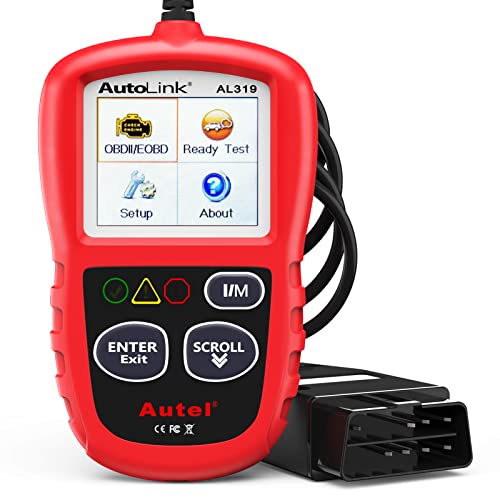
- 【TURN OFF CEL】 This AL319 car scanner diagnostic tool...
- 【EXTENSIVE APPLICATION】 Autel AL319 Compatible with...
- 【FOR END USER & DIYERS】 This error code reader AL319 is...
- 【USER-FRIENDLY DESIGN】 This OBD2 scanner and check...
- 【HIGH-QUALITY SERVICES】 12 months war.ranty from the...
Last update on 2026-06-12 / Affiliate links / Images from Amazon Product Advertising API
If the PDF is very large, it may not load in the preview below.
Some older TSBs had multiple PDFs — visit the NHTSA Website to view all PDFs.
If the TSB PDF does not show, download or view it on the NHTSA Website.
Click on the (+) Plus Sign
Then Click on Associated Document(s)
Search NHTSA Database for Recalls
Search NHTSA Database for Vehicle Investigations
View Latest Vehicle Investigations
Search NHTSA Database for Vehicle Complaints
View Latest Vehicle Complaints
TSB/Document ID: VVT-13-23
Replacement Service Bulletin Number:
MFR Communication Date: 2013-12-20
MFR Internal Campaign ID/Software Version:
Communication Type: Service Bulletin/Repair Instructions
NHTSA Components: EQUIPMENT:ELECTRICAL
MFR Component System:
MFR Component Subsystem:
Previous TSB | Next TSB |

- Stay Updated with Lifetime Access: This obd2 scanner includes lifetime free software updates for all app service functions. With a single payment, enjoy full access to diagnostics, reset tools, and maintenance features — zero subscription fees. A budget-friendly choice for weekend mechanics, home car owners, and DIYers, supporting vehicles from 1996 onward. Come to us with your VIN to check compatibility.
- Full Bidirectional Control/Active Tests & Stable Wireless Connectivity: This car code reader features full bidirectional control, allowing you to send commands to the vehicle's ECU for active tests on components such as fuel pumps, injectors, A/C clutches, windows, sunroofs, and more. This car scanner diagnostic tool helps DIYers quickly diagnose and test vehicle parts, cutting down troubleshooting and repair time. With BT 4.0 wireless connectivity, you can enjoy cable-free diagnostics up to 33 feet. Stand in your garage and test windows, wipers, or even engine components—all without needing to move around your car.
- Portable Car Scanner with 26 Special Functions: Scheduled vehicle maintenance with the A30M car diagnostic scanner can keep your vehicle in peak condition and save you big on dealership trips. The XTOOL A30M obd2 scanner diagnostic tool features essential reset and relearn functions, such as Oil Reset, EPB Reset (Electronic Parking Brake Release), SAS, ABS Brake Bleeding, Throttle Body Relearn, Injector Coding, Crank Sensor Relearn, Headlight Adjustment, and Tire Size Reset. Note: Service functions may vary by vehicle model – check compatibility beforehand!
- Wide Compatibility CAN FD & FCA
 Autoauth: This obd2 scanner diagnostic tool is compatible with over 85+ car brands from the U.S., Europe, and Asia, providing extensive coverage through a BT connection with your smartphone or iPad. Now upgraded to support the latest protocols, it includes FCA AutoAuth access for Chrysler, Jeep, Dodge, and Fiat (2018+), and supports CAN FD for GM (2020+) models, giving you greater access to newer vehicles and systems. Note: The FCA AutoAuth account is not included with the device. Users must register and pay separately through the official FCA AutoAuth website to access diagnostic functions for vehicles that require it.
 - Up to 8 Live Data Streams Graphing – Real-Time Graphing for Deeper Insight: This car scanner supports up to 8 live data streams simultaneously with intuitive, real-time graphing. Gain comprehensive insights into your vehicle’s performance, making it easier to spot issues, detect trends, and make informed diagnostic decisions with confidence.
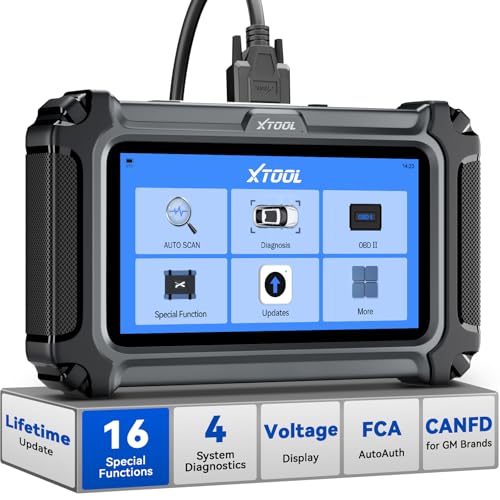
- Comprehensive OBD2 Scanner with 16 Resets: The XTOOL D5S car code reader and vehicle reset tool provides an advanced diagnostic solution with 16 commonly needed reset functions, including Electronic Parking Brake Reset (EPB Reset), SAS, BMS Reset (Battery Test), Throttle Body Relearn, TPMS Reset, ABS Bleeding, Injector Coding, Gearbox Match, Suspension Adjustment, Headlight, Window Initialization, Crank Sensor Relearn and more. Equipped with CAN FD Protocol and FAC AutoAuth, the D5S obd2 scanner diagnostic tool ensures compatibility with a broad range of modern vehicles, allowing users to address common maintenance needs quickly. NOTE: Please Check the Compatibility before ordering.
- 4 Main System Car Scanner & Full OBD2 Diagnostics: The XTOOL D5S car code reader is ideal for home mechanics, DIYers, and professionals, providing access to Transmission/Engine/ABS/SRS systems to read DTCs, Live data can be displayed in text or up to 4 PID data graphs, along with full OBD2 diagnostics to check the engine light on, other obd2 issues and routine maintenance. This car diagnostic scanner ensures you can keep your vehicles in top condition, avoiding costly repairs or unexpected breakdowns. NOTE: Some vehicles display three systems after connection because the transmission and engine of some vehicles are integrated into one.
- Check Engine Code Reader & Real-Time Engine Monitoring: Whether you're a car owner, a DIYer, or run a repair shop, the XTOOL D5S obd2 scanner diagnostic tool makes engine diagnostics fast and frustration-free, reading and explaining trouble codes in seconds—no confusion. Check live data like fuel trim, 02 sensor voltage, RPM, and coolant temp to pinpoint mis~fires, rough idle, or sensor issues. After repairs, simply use the D5S check engine code reader and reset tool to turn off the check engine light and confirm the problem’s fixed—saving time, money, and unnecessary shop visits. - Note: If the check engine light comes back on, it indicates the original problem still exists.
- Portable Car Scanner for ABS and SRS: XTOOL D5S gives you peace of mind when ABS or airbag warning lights come on. It reads and clears ABS codes to help you fix brake sensor, traction control, or wheel speed issues, and supports ABS bleeding after repairs like caliper or master cylinder replacement. For airbag systems, it scans and clears SRS codes related to airbags, seatbelt tensioners, and crash sensors. Whether you're doing repairs at home or running a small shop, the D5S is a cost-effective solution for safety diagnostics. Note: If a fault code returns after clearing, it usually means the issue hasn’t been fully resolved. Please check the compatibility before ordering.
- Transmission Warning Light ON? Here’s the Transmission Diagnostic and Reset Tool You Need: The XTOOL D5S is more than just a basic car scanner—it’s an easy-to-use transmission diagnostic tool. From rough shifts to slipping gears, the D5S lets you read and clear transmission trouble codes, monitor real-time TCM data, and perform transmission resets after fluid changes or repairs. Whether you’re a hands-on car owner or a pro running a busy shop, this OBD2 scanner with transmission functions helps you catch problems early—saving you time, money, and future headaches.. Note: Clearing fault codes is equivalent to a reset on some vehicles, but not all. For help, contact XTOOL Tech Support.

- Top Reasons to Choose the D7S OBD2 Scanner: XTOOL D7S car scan tool, an upgrade of XTOOL D7, offers comprehensive features for automotive technicians, workshops, and DIY enthusiasts 1. Upgraded Hardware: 2+64GB memory, rear camera, intuitive interface, foldable bracket 2. Complete Diagnostics: FCA Autoauth, OE-level all system scan, 39+ maintenance services, 4K+ bidirectional, CANFD/DoIP protocol 3. Advanced Capabilities: ECU c0ding, PMI functions 4. Wide Compatibility: Support 10,000+ models, covering 99% vehicle brands 5. Multi-language: Available in 22+ languages, No IP Restrictions 6. 3-Year Updates: Save 300 bucks on software updates for the latest features and optimizations
- 2026 Upgraded D7S Car Scanner Features: The newly 2026 D7S V2.0 scanner for car brings exciting features for advanced vehicle diagnostics and enhanced user experience 1. FCA AutoAuth: Now supports FCA SGW module for Chrysler, for Jeep, for Dodge (2018+), for Fiat (2017+), enabling faster vehicle communication without gateway restrictions 2. PMI (Offline ECU Pr0gramming): Allows for Ford, for Lincoln, and for Mazda ECU pr0gramming for new modules 3. Optimized Diagnostic Report 2.0: Personalized reports with logos and customer info for auto shops. Note: Compatibility varies by cars, please check before order
- 39+ Services/Resets/Adaptations/Relearns/Calibrations: XTOOL D7S full system car scanner diagnostic tool tackles 99% of common car issues through its 36+ special functions, including Oil Reset, EPB, SAS, BMS, Throttle Reset, Injector C0ding, ABS Bleed, TPMS Reset, Power Balance, etc and also covers specific-vehicle functions like Crank Sensor Relearn, ABS Initialization, Cylinder Power Balance, Fuel Trim Reset, Idle Relearn etc. This car diagnostic scanner enhances efficiency, making repairs and maintenance hassle-free. Tip: DO NOT for All vehicles, please check compatibility first
- Cost-effective ECU C0ding Scan Tool for Specific Brands: Enhance your vehicle's performance with XTOOL D7S! This obd2 scanner all systems bidirectional offers advanced capabilities at an affordable price, supports online for BMW, for Benz and offline for BENZ, for MIT, along with PMI functions for Ford, for Mazda, and for Lincoln. Ideal for technicians and DIY enthusiasts, this automotive scanner diagnostic tool optimizes vehicle performance and enhances the driving experience. Note: Not for all cars and modules, please send car VIN to check the compatibility before purchase
- OE All System Diagnostic & 8 Pids Graphing: XTOOL D7S is a comprehensive all system bi directional obd2 scanner that delivers dealer-level diagnostics, completely controlling over your vehicle’s performance and health. This automotive scan tool can read and clear DTCs, view live data and ECU information, retrieve freeze frames, and perform active tests and full obd2 functions. This bi-directional scan tool can can identify your vehicle's make, model, and year information with just one click and show up to 8 PIDs live data with options for CSV viewing, playback, and recording for in-depth analysis. It is easy-to-use for both professionals and beginners, helping pinpoint issues efficiently
Last update on 2026-06-12 / Affiliate links / Images from Amazon Product Advertising API
This product presentation was made with AAWP plugin.