
NHTSA ID Number: 10156401
Manufacturer Communication Number: SF541
TSB/Document Date: 2019-04-01
Summary
Medallion Opti-View Instrument Panel Software Update
Daimler Trucks
North America LLC
Field Service Campaign
July 2017
SF541AB
Subject: Medallion Opti-View Instrument
Panel Software Update
Models Affected: Specific Freightliner Custom Chassis X-line
motorhome chassis equipped with a Medallion Opti-View instrument panel, manufactured March 4, 2015, through March 6, 2017.
General Information
Daimler Trucks North America LLC, on behalf of its wholly owned subsidiary, Freightliner Custom Chassis
Corporation, is initiating Field Service Campaign SF541AB to modify the vehicles mentioned above.
On certain vehicles, the instrument panel display may experience a non-driver initiated start or "boot" sequence
whereby the instrument display flashes and activates the audible warning chimes.
New instrument panel software will be installed to correct the issue.
There are approximately 89 vehicles involved.
Additional Repairs
Dealers must complete all outstanding field service campaigns prior to the sale or delivery of a vehicle. A
Dealer will be liable for any progressive damage that results from its failure to complete campaigns before sale
or delivery of a vehicle.
Owners may be liable for any progressive damage that results from failure to complete campaigns within a
reasonable time after receiving notification.
Please contact Warranty Campaigns for consideration of additional charges prior to performing the repair.
Work Instructions
Please refer to the attached work instructions. Prior to performing the campaign, check the vehicle for a
completion sticker (Form WAR261).
Replacement Parts
Four separate USB flash drives must be purchased per dealership for this software update procedure. Each
flash drive must have 2 GB or more storage space.
If our records show your dealership has ordered any vehicle(s) involved in campaign SF541AB, a list of the
customers and vehicle identification numbers will be available on AccessFreightliner.com. Please refer to this
list when ordering parts for this campaign.
Removed Parts
U. S. and Canadian Dealers, please follow Warranty Failed Parts Tracking shipping instructions for the
disposition of all removed parts. Export distributors, please destroy removed parts unless otherwise advised.
Labor Allowance
Table 1 - Labor Allowance
Campaign
Number
Procedure
Time Allowed
(hours)
SRT Code
Corrective Action
SF541AB
Software Update
0.7
996-1005A
12-Repair Recall/Campaign
Table 1
Page 1
Daimler Trucks
North America LLC
Field Service Campaign
July 2017
SF541AB
IMPORTANT: When the campaign has been completed, locate the base completion label in the appropriate location on the vehicle, and attach the gray completion sticker provided in the field service kit (Form WAR261). If
the vehicle does not have a base completion label, clean a spot on the appropriate location of the vehicle and
first attach the base completion label (Form WAR259). If a field service kit is not required or there is no completion sticker in the kit, write the campaign number on a blank sticker and attach it to the base completion label.
Claims for Credit
You will be reimbursed for your parts, labor, and handling (landed cost for Export Distributors) by submitting
your claim through the Warranty system within 30 days of completing this campaign. Please reference the
following information in OWL:
• Claim type is Field Service Campaign.
• In the Campaign field, enter the campaign number and appropriate group (SF541A or SF541B ).
• In the Primary Failed Part field, enter 25-SF541-000.
• Four separate USB flash drives must be purchased per dealership for this software update procedure.
Each flash drive must have 2 GB or more storage space. Purchase of the flash drives may be claimed
once per dealership for up to 30.00.
• In the Labor section, enter the appropriate SRT from the Labor Allowance Table. Administrative time will
be included automatically as SRT 39-6010A for 0.4 hours for RVs.
• The VMRS Component Code is 002-008-002 and the Cause Code is A1 - Campaign.
• This Field Service Campaign will terminate on Julu 31, 2018. Dealers will be notified of any changes to
the termination date via Important Campaign Information Letter posted on DTNAConnect.com.
IMPORTANT: OWL must be viewed prior to beginning work to ensure the vehicle is involved and the campaign
has not previously been completed. Also, check for a completion sticker before beginning work.
All claims must be submitted within 30 days of the repair and within 30 days of the termination date of the
campaign. U.S. and Canadian Dealers: All excess inventory to be returned to the PDC following the conclusion
of the campaign must be returned in resaleable condition to the Memphis PDC within 90 days from the
termination date. Please submit a PAR to request return to the Memphis PDC. (Canadian dealers should return
the kits to their facing PDC.) Export Distributors: Excess inventory is not returnable.
For questions, U.S. and Canadian dealers, contact the Warranty Campaigns Department via Web inquiry at
DTNAConnect.com / WSC, or the Customer Assistance Center at (800) 385-4357, after normal business hours,
if you have any questions or need additional information. Export distributors submit a Web inquiry or contact
your International Service Manager.
Page 2
Daimler Trucks
North America LLC
Field Service Campaign
July 2017
SF541AB
Copy of Notice to Owners
Subject: Medallion Opti-View Instrument
Panel Software Update
Daimler Trucks North America LLC, on behalf of its wholly owned subsidiary, Freightliner Custom Chassis
Corporation, is initiating Field Service Campaign SF541A to modify specific Freightliner Custom Chassis X-line
motorhome chassis equipped with a Medallion Opti-View instrument panel, manufactured March 4, 2015,
through March 6, 2017.
On certain vehicles, the instrument panel display may experience a non-driver initiated start or "boot" sequence
whereby the instrument display flashes and activates the audible warning chimes.
New instrument panel software will be installed to correct the issue.
Please contact an authorized Daimler Trucks North America dealer to arrange to have the campaign performed
and to ensure that parts are available at the dealership. To locate an authorized dealer, search online at
www.Daimler-TrucksNorthAmerica.com / Contact Us / Find a Dealer. The campaign will take approximately one
hour and will be performed at no charge to you.
This Field Service Campaign will terminate on July 31, 2018. Please make sure the campaign is completed
prior to this date. Work completed after this date will be done at the customer’s expense.
As stated in the terms of your express limited warranty, Daimler Trucks North America LLC will not pay for any
damage caused by failure to properly maintain your vehicle. Daimler Trucks North America LLC considers the
work necessary under this campaign to be proper maintenance and will, therefore, not pay for any damage to
your vehicle caused by your failure to have the repairs that are the subject of this campaign performed in a
reasonable time.
Contact the Warranty Campaigns Department at (800) 547-0712, from 7:00 a.m. to 4:00 p.m. Pacific Time,
Monday through Friday, e-mail address [email protected], or the Customer Assistance
Center at (800) 385-4357, after normal business hours, if you have any questions or need additional
information.
WARRANTY CAMPAIGNS DEPARTMENT
Enclosure
Page 3
Daimler Trucks
North America LLC
Field Service Campaign
July 2017
SF541AB
Work Instructions
Subject: Medallion Opti-View Instrument
Panel Software Update
Models Affected: Specific Freightliner Custom Chassis X-line
motorhome chassis equipped with a Medallion Opti-View instrument panel, manufactured March 4, 2015, through March 6, 2017.
IMPORTANT: Before the software update can be performed, the technician must know whether the vehicle is
equipped with a multiplexer. To determine if the unit is equipped with a multiplexer, go to PartsPro and enter the
vehicle identification number (VIN) and check module 32A. Units equipped with a multiplexer will have the following message in module 32A: OPERATOR CONT/MULTIPLEXING MOD.
Four separate USB flash drives must be purchased per dealer for this software update procedure. Each flash
drive must have 2 GB or more storage space. Using a felt tip pen, mark the flash drives as follows:
• 250k, 1
• 250k, 2
• 500k, 1
• 500k, 2
Based on the information found in PartsPro, use the correct USB flash drives for the procedure, either flash
drives marked "250k, 1" and "250k, 2" (for non-multiplex), or flash drives marked "500k, 1" and "500k, 2" (for
multiplex).
File Installation
NOTE: The steps below only have to be performed once to download the files to the flash drives.
The files must be saved on the root drive, not inside a file of the flash drive.
1. On the laptop, go to DTNAConnect and select "SUPPORT," then select "Download Center." Scroll down to
the "Medallion Opti-View Software Update" and select the "+" sign to open.
2. Select the "+" sign of the version, either 250k or 500k, to download.
IMPORTANT: Based on the information found in PartsPro, use the correct USB flash drives for the procedure,
either flash drives marked "250k, 1" and "250k, 2" (for non-multiplex), or flash drives marked "500k, 1" and
"500k, 2" (for multiplex).
NOTE: Drive E: is used in the following example.
3. Install the correct flash drive (250k, 1 or 500k, 1) in an open port on the laptop. Make a note of the drive
letter that flash drive was assigned (A:, B:, C:, etc.). See Fig. 1.
Select the part to download on the flash drive installed in the port. For example, "Medallion Opti-View Reflash 250k Part 1." See Fig. 2.
Page 4
Daimler Trucks
North America LLC
Field Service Campaign
July 2017
SF541AB
07/12/2017
f120400
Fig. 1, Drive Letter Assigned to the Flash Drive
07/12/2017
f120401
Fig. 2, Selecting the Medallion Opti-View Re-flash 250k Part 1
Page 5
Daimler Trucks
North America LLC
Field Service Campaign
July 2017
SF541AB
4. Select "Save as" and choose the drive letter from the previous step, then select "Save." See Fig. 3 and
Fig. 4.
07/12/2017
f120402
Fig. 3, "Save as" Screen
07/12/2017
f120403
Fig. 4, Choosing the Drive Letter and Saving
.
Page 6
Daimler Trucks
North America LLC
Field Service Campaign
July 2017
SF541AB
5. The download process begins and a progress window appears at the bottom of the screen. See Fig. 5.
07/12/2017
f120404
Fig. 5, Download in Progress
6. When the download is complete, select "Open Folder" at the bottom of the screen and verify that it was
downloaded to the flash drive. See Fig. 6. In this example, "Medallion Opti-View Re-flash 250k Part 1" was
downloaded on the flash drive marked "250k, 1" which was in drive E: on the laptop.
07/12/2017
Page 7
f120405
Fig. 6, Verifying the Download
Daimler Trucks
North America LLC
Field Service Campaign
July 2017
SF541AB
7. Double click the zip folder, then select "Extract all files." See Fig. 7.
07/12/2017
f120406
Fig. 7, "Extracting All Files" Screen
8. In the next screen, allow the default location that appears (it should be the same as the zip folder location).
Select the box labeled "Show extracted files when complete," then select "Extract." See Fig. 8. The files will
be unzipped. This process usually takes less than two minutes.
07/12/2017
Page 8
f120407
Fig. 8, Extracting Compressed (Zipped) Folders
Daimler Trucks
North America LLC
Field Service Campaign
July 2017
SF541AB
NOTE: In the example below, the root drive letter of the folder was E: but it could be different for other users.
9. Double click the folder that was created, then select and copy the three files inside the folder. Select the
root drive letter of this folder. See Fig. 9
07/12/2017
f120409
Fig. 9, Copying Files in the New Folder
10. On the laptop, right click in an open area of the displayed window and select "Paste."
11. Delete the two Medallion folders shown in Fig. 10. The three files are all that should be left on the drive.
See Fig. 11.
07/12/2017
Page 9
f120411
Fig. 10, Deleting the Medallion Folders
Daimler Trucks
North America LLC
Field Service Campaign
July 2017
SF541AB
07/12/2017
f120412
Fig. 11, Files Left on the Drive
12. Perform these steps again to download the files on the flash drives for "250k Part 2," "500k Part 1," and
"500k Part 2."
Software Update
1. Inspect the base label (Form WAR259) for a campaign completion sticker for SF541 (Form WAR261), indicating that the work has been completed. If a completion sticker is present for campaign SF541, no work is
needed. If there is no sticker, proceed with the steps below.
2. Park the vehicle on a level surface, shutdown the engine, and set the parking brake. Chock the tires.
3. Turn the ignition to the ON position, but do not start the vehicle.
NOTE: Each chassis should be equipped with a USB cable for the Opti-View panel electronic control unit (ECU)
that should be routed from the ECU to the diagnostic connector by the body builder. If a USB cable is not installed, locate the ECU and plug the flash drive directly into the ECU.
On American Coach chassis, the ECU for the Opti-View instrument panel is located behind the dash. The top
cover of the dash will pop up; tools are not needed to access the ECU.
4. Once the ECU is located, use the menu navigation buttons on the right-hand side of the steering wheel to
access the Opti-View menu options. See Fig. 12.
5. Press the home button, then press the down arrow and select "Diagnostics".
6. After selecting "Diagnostics," use the down arrow again and select "System Information," shown in Fig. 13,
then press the OK button.
System information will display in the center of the instrument panel. See Fig. 14 for an example of the system information.
Page 10
Daimler Trucks
North America LLC
Field Service Campaign
July 2017
SF541AB
3
2
4
1
5
09/02/2015
f611299
1. Home Button
2. OK Button
3. Up Arrow
4. Back Button
5. Down Arrow
Fig. 12, Menu Navigation Buttons
09/28/2015
f611318
Fig. 13, Selecting the System Information Sub-Menu
09/02/2015
f611309
Fig. 14, System Information
Page 11
Daimler Trucks
North America LLC
Field Service Campaign
July 2017
SF541AB
WARNING
The reflash process must be completed in the order described to avoid damaging the instrument panel.
If the 250k, 2 or 500k, 2 flash drives are used first, the instrument panel programming will be corrupted
and the instrument panel will require replacement.
IMPORTANT: Before the software update can be performed, the technician must know whether the vehicle is
equipped with a multiplexer. To determine if the unit is equipped with a multiplexer, go to PartsPro and
enter the vehicle identification number (VIN) and check module 32A. Units equipped with a multiplexer will have
the following message in module 32A: OPERATOR CONT/MULTIPLEXING MOD.
Based on the information found in PartsPro, use the correct flash drives for the procedure, either flash drives
marked "250k, 1" and "250k, 2" (for non-multiplex), or flash drives marked "500k, 1" and "500k, 2" (for multiplex).
7. When "System Information" is displayed as shown in Fig. 14, install the correct flash drive for the vehicle,
250k, 1 (for non-multiplex) or 500k, 1 (for multiplex), into either of the two USB ports. Press and hold the
OK button until the ECU begins the software update. Once the software update begins, release the OK button.
8. When the software update is finished, the instrument panel will reboot. During the software update and reboot process, do not turn the ignition off.
9. When the software update is finished and the instrument panel has rebooted, remove the flash drive from
the ECU.
10. Repeat the steps using the second flash drive for the vehicle; either "250k, 2" (for non-multiplex) or "500k,
2" (for multiplex).
11. When the software update is finished and the instrument panel has rebooted, remove the flash drive from
the ECU.
12. Select "Diagnostics" and use the down arrow to select "System Information," then press the OK button. The
version of software should be 5.0.3.
13. Verify that the vehicle will start and no warning lights remain active after the ignition sequence is complete
(approximately 30 to 60 seconds).
14. Turn the ignition to the OFF position.
15. Clean a spot on the base label (Form WAR259) and attach a campaign completion sticker (Form WAR261)
to indicate the work has been completed.
Page 12


- [J2534 Pass-Thru Programmer] - TOPDON RLink J2534 is...
- [All-in-One OEM Reprogramming and Diagnostics] - When...
- [Tested, Trusted, and Proven for Accuracy] - TOPDON RLink...
- [One-Click Installation, Continuous Updates] - The exclusive...
- [Works with Windows Compatibility and OEM Software...

This product presentation was made with AAWP plugin.
If the PDF is very large, it may not load in the preview below.
Some older TSBs had multiple PDFs — visit the NHTSA Website to view all PDFs.
If the TSB PDF does not show, download or view it on the NHTSA Website.
Click on the (+) Plus Sign
Then Click on Associated Document(s)
Search NHTSA Database for Recalls
Search NHTSA Database for Vehicle Investigations
View Latest Vehicle Investigations
Search NHTSA Database for Vehicle Complaints
View Latest Vehicle Complaints
TSB/Document ID: SF541
Replacement Service Bulletin Number:
MFR Communication Date: 2017-07-27
MFR Internal Campaign ID/Software Version:
Communication Type: Service Bulletin/Repair Instructions
NHTSA Components: ELECTRICAL SYSTEM
MFR Component System:
MFR Component Subsystem:
Previous TSB | Next TSB |
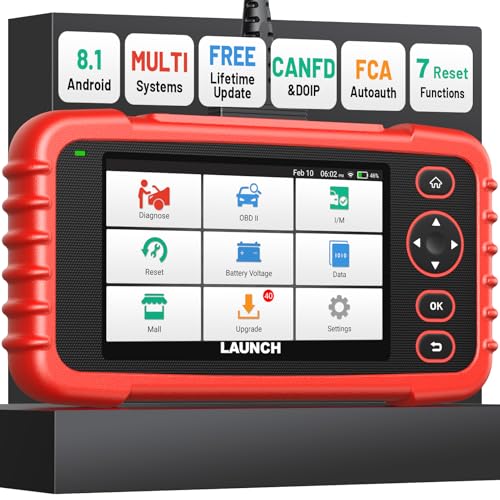
- [Newly Added in 2026: 7 Reset Functions] The 2026 new version of the OBD2 scanner diagnostic tool CRP123X V3.0 Elite has new special functions for F.REE: Throttle Ad.aptation, Oil/SAS/BMS/Brake Reset, D-P.F Re.generation and ABS Service. Before you visit a mechanic, launch obd2 Scanner CRP123X Elite can perform a more in-depth diagnosis of the car system and provide accurate data within minutes. What's more, the list of compatible models has been expanded. Upgrading frequency is regular, occurring monthly even weekly.
- 🔥[FCA AutoAuth + CAN FD & DoIP] As an upgraded version of the LAUNCH CRP123X/CRP129X, FOXWELL NT614, and ANCEL FX2000, The Newest LAUNCH CRP123X V3.0 auto diagnostic scanner supports the following new protocols: CAN-FD for 2020 and newer G.M and Chrysler
 models, as well as DoIP for V.olvo, Land Rover/Jaguar, and B.MW F/G chassis. With integrated AutoAuth, you can diagnose 2018 and newer FCA cars equipped with S.GW. Note: CAN-FD and DoIP protocols require an additional obd2 cable. *Menus vary by make, model, and year of gasoline or diesel engine vehicle. Email us your VIN data.
 - 🔥[No extra software fee. Works on 90 vehicle brands.] Most OBD2 scanners work with vehicles manufactured after 2001. However, the LUNCH OBD2 scanner is compatible with OBDII-equipped vehicles built after 1996 and works with more than 90 vehicle brands. One-click lifetime updates over WIFI 2.4&5.0Ghz keep the car software current and ensure constant coverage additions, diagnose vehicles from 1996 to 2026 with a massive global database. Android 8.1 ensures lightning-fast boot-up and processing.
- [Accurate & Intuitive Multi System Diagnosis] Will you be confused about what happens when the warning light of transmission, ABS, and SRS Airbag check engine flashes? Launch obd2 scanner diagnostic tool CRP123X V3.0 to pinpoint the problem components for a faster diagnosis for your car instead of taking your car to the dealership. Generate vehicle health reports with one click and share them via email over Wi-Fi to help avoid blind maintenance. And will turn off the warning light for you after fixing the problem, make to know more about your cars and do your own repair.
- [Multiple Display of Live Data + DTC Code Definition Explanation] Launch car tools show real-time data of oil temp, pressure, transmission temp, engine speed, coolant temperature, you will know which car part is abnormal. Data can be shown in a single, multi- graph, and merge two graphs for analysis(or 4-in-1 merged waveform graph),you can save, share, print, or email the overall inspection report for easier analysis.🔥Code Search,DTC Library provide massive information. Inbuilt “Feedback” module provides customized repair suggestions from our certified professionals.
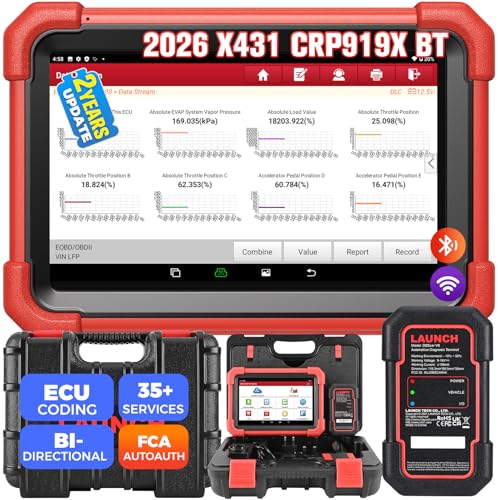
- 【2026 Most-cost-effective LAUNCH Scanner】 LAUNCH X431 CRP919XBT, upgraded from CRP919X, includes a VCI for wireless data transmission (3Mbps max). ✅HARDWARE: MTK's chip + doubled memory & battery capacity ensure 5X faster & smoother navigation than OBD2 scanner diagnostic tools in the same category. ✅SOFTWARE: Its productive features (same as LAUNCH X431 scanners), 99% car coverage, more-frequent software renewals, field-tested accurate database, are superior to most competitors on market.
- 【FCA AutoAuth + CANFD&DOIP】 LAUNCH X431 CRP919XBT uses a newly-developed wireless connector “DBSCar VII VCI” instead of a connection cable. You can be at workbench or any location around vehicle while running diagnostics. ✅With this VCI, this OBD2 scanner supports new protocols of tomorrow: CANFD for 2020-now GM&Chrysler Models; DoIP for Volvo, Land Rover/Jaguar, BMW F/G Chassis. ✅And with integrated AutoAuth, you can diagnose 2018+ FCA SGW-equipped cars without separate adapters.
- 【ECU Coding & 35+ Reset Services】 For just 500 bucks you’ll get fully-featured ECU coding & resets/relearns from LAUNCH X431 CRP919XBT. 👍Online Code for VW/Audi/Skoda/Ford/Lincoln/Mazda; 👍Open/close hidden functions; 👍Personalized modifications/changeover; 👍Shortcut to 35+ special functions like “Oil Reset/Brake Reset/Throttle Adaptation” etc., to quickly meet your daily repair needs. 🚩100+ more resets/relearns are under “car brand – system” waiting to explore.
- 【All Brands All System Scan】 With a market focus, LAUNCH X431 CRP919XBT boasts a complete filed-tested database for your deeper dive into car's health to handle more complex repairs. Back up by leading LAUNCH technology, you can do all system coding/scans/read&clear codes/bidirectional control/resets covering 99% cars, unlike many scanners for cars on market (x-tool) with fake advertisement claiming to “do it all” but in reality, they ONLY work for certain cars with limited services.
- 【Bi-directional Control】This LAUNCH bidirectional scan tool CRP919XBT allows technicians to command specific vehicle components (like solenoids, relays) to monitor real-time working status, without using the vehicle controls. Achieve fast, accurate diagnostics and take control like never before. Turn on the radiator fan, modulate the throttle, open or close windows, operate mirrors, Injector Buz Test, turn on interior and exterior lights, sound horn, etc.
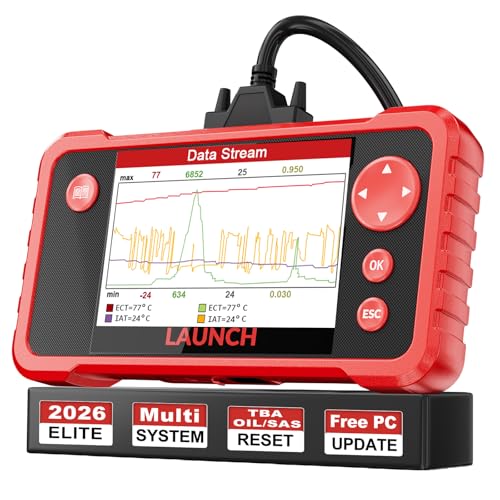
- 【Great Ideal For Every Car Owner】Prefect choice for your father, husband, brother or boyfriend. EVERY CAR OWNER WILL NEED IT! Also, the lifetime update is provided for more vehicle coverage, bug fixes. SAVE AT LEAST $1000+ PER YEAR!Get LAUNCH CRP123 V2.0 car diagnostic scanner and give your lover a surprise!*R each us to Get the Extra Gifts :Protective Case Storage Bag.
- 【Newly Added 3 Reset Functions】CRP123 V2.0 obd2 scanner with upgrades it offers Throttle Adaptation,Oil Reset and SAS Reset functions for FREE now!! Optimize your engine performance with Throttle Adaptation, reset your oil life system with ease to save time and money on maintenance, and enhance your vehicle's handling and safety with SAS Reset.Covering more daily repairs,become the most cost-effective product in its price range,save your time and money!
- 【 Read & Clear/Reset Engine/ABS/SRS/Transmission Diagnostic Scan Tool 】LAUNCH CRP123 V2.0 OBD2 Scanner can test Engine, Transmission, ABS and Airbag four systems, also reads and resets code, displays data stream graphic, stores and playbacks dynamic data stream,helps to quick analysis and diagnosis.
- 【 Error Fault Code Reader】Except the full 10 modes OBD2 diagnostic functions like, retrieving I/M readiness, Freeze Frame Data, Read Dynamic Data stream and Vehicle Information, O2 Sensor Test, EVAP Test of Fuel Tank System (Mode 8) and Advanced On-board Monitoring (Mode 6), launch crp123 v2.0 obd2 scanner can not only reveal what error codes your car is producing, but also erase your vehicle’s check engine light after problem fixed, the DTC help and explanation also tell you the exact problem.
- 【 Live Data Graphing + Read/Record/Playback Data stream + Print diagnostic data 】Live Data Graphing,more intuitive to know your vehicle’s problem.4 inches Screen Screen ;Print Function:Print the diagnose result easily; with user manual and register & update tutorial video uploaded in the link by us,you can Look up it anytime by ONE-CLICK.
This product presentation was made with AAWP plugin.
Last update on 2026-06-05 / Affiliate links / Images from Amazon Product Advertising API