
NHTSA ID Number: 10153004
Manufacturer Communication Number: NTB16-104b
TSB/Document Date: 2019-02-19
Summary
2017 PATHFINDER; DISPLAY CONTROL UNIT REPLACEMENT This bulletin has been amended. See AMENDMENT HISTORY on the last page. Discard all previous versions of this bulletin.
Classification:
Reference:
EL16-035b
Date:
NTB16-104b
January 15, 2019
2017 PATHFINDER; DISPLAY CONTROL UNIT REPLACEMENT
This bulletin has been amended. See AMENDMENT HISTORY on the last page.
Discard all previous versions of this bulletin.
APPLIED VEHICLES: 2017 Pathfinder (R52)
SERVICE INFORMATION
If the Display Control Unit (DCU) needs to be replaced on an APPLIED VEHICLE for any
reason, follow the steps in the SERVICE PROCEDURE to:
Place the order with DENSO.
Configure the Multi AV system.
NOTE:
The original DCU must be installed in the vehicle while performing part of this
procedure. DO NOT remove the original DCU until instructed.
For 2017 Pathfinder vehicles only: The need to contact TECH LINE to obtain
DCU order approval has been eliminated. Contact TECH LINE only if technical
assistance is needed.
For 2018-2019 Pathfinder vehicles: TECH LINE needs to be contacted for
approval before ordering from DENSO. For 2018-2019 Pathfinder DCU
replacement, refer to NTB19-002.
Nissan Bulletins are intended for use by qualified technicians, not 'do-it-yourselfers'. Qualified technicians are
properly trained individuals who have the equipment, tools, safety instruction, and know-how to do a job
properly and safely. NOTE: If you believe that a described condition may apply to a particular vehicle, DO
NOT assume that it does. See your Nissan dealer to determine if this applies to your vehicle.
1/13
SERVICE PROCEDURE
IMPORTANT: Before starting, make sure:
Your ASIST station has been synchronized (updated) to the current date.
All CONSULT-III plus (C-III plus) software updates have been installed.
Parts of the SERVICE PROCEDURE
PART 1: Take preliminary steps prior to ordering a DCU / Order a DCU
PART 2: Record Multi AV Configuration Values of Original DCU / Replace DCU
PART 3: Configure the Multi AV System
PART 4: Manually Configure the Multi AV System (if needed)
PART 1: Take Preliminary Steps Prior to Ordering A DCU / Order a DCU
While not required, Nissan recommends using the following preliminary steps along with
any other necessary diagnosis for non-warranty repairs.
1. Duplicate and verify the customer’s concern if possible. If duplication is not possible,
gather as much information about the issue as possible from the service advisor/writer
or customer.
2. Check for any connected devices (phone, iPod, MP3 player, etc.) or determine if a
connected device is present during the concern. Gather model and software version
information if possible.
NOTE: TECH LINE can be contacted IF technical assistance is needed with diagnosis
and repairs.
2/13
NTB16-104b
Order an Exchange DCU from DENSO
NOTE: In most cases, an exchange DCU will be ordered. A new DCU is required only if:
The vehicle has not yet been sold.
The customer requests a new DCU on a non-warranty repair.
The exchange DCU is not available.
Insurance claim replacement.
After steps 1 and 2 have been completed, your parts department will order the
replacement exchange DCU as instructed below.
3. Fill out the DENSO Exchange Order Form and fax or email it to DENSO.
Order forms are found on NNAnet.com:
a. Log onto NNAnet.com.
b. Confirm Brand View is Nissan.
c. Select My Links.
d. Select Warranty.
e. Select Electronic Exchange Information – Nissan.
f. Scroll down to Denso, and then click on Link to Denso Order Form.
g. Fill out the form. Be sure to use the DCU part number in the Exchange Part #: field.
NOTE: The DCU part number can be found on the label on the back of the DCU,
or with C-III plus by going to Diagnosis (One System) > MULTI AV > ECU
Identification.
4. After the order is submitted, DENSO will then email confirmation to your parts
department stating the order has been placed.
3/13
NTB16-104b
PART 2: Record Multi AV Configuration Values of Original DCU / Replace DCU
5. Prepare the vehicle.
Make sure the shift selector is in Park, and the parking brake is set.
Connect the GR8 to the 12V battery and select ECM Power Supply Mode.
Connect the plus VI to the vehicle.
Launch C-III plus on the CONSULT PC.
Turn the ignition ON. DO NOT start the engine.
6. Select Re/programming Configuration.
Figure 1
4/13
NTB16-104b
7. Read the Precautions.
When finished, click in the
Confirmed instructions box to
insert a check mark, and then
select Next.
Figure 2
8. Select the Manual Selection
(Vehicle Name) tab, and then
select Pathfinder and 2017 under
Model Year.
NOTE: If the screen shown in
Figure 3 does not display,
proceed to step 11.
9. Select Select.
Figure 3
10. Confirm the correct Vehicle Name
and Model Year are displayed.
When finished, select
Confirm.
xxxxxxxxxxxxxx
xxxxxxxxxxxxxx
xxxx
Figure 4
5/13
NTB16-104b
11. After System Call completes,
confirm the correct Vehicle
Identification Number (VIN) is
displayed.
When finished, select Confirm.
NOTE: If the VIN displayed is
incorrect, input the correct VIN.
When finished, select Confirm.
Figure 5
12. Select MULTI AV.
Use the scroll arrows if needed.
Figure 6
13. Select Before ECU Replacement.
Figure 7
6/13
NTB16-104b
14. Confirm Setting Value (current
configuration) and write it down.
The current configuration can
also be printed with the Print
Screen button or Screen
Capture button.
Use the scroll arrows if more
than one page of information
is available.
Write down / print
this information
NOTE: Configurable options will
differ and your screen may look
different.
Figure 8
15. Select Save.
NOTE: If the configuration data
cannot be saved, replace the DCU
as instructed in the applicable
Electronic Service Manual (ESM),
and then proceed to page 9, PART
4: Manually Configure the Multi
AV System (if needed).
xxxxxxxxxxxxxxxxxxxxxxxxxxxxxx
xxxxxxxxxxxxxx
16. Select End.
xxxxxxxxxxxxxx
xxxxxxxxxxxxxx
Figure 9
17. Replace the DCU as instructed in the applicable ESM.
Refer to the ESM, section DRIVER INFORMATION & MULTIMEDIA > AUDIO,
VISUAL & NAVIGATION SYSTEM > NISSANCONNECT > REMOVAL AND
INSTALLATION > DISPLAY CONTROL UNIT > Removal and Installation.
7/13
NTB16-104b
PART 3: Configure the Multi AV System
18. Perform steps 5-11 again before proceeding to step 19.
19. When you get to the screen
shown in Figure 10, select
Confirm.
xxxxxxxxxxxxxx
xxxxxxxxxxxxxx
Figure 10
20. If the screen in Figure 11 appears,
skip to page 11, step 30.
21. If the screen in Figure 11 does not
appear, go to step 22.
Figure 11
8/13
NTB16-104b
22. Select OK.
After performing Step 22:
If an error message does not
display, proceed to page 13,
step 34.
If an error message does display,
proceed to PART 4: Manually
Configure the Multi AV System
(if needed), below.
Figure 12
PART 4: Manually Configure the Multi AV System (if needed)
NOTE: If the screen in Figure 13 is
not displayed, click on the Home icon.
23. Select Re/programming
Configuration.
Figure 13
9/13
NTB16-104b
24. Read the Precautions.
When finished, click in the
Confirmed instructions box to
insert a check mark, and then
select Next.
Figure 14
25. Select the Manual Selection
(Vehicle Name) tab, and then
select Pathfinder under Vehicle
Name, and 2017 under Model
Year.
NOTE: If the screen shown in
Figure 15 does not display, proceed
to the next page, step 28.
26. Select Select.
Figure 15
27. Confirm the correct Model Name
and Model Year are displayed.
When finished, select Confirm.
xxxxxxxxxxxxxx
xxxxxxxxxxxxxx
xxxxxxxxxxxxxx
Figure 16
10/13
NTB16-104b
28. Confirm the correct VIN is
displayed.
When finished, select Confirm.
NOTE: If the VIN displayed is
incorrect, input the correct VIN.
When finished, select Confirm.
Figure 17
29. Select MULTI AV.
Use the scroll arrows if
needed.
Figure 18
30. Select After ECU Replacement.
Figure 19
11/13
NTB16-104b
31. Select Manual selection.
Figure 20
32. Use the drop down menus to
select the configuration options
that were printed or written down
in step 14.
Use the scroll arrows if more
than one page of information
is available.
NOTE: Configurable options may
differ and look different from
Figure 21.
Figure 21
33. Confirm the configuration items
displayed under Setting Value
are correct, and then select OK.
Figure 22
12/13
NTB16-104b
34. Turn the ignition OFF, and then start the engine.
35. After starting the engine, wait for about 30 seconds.
36. Use C-III plus to erase any codes from the Multi AV system.
a. Select Home on the C-III plus screen.
b. Select Diagnosis (One System) > Multi AV > Self Diagnosis Results.
c. Erase any codes that may be present.
37. Close C-III plus and disconnect the plus VI from the vehicle.
38. Check that the operation of the DCU and, if equipped, Rear View Monitor camera
images (fixed guide lines and predictive course lines) are normal.
39. Disconnect the GR8 from the 12V battery.
AMENDMENT HISTORY
PUBLISHED DATE REFERENCE DESCRIPTION
November 3, 2016
NTB16-104
Original bulletin published.
December 5, 2017
NTB16-104a
The APPLIED VEHICLES section and Part 1 of the
SERVICE PROCEDURE have been revised.
January 15, 2019
NTB16-104b
The APPLIED VEHICLES section has been revised,
and the need to contact TECH LINE for DCU order
approval has been eliminated.
13/13
NTB16-104b

- 💯【Conta.ct us for Support Directly】If you met any...
- 🔥🔥🔥【2026 AUTEL FLAGSHIP MK900BT MK900-BT, NEW...
- 🚗【3000+ ACTIVE TESTS (50➡3000+), SAME AS MS...
- 🚗【40+ HOT SERVICES FOR 150 MAKES (28+➡40+)】Full...
- 🚗【OE ALL SYSTEM DIAGNOSE, AUTO SCAN 2.0: SCAN LICENSE...

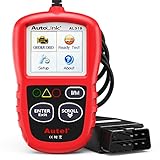
- 【TURN OFF CEL】 This AL319 car scanner diagnostic tool...
- 【EXTENSIVE APPLICATION】 Autel AL319 Compatible with...
- 【FOR END USER & DIYERS】 This error code reader AL319 is...
- 【USER-FRIENDLY DESIGN】 This OBD2 scanner and check...
- 【HIGH-QUALITY SERVICES】 12 months war.ranty from the...
Last update on 2026-06-23 / Affiliate links / Images from Amazon Product Advertising API
If the PDF is very large, it may not load in the preview below.
Some older TSBs had multiple PDFs — visit the NHTSA Website to view all PDFs.
If the TSB PDF does not show, download or view it on the NHTSA Website.
Click on the (+) Plus Sign
Then Click on Associated Document(s)
Search NHTSA Database for Recalls
Search NHTSA Database for Vehicle Investigations
View Latest Vehicle Investigations
Search NHTSA Database for Vehicle Complaints
View Latest Vehicle Complaints
TSB/Document ID: NTB16-104b
Replacement Service Bulletin Number:
MFR Communication Date: 2019-01-15
MFR Internal Campaign ID/Software Version:
Communication Type: Service Bulletin/Repair Instructions
NHTSA Components: EQUIPMENT:ELECTRICAL
MFR Component System:
MFR Component Subsystem:
Previous TSB | Next TSB |

- [2026 Top-Tier Hardware and Software Upgrade]: Topdon ArtiDiag900 Lite scanner has enhanced hardware and latest features, including Android 11.0, 5x faster CPU, 10000mAh battery for 12 hours of continuous operation, stable wireless diagnosis with Bluetooth 5.0, 8-inch touchscreen. Added bi-directional control, wireless diagnosis, battery testing (optional), and DTC repair guide
- [TOPDON Bidirectional Scan Tool]: This bidirectional obd2 scanner sends commands to the vehicle's ECU for active testing, enabling users to accurately and quickly locate faulty components such as injectors, coolant pumps, windows, wipers, headlights, mirrors, etc. The bidirectional control scanner is the ideal choice for workshops/automotive repair shops as it significantly reduces mechanic's diagnostic time.
- [Wireless Bluetooth Diagnostic Experience]: The AD900 Lite scan tool comes with a Bluetooth 5.0 VCI, supporting a wireless diagnostic range of up to 33 feet (10 meters), allowing you to diagnose without being confined to cables or tight spaces. Stable and fast wireless diagnosis provides a comfortable repair environment. It also offers VCI cables to increase connectivity options.
- [DTC Repair Guide Function]: Easily diagnose issues with your vehicle and receive guidance on repairs with the topdon scan tool's fault code definitions for all systems,maximize your diagnostic capabilities. This function is compatible with Chrysler
 /Dodge/Jeep/Fiat 2010-2014 and expanding with continual updates,the AritDiag 900 Lite car diagnostic scanner is the must-have tool for any technician or DIY enthusiast.
 - [OE-Level Full System Diagnostics]:AritDiag900 Lite full system diagnostic scanner can scan ALL available modules(Engine, Transmission, Airbag, ABS, ESP, TPMS, Gateway, Steering, Radio, Air conditioning, ect.) to✔read ECU info, ✔read/clear codes, ✔view live data stream, ✔retrieves freeze-frame, ✔perform active tests, and more. With just a simple click, it provides you with accurate and in-depth diagnostics.

- Dual WiFi & 10.1" Touchscreen: Provides a stable, high-speed wireless link 3x faster than bluetooth, and a responsive, professional interface. Topdon ONE obd2 scanner diagnostic tool ensures smooth, non-lagging diagnostic scan, boosting mechanic efficiency
- J2534 Pass-Thru Support: The included ONE VCI supports the J2534 standard, allowing it to function as a pass-thru device when paired with OEM diagnostic software.Through TOPDON’s RLink platform, technicians can perform dealer-level coding, expanding in-house capabilities without investing in multiple factory automotive scan tools
- OE Topology Mapping: Visualize the vehicle’s ECU network exactly as it’s built.Zoom, pan, and highlight specific modules to pinpoint component issues with precision.Topology mapping displays real-time communication between modules
- 50 Plus Service Functions: Covers high-demand services like ADAS calibration, DPF regen, TPMS reset, ABS bleed, and throttle adaptation.Expands your service menu, allows you to charge premium rates, and turns away zero jobs due to lack of tooling. Vehicle-specific functionality may vary
- Advaned ECU Coding: 10 of the most serviced brands in North America, including full ECU coding and flash hidden support for BMW, VW, Au-di, Benz, Porsche, Toyota, Ni ssan and more. Enables module replacement, feature customization, and personal settings with automatic backup or restore.Lets your shop safely offer high-margin customization services, attracting more customers and boosting profit

- Bi-Directional Control, Quickly Locate Problems: Turn your phone into a professional diagnostic tool. You can send commands from your phone to the ECU to test injectors, cooling fans, headlights, A/C clutch, windows, wipers, and more. See which one doesn't respond. Helps you quickly locate the problem and save time. No need to tear things apart, avoid blind disassembly.
- Flexible Subscription, Choose Advanced Features as Needed: TopScan Lite provides free-for-life access to core diagnostics, including full system scan, code reading, performance tests, and repair information. After purchase, advanced features (bi-directional control, service operations, live data, code clearing, and AI functions) are free-for-the-first-year. After the first year, if you want to use advanced features, you need to subscribe on a monthly, quarterly, or yearly basis. As new models and reset functions are updated, the tool will also be continuously upgraded.
- Full System Diagnostics, No Fault Hides: Unlike basic diagnostic tools that only cover 4 systems, TopScan can scan all systems. Read and clear trouble codes, view live data streams, and generate a complete vehicle health report – all issues are clear at a glance. Covers 10,000+ vehicle models and is compatible with 99.99% of vehicles.
- AI Assistant - TopFix: Think of TopFix as your personal AI mechanic. It leverages a repair database and OEM data to deliver clear, step-by-step repair solutions. Features include AI Q&A, one-click translation, and a full repair log, making your diagnostic process simpler and more efficient.
- 8+ Hot Resets, Keep Your Car in Top Shape: One-tap resets for oil, throttle, EPB, steering angle, DPF, ABS, BMS, and airbag. It enables car owners to easily perform essential maintenance, ensuring the vehicle stays in optimal condition and extends its service life.
Last update on 2026-06-23 / Affiliate links / Images from Amazon Product Advertising API
This product presentation was made with AAWP plugin.