
NHTSA ID Number: 10149070
Manufacturer Communication Number: NTB17-111c
TSB/Document Date: 2018-11-26
Summary
NISSANCONNECT OVER THE AIR SOFTWARE UPDATE This bulletin has been amended. The APPLIED VEHICLES section has been revised. No other changes have been made. Please discard all previous versions of this bulletin.
Classification:
Reference:
EL17-032c
Date:
NTB17-111c
October 9, 2018
NISSANCONNECT
OVER THE AIR SOFTWARE UPDATE
This bulletin has been amended. The APPLIED VEHICLES section has been revised.
No other changes have been made. Please discard all previous versions of this bulletin.
APPLIED VEHICLES:
2018-2019 Rogue (T32)
2019 Sentra (B17)
2019 Versa Note (E12)
2019 Versa Sedan (N17)
SERVICE INFORMATION
Before starting a diagnosis for a NissanConnect issue, always confirm the latest software
is installed. The latest software will include the most up-to-date system enhancements.
The latest generation NissanConnect now has the ability to update its system’s software
through a Wi-Fi connection.
The Service Procedure in this bulletin contains the instructions to perform updates via a
Wi-Fi connection.
IMPORTANT:
To update the software by Wi-Fi the vehicle must be within range and connected
to a secure Wi-Fi network.
A password protected Wi-Fi network with WPA2 security is required to secure the
update download.
Nissan Bulletins are intended for use by qualified technicians, not 'do-it-yourselfers'. Qualified technicians are
properly trained individuals who have the equipment, tools, safety instruction, and know-how to do a job
properly and safely. NOTE: If you believe that a described condition may apply to a particular vehicle, DO
NOT assume that it does. See your Nissan dealer to determine if this applies to your vehicle.
1/15
SERVICE PROCEDURE
WARNING: During the update process, the vehicle should be kept in a well-ventilated
area to avoid the exposure to Carbon Monoxide. Do not breathe exhaust gases; they
contain colorless and odorless carbon monoxide. Carbon Monoxide is dangerous. It can
cause unconsciousness or death.
Wi-Fi Connection
1. Start the engine.
2. Push the MENU button.
Figure 1
3. Select Connections.
Figure 2
4. Select the Wi-Fi tab to display the
available networks within range of the
vehicle.
5. Select the network to which you wish to
connect.
NOTE: Figure 3 is only an example and
uses “My network” in place of dealer
network name.
Figure 3
2/15
NTB17-111c
6. Enter the network Passphrase
(password) for the selected network
and then select OK to connect to the
chosen network.
NOTE: Figure 4 is an example only and
uses “MyPASSPHRASE” in place of
dealer password.
Figure 4
7. Once the connection has been
established, the connection status will
display “Connected” under the selected
network (Figure 5).
Connection
status
Information
icon
8. Select the “ i ” information icon to
access the connection details.
Figure 5
My network
9. Confirm signal strength.
A strong signal is recommended for
the best results.
Figure 6
3/15
NTB17-111c
Update System Software by Wi-Fi
10. Push the Menu button.
Figure 7
11. Select the Info icon for info menu.
Figure 8
12. Select System Information to access
the vehicle update menu.
Figure 9
13. Select Software Version.
Figure 10
4/15
NTB17-111c
Back Button
14. Is the software version 0000000140?
YES: Select the Back button, and
then proceed to page 11.
NO: Select the Back button, and
then proceed to step 15.
Figure 11
15. Select Software Update to access
Software Update menu.
Figure 12
16. Select Start Software Update to begin
software update.
Figure 13
5/15
NTB17-111c
IMPORTANT: More than one update may be available:
Only one update will be displayed at a time, and must be downloaded before the next
update can be displayed and downloaded.
After a download completes, check for the next most recent update.
Continue to check until the system indicates that the current software is the latest.
17. Select Check for an Update.
The vehicle will connect to the server
and check for software updates.
NOTE: This can take up to one (1)
minute to complete.
18. If an update is available, proceed to step
21 on page 8.
Figure 14
19. If currently installed software is up to
date, a corresponding notification will be
displayed as shown in Figure 15.
20. Select OK to back out of the software
update, and then delete the Wi-Fi
network as follows:
Figure 15
a. Push the MENU button.
Figure 16
6/15
NTB17-111c
b. Select Connections from the
HOME screen.
NOTE: Connections can also be
selected from the Settings Menu.
Figure 17
c. Select the Wi-Fi tab to display the
available networks (Connections)
within range of the vehicle.
Figure 18
d. Select the “ i “ information icon for
the network you connected to.
Information
icon
Figure 19
e. Select Delete.
f. Turn ignition OFF; no further action
is needed.
Delete
connection
Figure 20
7/15
NTB17-111c
21. Select Download to begin the
download process.
The update will begin automatically
and the screen in Figure 22 will be
displayed once the download is
complete.
NOTE: If the update download
process is interrupted, it will
continue once the connection to the
server is re-established.
Figure 21
Figure 22
22. Upon the completion of the software
update, a message will be displayed to
turn the vehicle off and back on.
a. Select OK.
b. Turn the ignition OFF.
c. Exit the vehicle (using driver’s door),
and then close the door.
Confirm that all other doors are
also closed.
Figure 23
d. Wait five (5) minutes.
NOTE: The engine does not need to be running for the next steps.
e. Turn the ignition ON (engine OFF) and wait for the Nissan logo to appear.
If the Nissan logo does not appear (this might take up to 30 seconds), start over
from Step 22b.
f. After the Nissan logo appears, wait about one (1) minute.
The message “The software update was successfully completed” will be
displayed.
8/15
NTB17-111c
g. Select OK.
The Home screen in Figure 25
will be displayed.
Figure 24
NOTE: If you see the pop-up box in Figure 24A, select Later and then proceed to step 23.
Figure 24A
23. Check for additional Software updates.
IMPORTANT: More than one update may be available.
Only one update will be displayed at a time, and must be downloaded before the
next update can be displayed and downloaded.
a. Perform steps 10-12 and then 15-18 starting on page 4.
b. Does the system indicate that the software version is the latest?
YES: Proceed to step 24.
NO: Perform steps 21-23 starting on page 8.
24. Delete the Wi-Fi network as follows:
a. Push MENU button.
Figure 25
9/15
NTB17-111c
b. Select Connections from the
HOME screen.
NOTE: Connections can also be
selected from the Settings Menu.
Figure 26
c. Select the Wi-Fi tab to display the
available networks (Connections)
within range of the vehicle.
My network
Figure 27
d. Select the “ i “information icon on
the network drive that was
connected to.
Information
icon
Figure 28
e. Select Delete.
25. Turn the ignition OFF.
Software update is complete.
Delete
connection
Figure 29
10/15
NTB17-111c
Script Download (Software version is 0000000140)
1. Select Software Update.
Figure 30
2. Select Start Software Update.
Figure 31
3. Select Check for an Update.
NOTE: Nothing should change on the
screen except for the “Last Checked”
date.
4. Wait for at least three (3) minutes on
the Software Update screen, after
Check for an Update is selected.
5. After 3 minutes, turn the ignition OFF.
Figure 32
6. Exit the vehicle (using driver’s door), and then close the door.
7. Confirm that the display screen has turned OFF.
Do not open the driver’s door until instructed to.
8. Wait another five (5) minutes for the system to shut down.
IMPORTANT: Do not turn the ignition ON, open the doors or lock/unlock the vehicle
during this time.
11/15
NTB17-111c
9. Start the engine.
Confirm that the Nissan logo
appears.
If the Nissan logo does not appear,
start over from step 5 on page 11.
Figure 33
10. Wait one (1) minute.
11. Push the Menu button.
Figure 34
12. Select the Info icon for info menu.
Figure 35
13. Select System Information to access
the vehicle update menu.
Figure 36
12/15
NTB17-111c
14. Select Software Update.
Figure 37
15. Select Start Software Update.
Figure 38
16. Select Check for an Update.
17. Wait for at least ten (10) seconds.
Figure 39
18. After approximately ten (10) seconds
the message “There is a new software
update available” will be displayed.
NOTE:
The time it takes to display this
message depends on the internet
speed and Wi-Fi signal strength.
This could take longer if internet
connection is slow or Wi-Fi signal is
weak.
Figure 40
13/15
NTB17-111c
19. Select Download to begin the download
process.
Figure 41
The update will begin automatically
and the screen in Figure 42 will be
displayed once the download is
complete.
NOTE: Do not turn the engine OFF
during this step.
Figure 42
20. Upon the completion of the software
update, a message will be displayed to
turn the vehicle off and back on.
a. Select OK.
b. Turn the ignition OFF.
c. Exit the vehicle (using driver’s door),
and then close the door.
Confirm that all other doors are
also closed.
Figure 43
d. Wait five (5) minutes.
NOTE: The engine does not need to be running for step 21.
21. Return to page 8 and perform steps 22e through step 24 on page 9.
14/15
NTB17-111c
CLAIMS INFORMATION
Submit a Primary Operation (PO) type line claim using the following claims coding:
DESCRIPTION
OP CODE
Perform Script Download and Software Update
RX6KAA
Perform Only Software Update
RX6MAA
No Update Available
RX6LAA
15/15
SYM
DIA
FRT
0.5
ZE
32
0.3
0.2
NTB17-111c


- [J2534 Pass-Thru Programmer] - TOPDON RLink J2534 is...
- [All-in-One OEM Reprogramming and Diagnostics] - When...
- [Tested, Trusted, and Proven for Accuracy] - TOPDON RLink...
- [One-Click Installation, Continuous Updates] - The exclusive...
- [Works with Windows Compatibility and OEM Software...

If the PDF is very large, it may not load in the preview below.
Some older TSBs had multiple PDFs — visit the NHTSA Website to view all PDFs.
If the TSB PDF does not show, download or view it on the NHTSA Website.
Click on the (+) Plus Sign
Then Click on Associated Document(s)
Search NHTSA Database for Recalls
Search NHTSA Database for Vehicle Investigations
View Latest Vehicle Investigations
Search NHTSA Database for Vehicle Complaints
View Latest Vehicle Complaints
TSB/Document ID: NTB17-111c
Replacement Service Bulletin Number:
MFR Communication Date: 2018-10-09
MFR Internal Campaign ID/Software Version:
Communication Type: Service Bulletin/Repair Instructions
NHTSA Components: ELECTRICAL SYSTEM:SOFTWARE
MFR Component System:
MFR Component Subsystem:
Previous TSB | Next TSB |

- Scanner POR V2.0 with all obd2 services
- Do the scanning for engine
- Support OBDII/EOBD Ten Modes of Operation

- 【Designed for Most Mercedes-Benz
 , Sprinter and Smart from 1996-2023】As every car model of Benz has its-owned specific car system and ECUs, not all models are equipped with a complete vehicle ECU, which may cause the scanner to be unable to perform all listed reset services on some models, or even completely incompatible. Like For Sprinter's newer models, it support diagnostic functions only, lacking support for specialized service functions.. So please tell us the car's VIN and required service before purchase for compatibility check. You may also refer to the instructions in the eighth image of the main product photos to perform your inquiry.
 - 【Up to 38 Reset Services】MB V3.0 2026 Version diagnostic tool performs Up to 38 maintenance services - Oil Rest , SAS, EPB, ETC, D-P-F, TPMS, ABS, Suspension, Air Conditioner, Head Lamp, Body Stability, Engine Control, Seat, Fuel Pump, Air-Filter, Engine Idle, Door, Im-mo-bilizer, Injector Coding, Transmission Control, Miscellaneous, Adblue, BMS, Cluth, Water Pump, NOxSensor, Rain/Light Sensor, Start/Stop, Radar/Camera, Cylinder Shutoff Test, Speed Limit Assist, Control Unit Reset, Oxygen Sensor, Seat Belt, Cruise Control System, Turbocharger, Crankshaft, Language Setting and etc. (Tips: Please update the software after receiving the product to obtain new service functions)
- 【OE-Level All System OBD2 Scanner】iCarsoft MB V3.0 (2026 Version) diagnostic scanner offers comprehensive OBDII services, allowing you to quickly scan all systems, including the Engine, ABS, SAS, SRS, TPMS, TCM, Fuel Pump System, ESP, EPB, EPS, Suspension, SCM, Adaptive Systems, and more. It supports functions such as reading and erasing codes, checking I/M readiness, viewing freeze frame data, performing O2 sensor tests, conducting on-board monitoring, testing the evap system, auto VIN retrieval, and reading both generic and specific codes, as well as DTCs and battery tests.
- 【Bidirectional Scan Tool】iCarsoft MB V3.0 (2026 Version) Bidirectional scanner supports activate or control a vehicle system or component, allows commanding cars’ modules and receiving info from the ECU to perform active tests on individual components, including EVAP/ABS Motor Pump/Windows/Sunroof and more, to pinpoint fault causes & resolve issues,and allows you to re-learn certain components after making repairs or replacement.
- 【Real Time Record & Graph View】iCarsoft MB V3.0 (2026 Version) can automatically record vehicle text history and identify vehicle information. Preserve real-time data information. View & Graph Live Data. Support Data Review and Print. Multi-language: English, German, Dutch, Spanish, French and so on. We promise to offer Lifetime updates (Lifetime free Update via PC), and confidence in products. We also provide 1 year warranty + extra lifetime hardware free repair if you need it in the future. We prioritize user experience & strive to meet your expectations. Please do feel free to reach out to us if you have any question or problem about the usage, our tech team will service you in time.
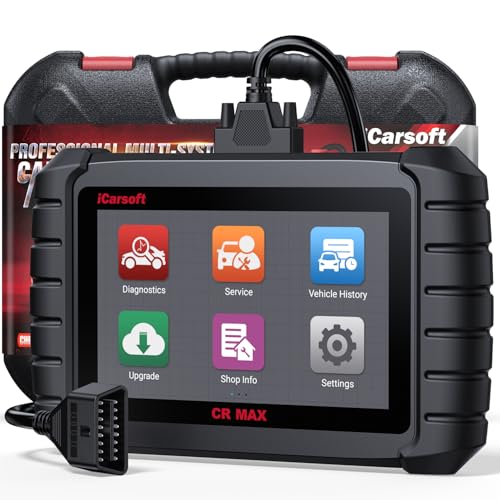
- WHY CHOOSE THE 2025 CR MAX -Upgrade the latest diagnostic capabilities for all vehicles after 1996: upgrade to 49+maintenance services; 46 extra specific functions; real all systems/all control modules diagnose; over 40K+ bidirectional actuation tests for diagnosing all control moduels of cars; Powerful full OBD2 Functions; built-in ECU Coding for BMW/ Audi/ VW/ RollsRoyce; Fr ee V.A.G Guide Function; Battery retistration for new battery adaptation and more. It covers all vehicle diagnostic services and some special professional vehicle maintenance servces, assists you to do home DIY vehicle maintenance or car repair as a pro technician.
- NEWEST IN INNOVATION FULL OBD2 SERVICES- iCarsoft auto car diagnostic scanner compatible with CAN-FD, CR MAX can do it all-reads and clears trouble codes, ALL SYSTEM DIAGNOSIS such as engine, transmission, ABS and airbag etc. CR MAX code reader for all cars can perform I/M Readiness, Live Data, Freeze Frame, Vehicle Information, Monitor Test, On-Board Monitor, E vap System Test,O2 Sensor Test,DTC Library Lookup,etc. (Warm Tips: If you car is after 2023,please contact us for compatibility; 3. It comes with 16PIN OBD2 diagnostic adapter, please check your car diagnostic socket if it is 16pin socket, if your car is 14pin diagnostic socket please contact us for the solution.)
- 49 RESET+ 46 SERVICES- Performs: Oil Reset, EPB,SAS,Throttle, D-P - F, Battery, ABS, Injector, TPMS, Suspension, AC, Head Lamp, Body Stablity, Engine, Tramsmission, Airbag, Seat, Door-Win-Roof, Fuel Pump, Door, E-G- R.+21 NEWEST SERVICES( Need update scanner)-AdBlue, Clutch, Crankshaft, High Voltage Battery, Cruise Control, NO xSensor, Rain Sensor, Stop And Start, Turbocharger, Head Up Display, Radar Camera, Vehicle Setup, Cyliner Misfire Check,Speedlimitassist, ControlUnitReset,OxygenSensor, Seatbelt. Extra 46+ extra services based on car brand.(Tips: Quantity of reset/ calibration fucitons are based on car system that your vehicle model has)
- REVOLUTIONARY 40000+BIDIRECTIONAL ACTIVE TESTS: Upgraded CR Max scanner equip with numberous of actuational test items for covering all available vehicle control modules, no longer only do simple light test or window test like other scanners, performs hardware modules test and software control modules test for checking car units or new updated control moduels work well or not after maintenance/ repair/ re-installation/ control system updated (Example for Benz- Roller Sun Blind test; Backup Camera test ;Self-test; EPB test; Transport Mode test;Boost Pressure Positioner test; Fuel Pump test; AND MORE!!).(Warm tip: The available test items are based on control modules your car has)
- ECU CODING+ BATTERY REGISTRATION- Powerful ECU Coding service for BMW/MINI/RollsRoyce / Audi/VW/Seat/Skoda/Bentley/Bugatti/Lamborghini, Improves Engine Power Performance and Optimizes Fuel Efficiency and Match New Hardware Unit to car and Customized a comfortable Driving Modes and Fixes & Updates Original Software Bug. The battery test function for checking car battery health, perform battery reset (BMS ) for replacing a damaged or aging car battery with a new one and register new battery to car ECU
Last update on 2026-06-10 / Affiliate links / Images from Amazon Product Advertising API
This product presentation was made with AAWP plugin.