
NHTSA ID Number: 10145794
Manufacturer Communication Number: GCI-A0357-09
TSB/Document Date: 2018-10-15
Summary
GENERAL CONSUMER INFORMATION PERTAINING TO A USER GUIDE FOR A TECH-EDGE MANUFACTURING ISERIES TANK MONITOR
INSTALLATION INSTRUCTIONS
AND USER GUIDE FOR YOUR
iSERIES TANK MONITOR
Thank you for your purchase!
Tech-Edge Manufacturing’s iSeries Monitor is designed to enhance
tank efficiency and quality of life, while granting an easy, hassle free user
monitor system.
PLEASE READ ALL INSTRUCTION BEFORE USING MONITOR
Please read all the installation instructions prior to starting. These installation instructions
are written to have as universal an application as possible. Most installations are performed
easily using simple hand tools. If you encounter any questions or difficulties please contact
your place of purchase or your local RV/Marine service center for professional installation.
You are also welcome to call our Tech Support line. Whenever the word CAUTION
appears in these instructions, the following item needs to be performed EXACTLY as
written. Failure to do so can result in injury to yourself or others, damage to your RV or
Boat or failure of the Monitor to work properly. NOTE: Any alteration to the Monitor kit
will void your warranty.
***SAVE THESE INSTRUCTIONS***
KIT INCLUDES:
iSERIES TANK MONITOR • TANK MODA SENSORS (3 in a standard kit) •
FUESABLE LINK WITH 1/2 AMP FUSE • ROLL FOIL TAPE (41/2’ PER
TANK) · SOME BUTT CONNECTORS • 4 SCREWS
CUT OUT TEMPLATE FOR MONITOR WITH MANUAL
POSSIBLE TOOLS NEEDED FOR INSTALL:
DRILL • 1/8” DRILL BIT • TAPE MEASURE •
LEVEL • ELECTRICAL TAPE •
BOX CUTTER/SCISSORS • VOLTAGE TESTER •
HAND/JIG SAW • 18 GUAGE HOOK UP WIRE •
WIRE CUTERS • ADDITIONAL BUTT CONNECTORS •
ISOPROPAL ALCOHOL • 3M-SPRAY, OR ANY OTHER
NON-CONDUCTIVE ADHESIVE ·
IF YOU NEED MORE EXTERIOR MODA SENSORS OR CUSTOM
INTERIOR TANK RODS, YOU CAN ORDER THOSE DIRECTLY
FROM THE MANUFACTURE LISTED ON THE BACK.
STEP ONE:
Location and installation of Monitor Panel:
CAUTION: READ CAREFULY
Choose a panel location that is convenient to see and reach, and that does not interfere with
drawers, cabinets, existing wiring, etc. In choosing a location you must also give major
consideration to the fact the WIRES must be routed from the panel to the holding tanks as
well as to your power source. MAKE CERTAIN the proposed wiring routes are not blocked
by wall stringers or other structural supports.
REFER TO Cut Out Template on Page 2 If you would like to keep your manual
intact, make a 100% copy of the cut out template and use that. Using the cut-out guide, mark
holes on the corners of the area to be cut out as well as the screw placements. Cut the panel
opening as indicated. The panel will attach to the wall with 4 screws at the corners. DO NOT
attach the panel to the wall until all other installation, calibration and testing has been
completed.
PAGE 1
STEP TWO
INSTALL SENSORS ONTO THE TANK(S):
NOTE: This section covers the installation of our external sensor modules called
MODA sensors. If you have our custom made internal rod sensors (PVC or aluminum) for
metal tanks or tanks that are not accessible to the side wall, installation will be different but
wiring will be the same.
An external sensor is comprised of two parts: THE FOIL TAPE and the MODA
SENSOR MODULE. Refer to Figure #2 and repeat the following steps for each tank.
PAGE 2
A. Measure and cut to length two strips of foil tape. Each strip will run as close to the ends
of the tank as possible while still being able to maintain adhesion. If a tank has rough or
rounded corners, you may need to bring it in 1/2”. NOTE: Each strip of foil tape should
be between 15 and 40 square inches (multiply the length times the width) it may be
necessary to trim away or add to the tape width to stay within these parameters.
B. Prepare the tank area where the foil tape is to be placed by rubbing down the area with
common isopropyl alcohol. Remove the paper backing from the foil tape strips and
place them on to the tank in the designated areas. Smooth out any trapped air bubbles.
Follow the dimensions on Figure #2 below.
C. If your tank is less than 8” tall or has very thick walls, then you will need to add
additional tape and/or bring the tape closer together. If you are adding additional tape
width, see Figure #2 A below. Foil can be added over the copper pad without a
problem as long as it is pressed completely down.
IMPORTANT: The foil tape strips must be an inch or more away from large metal
objects such as framework, metal siding, stored items, etc...
Remove the paper backing from the copper pads and from the module. Place a copper
pad onto each of the two foil tape strips, then stick sensor to tank. The copper pads can
be trimmed if they exceed the width of the foil tape, they can also be placed anywhere
UP or DOWN the length of the tape.
D. When you have installed the entire system, calibrated and tested it; then, apply a thin
coating of 3M-spray (ie. Formula 77 or 90), or any non-conductive adhesive over the
top surface area of the exposed tape to help ensure long term adhesion (optional).
IMPORTANT: PROVIDE ADEQUATE VENTILATION WHEN APPLYING THE
ADHESIVE, PARTICULARY IF WORKING IN A CONFINED AREA.
STEP THREE
RUN WIRING : “CAUTION” If you use staples or nails to secure wiring, make sure you
do not penetrate the wire at all. Also route wires so they do not interfere with storage areas and
away from potential sources of heat (oven, exhaust pipes, etc.). Due to the vast range of
application possibilities it is not practical for us to include hookup wire in the kit. It is
however, commonly available and inexpensive. You must use at least 18 gauge stranded
wire for the power runs and between 22 and 18 Awg for the data runs. Make certain you
have enough to perform all connections.
You will be using your hookup wire to make connections to a 12 volt D.C. power source and
for connecting the panel to the tank(s). After studying the wiring installation procedures you
can cut your hookup wire to required lengths, then strip the insulation on all wire ends
approximately 1/4” and use the supplied butt connectors or wire nuts to join wires.
A. Take time to study the wiring diagram and the “Hookup Guide”. The first connections
are made to wires 3 and 4 which are routed to your first tank. Each wire on the pigtail
connector has either a red or blue stripe. This designates which wire on the sensor it
will hook up to.
B. Repeat this step with the other tanks.
C. All the black wires from the sensors need to be grounded very well (together or
separate) or run back to the black wire on the panel.
D. CAUTION - When you have hooked up all the tanks, you can then hook up the wire 1
(red) on the pigtail connector to one terminal on the back of the power switch (either
one) on the panel, the fuse assembly will attach to the other terminal and then run to the
12 volt DC Positive (Make sure the fuse is in the assembly and looks good prior to
PAGE 3
hooking up). Wire 2 (black) should then be run to the 12 volt DC Negative. Do not hook
these up wrong or the panel and/or sensors will be severely damaged!
E. If possible, avoid wiring to a converter power source or to wires that power fluorescent
lights. This could result in electrical “noise” which may affect accurate panel readings.
Note: Tanks 1-4 are designed to drive and receive data from MODA SENSORS OR OUR
CUSTOM BUILT SENSOR RODS. Tanks 5-8 are designed for LPG or 90 ohm sending
unit for fuel tanks, pre-equipped on your tank.
**If you purchased the modified iSeries that drives 8 modas and no LPG, then hook up the
last 4 tanks the same as the first 4. You can also send this unit in to be modified if you
purchased it as a retail unit and would rather have 8 standard tanks. Call for pricing.
PIGTAIL COLOR CODE AND HOOK-UP GUIDE / INITIAL CALIB. #’S
DESCRIPTION WIRE
TANK EIGHT 18
17
TANK SEVEN 16
15
TANK SIX
14
13
TANK FIVE
12
11
TANK FOUR
10
9
TANK THREE 8
7
TANK TWO
6
5
TANK ONE
4
3
GROUND 2
POWER 12VDC+ 1
COLOR /STRIPE
PINK/RED
PINK/BLUE
BROWN/RED
BROWN/BLUE
GREY/RED
GREY/BLUE
GREEN/RED
GREEN/BLUE
WHITE/RED
WHITE/BLUE
PURPLE/RED
PURPLE/BLUE
ORANGE/RED
ORANGE/BLUE
YELLOW/RED
YELLOW/BLUE
BLACK
RED
MODA COLOR /CALIB. EMPTY
RED
BLUE
_______
RED
BLUE
_______
RED
BLUE
_______
RED
BLUE
_______
RED
BLUE
_______
RED
BLUE
_______
RED
BLUE
_______
RED
BLUE
_______
BLACK
NONE
FULL
______
______
______
______
______
______
______
______
Black wires from Sensors can also be linked together and grounded
After the wiring is complete, if you have exposed wires coming from the extra wires not used
on the pigtail, cut the small exposed portion off or wrap them in electrical tape. You do not
want these wires touching even though they are not in use. You will want to leave the main
portion of the wires intact in case you will need to add more tanks at a later time.
PAGE 4
STEP FOUR
CONFIGURE AND CALIBRATE TANKS:
To get into configuration mode, after turning the unit on, press and hold both the “▲” Up Arrow and
the “Menu” button at the same time. You can now press the “▲” or “▼” arrows to scroll between the
next screens.
STEP 1 – ENABLE TANKS – To enable or disable each tank, press “OK” at the “ENABLE
TANKS” screen. The numbers on the top row are for each tank corresponding to how you wired them,
the “Y” and “N” under each tank denotes whether that tank is enabled or not. Press “Menu” to change
the tank selection. If you would like to enable a tank, press the “▲” Up Arrow when you are at that
tank selection. If you would like to disable it, press the “▼” Down Arrow. Press “OK” when you are
done with this screen.
STEP 2 – NAME YOUR TANKS – Press “OK” at the “NAME TANKS” screen to name your tanks.
“TANK 1 NAME” will come up and press “OK”. There are two words to select for each tank. Pressing
the “▲” or “▼” will run you through the available names of the tanks and pressing the “OK” button will
toggle between the 1st and 2nd word. After you have selected the name of that tank, press the “Menu”
button to back out. You can then repeat the process for the other tanks by scrolling through the other
tanks with the “▲” or “▼” arrow buttons and pressing “OK” to select the tank. When you are done
naming all the tanks, press the “Menu” button to return to the Configuration menu.
STEP 3 – CALIBRATE YOUR TANKS – Press “OK” at the “CALIBRATE TANKS” screen to
calibrate your tanks. You can calibrate either empty or full first but you need to have the tank at the
level you want calibrated (i.e. empty for empty or full for full). The first screen that comes up is the
first enabled tank. To scroll between tanks, press the “OK” button. On each tank, there are three
numbers. The 1st number is the empty calibration number, the 2 nd (middle) is the Raw or Live reading
and the 3rd is the Full calibration number. If you are calibrating the empty reading, at this screen, you
will push the “▼” Down arrow. If you are calibrating full, press the “▲” Up Arrow. It will ask you if
you are sure. Press “OK” for Yes and “Menu” for No. The raw number should then match the level you
just calibrated (i.e. left number for empty or right number for full). When you are filling your tank, you
should be able to see the raw number increase. Space is provided on page 4 to note your initial
calibration settings for future tech support needs.
Ideally you want a minimum difference of a 50 count between the Low calibration and the High
Calibration number. This is not absolutely necessary but the higher the difference, the better the
accuracy. You also want to try and keep your full number under 250. If the count between your empty
and full calibration readings is quite a bit less than 50, you can add foil to the inside of your original
foil strips. This will bring the strips closer together and should increase your count. Do only one side at
a time and check your count. Make sure you overlap the foil and it stays pretty consistent the whole
height of the tank. It is OK to cover some of the copper tape. If you have a very short tank (ie. 6” or so)
or a very thick tank you might have to add a second strip of foil overlapping the first one on the outside
of each strip. When you are done calibrating your tanks, press the “Menu” button to return to the
Configuration menu.
STEP 4 – CONFIGURE YOUR ALARMS – Press “OK” at the “TANK ALARMS”
screen to configure your alarms. The first screen will be your first enabled tank. Press the
“▲” or “▼” arrows to select the percentage you would like to be alarmed at. (i.e. You want the Fresh
Tank to alarm you when it reaches 15%, push the “▼” until you reach 15). Press the “OK” button when
you have selected your percentage. You can now toggle the alarm on or off (“Y” or “N”) by pushing
the “▼” down arrow. You can toggle between being alarmed at Empty (“L” for Low) or Full (“H” for
High) levels by pushing the “▲”. (i.e. “L” for Fresh or Fuel tanks and “H” for Grey or Black tanks).
Pressing “OK” when you have configured the alarm for that tank will bring you to the next enabled
tank. After all tank alarms are configured, pressing “OK” will bring you to “ENABLE BATTERY
ALARM” Press the “▲” to enable the battery alarm or the “▼” to disable it.
STEP 5 – CONFIGURE TANK SCANNING FREQUENCY – After you configure your alarms and
press “▲” or “▼” to enable or disable your battery alarm, you will automatically be brought to the next
configuration screen “TANK SCAN FREQ.”. Press “OK” here to set your scanning frequency. Press
the “▲” or “▼” arrows to change the amount of time between automatic scans of the tank levels. If
you select “0 Min.”, no automatic scans will be done and tanks will only be checked during manual
tank checks. Press “OK” when desired time is selected.
STEP 6 – SELECT BRIGHTNESS OF BACKLIGHT – Press “OK” at “SCREEN BRIGHTNSS”
to change the brightness of your LCD screen. Press the “▲” or “▼” arrows and then press “OK” when
done.
STEP 7 – SELECT VOLTAGE FOR BATTERY ALARM – Press “OK” at the “BATTERY
ALARM” screen to set the voltage level your battery alarm will sound at. Press the “▲” or “▼”
arrows until desired voltage is reached then press “OK” when set.
NOTE 8 – SOFTWARE VERSION – This screen will tell you what version of software you are
using. In our continuous efforts to be the best product on the market, free software upgrades are
available for the life of your tank monitor panel.
Press the “▲” or “▼” arrows to change more configurations or the “Menu” button to exit configuration
mode.
PAGE 5
USING THE SYSTEM
After the system is all wired and configured, you can screw in your panel and enjoy the most accurate
tank monitoring system on the market.
The screen for your monitor will be off unless it is doing an automatic scan or you are manually
scanning the levels of your tanks. To check the levels of the tank, press the “▲” or “▼” arrows to
scroll through each tank. You can also do a full scan if you press both the “▲” and “▼” arrows at the
same time. If during an automatic scan or manual scan a tank reads out of bounds (empty or full), the
alarm will sound.
SILENCE ALARMS – To temporarily silence an alarm when it goes off, press the “OK” button. This
will silence it until the next automatic scan. To silence the alarms completely, you will need to press the
“Menu” and the “OK” buttons at the same time. This will bring you to “AUDIBLE ALARMS” screen.
Pressing the “▼” arrow will silence all alarms. When you are scrolling through your tanks, it will state
“Alarms Silenced”. To turn the alarms back on at this screen, press the “▲” arrow. It will then state
“Alarms Enabled”. To check if your battery alarm is enabled, it will state “E” or “D” for enabled or
disabled on the battery screen.
TROUBLE SHOOTING GUIDE
Factors affecting the accuracy of readings and calibration:
The unit should be calibrated with the vehicle as close to level as possible. If you are installing
it on a boat, it should be at the level it will be at in the water. Depending on where the sensor strips are
located on the tank, the readings may be somewhat sensitive to the pitch of the vehicle (due to the fluid
sloshing either against or away from the sensor elements mounted to the tank wall). Keep this in mind
when interpreting what otherwise might be a malfunctioning sensor or display.
Some tanks, particularly those mounted below the decks in boats, may be impossible to
completely drain or may refill with a small amount of fluid after pumping out (due to fluid left in the
drain plumbing, which may drain back into the tank). If you calibrated empty on such a tank when it was
completely dry (as in a factory installation) it may read that there is some fluid in the tank even when
pumped empty. If this is the case, simply recalibrate the empty point after pumping out and allowing to
“SETTLE” to an actual “EMPTY” level. See Step 3 on page 5.
PROBLEMS & REMEDIES
Problem
Possible Causes
Test/Remedy
Tank always reads full,
empty or never changes
regardless of level of fluid in
the tank.
-Improperly Calibrated Tank
-Damaged wiring between
display, sensor module
and/or power source.
-Damaged or improperly
installed sensor foil
-Damaged sensor module
-Electrical shock to the
system via outside source or
incorrect wiring, frying
sensors and/or panel
See above or:
Wire ground has been lost
-Recalibrate tank for empty
and full and recheck
-Visually check all of the
wire between the sensor,
display panel and power
source. Check that all wires
are attached properly and
that there is no damage.
Repair any problem and
recheck
Tank always reads full
Tanks have inaccurate
readings
-See above or:
-You may have too much or
too little aluminum tape on
your tank.
See above or check all
ground wiring to make sure
securely attached.
See above or add or remove
tape, recalibrate and check
again. To remove tape, use a
razor blade and run it from
top to bottom. Use a ruler to
keep a straight line.
If you are not able to diagnose and fix your problem, please check our web site for
more troubleshooting information and videos. If that does not help you,
please feel free to contact our techsupport.
4296 Osage St. Sweet
Home · OR · 97386
(541) 610-0401 ∙ (541) 367-3116 Fax
PAGE 6

- 💯【Conta.ct us for Support Directly】If you met any...
- 🔥🔥🔥【2026 AUTEL FLAGSHIP MK900BT MK900-BT, NEW...
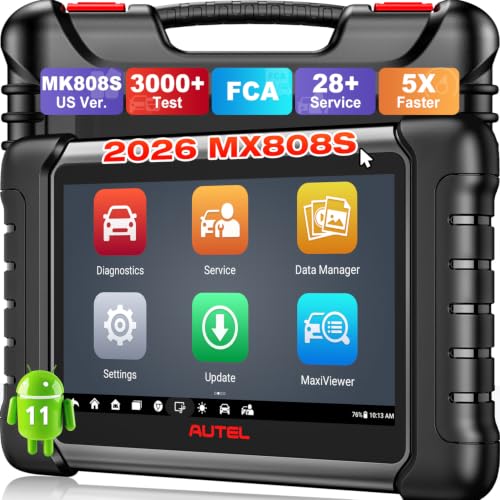
- 🚗【3000+ ACTIVE TESTS (50➡3000+), SAME AS MS...
- 🚗【40+ HOT SERVICES FOR 150 MAKES (28+➡40+)】Full...
- 🚗【OE ALL SYSTEM DIAGNOSE, AUTO SCAN 2.0: SCAN LICENSE...

- 📌【We are Here for You】Dear valued customer, please be...
- 🚀【5X Faster Next-Level Hardware, Same as MK900/ MX...
- 🔥【3000+ Active Tests = MK900/MK900BT but...
- 📢【2026 U.S. Version, All-in-One as MK808S/ MK808Z...
- 🔥【28+ Hot Services for 150+ Brands】Same as MaxiCOM...
If the PDF is very large, it may not load in the preview below.
Some older TSBs had multiple PDFs — visit the NHTSA Website to view all PDFs.
If the TSB PDF does not show, download or view it on the NHTSA Website.
Click on the (+) Plus Sign
Then Click on Associated Document(s)
Search NHTSA Database for Recalls
Search NHTSA Database for Vehicle Investigations
View Latest Vehicle Investigations
Search NHTSA Database for Vehicle Complaints
View Latest Vehicle Complaints
TSB/Document ID: GCI-A0357-09
Replacement Service Bulletin Number:
MFR Communication Date: 2018-09-11
MFR Internal Campaign ID/Software Version:
Communication Type: Service Bulletin/Repair Instructions
NHTSA Components: EQUIPMENT
MFR Component System:
MFR Component Subsystem:
Previous TSB | Next TSB |

- [Notice] When you receive a used device, it may be a customer return resold by Amazon without inspection. You can exchange it for a new one through Amazon. As this situation is unavoidable, we sincerely apologize. For any issues, contacting us via Amazon's "Messages" is the best way. THINKSCAN 689BT Bidirectional Scan Tool Can Be Used Immediately After It is Turned On, Without Complicated Registration Process, Which is More Convenient & Quick.
- Full Bi-Directional Control & 3000+ Active Tests: Take control and test components like actuators, fuel injectors, relays, and cooling fans in real time. You’ll quickly see if the problem is in the part itself or the control module — saving you hours of guesswork and frustrating trial-and-error.
- Advanced ECU Coding Capabilities: Handle module matching and hidden feature activation with confidence. When you replace an ECU or want to customize settings, this obd2 scanner diagnostic bi directional tool gives you the professional-level capabilities you need without the dealership price tag.
- 34+ Useful Reset and Maintenance Functions: Complete everyday service tasks smoothly with a wide range of helpful reset and maintenance functions. Whether you’re keeping up with regular upkeep or tackling a specific job, this scanner makes maintenance simpler and less stressful for both DIYers and pros.
- Comprehensive Full System Diagnostics: Diagnose every major system — Engine, Transmission
 , ABS, SRS, TPMS, and more — all in one place. Finally stop wondering if you’re missing something important; get the full picture and clear codes with ease.

- Top Reasons to Choose the D7S OBD2 Scanner: XTOOL D7S car scan tool, an upgrade of XTOOL D7, offers comprehensive features for automotive technicians, workshops, and DIY enthusiasts 1. Upgraded Hardware: 2+64GB memory, rear camera, intuitive interface, foldable bracket 2. Complete Diagnostics: FCA Autoauth, OE-level all system scan, 39+ maintenance services, 4K+ bidirectional, CANFD/DoIP protocol 3. Advanced Capabilities: ECU coding, PMI functions 4. Wide Compatibility: Support 10,000+ models, covering 99% vehicle brands 5. Multi-language: Available in 22+ languages, No IP Restrictions 6. 3-Year Updates: Save 300 bucks on software updates for the latest features and optimizations
- 2026 Upgraded D7S Car Scanner Features: The newly 2026 D7S V2.0 scanner for car brings exciting features for advanced vehicle diagnostics and enhanced user experience 1. FCA AutoAuth: Now supports FCA SGW module for Chrysler, for Jeep, for Dodge (2018+), for Fiat (2017+), enabling faster vehicle communication without gateway restrictions 2. PMI (Offline ECU Programming): Allows for Ford, for Lincoln, and for Mazda ECU programming for new modules 3. Optimized Diagnostic Report 2.0: Personalized reports with logos and customer info for auto shops. Note: Compatibility varies by cars, please check before order
- Cost-effective ECU Coding Scan Tool for Specific Brands: Enhance your vehicle's performance with XTOOL D7S! This obd2 scanner all systems bidirectional offers advanced capabilities at an affordable price, supports online for BMW, for Benz and offline for BENZ, for MIT, along with PMI functions for Ford, for Mazda, and for Lincoln. Ideal for technicians and DIY enthusiasts, this automotive scanner diagnostic tool optimizes vehicle performance and enhances the driving experience. Note: Not for all cars and modules, please send car VIN to check the compatibility before purchase
- OE All System Diagnostic & 8 Pids Graphing: XTOOL D7S is a comprehensive all system bi directional obd2 scanner that delivers dealer-level diagnostics, completely controlling over your vehicle’s performance and health. This automotive scan tool can read and clear DTCs, view live data and ECU information, retrieve freeze frames, and perform active tests and full obd2 functions. This bi-directional scan tool can can identify your vehicle's make, model, and year information with just one click and show up to 8 PIDs live data with options for CSV viewing, playback, and recording for in-depth analysis. It is easy-to-use for both professionals and beginners, helping pinpoint issues efficiently
- 3 Years Software Update, Value for Money: With 3 years of software updates and 22+ languages(no IP restrictions), XTOOL D7S auto scanner code scanner ensures ongoing compatibility for the latest car models and improved diagnostic functions. This all system vehicle diagnostic scanner comes with a 30-day return policy and a 24-month repair for dependable performance. XTOOL are dedicated to your satisfaction, so enjoy seamless support and lifetime expert assistance. Should you encounter any issues or concerns, don’t hesitate to reach out XTOOL. D7S with newest update with 22 languages freely transfer without authorization, check details from setting-language or from XTOOL

- 【✅Compared to BOSSCOMM IF742, IF745 Offers Full-System Diagnostics】The BOSSCOMM IF745 car diagnostic scanner is an upgraded model of IF742. In addition to supporting all OBD2 Code Reader functions and 6 reset options (ABS/EPB/SAS/BMS/Oil/Throttle), it expands diagnostics from 4 systems (Check Engine/ABS/SRS/Transmission
 ) to vehicle All systems, including Steering, Suspension, and Body Electronics. This provides deeper, more comprehensive diagnostic capabilities.
 - 【✨6 Essential Resets: ABS Bleeding, Oil, EPB, SAS, Throttle, BMS】The BOSSCOMM IF745 obd2 scanner diagnostic tool swiftly purges air from brake lines to restore braking sensitivity, fine-tunes maintenance cycles to eliminate false alerts, resolves parking brake issues with one-click control, recalibrates steering sensors for stability, optimizes engine idling/acceleration for smoother performance, and deeply resets battery systems to extend lifespan and range via precise parameter adjustments.❗NOTE: Does NOT support bidirectional control, coding, or programming.
- 【✨Deep Diagnostics for All Vehicle System Modules】Beyond code reading/clearing and ECU information retrieval, our all-in-one data stream feature lets you inspect all current fault codes and their locations across the vehicle’s systems. This vehicle code reader helps you turn off dashboard warning lights and perform a comprehensive self-check of your car at home—no more back-and-forth trips to the repair shop or hefty inspection fees.
- 【✨10 OBD2 Functions】The BOSSCOMM IF745 scan tool’s DTC Lookup instantly translates fault codes into user-friendly explanations, its I/M Readiness feature streamlines emissions testing with a single tap, and Freeze Frame lets you pinpoint the exact moment of a fault for in-depth root-cause diagnosis. Combined with a live data dashboard and advanced diagnostics (O2S, OBMon, EVAP), it delivers comprehensive insights for confident troubleshooting.
- 【✨10,000+ Car Models, AutoVIN, 13 Languages】The BOSSCOMM IF745 vehicle scanner diagnostic tool covers 73+ global car brands and offers support in 13 languages, making it perfect for DIYers, auto mechanics, or as a thoughtful gift. With a single-click AutoVIN feature, it instantly retrieves vehicle serial numbers, streamlining diagnostics for users globally. This adaptable tool balances user-friendliness with precision, catering to both personal and professional requirements.✅Unsure about compatibility? Compatibility will vary on vehicles' model and year, pls reach us via 📧 [email protected] 📧 before purchase.
This product presentation was made with AAWP plugin.