
NHTSA ID Number: 10130278
Manufacturer Communication Number: 15-205-16R
TSB/Document Date: 2018-03-13
Summary
This bulletin announces new reprogramming file availability and the software installation procedure to address additional operational concerns received from the field and listed below involving ?Gen 2? F10 Navigation and Display Audio units with 7? display. The procedure will involve downloading the applicable software update files then loading them onto two flash drives for audio unit installation.
Page 7
MATERIALS REQUIRED:
2 empty 2GB, USB 2.0 storage devices (flash drives) will be needed
to perform these updates. The drives should be dedicated to storing
and transferring these updating files only. They also need to be no
more than 4GB in size and contain a FAT32 file format before
downloading update files onto them. Do NOT use any USB
drives which contain or require the use of file management,
encryption, file backup or other software to function.
SERVICE PROCEDURE / INFORMATION:
IMPORTANT REMINDER: Read through and understand this procedure COMPLETELY before
proceeding further.
Step 1: Version Check Procedure
Before proceeding with any updates, the currently installed software version must be determined.
If the latest software version (or later) is already installed, no updates are necessary. The Version
ID numbers for this procedure are found in the Update File Applicability / Information table shown
above. If the Version ID numbers identified during the Version Check procedure are prior to (or lower
than) those shown on the table, proceed with the remainder of the software update beginning with
Step 3.
Press “AUDIO/TUNE” button 5 times
•
Switch the unit into “Diagnosis Mode” by pressing and holding the HOME button while
pressing the “AUDIO/TUNE” button 5 (five) times.
Continued...
Bulletin Number: 15-205-16R; Revised 01/03/18
Page 8
•
Press “Service Information”
•
Press “Version Information”
•
Press “Push” next to DA (or AVN for Navigation units)
•
Verify the current versions according to the Update File Applicability / Information table
shown table shown on page 7. Use the down arrow to scroll to the bottom of the list for
complete verification.
•
If the software version is current, press and HOLD the HOME button to exit the Diagnostic
Mode and complete the procedure as no updates are necessary. If no updates are necessary,
continue your diagnosis of the customer concern. If the Version ID numbers are prior to (lower
than) those shown in the table above, proceed with Step 2, preparing the USB memory (Flash
Drives) then Step 3, the software update procedure.
Continued...
Bulletin Number: 15-205-16R; Revised 01/03/18
Page 9
NOTE: If updates are necessary, the Version Check procedure will need to be performed again after
each update installation to confirm the procedure was successful.
After performing the Version Check procedure, if updates are determined to be necessary, the 2 USB
flash drives will be needed to download the Update Files onto. All the F10 update files are accessible
for downloading from Subarunet under: Service>>Forms / Downloads>>Downloads for Audio/Navi
page then clicking on the applicable hyperlink:
Click Here to Access the Downloads for Audio/Navigation Information on Subarunet
In addition, these files have also been sent to Retailer SDS systems by Nuspire and can be found in
My Documents listed as: “F10Software Updates Gen 2.0 and 2.1Audio and Navi Head Units”.
The Subarunet page shown above will display which contains links to the update files 1 & 2 for each
model head unit. Do not download any files at this point. The file download procedures are supplied
later in this bulletin. The 2 flash drives must be formatted before the Update Files can be downloaded
onto them as outlined in Step 2 below.
Step 2: Prepare the USB Memory (flash drive)
VERY IMPORTANT: Before attempting to download
any data files, confirm the PC and flash drives you are
using are not infected with any virus. The flash drives
will need to be formatted for FAT32 following the steps
below.
USB Flash Drive Formatting Procedure:
•
•
Install a flash drive into an available USB port
on your PC.
Click Start (this is located in the lower left
corner of the desktop screen) then, in the
Search programs and files box, type
“explorer”.
Start Button
Continued...
Bulletin Number: 15-205-16R; Revised 01/03/18
Page 10
NOTE: On SDS Notebook you may also press the My
Documents button on the GUI Home Screen.
• As you type the word “explorer”, search results will
start to appear. In the results, click on the “Windows
Explorer” option under the Programs section.
•
In the next window, choose the Computer section on the left. Locate “Removable Disk”
NOTE: Always confirm the
device you are formatting is
the USB Flash Drive. This
drive may have various
names assigned to it by the
manufacturer of the device
and may not reflect the
drive name given in this
example.
• Right click
the picture for
“Removable Disk”
then select
“Format”.
Continued...
Bulletin Number: 15-205-16R; Revised 01/03/18
Page 11
•
When the “Format” dialog box appears, make sure that the option labeled “File System” is
set to FAT32 and the Quick Format box is checked as well. Then, click the “Start” button.
•
Click “OK” when the following window appears.
•
The drive will start formatting and display this window when it is finished. Click
“OK” to complete the process.
•
Repeat the procedure above for the second flash drive
Continued...
Bulletin Number: 15-205-16R; Revised 01/03/18
Page 12
Step 3: File Download Procedures
After formatting the 2 flash drives is complete, the two Update Files must be downloaded from either
the Subarnet links or from the My Documents section of the SDS system when using the files sent by
Nuspire, one to each flash drive. Label them Drive “1” and Drive “2”. The updates must be installed
in order, Drive “1” first followed by Drive “2”.
Follow “A” when using files downloaded from Subarunet.
Follow “B” when using the files sent directly to the SDS notebook from Nuspire (page 17).
“A” When using update files downloaded from Subarunet:
NOTE: Update File #1 contains 1 file. Update File #2 contains 3 files. The Subarunet screenshots
below will take you through the steps required to get the selected Update Files onto the flash drives
and ready to use. Update File sizes are quite large and depending on the speed capabilities of the
computer, it may take some time to complete the downloads.
PLEASE BE PATIENT!
Double-click on the file you want to download
and it will begin the transfer to your computer
automatically.
Downloading
You may receive the
warning below during the
file download. Click on the
drop down next to Discard
and Keep the file.
Continued...
Bulletin Number: 15-205-16R; Revised 01/03/18
Page 13
Once the downloads are complete, locate the Update Files (reference the chart on page 7 for the file
names) in the Downloads Folder. Once you locate each file, unzip them one at a time to transfer their
contents to the appropriate USB flash drive. As an example, update NU9020_USB_1st.zip for a 2015
Legacy would be unzipped to USB #1 and NU9020_USB_2nd.zip would be unzipped to USB #2.
NOTE: If not already done, follow the procedure (Step 2) for formatting (removing any existing
files) your flash drives. Plug the “clean” flash drive into your computer.
•
Go to your Windows Start screen, select “Computer” (or click on My Documents if you are
using the SDS notebook) and click on “Downloads”.
Continued...
Bulletin Number: 15-205-16R; Revised 01/03/18
Page 14
•
Once your list of downloaded files opens, locate and click on the downloaded Update Files
(in this example, “OU9103_USB…” ) you are looking for. TIP: If you click on Date
Modified you can sort the downloaded files by the date they were added which will bring the
newest file to the top.
•
Double clicking the Update File will bring up a dialogue box with a security warning, click
on “Run” to continue.
•
Click on “Browse”
•
As shown below, click on “Removable Disk” which is your USB flash drive where you want
the unzipped file(s) to be saved. Click “OK” then click on “Unzip”.
Continued...
Bulletin Number: 15-205-16R; Revised 01/03/18
Page 15
The Update File will unzip and be saved to your flash drive.
•
Confirm the Update File (and flash drive) is ready to use by going back to Start > Computer
and double clicking on “Removable Disk” to display the drive’s contents as shown in the
examples below. All of the files will have a “.kwi” extension at the end of their file name. If
OK, proceed with Step 4: Update Software Installation starting on page 18.
REMINDER: There can only be ONE Update File stored on each flash drive or the update
procedure will not work. If you see more than one Update File stored, start over by re-formatting
the flash drive again and reloading the Update File you are trying to install.
Continued...
Bulletin Number: 15-205-16R; Revised 01/03/18
Page 16
IMPORTANT REMINDERS:
• Do not change the Update File names after downloading them.
• Do not save any other version Update Files onto the flash drives.
“B” When using update files sent directly from Nuspire:
•
From the GUI screen, open My Documents to display the list of available files shown below.
•
Insert a “clean” USB flash drive (Drive 1) into the computer being used for the download.
•
For these F10 updates, after clicking on the file for the vehicle being updated, 2 files will be
displayed as shown below. Like the files downloaded from Subarunet, they too are .zip files and
need to be “unzipped” before they can be used.
•
Click on the first file (file name ends with _1st). A WinZip Self-Extractor dialog box will appear.
Continued...
Bulletin Number: 15-205-16R; Revised 01/03/18
Page 17
•
Click on “Browse” and select the USB flash drive as the destination (“D:\” in this example)
•
Click on Unzip.
•
When file transfer to the USB flash drive is complete (a “unzipped successfully” box will
appear), click on “OK”, remove Drive 1 and replace it with Drive 2.
•
Repeat the above steps and transfer the contents from the second file (ending with _2nd) to
Drive 2.
•
Confirm both USB flash drive and files are ready to use by double clicking on each (“D:\” in this
example) to display their contents. Drive 1 will have just 1 file while the Drive 2 will have 3.
•
Unplug Drive 2 and proceed to Step 4 below.
Step 4: Update Software Installation
NOTE: Because of the time it takes to perform these updates, Subaru of America, Inc. (SOA) highly
recommends connecting the Subaru Midtronics GR8 Diagnostic Battery Charger to the vehicle and
utilizing the Power Supply Mode feature anytime a vehicle control module is being reprogrammed.
Follow the procedure as outlined in document GR8-1100 on STIS for use of the GR8’s Power Supply
Mode:
•
Confirm all electrical loads such as lights, audio, HVAC, seat heaters, and rear defroster are
all switched OFF before setting up for Power Supply Mode.
•
Select the correct battery type (Flooded, AGM or AGM Spiral).
•
Select the CCA which matches the vehicle’s battery (NOTE: OE and replacement batteries
have different CCA ratings. Always confirm the battery rating before proceeding.)
•
If the “Charge Battery” WARNING appears, the battery MUST be charged before
attempting reprogramming.
•
DO NOT connect the DSTi or SDI until the GR8 Power Supply mode has completed its
battery test mode and the Charging Voltage has dropped to a steady 13.5 Volts on the display.
•
If the GR8 “beeps” or the Status Light flashes, a diagnostic charge should be performed on
the battery before proceeding further.
•
Once Power Supply Mode reaches a steady 13.5 volts, connect the DSTi or SDI to the OBD
connector and initiate the reprogramming process.
•
Amperage will fluctuate based upon the vehicle’s demand for power. NOTE: If the
voltage rises beyond 14V while programming is in process, the procedure will abort. This
can indicate a need to test or charge the vehicle battery before any further attempt at
programming.
Continued...
Bulletin Number: 15-205-16R; Revised 01/03/18
Page 18
IMPORTANT:
This information is applicable to the Midtronics GR8 Diagnostic Battery Charger ONLY. It does
not apply to any other brand / type of “generic” battery charger whatsoever. ONLY the GR8 and its
Power Supply Mode feature has been tested and approved by SOA.
Once the GR8 is connected to the vehicle, as long as the battery is fully charged, it takes less than
3 minutes to boot-up the charger, select Power Supply Mode, and have the battery voltage stabilized
and ready for reprogramming.
REMINDER: If the GR8 indicates the vehicle’s battery must be charged, charge the battery using
the GR8 before proceeding to reprogram the vehicle.
Version Update Procedure
• Turn the ignition / key (ACC) “ON”.
•
Press the “AUDIO/TUNE” button.
The Select Audio Source screen will appear.
Install Drive “1” (or Drive “2” after successful
installation of Drive “1” update is confirmed) into the
vehicle’s USB port. After the flash drive is recognized,
the USB icon will illuminate.
• Once the USB icon is illuminated, switch the unit
into “Diagnosis Mode” by pressing and holding the
HOME button while pressing the “AUDIO/TUNE”
button 5 (five) times.
Continued...
Bulletin Number: 15-205-16R; Revised 01/03/18
Page 19
•
• Press “Service Information”
Press “Program Update” then follow the sequence
shown in the screen shots on the next page
Press “OK”
Wait for “OK” to activate
(turn black)
Press “SELECT”
CAUTION: Confirm the intended new version is displayed before clicking Select.
NOTE: The “OK” button will not activate (turn black) if the wrong Update File(s) are on the flash
drive. Re-format the flash drive and reload the proper Update Files starting from the beginning of
Step 2.
Press “OK”
Once the updating starts, the status bar
may need to complete more than once
and could take up to about 15 minutes.
Bulletin Number: 15-205-16R; Revised 01/03/18
Turn off ACC
Page 20
If the progress bar stops, please wait 15 minutes. If the progress bar does not change even if after
15 minutes, turn ACC OFF and back ON again then, restart the update procedure from Step 4.
IMPORTANT: Do not turn the ACC (ignition / key) off or disconnect the flash drive from the USB
port during updating.
•
Once the update completes successfully,
turn the ACC off,
WAIT 30 SECONDS then turn it
back on again.
•
After the unit boots back up, the
“Updating software” screen and its
status bar will be displayed. This
update may take up to 5 minutes
to complete.
When the Software Updates complete, the unit will restart automatically. Once the STARLINK
opening screen is displayed, remove the flash drive from the USB port and turn the ignition off.
CRITICAL STEP: Before proceeding further, perform Step 1 (Version Check Procedure) again to
confirm the updated software installation from Drive “1” was successful. When the update is successful, the new software version number will be displayed. If OK, proceed with installation of
the Drive “2” update (repeat Step 4, Update Software Installation). If the updated versions are not
displayed, Step 4 using Drive “1” must be repeated. Once the software and CAN version updates are
confirmed, insert Drive “2” and repeat Step 4.
Step 5: Version Check Procedure
As mentioned earlier, once both update software installations are complete, the Version Check
procedure (Step 1) must be performed again to confirm all of the updates have been installed
successfully.
Step 6: Memory Clear Procedure
After confirming both software updates have been installed successfully, the Memory Clear
procedure must be performed to complete the update procedure.
NOTE: All presets will likely be lost and will need to reset after performing this procedure.
Bulletin Number: 15-205-16R; Revised 01/03/18
Page 21
After pressing “Back”, the following screen will be displayed:
•
Press “Memory Initialization”
•
Press and HOLD the “OK”
button until the screen shown
below is displayed (5 to 10
seconds).
This screen will be displayed for about 1 minute while the unit restarts. After restart, the Loading
screen and its status bar will be displayed. After the status bar completes, the Main Menu screen will
be displayed. To complete the updating procedure, you must go through the series of Initial Setup
screens, reset the radio station presets and re-pair any mobile devices (where applicable).
NOTE: After confirming the updates are complete, remove the labels and re-format both flash
drives to clear any remaining files so they are ready for use the next time. This reduces the chances
of inadvertently combining files the next time the drives are used. It also ensures that every repair
receives the very latest software as these files will be updated from time to time whenever a newer
version is released.
Bulletin Number: 15-205-16R; Revised 01/03/18
Page 22
WARRANTY / CLAIM INFORMATION:
For vehicles within the Basic New Car Limited Warranty period or covered by a Subaru Added
Security Gold plan, this repair may be submitted using the following claim information:
LABOR DESCRIPTION
LABOR
OPERATION #
FAIL
CODE
LABOR
TIME
F10 AUDIO/NAVIGATION HEAD UNIT UPDATE
A031-128
ZQL-48
1.0
NOTE: Up to $12.00 may be claimed ONE TIME in sublet to cover the cost for the 2 USB Flash
Drives ($6.00 each).
IMPORTANT REMINDERS:
•
SOA strongly discourages the printing and/or local storage of service information as previously
released information and electronic publications may be updated at any time.
•
Always check for any open recalls or campaigns anytime a vehicle is in for servicing.
•
Always refer to STIS for the latest service information before performing any repairs.
Bulletin Number: 15-205-16R; Revised 01/03/18
Page 23


- Advanced VCI Box, Industry-leading J2534 Pass-Thru...
- High-Speed OEM-Level Diagnostics & Programming: Unlock true...
- Coverage for 17 Car Brands & Ultra Reliability: Works...
- User-Friendly RLink Platform & Expert Support: TOPDON’s...
- 6.6 ft USB-C Cable & Portable Storage Case: The RLink J...
Last update on 2026-06-23 / Affiliate links / Images from Amazon Product Advertising API
If the PDF is very large, it may not load in the preview below.
Some older TSBs had multiple PDFs — visit the NHTSA Website to view all PDFs.
If the TSB PDF does not show, download or view it on the NHTSA Website.
Click on the (+) Plus Sign
Then Click on Associated Document(s)
Search NHTSA Database for Recalls
Search NHTSA Database for Vehicle Investigations
View Latest Vehicle Investigations
Search NHTSA Database for Vehicle Complaints
View Latest Vehicle Complaints
TSB/Document ID: 15-205-16R
Replacement Service Bulletin Number:
MFR Communication Date: 2018-01-03
MFR Internal Campaign ID/Software Version:
Communication Type: Service Bulletin/Repair Instructions
NHTSA Components: EQUIPMENT:ELECTRICAL:RADIO/TAPE DECK/CD ETC.
MFR Component System:
MFR Component Subsystem:
Previous TSB | Next TSB |
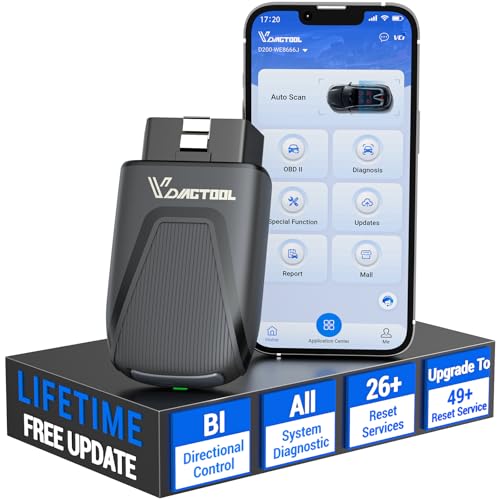
- 【OE-Level Full System Diagnostics-Lifetime F*REE Software Updates】The VDIAGTOOL D200 OBD2 Scanner for cars is a all system bidirectional scan tool that enjoy lifetime f*ree software updates, delivers complete system coverage. reading/clearing codes across engine, transmission, ABS, SAS, EPB, TPMS plus full access to body, chassis, powertrain and all control modules. This D200 Bidirectional car scanner works with most 1996+ OBD2 gasoline and hybrid
 cars and light trucks. It does NOT support pure electric and heavy-duty trucks. PLEASE CHECK COMPATIBILITY BEFORE ORDERING or Contact us with VIN to confirm compatibility.
 - 【Supports OBD2 Full Functions-ZERO Subscription Fees】D200 Bidirectional OBD2 Scanner is a upgarde of universal car code reader. It supports OBD2 full functions to help you turn off the annoying instrument fault indicator, such as read/clear codes, O2 sensor test, I/M readiness, on-board monitor test, datastream, freeze frame, E-VAP system test, and retrieve vehicle information. This professional obd2 scanner diagnostic tool can full access to diagnostics, reset tools and maintenance features with a single payment. NOTE: The fault code can only be cleared after the vehicle's malfunction has been repaired; please ensure the vehicle issue is fixed before clearing the code.
- 【D200 Hidden 2 Advantages: 1. $169 Expandable 49+ Advanced Resets. 2. $199 Get J2534 P*a*s*s-Thru Programming】Your core car diagnostics and 26 reset remain lifetime f*ree for everyday maintenance. When you need deeper repair capability, upgrade with 3-year access for $169 in Store on VDIAGTOOL App, gaining 49+ advanced resets. D200 configured with J2534 hardware, upgrade only when you need without replacing the entire device. You also can Lifetime Unlock for $199 in Store one-time, perform module programming, software re~flashing and ECU data updates directly. Supports 17+ major brands, including for BMW, for Audi, for GM, for Ford and more. Note:D200 does‘t provide any OE software.
- 【Full Bidirectional Control / Active Tests】The D200 car scanner diagnostic tool is a true bidirectional scan tool that lets you send commands directly to the vehicle’s ECU for active tests. Quickly test fuel pumps, relays, solenoids, injectors, cooling fans, windows, sunroofs and more to verify operation instantly. Get dealership-level diagnostic control at a fraction of the cost (ofter $100-200$ per diagnostic visit), reduce guessworkand confirm repairs faster, avoid unnecessary parts replacement, towing fees and wait times.
- 【26 F*ree Essential Reset & Relearn Functions – Everyday Maintenance Made Easy】Handle common maintenance and repair jobs without visiting the shop. The D200 code readers & scan tools includes 26 f*ree high-demand reset functions, including Oil Reset, EPB Service, SAS Calibration, ABS Brake Bleeding, Throttle Relearn, Injector Coding, Headlight Adjustment, Tire Size Reset and more. Perfect for home car owners, mechanics and DIYers – just plug and diagnose anytime, anywhere! Note: Service functions vary by vehicle model—please confirm compatibility.
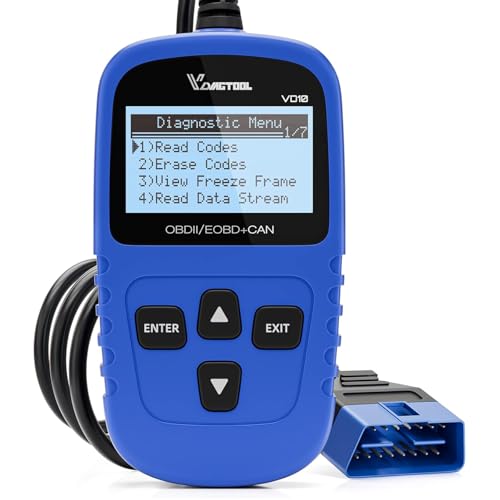
- 【A MUST-HAVE TOOL FOR DIYERS】 - VDIAGTOOL VD10 car code reader is an incredibly useful obd scanner for each car owner or hobbyist, even for those with little to no experience when it comes to vehicle mechanics! Similar to a fixd car diagnostic tool, using this car diagnostic scanner is extremely easy. All you have to do is attach it to your car OBDII port and you can diagnose car problems in seconds! Read Codes (DTCs); Clear Codes; Live Data; View Freeze Frame; I/M Readiness; Vehicle Information.
- 【KEEP ENGINE IN GOOD STATUS】 - VDIAGTOOL check engine code reader brings a fast access to scan, read the car fault code, show its definition on the screen instantly, troubleshooting to find the root causes of problems, erase the engine fault code and turn off the MIL (Malfunction Indicator Light). Similar to a fixd car diagnostic tool, this car code reader helps ensure your engine stays in top condition.
- 【READ/CLEAR CODES & DTC LOOKUP】- No search online & saving your time, this vehicle car code reader retrieves generic (P0, P2, P3, and U0), manufacturer specific (P1, P3, and U1) codes, pending codes and displays DTC definitions based on the built-in database(more than 3000 codes) on the TFT screen, find out the root causes and clear the codes after fixed.
- 【LIVE DATA & RETRIEVE FREEZE FRAME】 - This diagnostic scan tool for accurate diagnosis enables you to retrieve data from vehicle sensors, such as Engine RPM, Intake air temperature, Short/Long term fuel, Misfire data and etc. The freeze frame is stored in the PCM together with the diagnostic trouble code (DTC) related to the fault. Comparable to a fixd car diagnostic tool, the VD10 car code reader car scanner can be a valuable & practical diagnostic aid and also greatly help when diagnosing intermittent problems.
- 【I/M READINESS for THE S-nn-0-g CHECK】- OBDII vehicle may not pass the annual inspection unless the required monitors since reset are complete. So you should at least read the readiness monitors and make sure they are ready. This car obd2 scanner diagnostic tool is equipped with I/M readiness function to check the operations of the e-m-issi0n system on OBD2 compliant vehicles, run I/M monitor readiness test, checking if the pass vehicle s-m-0-g inspection.
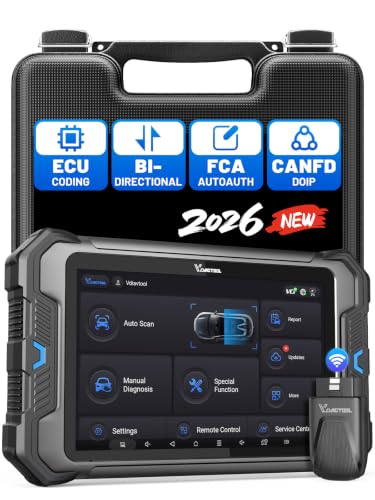
- 【Professional Diagnostics】 The VD80 BT Lite bidirectional obd2 scanner is a professional OBD2 scanner diagnostic tool, delivering vehicle diagnostics right in your own garage. It supports 4,000+ active diagnostic tests, 28+ maintenance service functions, ECU coding, PMI calibration, brake service reset, and OEM-grade full-system vehicle scanning—perfect for DIYers and pros looking for powerful automotive tools. The available function tests vary by model—please to confirm compatibility.
- 【ADVANCED ECU CODE, CUSTOMIZE OE-SETTINGS】As a complete car code reader and reset tool, the VD80 BT Lite bidirectional obd2 scanner supports ECU coding for VW, for Audi, for BMW, for Benz, for Mitsubishi and more. PMI function for Ford/for Lincoln/for Mazda, supports copy data into new module. Step-by-step Guided Diagnostics makes complex jobs easier—making this one of the most reliable code readers & scan tools on the market.
- 【100000+ Vehicles Compatibility – CAN FD/DOIP】 VD80 BT Lite Auto Scanner Compatible with 100,000+ vehicles worldwide, this bidirectiona car scanner works with all OBD2-compliant vehicles manufactured after 1996, covering more than 100 brands worldwide. It also supports CAN FD, DOIP and FCA Secure Gateway protocols, boost 2X faster data transfer, covers 99% of U.S., EU and Asian cars. With 22 languages and 2 years of f*ree updates—future-proofing your car reader diagnostic for all cars.
- 【28+ Maintenance Services & Calibration Functions】VD80 BT Lite scanner for car Supports 28 maintenance services, including resetting oil and service lights after routine maintenance, registering new batteries for proper system operation, and clear clogged filters and restore performance. Additionally, it calibrates TPMS sensors after tire rotations, resets brake systems after pad replacements, relearns steering angle sensors after alignments, and more. These functions help your vehicle quickly and accurately return to peak performance—without the costly dealer visits.
- 【True Bidirectional Control – Diagnose with Confidence】Standing out with full-system coverage and extensive active test capabilities, the VD80 BT Lite bidirectional scan tool retrieves data from electronic control units and performs a wide range of active tests. You can real-time control over modules like fuel pumps, windows, A/C clutches, and relays. Perform 100+ advanced functions including throttle adaptation, injector coding, VIN write, idle relearn, and ABS bleed—helping you fix it right the first time with this all-in-one car diagnostic scanner.
Last update on 2026-06-23 / Affiliate links / Images from Amazon Product Advertising API
This product presentation was made with AAWP plugin.