
NHTSA ID Number: 10122672
Manufacturer Communication Number: A941200 2024877-
TSB/Document Date: 2017-11-08
Summary
Supersedes Technical Service Bulletin Group 94 number 12-83 dated July 9, 2012. Warning light for dynamic headlight range control is displayed in the instrument cluster. DTC 00003 / 14 (Control unit faulty) is registered in the dynamic headlight range control unit, address word 55. Both headlights function normally. Vehicles equipped with adaptive (cornering) lighting. New software version 0010 in the dynamic headlight range control module addresses this condition. If the headlight range control module has a software version lower than 0010 installed, then use the SVM code listed in Service to update the module. Some control units will already have software version 0010 installed but can still exhibit the conditions mentioned above. When this occurs, the software will need to be reflashed using a separate SVM code. The corrupt software will be overwritten. The software version does not change after the update.
SVM codes for MMI Software Package (ZUG) updates will only complete successfully if every control unit is
updated to the correct software level. This is especially important when a control unit fails/dies during the
manual software update process and is then later replaced, but not updated after it is installed. Since the new
replacement control unit was not updated the SVM code will fail. The replaced control unit must be updated
prior to running the SVM code.
• SVM Exchange (XCHG) Codes can also be used to aid in the installation of new service parts when an
SVM spec/actual cannot code or parameterize the replacement control unit, as with all Audi airbag control
units.
It is critical to note SVM XCHG codes must be run immediately after a new control unit is installed in the
vehicle. If an SVM Spec/Actual is performed instead, it will create an invalid vehicle reference in the SVM
database. Once this occurs the SVM XCHG code will not function properly. The only way to resolve this issue
is to contact the Technical Assistance Center Helpline to have the vehicle reference manually set. To find the
SVM XCHG code, follow the parts bulletin listed in ETKA or search for an applicable Technical Service
Bulletin.
3. SVM - Direct Input: SVM code for vehicle conversion
Goal: This function allows for a factory approved retrofit of additional control unit(s) using a valid SVM Code
for Vehicle Conversion.
• This type of SVM code is documented inside the installation instructions for the control unit and is typically
performed as the last installation step. You can identify an SVM code for conversion by the way it is
named. They are typically named “050XXX”.
4. SVM – Activations
Goal: This function is designed to activate additional features or functions within an already installed control
unit using an Activation Code and possibly additional PIN codes or Customer codes.
• This function is designed with a security system similar to installing a new operating system on a personal
computer. Currently, SVM Activation codes are only being used with navigation map data updates for
vehicles with MMI3G/3G+. The customer no longer needs to purchase the Navigation map data. Instead
the customer must purchase an “Activation Packet” to unlock the map update in the MMI system. The
Activation Packet consists of an Activation Code, Activate Number, and Pin Code. Once the Activation
information is used, it becomes permanently tied to the customer’s vehicle in the SVM database and
cannot be reused with another vehicle.
5. SVM – communication, checking
Goal: This function allows the user to check the VAS Tester’s SVM online connection status to ensure the
tester is communicating with the SVM server.
© 2012 Audi of America, Inc.
Page 3 of 10
All rights reserved. Information contained in this document is based on the latest information available at the time of printing and is subject to the copyright and other intellectual property rights of
Audi of America, Inc., its affiliated companies and its licensors. All rights are reserved to make changes at any time without notice. No part of this document may be reproduced, stored in a retrieval
system, or transmitted in any form or by any means, electronic, mechanical, photocopying, recording, or otherwise, nor may these materials be modified or reposted to other sites, without the prior
expressed written permission of the publisher.
Technical Service Bulletin
Tips:
•
Parameterization refers to data written into the control unit by SVM to customize the software functionality
for the specific vehicle or country of operation. It is often referred to as the “calibration data.” It is critical
the parameterization is executed anytime it is suggested by SVM to ensure the proper functionality of the
control unit. Not all control units are parameterized by SVM.
•
2
It is also important to note that if there are any “Hardware Change Suggestions” any time when an SVM
code is run, a new vehicle “Reference” will NOT be set in the SVM database. This is to prevent any bad
data from being documented in the reference. This can create an issue where repeat coding and/or
parameterization suggestions are given with all subsequent SVM communications (Spec/Actual or SVM
code). All “Hardware Change Suggestions” should be resolved prior to an SVM code being executed!
Once the hardware issue is resolved, the SVM code must be run again to set the new reference.
•
3
1
It is important to note that almost all SVM codes will automatically perform a “Quick Test” to verify if the
SVM code is valid for the vehicle prior to performing the software update. This is done to speed up the
process and provide immediate feedback to the tech of whether or not SVM will be able to
code/parameterize the control unit after the software update is completed. If SVM finds an issue it will
indicate the SVM code is valid for the vehicle, but cannot be completed.
Production Solution
Not applicable.
Service
1. Address or record any DTCs related to any additional customer concerns before continuing. The
reason for this is that any sporadic DTCs could be automatically erased at the end of the SVM
communication.
Tip: Sporadic communication DTCs will be created during the flash procedure and will be
automatically erased along with all other pre-existing sporadic DTCs at the end of the SVM test plan.
Tuning is the addition or modification of any component that causes an Audi vehicle to perform
outside the normal parameters and specifications approved by Audi of America, Inc. If you encounter
a vehicle with a tuned engine control module (ECM) or transmission control module (TCM), your
dealership must do the following before performing any procedure that updates ECM or TCM
programming:
• Notify the owner that their ECM or TCM was found to have been tuned.
• Notify the owner that any damage caused by the tuning of the ECM or TCM (including any adverse
emissions consequences) will not be covered by Audi of America, Inc. warranties.
• Obtain the owner's written consent (see attached Control Module Tuning form) for any requested
repair - under warranty or outside warranty - that requires flashing that will automatically overwrite
the tuned program.
© 2012 Audi of America, Inc.
Page 4 of 10
All rights reserved. Information contained in this document is based on the latest information available at the time of printing and is subject to the copyright and other intellectual property rights of
Audi of America, Inc., its affiliated companies and its licensors. All rights are reserved to make changes at any time without notice. No part of this document may be reproduced, stored in a retrieval
system, or transmitted in any form or by any means, electronic, mechanical, photocopying, recording, or otherwise, nor may these materials be modified or reposted to other sites, without the prior
expressed written permission of the publisher.
Technical Service Bulletin
Tip: Any programming update (flash) may overwrite any tuned ECM or TCM programming.
2. Ensure the TSB stating the condition in the vehicle applies to the customer complaint. Ensure the
VAS Tester operator has a valid GeKo user ID and password. Perform only operations explicitly stated
in the TSB or Update.
3. Verify that the following tester requirements are met
• VAS 5051B, VAS 5052A, or VAS 6150(A/B/C) with minimum Base CD Version 19.01 with Brand
CD 19.36 installed.
• Tester is plugged into an 110V AC power supply at all times.
• Connect VAS 5051B and VAS 5052A to the local network via LAN/Ethernet cable.
• Connect VAS 6150(A/B/C) to the local network via LAN/Ethernet cable. A WiFi connection is not
recommended due to the possibility of signal dropouts during the online communication.
• For B7 A4s after VIN 8E_5A400000, always use the 6017B K Line Adapter to ensure
communication to all modules.
• If the Bluetooth wireless VAS 5054A transmitter head is used in conjunction with a VAS 5052A or
VAS 6150(A/B/C) tester, the transmitter head MUST BE connected with a USB cable to the tester.
• Ensure the Windows power savings are set correctly (disabled) for VAS testers operating with an
open Windows interface in which users have access to all regular PC operating system functions
(implemented by running the Base V14.00.00 Recovery DVD).
• VAS 5051B, VAS 5052A, or VAS 6150(A/B/C) with minimum Base CD Version 19.01 with Brand
CD 19.36 installed.
• Tester is plugged into an 110V AC power supply at all times.
Note:
If the Windows screensaver activates during a control module software update and the hard drive
shuts down as a result of the power settings, a control module failure may result. Refer to Service
Circular ATE-08-23 for more information.
Note:
Do not use a 6017 or 6017A while flashing. Doing so may result in complete control module failure.
4. Verify that the following vehicle requirements are met:
• Battery must have a minimum no-load charge of 12.5V.
• Connect vehicle to a powered Audi-approved battery charger. Do not use a trickle charger or
battery maintainer.
• Turn off the radio and all other accessories, and when necessary, switch off running lights by
applying the emergency brake or through the MMI option menu.
© 2012 Audi of America, Inc.
Page 5 of 10
All rights reserved. Information contained in this document is based on the latest information available at the time of printing and is subject to the copyright and other intellectual property rights of
Audi of America, Inc., its affiliated companies and its licensors. All rights are reserved to make changes at any time without notice. No part of this document may be reproduced, stored in a retrieval
system, or transmitted in any form or by any means, electronic, mechanical, photocopying, recording, or otherwise, nor may these materials be modified or reposted to other sites, without the prior
expressed written permission of the publisher.
Technical Service Bulletin
• Turn off any appliances with high electromagnetic radiation (such as mobile phones).
• If communication with a module cannot be properly established, appropriate repairs must be made
before attempting SVM. If the tester cannot communicate with a module, the tester cannot flash
software onto the module.
5. Enter the SVM code into the User Test Plan by
selecting the Audi Flashing option at the main
tester screen, unless otherwise directed by the
TSB or TAC Helpline.
Figure 2. Audi Flashing.
Tip: If you do not have the latest Base/Brand CD installed on the tester, then the SVM code may
fail and return an “ASM-MCD base system error” because the tester is not capable of reading the
software flash file. Starting with the model year 2010, some software files have changed and cannot
be read with base tester software level 15 or lower. Level 16 or higher must be installed on the tester
along with all released patches found on ServiceNet. VAS Tester Patches can be found using
→ www.AccessAudi.com >> Special Tools and Equipment >> VAS Tester Information >> Software.
6. Follow the SVM update procedure and enter the SVM Code found in the appropriate TSB when
prompted.
© 2012 Audi of America, Inc.
Page 6 of 10
All rights reserved. Information contained in this document is based on the latest information available at the time of printing and is subject to the copyright and other intellectual property rights of
Audi of America, Inc., its affiliated companies and its licensors. All rights are reserved to make changes at any time without notice. No part of this document may be reproduced, stored in a retrieval
system, or transmitted in any form or by any means, electronic, mechanical, photocopying, recording, or otherwise, nor may these materials be modified or reposted to other sites, without the prior
expressed written permission of the publisher.
Technical Service Bulletin
• Enter your GeKo ID when requested. Data will be transmitted to the SVM server, and the server will
respond with instructions to continue. (See detailed descriptions in the Response Codes table
below.) The procedure may include one, or any combination of the following, for one or multiple
control modules as specified in the TSB or Update:
Update a control module (flash).
Code a control module.
Parameterize a control module.
Check hardware of a control module.
A hardware change suggestion will occur when SVM does not recognize the control module as valid
for the vehicle. As stated before, there is a conflict between specified (i.e. reference) and actual
hardware/software part number or software versions. If there is no customer concern and no DTC
regarding this control module, report the issue then first ensure you have the correct part
installed. Then check to see if there is an applicable TSB indicating an SVM XCHG code is
required. Finally, if no part issue is found and no supporting TSB is found, then contact the Technical
Assistance Center (TAC) with the required information specified in the Additional Information section
below. For MMI control units, it is possible the SVM code for feedback documentation was not
performed after an update via CD was performed. Always report MMI issues to the TAC before
attempting a repair.
7. Always continue until the following text is displayed: Vehicle conversion/update has been successfully
performed. The changes have been stored in the system. Thank you.
Tip: The SVM Process must be completed in its entirety so the database receives the update
confirmation response. A warranty claim may not be reimbursed if there is no confirmation response
to support the claim or if action that is not explicitly stated in the TSB or Update is taken.
8. Verify that all steps or special procedures mentioned in the TSB/UPDATE have been carried out. Then
finish the test plan and exit GFF via the Go to button. Answer the Warranty questions accordingly and
print out or save the diagnostic log when prompted.
Tip: During the flash procedure an estimated time will be shown. This value is not used for
actual SRT calculation.
Basic SVM Response Codes
SVM can provide a response code with a repair suggestion or after a successful repair. The response code will
appear in the diagnostic log.
© 2012 Audi of America, Inc.
Page 7 of 10
All rights reserved. Information contained in this document is based on the latest information available at the time of printing and is subject to the copyright and other intellectual property rights of
Audi of America, Inc., its affiliated companies and its licensors. All rights are reserved to make changes at any time without notice. No part of this document may be reproduced, stored in a retrieval
system, or transmitted in any form or by any means, electronic, mechanical, photocopying, recording, or otherwise, nor may these materials be modified or reposted to other sites, without the prior
expressed written permission of the publisher.
Technical Service Bulletin
Code
Description
Action to be taken
ERP0031I* The SVM Code was
Perform an SVM Specified/Actual comparison and carry
successfully processed but a out the coding or parameterization suggestion.
coding or parameterization of
a control unit may still need to
be performed.
ERP0032I* The control unit(s) to be
updated does not match the
requirements for the SVM
code.
The control unit installed in the vehicle is not part of the
SVM update, the control module installed on the vehicle is
not talking on the CAN bus, or the part on the vehicle is
older than the original part. Ensure the correct SVM Code
was entered, ensure the TSB applies to the vehicle, and
check the hardware to ensure it’s correct for the vehicle.
Perform a hard reset on the module and retry the SVM
code. If the hardware/software levels of the replacement
part are older than the original part, then contact TAC
A
because a new CARPORT reference will need to be
created in the SVM system.
ERP0033I* Additional coding,
ERP0042I parameterization, or a
software update may need to
ERP0044I be carried out as a result of
ERP0046I the SVM code.
Follow the software update, new coding, or
parameterization suggestion.
ERP0034I* A hardware change
ERP0045I suggestion from an SVM
Code or SVM Specified/Actual
ERP0048I comparison.
A control unit installed on the vehicle is not correct for the
vehicle for one of the following reasons. Either the control
unit is incorrect for the vehicle (compare results of ETKA
FI Search versus Part Number search) or the control unit
is of an older vintage than the original part installed on the
vehicle (old stock service part). Additionally it is possible a
software update using a CD was performed on the MMI
system without the proper SVM Code being executed
after the update. If the part is confirmed to be newer than
the original part, then on a rare occasion, the part being
installed can be missing from the SVM system. If this is
the case, then a hardware change will be suggested since
the part is not known to the system. In the event this
occurs, please contact TAC so the SVM system can be
updated.
© 2012 Audi of America, Inc.
Page 8 of 10
All rights reserved. Information contained in this document is based on the latest information available at the time of printing and is subject to the copyright and other intellectual property rights of
Audi of America, Inc., its affiliated companies and its licensors. All rights are reserved to make changes at any time without notice. No part of this document may be reproduced, stored in a retrieval
system, or transmitted in any form or by any means, electronic, mechanical, photocopying, recording, or otherwise, nor may these materials be modified or reposted to other sites, without the prior
expressed written permission of the publisher.
Technical Service Bulletin
ERP0038I
The control unit(s) to be
updated does not match the
requirements for the SVM
code.
ERP0039I* The SVM Code performed
ERP0040I successfully.
The control unit installed in the vehicle is not part of the
SVM update or the control module installed on the vehicle
is not talking on the CAN bus. Recheck to make sure the
correct SVM Code was entered, make sure the TSB
applies to the vehicle, and check the hardware to ensure
it’s correct for the vehicle. Perform a hard reset on the
module and retry the SVM code.
All necessary actions taken by the SVM code were
performed successfully. Nothing additional is required.
ERP0050I
ERP0041I
The SVM Code performed
successfully but there are still
repair suggestions to other
Control Units not featured in
the SVM Code update.
A control unit installed on the vehicle is not correct for the
vehicle or the SVM Code for document feedback was not
performed after a CD update was performed on the MMI
system.
ERP0043I
Additional coding and/or
parameterization needs to be
performed
Follow the new coding or parameterization suggestion.
* The response code is specific to an SVM code that affects the MMI system (i.e. when an SVM code is performed
after an MMI CD update, these response codes are returned).
A
CARPORT is the database in Germany that contains all control unit information (part numbers and software
versions) for each vehicle produced by AUDI AG.
Warranty
This TSB is informational only and not applicable to any Audi warranty.
© 2012 Audi of America, Inc.
Page 9 of 10
All rights reserved. Information contained in this document is based on the latest information available at the time of printing and is subject to the copyright and other intellectual property rights of
Audi of America, Inc., its affiliated companies and its licensors. All rights are reserved to make changes at any time without notice. No part of this document may be reproduced, stored in a retrieval
system, or transmitted in any form or by any means, electronic, mechanical, photocopying, recording, or otherwise, nor may these materials be modified or reposted to other sites, without the prior
expressed written permission of the publisher.
Technical Service Bulletin
Additional Information
Checking for Internet Connectivity
With the tester connected to the internet, add and carry out the SVM Communication Test to the GFF test plan
which can be found here:
Audi Flashing >> SVM Communication, Checking
-ORGFF >> Go To >> Function/Component Selection >> SVM >> SVM Communication, Checking
GeKo Registration and ID Check
To obtain a GeKo user ID and password, follow the instructions in the GeKo ID Request form found here:
→ www.audi.techliterature.com >> Service >> Documents >> Service and Repair >> GeKo ID Request Form
nd
(located on the 2 page listing)
To check your GeKo ID, perform the following test from the Tester Startup Screen with the tester connected to the
internet:
Administration >> Network Settings >> GeKo Test
Testing the SVM Connection
SVM Communication checking - It will ask for your user ID and Password. If the test fails, change the port, cord,
and/or tester and run this test again.
Further Tester Assistance
If any of the listed troubleshooting procedures and/or checks result in errors or yield no solution and further
assistance is required, please follow these steps:
1. Utilize the information contained in the Function Description button in the tester at the point of the error.
2. Report the problem to the shop network administrator for further investigation.
3. Contact the responsible support team for further assistance:
• Service Department Applications (GeKo, ElsaWeb, and ServiceNet): 866-892-3375.
• VAS Tester Software Subscriptions: Orders need to be placed via → www.audi.techliterature.com
• VAS Tester Software Support: 888-896-1298.
Technical Assistance Center Contact Requirements
Contact the TAC via the Technical Assistance Contact System in ElsaWeb in cases where there is a clear
technical issue with the vehicle or response from the SVM system. Always include the following information in the
ticket:
• SVM Action Code attempted.
• Control module(s) address word(s) that are in question.
• The complete tester diagnostic log from the GFF session.
All parts and service references provided in this TSB are subject to change and/or removal. Always check with
your Parts Dept. and service manuals for the latest information.
© 2012 Audi of America, Inc.
Page 10 of 10
All rights reserved. Information contained in this document is based on the latest information available at the time of printing and is subject to the copyright and other intellectual property rights of
Audi of America, Inc., its affiliated companies and its licensors. All rights are reserved to make changes at any time without notice. No part of this document may be reproduced, stored in a retrieval
system, or transmitted in any form or by any means, electronic, mechanical, photocopying, recording, or otherwise, nor may these materials be modified or reposted to other sites, without the prior
expressed written permission of the publisher.


- Advanced VCI Box, Industry-leading J2534 Pass-Thru...
- High-Speed OEM-Level Diagnostics & Programming: Unlock true...
- Coverage for 17 Car Brands & Ultra Reliability: Works...
- User-Friendly RLink Platform & Expert Support: TOPDON’s...
- 6.6 ft USB-C Cable & Portable Storage Case: The RLink J...
Last update on 2026-06-23 / Affiliate links / Images from Amazon Product Advertising API
If the PDF is very large, it may not load in the preview below.
Some older TSBs had multiple PDFs — visit the NHTSA Website to view all PDFs.
If the TSB PDF does not show, download or view it on the NHTSA Website.
Click on the (+) Plus Sign
Then Click on Associated Document(s)
Search NHTSA Database for Recalls
Search NHTSA Database for Vehicle Investigations
View Latest Vehicle Investigations
Search NHTSA Database for Vehicle Complaints
View Latest Vehicle Complaints
TSB/Document ID: A941200 2024877-
Replacement Service Bulletin Number:
MFR Communication Date: 2012-12-21
MFR Internal Campaign ID/Software Version:
Communication Type: Service Bulletin/Repair Instructions
NHTSA Components: EXTERIOR LIGHTING:HEADLIGHTS
MFR Component System:
MFR Component Subsystem:
Previous TSB | Next TSB |

- [2026 Top-Tier Hardware and Software Upgrade]: Topdon ArtiDiag900 Lite scanner has enhanced hardware and latest features, including Android 11.0, 5x faster CPU, 10000mAh battery for 12 hours of continuous operation, stable wireless diagnosis with Bluetooth 5.0, 8-inch touchscreen. Added bi-directional control, wireless diagnosis, battery testing (optional), and DTC repair guide
- [TOPDON Bidirectional Scan Tool]: This bidirectional obd2 scanner sends commands to the vehicle's ECU for active testing, enabling users to accurately and quickly locate faulty components such as injectors, coolant pumps, windows, wipers, headlights, mirrors, etc. The bidirectional control scanner is the ideal choice for workshops/automotive repair shops as it significantly reduces mechanic's diagnostic time.
- [Wireless Bluetooth Diagnostic Experience]: The AD900 Lite scan tool comes with a Bluetooth 5.0 VCI, supporting a wireless diagnostic range of up to 33 feet (10 meters), allowing you to diagnose without being confined to cables or tight spaces. Stable and fast wireless diagnosis provides a comfortable repair environment. It also offers VCI cables to increase connectivity options.
- [DTC Repair Guide Function]: Easily diagnose issues with your vehicle and receive guidance on repairs with the topdon scan tool's fault code definitions for all systems,maximize your diagnostic capabilities. This function is compatible with Chrysler
 /Dodge/Jeep/Fiat 2010-2014 and expanding with continual updates,the AritDiag 900 Lite car diagnostic scanner is the must-have tool for any technician or DIY enthusiast.
 - [OE-Level Full System Diagnostics]:AritDiag900 Lite full system diagnostic scanner can scan ALL available modules(Engine, Transmission, Airbag, ABS, ESP, TPMS, Gateway, Steering, Radio, Air conditioning, ect.) to✔read ECU info, ✔read/clear codes, ✔view live data stream, ✔retrieves freeze-frame, ✔perform active tests, and more. With just a simple click, it provides you with accurate and in-depth diagnostics.
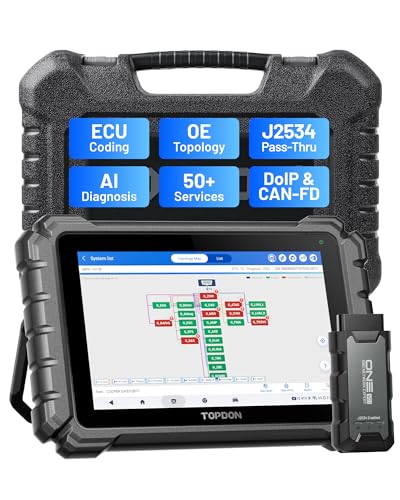
- Dual WiFi & 10.1" Touchscreen: Provides a stable, high-speed wireless link 3x faster than bluetooth, and a responsive, professional interface. Topdon ONE obd2 scanner diagnostic tool ensures smooth, non-lagging diagnostic scan, boosting mechanic efficiency
- J2534 Pass-Thru Support: The included ONE VCI supports the J2534 standard, allowing it to function as a pass-thru device when paired with OEM diagnostic software.Through TOPDON’s RLink platform, technicians can perform dealer-level coding, expanding in-house capabilities without investing in multiple factory automotive scan tools
- OE Topology Mapping: Visualize the vehicle’s ECU network exactly as it’s built.Zoom, pan, and highlight specific modules to pinpoint component issues with precision.Topology mapping displays real-time communication between modules
- 50 Plus Service Functions: Covers high-demand services like ADAS calibration, DPF regen, TPMS reset, ABS bleed, and throttle adaptation.Expands your service menu, allows you to charge premium rates, and turns away zero jobs due to lack of tooling. Vehicle-specific functionality may vary
- Advaned ECU Coding: 10 of the most serviced brands in North America, including full ECU coding and flash hidden support for BMW, VW, Au-di, Benz, Porsche, Toyota, Ni ssan and more. Enables module replacement, feature customization, and personal settings with automatic backup or restore.Lets your shop safely offer high-margin customization services, attracting more customers and boosting profit

- Bi-Directional Control, Quickly Locate Problems: Turn your phone into a professional diagnostic tool. You can send commands from your phone to the ECU to test injectors, cooling fans, headlights, A/C clutch, windows, wipers, and more. See which one doesn't respond. Helps you quickly locate the problem and save time. No need to tear things apart, avoid blind disassembly.
- Flexible Subscription, Choose Advanced Features as Needed: TopScan Lite provides free-for-life access to core diagnostics, including full system scan, code reading, performance tests, and repair information. After purchase, advanced features (bi-directional control, service operations, live data, code clearing, and AI functions) are free-for-the-first-year. After the first year, if you want to use advanced features, you need to subscribe on a monthly, quarterly, or yearly basis. As new models and reset functions are updated, the tool will also be continuously upgraded.
- Full System Diagnostics, No Fault Hides: Unlike basic diagnostic tools that only cover 4 systems, TopScan can scan all systems. Read and clear trouble codes, view live data streams, and generate a complete vehicle health report – all issues are clear at a glance. Covers 10,000+ vehicle models and is compatible with 99.99% of vehicles.
- AI Assistant - TopFix: Think of TopFix as your personal AI mechanic. It leverages a repair database and OEM data to deliver clear, step-by-step repair solutions. Features include AI Q&A, one-click translation, and a full repair log, making your diagnostic process simpler and more efficient.
- 8+ Hot Resets, Keep Your Car in Top Shape: One-tap resets for oil, throttle, EPB, steering angle, DPF, ABS, BMS, and airbag. It enables car owners to easily perform essential maintenance, ensuring the vehicle stays in optimal condition and extends its service life.
Last update on 2026-06-23 / Affiliate links / Images from Amazon Product Advertising API
This product presentation was made with AAWP plugin.