
NHTSA ID Number: 10121078
Manufacturer Communication Number: VHW-16-01
TSB/Document Date: 2017-10-31
Summary
VAS Diagnostic Laptops - Windows 7 System Recovery Instructions
> Control Panel > Region and Language:
2. Select the Keyboards and Languages tab. Click Change Keyboards…:
(cont.)
Page 8 of 19
© 2016 Volkswagen Group of America, Inc.
All rights reserved. Information contained in this document is based on the latest information available at the time of printing and is subject to the copyright and other intellectual
property rights of Volkswagen Group of America, Inc., its affiliated companies and its licensors. All rights are reserved to make changes at any time without notice. No part of this
document may be reproduced, stored in a retrieval system, or transmitted in any form or by any means, electronic, mechanical, photocopying, recording, or otherwise, nor may these
materials be modified or reposted to other sites, without the prior expressed written permission of the publisher.
Service Information
3. Confirm that the Default input language is set to English (United States) - US as illustrated below. If
not, select it from the dropdown.
4. If the German (Germany) input language service appears, select it and click Remove.
5. If any changes were necessary, save them by clicking Apply, and then OK:
6. Close the languages window and return to the Control Panel menu.
5.1.3 – Device Power Management
To ensure uninterrupted data transfer when performing lengthy Software Version Management (SVM)
procedures, configure the device to remain on as follows:
1. Go to: Control Panel > Power Options:
2. From the Control Panel Home menu, select Choose when to turn off the
display:
(cont.)
Page 9 of 19
© 2016 Volkswagen Group of America, Inc.
All rights reserved. Information contained in this document is based on the latest information available at the time of printing and is subject to the copyright and other intellectual
property rights of Volkswagen Group of America, Inc., its affiliated companies and its licensors. All rights are reserved to make changes at any time without notice. No part of this
document may be reproduced, stored in a retrieval system, or transmitted in any form or by any means, electronic, mechanical, photocopying, recording, or otherwise, nor may these
materials be modified or reposted to other sites, without the prior expressed written permission of the publisher.
Service Information
3. Select Never from the dropdowns as illustrated:
4. Click Save changes (at bottom frame):
5. Close the power options window and return to the Control Panel menu.
6. Check and proceed to the model-specific sections as applicable:
VAS 6150B/C/D: Proceed to Section 5.1.5 – Page 12.
VAS 6150A: Proceed to Section 5.1.4 immediately below:
5.1.4 – VAS 6150A Diagnostic Laptops: Increase Paging File Size
For optimum performance, increase the paging file size on VAS 6150A laptops as follows:
1. Go to: Control Panel > System:
2. From the Control Panel Home menu, click Advanced system settings:
3. Select the Advanced tab. In the Performance category, click Settings:
(cont.)
Page 10 of 19
© 2016 Volkswagen Group of America, Inc.
All rights reserved. Information contained in this document is based on the latest information available at the time of printing and is subject to the copyright and other intellectual
property rights of Volkswagen Group of America, Inc., its affiliated companies and its licensors. All rights are reserved to make changes at any time without notice. No part of this
document may be reproduced, stored in a retrieval system, or transmitted in any form or by any means, electronic, mechanical, photocopying, recording, or otherwise, nor may these
materials be modified or reposted to other sites, without the prior expressed written permission of the publisher.
Service Information
4. Select the Advanced tab. In the Virtual memory category, click Change:
5. Ensure Automatically manage paging file size for all drives is deselected and Drive [Volume
Label] C: is highlighted:
6. Select Custom size:, and then enter 6000 in both the Initial and Maximum size entry fields as
illustrated below: When complete, click Set:
(cont.)
Page 11 of 19
© 2016 Volkswagen Group of America, Inc.
All rights reserved. Information contained in this document is based on the latest information available at the time of printing and is subject to the copyright and other intellectual
property rights of Volkswagen Group of America, Inc., its affiliated companies and its licensors. All rights are reserved to make changes at any time without notice. No part of this
document may be reproduced, stored in a retrieval system, or transmitted in any form or by any means, electronic, mechanical, photocopying, recording, or otherwise, nor may these
materials be modified or reposted to other sites, without the prior expressed written permission of the publisher.
Service Information
7. Ensure that the Paging File Size (MB) indicated for C: is displayed as 6000 - 6000: Click OK:
Note:
The recommended page file size of 6000 MB allows for 2GB of additional RAM that may be added.
5.1.5 – Restart Windows
A restart is required to complete automatic Windows configurations on certain devices. Proceed as follows,
and note the Windows 7 Shut down and Restart routines for future reference:
1. Close all windows and Restart the device. Go to: Windows (Start)
>
> Restart:
Windows 7 Startup & Initial Setup steps complete – Proceed to Section 5.2 – Page 13.
Page 12 of 19
© 2016 Volkswagen Group of America, Inc.
All rights reserved. Information contained in this document is based on the latest information available at the time of printing and is subject to the copyright and other intellectual
property rights of Volkswagen Group of America, Inc., its affiliated companies and its licensors. All rights are reserved to make changes at any time without notice. No part of this
document may be reproduced, stored in a retrieval system, or transmitted in any form or by any means, electronic, mechanical, photocopying, recording, or otherwise, nor may these
materials be modified or reposted to other sites, without the prior expressed written permission of the publisher.
Service Information
5.2 – Windows Update Settings
The default setting for Windows updates is to automatically download files when a network connection is
present, and then prompt the user to install them.
As the automatic background loading of (often large) Windows files can place significant loads on the
device memory, ODIS Service online update functions that may run simultaneously are negatively
affected.
Change the default setting to (manually) check for updates and prompt the user to choose the updates as
specified below. Separate instructions on managing Windows updates are covered in Section 5.7.
Perform the following configuration BEFORE setting up the network connection:
1. Go to: Windows (Start)
> Control Panel > Windows Update:
2. From the Control Panel Home menu, select Change settings:
3. Select the “Check… & …choose” update method from the Important updates selection dropdown:
4. Click OK (at bottom frame):
5. Close the Control Panel window.
Windows Update Settings steps completed – Proceed to Section 5.3 – Page 14.
Page 13 of 19
© 2016 Volkswagen Group of America, Inc.
All rights reserved. Information contained in this document is based on the latest information available at the time of printing and is subject to the copyright and other intellectual
property rights of Volkswagen Group of America, Inc., its affiliated companies and its licensors. All rights are reserved to make changes at any time without notice. No part of this
document may be reproduced, stored in a retrieval system, or transmitted in any form or by any means, electronic, mechanical, photocopying, recording, or otherwise, nor may these
materials be modified or reposted to other sites, without the prior expressed written permission of the publisher.
Service Information
Note:
Before proceeding with Sections 5.3 through 5.5, have the additional documentation specified in
Section 2.0 – Page 3 on hand.
5.3 – Network Setup
5.3.1 – Set Computer Name
If more than one VAS diagnostic device is connected to the dealership network, each device must be
assigned a different computer name.
Assign the computer name before proceeding. For detailed instructions refer to Service Information –
Diagnostic Device Hardware & Windows document title: VAS Diagnostic Device Computer Name
Builder
5.3.2 – Enable Network Connections
For dealership networks using DHCP for Internet access, no network connection configuration is
necessary (the device default setting is DHCP). If the dealership network uses DHCP for Internet access,
skip to Section 6.3.3 below.
For networks using Static IP configurations for Internet access, the IP configurations must be renewed by
manual entry of the dealership-specific IPs. Ask your dealership systems administrator or IT professional
for details and assistance.
If the device is to be used over a wireless LAN connection, switch the wireless switch to the ON position
and perform the required wireless configuration at this time. Ask your dealership systems administrator or
IT professional for details and assistance.
ATTENTION!
ODIS Service software functions require open network connections. Open access must be
enabled on an individual basis for each diagnostic device. For details, refer to Service
Information – ODIS Service document title: Required Open Internet Addresses (URLs)
5.3.3 – Reinstall Netviewer
1. Launch Internet Explorer and logon to ServiceNet.
2. Navigate through Vehicle Diagnostics > Diagnostic Device Hardware & Windows > Software.
3. Right click / select the link: Netviewer one2one – Telediagnosis Software.
4. Save file to Windows desktop.
Network Setup steps completed – Proceed to Section 5.4 – Page 15.
Page 14 of 19
© 2016 Volkswagen Group of America, Inc.
All rights reserved. Information contained in this document is based on the latest information available at the time of printing and is subject to the copyright and other intellectual
property rights of Volkswagen Group of America, Inc., its affiliated companies and its licensors. All rights are reserved to make changes at any time without notice. No part of this
document may be reproduced, stored in a retrieval system, or transmitted in any form or by any means, electronic, mechanical, photocopying, recording, or otherwise, nor may these
materials be modified or reposted to other sites, without the prior expressed written permission of the publisher.
Service Information
5.4 – Reinstall & Configure Offboard Diagnostic Information System Service (ODIS Service)
Diagnostic Software
Reinstall and configure ODIS Service. For detailed instructions, refer to ODIS Service – Service
Information document title:
Installation Phase 2 - Software Installation & Configuration Instructions
ODIS Service Installation Phase 2 steps completed.
5.5 – Configure VAS 5054A Diagnostic Interface
1. Perform the Windows Bluetooth and EDIC configuration for wireless operation. For detailed
instructions refer to Service Information - Diagnostic Device Hardware & Windows document title:
VAS 5054A Diagnostic Interface – Bluetooth & EDIC Configuration
2. Perform the UBS configuration for cabled operation. For detailed instructions refer to Service
Information – Diagnostic Device Hardware & Windows document title:
VAS 5054A Diagnostic Interface – USB Configuration
VAS 5054A Diagnostic Interface setup steps completed.
Windows 7 and ODIS Service reinstallation completed.
Supplementary instructions: Refer to Section 5.6 – Page 16 and Section 5.7 – Page 17.
Page 15 of 19
© 2016 Volkswagen Group of America, Inc.
All rights reserved. Information contained in this document is based on the latest information available at the time of printing and is subject to the copyright and other intellectual
property rights of Volkswagen Group of America, Inc., its affiliated companies and its licensors. All rights are reserved to make changes at any time without notice. No part of this
document may be reproduced, stored in a retrieval system, or transmitted in any form or by any means, electronic, mechanical, photocopying, recording, or otherwise, nor may these
materials be modified or reposted to other sites, without the prior expressed written permission of the publisher.
Service Information
5.6 – Supplementary Setup & Function
Depending on the recovered diagnostic device’s previous preparation level and/or dealership
requirements, the following supplementary setup procedures may or may not be required. Review and
confirm as applicable.
5.6.1 – VAS 6356 Test Instruments Box - Configuration
If a VAS 6356 Test Instruments Box was previously configured for use with the recovered device, it must
be connected and the initial configuration repeated.
For detailed instructions refer to Service Information – Diagnostic Device Hardware & Windows
document title: VAS 6356 Test Instruments Box – Software Configuration – ODIS Service Only
Completed
Not applicable
5.6.2 – Printer Driver Reinstallation
If a USB (cabled) or wireless (WLAN) printer was previously configured for use with the updated device,
the necessary driver installation and/or configuration must be repeated.
Obtain the printer driver CD where applicable and refer to the installation documentation supplied with the
printer. Ask your dealership systems administrator or IT professional for assistance if necessary.
Completed
Not applicable
5.6.3 – Reinstall Antivirus Software
Reinstall the antivirus software as may be required by the dealership IT policy. Ask your dealership
systems administrator or IT professional for assistance if necessary.
Completed
Not applicable
Page 16 of 19
© 2016 Volkswagen Group of America, Inc.
All rights reserved. Information contained in this document is based on the latest information available at the time of printing and is subject to the copyright and other intellectual
property rights of Volkswagen Group of America, Inc., its affiliated companies and its licensors. All rights are reserved to make changes at any time without notice. No part of this
document may be reproduced, stored in a retrieval system, or transmitted in any form or by any means, electronic, mechanical, photocopying, recording, or otherwise, nor may these
materials be modified or reposted to other sites, without the prior expressed written permission of the publisher.
Service Information
5.7 – Windows 7 Update Management & Internet Explorer Version
5.7.1 – General Information
All VAS diagnostic devices must be kept up-to-date with the latest Windows security and vulnerability
updates. However, dealership service or IT personnel tasked with maintaining both ODIS Service and
Windows updates must be aware of the following, and act accordingly:
• The initial package of important Windows updates available for a Windows 7 reinstallation may take
considerable time to install and download (typically 120 minutes or more, device, content and bandwidth
dependent).
As a result, we recommend that the initial selection, download and installation of Windows updates be
managed so that the update process takes place outside of workshop service hours.
Instructions on how select and initiate Windows updates follow in the Managed Windows Update
section below.
• Internet Explorer (IE) version 11 should be installed as part of the Managed Windows Update
process, or downloaded directly from the Microsoft® website.
5.7.2 – Managed Windows Update Procedure
Prerequisites:
Diagnostic device removed from service, after hours etc.
Diagnostic device with active network connection.
Go to: Windows (Start)
> Control Panel > Windows Update:
1. Click Check for updates:
(cont.)
Page 17 of 19
© 2016 Volkswagen Group of America, Inc.
All rights reserved. Information contained in this document is based on the latest information available at the time of printing and is subject to the copyright and other intellectual
property rights of Volkswagen Group of America, Inc., its affiliated companies and its licensors. All rights are reserved to make changes at any time without notice. No part of this
document may be reproduced, stored in a retrieval system, or transmitted in any form or by any means, electronic, mechanical, photocopying, recording, or otherwise, nor may these
materials be modified or reposted to other sites, without the prior expressed written permission of the publisher.
Service Information
2. The first time after a Windows 7 reinstallation, an update prompt for Windows Update may or may not
appear. If so, click Install now:
3. Wait while an update for Windows Update is installed:
5. After the update closes and re-opens, wait while the system checks for updates. (This process make
take 30 minutes or more. Please be patient.):
6. When the results are displayed, select Install Updates:
Notes:
• The number of updates
illustrated is for reference only!
The number of available
updates will always vary
depending on type of device and
date when available updates are
checked.
• It is recommended to not
download and install “optional”
updates. For details refer to
Service Information –
Diagnostic Device Hardware &
Windows document title:
Optional Windows Updates
(cont.)
Page 18 of 19
© 2016 Volkswagen Group of America, Inc.
All rights reserved. Information contained in this document is based on the latest information available at the time of printing and is subject to the copyright and other intellectual
property rights of Volkswagen Group of America, Inc., its affiliated companies and its licensors. All rights are reserved to make changes at any time without notice. No part of this
document may be reproduced, stored in a retrieval system, or transmitted in any form or by any means, electronic, mechanical, photocopying, recording, or otherwise, nor may these
materials be modified or reposted to other sites, without the prior expressed written permission of the publisher.
Service Information
7. Accept any Microsoft License Terms if prompted, and then click Finish.
8.
Wait while the updates are downloaded and installed (no user intervention is necessary):
…
9. Click Restart now:
•
Additional Windows update configurations are performed during the shut-down and restart routine.
•
On completion, the device boots to the Windows desktop, and an information prompt on the
installed updates appears.
Page 19 of 19
© 2016 Volkswagen Group of America, Inc.
All rights reserved. Information contained in this document is based on the latest information available at the time of printing and is subject to the copyright and other intellectual
property rights of Volkswagen Group of America, Inc., its affiliated companies and its licensors. All rights are reserved to make changes at any time without notice. No part of this
document may be reproduced, stored in a retrieval system, or transmitted in any form or by any means, electronic, mechanical, photocopying, recording, or otherwise, nor may these
materials be modified or reposted to other sites, without the prior expressed written permission of the publisher.

- 💯【Conta.ct us for Support Directly】If you met any...
- 🔥🔥🔥【2026 AUTEL FLAGSHIP MK900BT MK900-BT, NEW...
- 🚗【3000+ ACTIVE TESTS (50➡3000+), SAME AS MS...
- 🚗【40+ HOT SERVICES FOR 150 MAKES (28+➡40+)】Full...
- 🚗【OE ALL SYSTEM DIAGNOSE, AUTO SCAN 2.0: SCAN LICENSE...

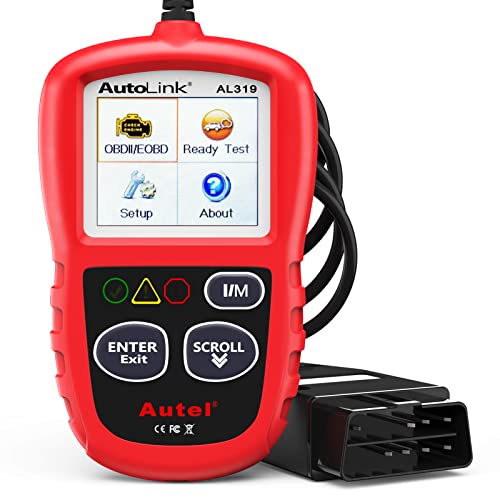
- 【TURN OFF CEL】 This AL319 car scanner diagnostic tool...
- 【EXTENSIVE APPLICATION】 Autel AL319 Compatible with...
- 【FOR END USER & DIYERS】 This error code reader AL319 is...
- 【USER-FRIENDLY DESIGN】 This OBD2 scanner and check...
- 【HIGH-QUALITY SERVICES】 12 months war.ranty from the...
Last update on 2026-06-12 / Affiliate links / Images from Amazon Product Advertising API
If the PDF is very large, it may not load in the preview below.
Some older TSBs had multiple PDFs — visit the NHTSA Website to view all PDFs.
If the TSB PDF does not show, download or view it on the NHTSA Website.
Click on the (+) Plus Sign
Then Click on Associated Document(s)
Search NHTSA Database for Recalls
Search NHTSA Database for Vehicle Investigations
View Latest Vehicle Investigations
Search NHTSA Database for Vehicle Complaints
View Latest Vehicle Complaints
TSB/Document ID: VHW-16-01
Replacement Service Bulletin Number:
MFR Communication Date: 2016-01-21
MFR Internal Campaign ID/Software Version:
Communication Type: Service Bulletin/Repair Instructions
NHTSA Components: ELECTRICAL SYSTEM:SOFTWARE
MFR Component System:
MFR Component Subsystem:
Previous TSB | Next TSB |
- 💯【Conta.ct us for Support Directly】If you met any issues about: Received a registered device/ Language Changing/ Function not Support/ VCI150 Blueto-oth connector malfunction/ Subscription Renewal, please conta.ct us via 📞autelsupply @outlook. com🛣️, we will provide perfect solution for you. ⚠️Note: Autel MK900BT comes with 1-Year Free Software Update, most features will remain active after update subscription expires. 1. For questions regarding updates or need more useful accessories, please conta.ct us via 📞autelsupply @outlook.com🛣️. 2. If the device fails to charge or turn on, please conta.ct us via 📞autelsupply @outlook. com🛣️, we will handle it promptly.
- 🔥🔥🔥【2026 AUTEL FLAGSHIP MK900BT MK900-BT, NEW MODEL OF MK808S MK900 MX900 MK808BT MX808S】2026 newest Autel MK900BT retains all features of MK808S MX900 MX808S MK808Z MK808Z-BT MK808K-BT, while EXTRA added powerful functions (value 2000+ bucks). The Pro-level Autel MK900BT makes a big leaps: 28+➡40+, 50+➡3000+ Active Tests, 2026 NEW✅CAN FD & DOIP protocols ✅Pre&Post diagnostic report ✅WIFI Print ✅Auto VIN&Auto Scan 2.0 ✅Scan VIN/ License ✅Battery Test (Need purcha.se BT506). If found defect or us.ed, please conta-ct 📞autelsupply @outlook. com📞 get perf-ect solut.ion.
- 🚗【3000+ ACTIVE TESTS (50➡3000+), SAME AS MS906 PRO】Differ from MS906BT MS906 MP808 MK808 MX808 MK808BT only 50 tests, Autel scanner MK900BT escaner automotriz professional offers 3000+ active tests, it can send command to ECUs & monitor actuators operation, quickly locating faulty components. Bidirectional scanning takes your diagnostics to the next level with menu lists 3000+ active tests, such as windows, rear mirrors, sunroof, wipers, fuel injector, coolant fans, radiator fan, AC clutch, coolant pump and more. Note: Functions are not available for all vehicles, please send vehicle VIN to us check compatibility.
- 🚗【40+ HOT SERVICES FOR 150 MAKES (28+➡40+)】Full level-up of OBD2 code reader MaxiCOM MK808S MK808 MK808Z MX808 MK808Z-BT with 28 service, Autel scan tool MK900BT/ MK900-BT offers 40+ maintenance service on 150+ brands 10,000 vehicles from 1996-2025-2026. Hottest Services like: Oil Reset, ABS Bleed, SAS Calibration, Injector Coding, SRS, Throttle Reset, Gearbox Reset, Battery Registration etc. Added 12+ advanced resets: rain slash light sensor reset, HVA.C/ SUS calibration etc. Welcome to send Vehicle Make>Model>Year>VIN>Functions you required to 📞autelsupply @ outlook . com📞 check compatibility.
- 🚗【OE ALL SYSTEM DIAGNOSE, AUTO SCAN 2.0: SCAN LICENSE/ AUTO VIN】2026 new release Autel MaxiCOM MK900-BT scan tool embodies all system diagnostic with its 8in display for all vehicles. Like Sna.p-on tools, it can perform ✔Read/Clear Codes✔Displays 5-in-1 Live Data✔Record & Playback Data✔Retrieve Info on all available systems like ABS ECM BCM SRS TCM etc. In addition to Auto VIN technology, Autel MK900BT adds Scan License/ Auto Scan 2.0 to identify vehicle’s VIN/ license, make, year, model, no need manual input; One-click WiFi Printing of Pre&Post comparison diagnostic reports, highlight root causes of problems.
- 【TURN OFF CEL】 This AL319 car scanner diagnostic tool supports Reading and Clearing DTCs, DTC Look Up, displaying Live Data, Freeze Frame & I/M Readiness, view vehicle information, etc., to figure out the root cause of the Check Engine Light (CEL) and turn it off, helping you catch any potential issues early and avoid excessive costs from unnecessary repairs.
- 【EXTENSIVE APPLICATION】 Autel AL319 Compatible with 7 languages (English, French, Spanish, etc.) and various post-1996 OBD II protocol vehicles (Toyota
 , Nissan, Honda, Ford, etc.), this OBD II scanner provides accurate and fast diagnosis for worldwide car owners.
 - 【FOR END USER & DIYERS】 This error code reader AL319 is “plug and play” and comes with an easy interface. Even if you’re not familiar with vehicle repair, you can quickly take control of this obd2 scanner, and get the information you want.
- 【USER-FRIENDLY DESIGN】 This OBD2 scanner and check engine code reader features a patented One-Click I/M Readiness, TFT color display, built-in speaker, LED Indicator etc. The cable is long enough without being too long and getting in the way. No batteries are needed.
- 【HIGH-QUALITY SERVICES】 12 months war.ranty from the date of purchase and lifetime free update are offered by this Automobile OBDII scan tool. Welcome to contact us via Q&A, email, or hotline, and our after-sale-service team for technical support.
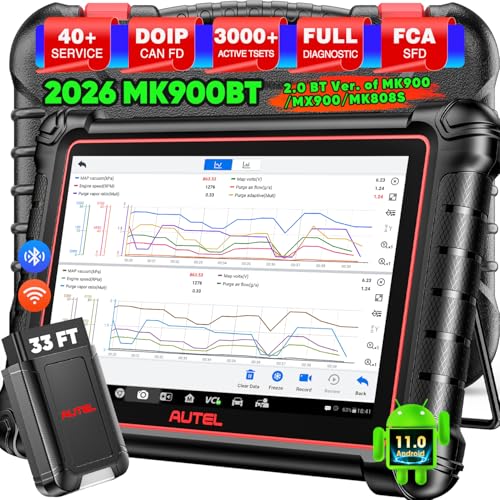
- 📞【Warm Tips】Dear friend, if you have any issues or need any tech support after receiving your MK900BT (received a registered item/ language changing/ functions compatibility/ renew subscription, etc.), please don't hesitate to tell us directly via 💌Autelonline @ outlook . com💌, we will do whatever we can to help you at first time. Besides, if you need other accessories, such as Autel endoscope MV108S, please don't hesitate to con-tact us.
- 🔥【Amazon Choice MK900BT, 2026 Newer of MK900 MX900 MS906 MK808BT PRO MP808S MK808S MX808S】Big News! 2026 Autel most cost-effective 8in All System & Bidirectional Scan Tool MK900BT is born! 619 only, yet featuring 40+ Hot Services same as MaxiSys Ultra/ Elite II/ MK908P/ MS906 PRO, among lots of advanced & newer functions: ✅3000+ Active Tests ✅CAN FD/ DoIP new protocols ✅Full Diagnosis ✅5-in-1 Live Data ✅Pre & Post Scan ✅Scan VIN/License ✅WiFi Print ✅FAC AutoAuth & Renault SGW, etc.
- 😊【Why Choose Autel Scanner MK900-BT, Not MK808S MK900 MX900?】➊ MK900BT escaner automotriz designs with Autel MaxiVCI V150, adopting advanced German Wireless Technology with more stable&faster data transmission, allowing you to work in and around vehicles with a 10M/33FT remote diagnostics. Instead, at almost the same b.udget, MK900 MK808S outdated wired code reader only with 1m cable, so you must curl up on the steering wheel! ➋ MK900BT can work with Autel BT506 to perform professional cranking charging system tests and in-vehicle & out-of-vehicle battery tests, but MK900 MK808S CANNOT. Some sellers say MK900 can work with BT506, pls don't believe it, who are not Autel a.uthorized sellers.
- 🚀【Upgraded Hardware 2.0, 10X F.aster than Ever】Based on old Android 4.4.4 ver. of MX808 MK808 MK808BT MP808 MP808BT MS906 MS906BT, Autel scan tool MK900-BT takes a big leap to 🟢f.astest OS 11 🟢4-core, 1.8GHz RK3566 speed boosted + lower power consumption🔋doubled 7700mAh Battery 🟢larger & sharper 8" 1280*800 touchscreen with intuitive user interface 🟢expanded 4+64G enough to save more files/data 🟢8M Rear camera gives clearer snapshot, etc. MK900BT scanner for car, is the best bang for your b.uck in the category.
- 📢【New Released: CAN FD/DoIP + WIFI Print + Pre & Post Scan + Scan VIN/ License】MK900BT OBD2 scanner diagnostic tool updates lots of advanced features previously available only for scanners above 2000 (MS906 Pro MS908S Pro, etc.) ✅New protocols CAN FD works for GM 2019+ ✅DOIP works for Volv.o 2018+, Jaguar&Land Rover 2017+, BM.W F&G chassis models ✅Same WIFI Print as MaxiSys Ultra ✅Detailed Pre/ Post scan reports to up repair efficiency ✅Scan VIN/License can identify your cars in seconds, more accurately! But Autel MK808S/ MK808BT PRO cannot.
Last update on 2026-06-12 / Affiliate links / Images from Amazon Product Advertising API
This product presentation was made with AAWP plugin.