
NHTSA ID Number: 10117796
Manufacturer Communication Number: GCI-A0167-08
TSB/Document Date: 2017-09-14
Summary
GENERAL CONSUMER INFORMATION PERTAINING TO A SPYDER CONTROLS OPERATION GUIDE
Pleasure-Way
Spyder Controls 7 inch
Touch Screen Panel
- 2018 Operation Guide -
BATTERY DISCONNECT SWITCH:
Â
 To operate the touch panels the battery disconnect switch must be in the on
position. (This applies to the front and rear touch panels)
Â
 Touch anywhere on the touch panel and the display will light up.
DISPLAY SCREEN MENU SYMBOLS:
Â
 The menu buttons are located at the bottom of the screen. There are four menu
buttons to choose from: Home, Lights, Mechanical and Settings.
Home
Lights
Mechanical
Touch a menu symbol to display the screen that you want to access.
Settings
HOME SCREEN:
Â
 To access the home screen, touch the house symbol on the bottom of the touch
screen.
The item on the display is ‘on’ if the control switch is displayed in light blue.
The home screen display will have:
(1) light touch pads and direct access to all lighting page,
Â
 These touch pads will allow you to turn on or off the sofa valance lighting (under
cabinet lighting), and the main living room lighting.
Â
 Touching and holding the light touch pad will allow the brightening and dimming
of the lighting.
Â
 Touching the Lighting Page area will bring up a complete screen of light switches
for all lighting.
Â
 Touching the Back Light touch pad will turn off the display lighting. To turn the
display back on touch anywhere on the screen.
(2) water pump touch pad,
Â
 Touch the water pump touch pad to run the on-board water pump.
Â
 Ensure there is water in the fresh water holding tank before engaging the water
pump.
Â
 The water pump should not be turned on when the motorhome is connected to city
water.
Â
 Best practices turn off the water pump when the water system is not in use or
when you are going to be away from your motor home.
(3) tank level panel,
Â
 The tank levels on your monitor panel will measure in 25% increments.
4) Climate Control Center
Â
 The climate control center displays the inside temperature and the desired
temperature in the center column.
Â
 The actual inside temperature of the coach is displayed in black.
Â
 The desired temperature can be set with the use of the red and blue up and down
arrows. The blue arrow will allow you to lower the desired temperature. The red
arrow will raise the desired temperature.
Mode buttons light in blue when activated.
Â
 With the mode buttons select the desired item that you want to operate. You
can select Furnace, Vent or Air Conditioner. These devices are thermostatically
controlled.
Â
 In the furnace mode (FURN), if the desired temperature is above the interior
temperature the furnace will engage and warm the coach to the desired
temperature. At the desired temperature the furnace will cycle off. If the
temperature drops below the desired temperature the furnace will cycle back on.
Â
 Ensure that the propane switch on the exterior of the coach is in the on position.
Â
 Ensure that the fan speed on the right side of the red and blue arrow is set to FAN
AUTO.
Â
 If there is 110 volt available and the Fan is left on high or low the fan in the AC will
engage during the furnace mode.
Â
 In the VENT mode, if the desired temperature is below the interior temperature,
the roof vent fan will open and the fan will engage. The fan will run at high speed
until the interior temperature reaches the desire temperature. When the interior
temperature reaches the desired temperature the fan will shut off, however
the vent lid will remain open. The fan will cycle off and on to keep the desired
temperature.
Â
 In the A/C mode 110 volt power from a shore line or from the generator must be
present to activate the air conditioner. In the A/C mode if the desired temperature
is below the interior temperature the roof top A/C will engage to cool the interior
of the coach. The FAN HIGH, FAN LOW and FAN AUTO are used to control the air
conditioner fan speed. If the FAN HIGH or FAN LOW is chosen the air conditioner
fan will continue to run while the air conditioner compressor will cycle on and off.
If Fan Auto is chosen the air conditioner fan will cycle on and off a short time before
and a short time after the air conditioner compressor engages. To keep the desired
temperature.
The FAN HIGH, FAN LOW and FAN AUTO are used to control the air conditioner fan
speed only. These controls will not affect the roof vent or the furnace fan speeds.
5) Battery Voltage:
This gauge gives the battery voltage. The battery voltage will vary depending on the
load. The battery voltage will change depending on the amount of charge the battery is
receiving from the solar panel, engine alternator, or converter.
6) Loss/Gain Amperage Meter
The loss/gain amperage meter will allow you to monitor the amount of draw on the
coach batteries. This allows the user to balance out the power use, to enhance the dry
camping experience. The three examples above show a dry camping situation with little
to no sun, plugged into shore power and dry camping operating the microwave on the
inverter. The amperage readings will vary depending on the number of appliances in
use, and the amount of charge going into the coach.
6) Generator Start/ Stop switch
Note: To operate the generator the LP switch must be in the on position and the LP
tank must have adequate fuel for the Ascent, Plateau, and Plateau XL models.
To operate the generator on the Lexor there must be at least ¼ tank of gasoline.
From these switches you are able to start and stop your generator. Touch and hold the
button to start the generator. There will be a slight delay before the starter engages.
You also can monitor the number of hours that the generator has operated. This is
important for service.
7) Automatic Generator Start
The automatic generator start can be used to charge the auxiliary batteries and/or for
climate control in your coach.
Warning: Do not use the automatic generator start if you are plugged into shore
power, or if you are in an area where running the generator is prohibited.
Note: To operate the generator the LP switch must be in the on position and the LP
tank must have adequate fuel for the Ascent, Plateau, and Plateau XL models.
To operate the generator on the Lexor there must be at least ¼ tank of gasoline.
Â
 Touch the AGS button to enable the Auto Gen Start function. A display will appear
with warning and instructions.
Auto gen start will not engage if you do not cycle the ignition with in the allotted time
or if you touch Cancel on the screen.
Â
 Touch the settings button to set the parameters for Auto Generator Start. Once
you touch the setting button you will have a choice between Easy Setup or Manual
Setup. Touch the setup method you want to use.
Â
 Touch EASY SET UP for a quick set up of the start parameters. Starting The
Generator. The first screen displayed will ask for the when you want the generator
to auto start. Touch the boxes to check or uncheck the reason to enable.
Â
 Touch the next button to move to the next screen. Starting Conditions For Low
Battery. This screen will enable you to set the voltage and the period of time below
that voltage, where you want your generator to start. The generator when running
will charge the coach batteries through the converter.
Â
 By using the + and – on the touch pads you can change the settings.
Â
 Touch the next button to move to the next screen. Generator Run Limits. This
screen will enable you to set the parameters for run time for the air conditioner
settings. Once the Air conditioner has brought the coach down to the chosen
temperature and cycled off the generator should continue to run for ten minutes. It
will also allow you to set the maximum run time for the generator.
Â
 By using the + and – on the touch pads you can change the settings.
Â
 Touch the next button to move to the next screen. Stopping Conditions for Low
Battery.
Â
 This screen will enable you to set the parameters for the battery charging system.
You will be able to set the desired charge voltage as well as the amount of time that
the battery has held the voltage before the generator will shut down.
Â
 By using the + and – on the touch pads you can change the settings.
Â
 Touch the next button to move to the next screen. Quiet Time Settings
Â
 Touch the box in the right hand corner to enable or disable quiet time settings.
Â
 Quiet time settings allow you to determine when the generator will not be allowed
to run.
Â
 Touch the box above the finish touch pad to Enable or disable a battery top up just
before the system goes into quiet time settings.
Â
 Touch the finish touch pad to complete the programing for easy set up.
Â
 Touch Manual set up for a more in depth set up choice.
START TRIGGERS
Â
 Touch low Battery Voltage or HVAC loads to turn on the required triggers for auto
gen start. The touch pad will be in light blue when it is turned on.
Â
 Touch the quiet time touch pad to set the parameters for the quite time settings. By
using the + and – on the touch pads you can change the settings.
STARTING
Â
 By using the + and – on the touch pads you can change the settings, of battery
voltage, delay if the generator fails to start and number of restart tries.
RUNNING
Â
 By using the + and – on the touch pads you can change the settings you can set the
parameters for run time of the generator. This applies the HVAC setting.
STOPPING
Â
 By using the + and – on the touch pads you can change the settings, you can set
the voltage parameters and the amount of time the battery remains at that voltage
before the generator will shut off. This applies to the low battery voltage setting.
If both the LOW BATTERY VOLTAGE and the HVAC LOADS are activated which
ever one needs the most run time to acquire the desired result will override the
other setting.
Note: The Automatic Generator Start for use of the HVAC system (Air Conditioning
or Heating). The appliance must be selected on the main screen, the temperature
must be selected and set on the main screen and the fan on the main screen should
be set to Fan Auto.
Lighting Page:
Â
 You can access the lighting page by touching the light bulb on the lower display or
by touching the Lighting page under the lights on the home page.
Ascent/Lexor
Plateau TS and FL
Plateau XL MB, TD or TS
Â
 Touch the pad associated with the light or light area that you would like to turn off
or on. When the light is on the touch pad will be in Light blue.
Â
 Touch the master light touch pad to turn on or off all the lights inside the vehicle.
The master light touch pad does not control awning lighting or the porch light.
Â
 Touch and hold the light switch to dim or brighten the lights.
Each light touch pad with the arrows beside the light bulb has the
dimming capability.
Warning: Ensure the awning light is off when the awning is
retracted in the stow position.
Â
 To turn OFF the panel display, touch the BACK LGHT touch pad
this will be on the home page. To turn the panel display back
ON, touch anywhere on the panel.
Changing the Light Touch Pads on the Home Page:
Â
 The home page on each panel can have three light touch pads. The light touch pads
can be changed to accommodate your need by using the following instructions. It
is recommended that you keep the Back Light or Panel Lights as one of the three
options as this will allow you to turn OFF or ON the display lighting.
Â
 Touch the SETTINGS touch pad.
Â
 Touch SCREEN SETTINGS touch pad. This will bring up the default screen. Uses the
+ and – touch pads to scroll the lighting choices.
Note: Panel Lights and Back Light are the same setting.
MECHANICAL PAGE:
Touch the Mechanical touch pad to open the mechanical items page. These include the
Fantastic fan, Awning and Power Sofa.
Â
Â
Â
Â
Â
Â
Â
Â
Â
Â
Â
Â
Â
Â
Touch the lid up touch pad to open the
Fantastic Fan.
Fantastic Fan:
Touch the lid down touch pad to close the
fantastic fan.
Touch the FAN touch pad to start the fan.
The fan is also controlled by the thermostat,
ensure the temperature of the thermostat is
high than the inside temperature.
Touch the + and – touch pads to increase
and decrease the speed of the fan.
This fan is an exhaust fan used to draw air
out of the coach.
The fan is equipped with a rain sensor so the
fan cannot be operated when it is raining.
The fan cannot be operated when the fan lid
is closed.
Â
Â
Â
Â
Â
Â
Awning:
Touch the EXTEND touch pad
to extend the awning. You will have
to continue to touch the extend pad
to fully extend the awning.
Touch the Retract touch pad to
retract the awning. You will have to
continue to touch the retract pad to
fully retract the awning.
The awning can be operated when
the ignition off light is lit in green.
Â
 The awning will not operate when the vehicle is running.
Â
 The awning does not automatically retract when the vehicle is started.
WARNING: Ensure the awning is fully retracted before starting the vehicle engine.
Touch and hold the EXTEND touch pad to
extend the power sofa.
Touch and hold the RETRACT touch pad to
retract the power sofa.
The power sofa will not move unless the
touch pads are held.
Â
Â
Â
Â
Â
Â
Power Sofa:
SETTINGS PAGE:
Â
 Touch the setting page touch pad. This screen will allow you to adjust temperature
units, time, display items, model and diagnostics.
Â
 Touch the Temperature unit to change from Fahrenheit to Celsius. This will allow
you to monitor the interior temperature and set the thermostat according to your
chosen measure.
Â
 Touch the screen brightness + or - touch pads to set the screen to the desired
lumins.
Setting the Clock:
Â
 Touch the right up or down arrows to
change the minutes.
Â
 Touch the left up or down arrow to change
the hour reading on the display. To change
from AM to PM you must run the clock
through the 12 hour cycle.
Setting the clock is critical to the Automatic
Generator Start Feature.
Screen Settings:
Â
 Touch the SCREEN SETTINGS to bring up the power saving mode, the default page
and the default lighting set for the home page.
Â
 Touch the ENABLE to activate the POWER SAVING mode by using the + or – you
can set the number of minutes the screen will be active before it goes off. Once the
screen goes off touch anywhere on the screen to bring the screen back on.
Â
 Touch ENABLE on the DEFAULT PAGE this will allow you to set the time that
the display will stay on any particular screen. When enabled by use of the + or –
buttons you can set the time and the screen that you want for the default screen.
For example if you choose the home page as your default screen and you are on
the lighting screen, the screen will return to the home screen after the number of
minutes that was set on the display above.
Â
 Lighting default screen. Uses the + and – touch pads to scroll the lighting choices.
Note: Panel Lights and Back Light are the same setting.
Diagnostics
Â
 Touch the diagnostic to pad to trouble shoot the DC electrical system.
Â
 Touch STATUS this will give you the status of each system. If the Status is green the
item is functioning as normal and the item is active. If the status is grey this item is
not in use at this time. If the status is Red there is a fault with this item. On the fault
page it will high light the fault.
Â
 Touch the G6House this will display all circuits in the vehicle. If the circuit is lit in
green it is active and being used. If the circuit is grey the circuit is not being used
and the items on that circuit are not turned on. If the circuit is red there is a fault in
that circuit.
Â
 Touch the FAULTS. This will bring up all faults in the system.
Contact your Pleasure-Way Dealer.
2)
Contact Pleasure-Way Industries Ltd. at 1-800-364-0189 or email
[email protected]
3)
Contact Spyder Controls Ltd. 1- 866-919-9092 or email
[email protected] [email protected]
1)
Â
 If you need Further information about the 7” Touch panels

- 💯【Conta.ct us for Support Directly】If you met any...
- 🔥🔥🔥【2026 AUTEL FLAGSHIP MK900BT MK900-BT, NEW...
- 🚗【3000+ ACTIVE TESTS (50➡3000+), SAME AS MS...
- 🚗【40+ HOT SERVICES FOR 150 MAKES (28+➡40+)】Full...
- 🚗【OE ALL SYSTEM DIAGNOSE, AUTO SCAN 2.0: SCAN LICENSE...

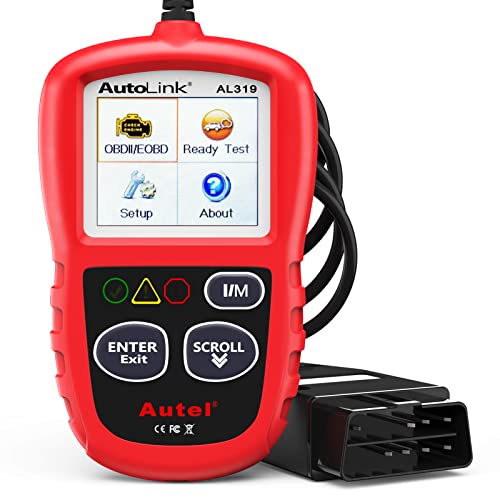
- 【TURN OFF CEL】 This AL319 car scanner diagnostic tool...
- 【EXTENSIVE APPLICATION】 Autel AL319 Compatible with...
- 【FOR END USER & DIYERS】 This error code reader AL319 is...
- 【USER-FRIENDLY DESIGN】 This OBD2 scanner and check...
- 【HIGH-QUALITY SERVICES】 12 months war.ranty from the...
This product presentation was made with AAWP plugin.
If the PDF is very large, it may not load in the preview below.
Some older TSBs had multiple PDFs — visit the NHTSA Website to view all PDFs.
If the TSB PDF does not show, download or view it on the NHTSA Website.
Click on the (+) Plus Sign
Then Click on Associated Document(s)
Search NHTSA Database for Recalls
Search NHTSA Database for Vehicle Investigations
View Latest Vehicle Investigations
Search NHTSA Database for Vehicle Complaints
View Latest Vehicle Complaints
TSB/Document ID: GCI-A0167-08
Replacement Service Bulletin Number:
MFR Communication Date: 2017-08-11
MFR Internal Campaign ID/Software Version:
Communication Type: Service Bulletin/Repair Instructions
NHTSA Components: EQUIPMENT:OTHER:OWNERS/SERVICE/OTHER MANUAL
MFR Component System:
MFR Component Subsystem:
Previous TSB | Next TSB |

- Stay Updated with Lifetime Access: This obd2 scanner includes lifetime free software updates for all app service functions. With a single payment, enjoy full access to diagnostics, reset tools, and maintenance features — zero subscription fees. A budget-friendly choice for weekend mechanics, home car owners, and DIYers, supporting vehicles from 1996 onward. Come to us with your VIN to check compatibility.
- Full Bidirectional Control/Active Tests & Stable Wireless Connectivity: This car code reader features full bidirectional control, allowing you to send commands to the vehicle's ECU for active tests on components such as fuel pumps, injectors, A/C clutches, windows, sunroofs, and more. This car scanner diagnostic tool helps DIYers quickly diagnose and test vehicle parts, cutting down troubleshooting and repair time. With BT 4.0 wireless connectivity, you can enjoy cable-free diagnostics up to 33 feet. Stand in your garage and test windows, wipers, or even engine components—all without needing to move around your car.
- Portable Car Scanner with 26 Special Functions: Scheduled vehicle maintenance with the A30M car diagnostic scanner can keep your vehicle in peak condition and save you big on dealership trips. The XTOOL A30M obd2 scanner diagnostic tool features essential reset and relearn functions, such as Oil Reset, EPB Reset (Electronic Parking Brake Release), SAS, ABS Brake Bleeding, Throttle Body Relearn, Injector Coding, Crank Sensor Relearn, Headlight Adjustment, and Tire Size Reset. Note: Service functions may vary by vehicle model – check compatibility beforehand!
- Wide Compatibility CAN FD & FCA
 Autoauth: This obd2 scanner diagnostic tool is compatible with over 85+ car brands from the U.S., Europe, and Asia, providing extensive coverage through a BT connection with your smartphone or iPad. Now upgraded to support the latest protocols, it includes FCA AutoAuth access for Chrysler, Jeep, Dodge, and Fiat (2018+), and supports CAN FD for GM (2020+) models, giving you greater access to newer vehicles and systems. Note: The FCA AutoAuth account is not included with the device. Users must register and pay separately through the official FCA AutoAuth website to access diagnostic functions for vehicles that require it.
 - Up to 8 Live Data Streams Graphing – Real-Time Graphing for Deeper Insight: This car scanner supports up to 8 live data streams simultaneously with intuitive, real-time graphing. Gain comprehensive insights into your vehicle’s performance, making it easier to spot issues, detect trends, and make informed diagnostic decisions with confidence.
 Autoauth: This obd2 scanner diagnostic tool is compatible with over 85+ car brands from the U.S., Europe, and Asia, providing extensive coverage through a BT connection with your smartphone or iPad. Now upgraded to support the latest protocols, it includes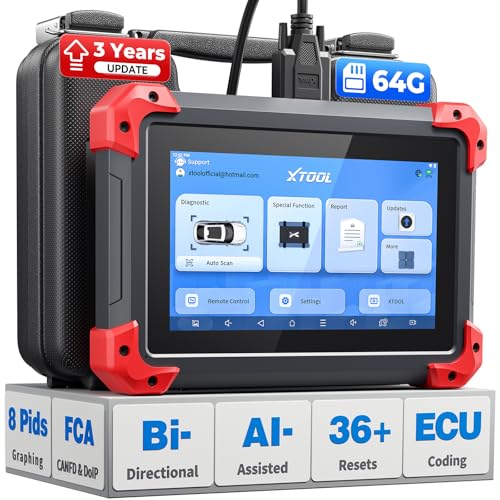
- 2026 Latest Version – Now Upgraded from 32GB to 64GB: XTOOL D7 obd2 scanner diagnostic tool with bidirectional is designed for DIY enthusiasts, professional mechanics. It now offers 64GB storage for smoother operation. Its 5000mAh battery (with 2500mAh 7.3V fast-charging) supports all-day use. With FCA, CAN FD, and DOIP protocol support, it covers more vehicle models and newer systems. A newly added battery voltage reading shows battery status before diagnostics, helping prevent low-voltage tests that could harm the vehicle. The V2.0 Diagnostic Report allows shops to personalize results with logos, customer details, and attachments to build trust and maintain records.
- Save $500+/Year with Pro-Level Diagnostics: Whether you're a DIYer, starting a repair business, or beginning work at an auto shop, XTOOL D7 car scanner offers advanced features typically found only in expensive professional OBD2 scanners - without the high price tag. With 4,000+ Active Tests & Bidirectional Pids, 36+ Special Functions, advanced module resets like SRS Reset, OE-level All-System Scan (one-click), FCA AutoAuth, CAN FD, DoIP, data export, and 8 PIDs graphing, the D7 auto scan tool covers 100,000+ vehicles (excluding Indian models). Includes 3-Year updates and supports the XV200 endoscope to detect em!ssions and intermittent issues.
- Full Bidirectional Advantage Over Other Code Readers & Scan Tools: The XTOOL D7 automotive scanner offers true bidirectional control plus advanced bidirectional PIDs, letting you send commands to components like A/C clutches, fuel injectors, windows, fans and more, while monitoring sensor responses live to catch elusive issues (even those without warning lights). Unlike budget bidirectional obd2 scanners limited to basic active tests,the D7 car fault scanner gives you full bidirectional control to run ABS pump tests, throttle position, turn fan on/off and solenoid tests, etc. No guessing, no extra fees—just smarter diagnostics
- OE-Level Full System Car Diagnostic Scanner with 8 Live Data Graphs: The XTOOL D7 is a pro-grade diagnostic tool that gives you full access to all vehicle systems—just like Snap on scanners & the factory scan tools, it delivers deep, accurate diagnostics you can trust. Easily view live data streams, retrieve freeze frame, and run active tests to pinpoint issues fast. With the ability to graph up to 8 PIDs at once, you can spot performance trends and troubleshoot like a pro. Whether you're a mechanic or car owner, with the D7 auto scanner you can stay ahead of problems and keep your vehicle running at its best
- High-value Automotive Scanner Diagnostic Tool with 36+ Special Function, Module Resets, Relearns, Calibrations, Adaptations & Initializations: XTOOL D7 diagnostic tool packs 36+ common & advanced maintenance, skip the $150 fee for battery registration after replacement, throttle body relearn after cleaning, or TPMS resets post-rotation, Auto bleed after the pad changes, or Electronic Parking Brake. Need to reset the transmission after towing? Crank sensor relearn for GM/for Dodge? Done. D7 also covered advanced functions like Ad~blue Reset, VIN Write, and many more professional OBD2 scanner functions that we can't list here. Text us your VIN + what you need, we’ll check the compatibility
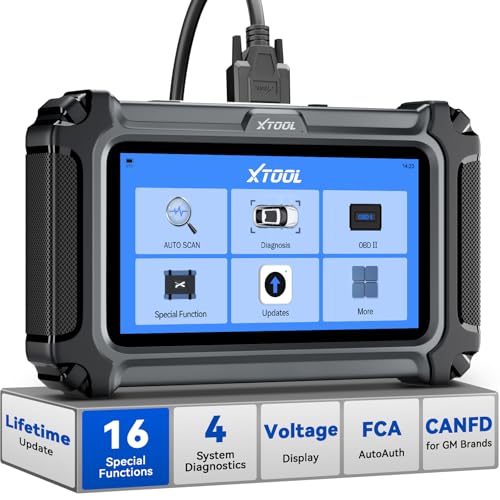
- Comprehensive OBD2 Scanner with 16 Resets: The XTOOL D5S car code reader and vehicle reset tool provides an advanced diagnostic solution with 16 commonly needed reset functions, including Electronic Parking Brake Reset (EPB Reset), SAS, BMS Reset (Battery Test), Throttle Body Relearn, TPMS Reset, ABS Bleeding, Injector Coding, Gearbox Match, Suspension Adjustment, Headlight, Window Initialization, Crank Sensor Relearn and more. Equipped with CAN FD Protocol and FAC AutoAuth, the D5S obd2 scanner diagnostic tool ensures compatibility with a broad range of modern vehicles, allowing users to address common maintenance needs quickly. NOTE: Please Check the Compatibility before ordering.
- 4 Main System Car Scanner & Full OBD2 Diagnostics: The XTOOL D5S car code reader is ideal for home mechanics, DIYers, and professionals, providing access to Transmission/Engine/ABS/SRS systems to read DTCs, Live data can be displayed in text or up to 4 PID data graphs, along with full OBD2 diagnostics to check the engine light on, other obd2 issues and routine maintenance. This car diagnostic scanner ensures you can keep your vehicles in top condition, avoiding costly repairs or unexpected breakdowns. NOTE: Some vehicles display three systems after connection because the transmission and engine of some vehicles are integrated into one.
- Check Engine Code Reader & Real-Time Engine Monitoring: Whether you're a car owner, a DIYer, or run a repair shop, the XTOOL D5S obd2 scanner diagnostic tool makes engine diagnostics fast and frustration-free, reading and explaining trouble codes in seconds—no confusion. Check live data like fuel trim, 02 sensor voltage, RPM, and coolant temp to pinpoint mis~fires, rough idle, or sensor issues. After repairs, simply use the D5S check engine code reader and reset tool to turn off the check engine light and confirm the problem’s fixed—saving time, money, and unnecessary shop visits. - Note: If the check engine light comes back on, it indicates the original problem still exists.
- Portable Car Scanner for ABS and SRS: XTOOL D5S gives you peace of mind when ABS or airbag warning lights come on. It reads and clears ABS codes to help you fix brake sensor, traction control, or wheel speed issues, and supports ABS bleeding after repairs like caliper or master cylinder replacement. For airbag systems, it scans and clears SRS codes related to airbags, seatbelt tensioners, and crash sensors. Whether you're doing repairs at home or running a small shop, the D5S is a cost-effective solution for safety diagnostics. Note: If a fault code returns after clearing, it usually means the issue hasn’t been fully resolved. Please check the compatibility before ordering.
- Transmission Warning Light ON? Here’s the Transmission Diagnostic and Reset Tool You Need: The XTOOL D5S is more than just a basic car scanner—it’s an easy-to-use transmission diagnostic tool. From rough shifts to slipping gears, the D5S lets you read and clear transmission trouble codes, monitor real-time TCM data, and perform transmission resets after fluid changes or repairs. Whether you’re a hands-on car owner or a pro running a busy shop, this OBD2 scanner with transmission functions helps you catch problems early—saving you time, money, and future headaches.. Note: Clearing fault codes is equivalent to a reset on some vehicles, but not all. For help, contact XTOOL Tech Support.
This product presentation was made with AAWP plugin.
Last update on 2026-06-05 / Affiliate links / Images from Amazon Product Advertising API