
NHTSA ID Number: 10113652
Manufacturer Communication Number: 15-08-44-001B
TSB/Document Date: 2017-08-15
Summary
This informational bulletin provides information on a GM of Canada OnStar cellular communication upgrade.
If the PDF is very large, it may not load in the preview below.
Some older TSBs had multiple PDFs — visit the NHTSA Website to view all PDFs.
If the TSB PDF does not show, download or view it on the NHTSA Website.
Click on the (+) Plus Sign
Then Click on Associated Document(s)
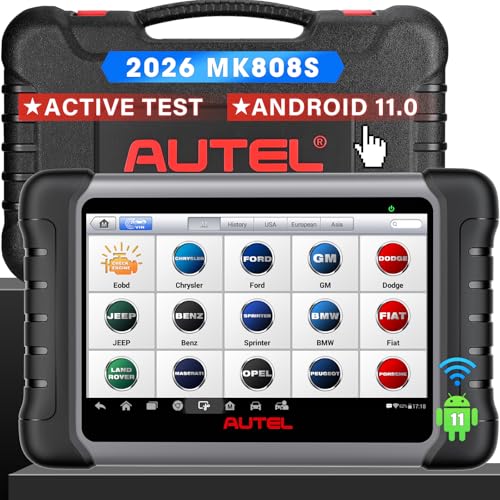
- 💝【Questions? We’re Here Anytime】MK808S is a...
- 🔥🔥🔥【2026 NEWLY RELEASED BI-DIRECTIONAL...
- 【28+ MOST POPULAR RESET SERVICE FOR 150 MAKES】Autel...
- 【ALL SYSTEM DIAGNOSTICS, FACTORY-LEVEL SCANNER】The...
- 【AUT0 SCAN & AUT0V1N, 10X FASTER】How much have you spent...


- 💯【Conta.ct us for Support Directly】If you met any...
- 🔥🔥🔥【2026 AUTEL FLAGSHIP MK900BT MK900-BT, NEW...
- 🚗【3000+ ACTIVE TESTS (50➡3000+), SAME AS MS...
- 🚗【40+ HOT SERVICES FOR 150 MAKES (28+➡40+)】Full...
- 🚗【OE ALL SYSTEM DIAGNOSE, AUTO SCAN 2.0: SCAN LICENSE...
This product presentation was made with AAWP plugin.
Search NHTSA Database for Recalls
Search NHTSA Database for Vehicle Investigations
View Latest Vehicle Investigations
Search NHTSA Database for Vehicle Complaints
View Latest Vehicle Complaints
TSB/Document ID: 15-08-44-001B
Replacement Service Bulletin Number:
MFR Communication Date: 2015-05-15
MFR Internal Campaign ID/Software Version:
Communication Type: Service Bulletin/Repair Instructions
NHTSA Components: EQUIPMENT:ELECTRICAL:NAVIGATIONAL SYSTEM(GLOBAL POSITIONING SYSTEM)
MFR Component System:
MFR Component Subsystem:
Previous TSB | Next TSB |
Bulletin No.: 15-08-44-001B
Date: May-2015
Subject:
GM of Canada OnStar® Cellular Communication Upgrade
Models:
2000-2014 GM Passenger Cars and Light Duty Trucks
2015 Buick Enclave
2015 Cadillac Escalade Models (Built W/O VV4)
2015 Chevrolet Camaro, Express, Traverse
2015 Chevrolet Silverado 2500/3500, Suburban, Tahoe (Built W/O VV4)
2015 GMC Acadia, Savana
2015 GMC Sierra 2500/3500, Yukon Models (Built W/O VV4)
Equipped with OnStar® (RPO UE1)
Attention:
This Bulletin does not apply to vehicles equipped with RPO UE0.
This Bulletin has been revised to update the miscellaneous product ordering information, Kent Automotive phone number
and Labor Time Information. Also, to correct the cable part number for the Buick Regal in the Parts Information and correct
the Note in the Warranty Replacements section. Please discard Corporate Bulletin Number 15-08-44-001A.
Canadian Upgrade Program Overview
Canadian wireless service providers plan to decommission their 2G Code Division Multiple Access (CDMA) network through 2015. OnStar® currently depends
on active and functioning 2G CDMA networks to deliver services. As a result, in order to continue to provide OnStar® services without interruption, Canadian
vehicles that do not have OnStar® 3G/4G LTE will need a hardware upgrade.
In order to upgrade their vehicle hardware and continue receiving OnStar® services, a customer will receive a letter from OnStar® with instructions for the
upgrade process when the hardware is available for installation on their vehicle. There are different versions of hardware required for vehicles that will be
available at different times in early 2015, so it is important that customers first receive the communication from OnStar® to begin the upgrade process.
Software Calibrations within the Procedures Below that MUST be Completed before Proceeding with this Bulletin:
Volt and ELR
•
2011-2014 Chevrolet Volt and 2014 Cadillac ELR – #PIC5920: Vehicle Will Not Charge And Hybrid Loss Of Isolation With DTC P0AA6
Note: 2011-2014 Chevrolet Volt and 2014 Cadillac ELR — the HPCM2 and BECM Must Be updated with the latest calibrations available on TIS2WEB
prior to proceeding with OnStar® cellular communication upgrade. Use the unique labor operation in the #PIC5920.
•
2011-2012 Chevrolet Volt – #11342E: Customer Satisfaction - Enhancements for Side Impact Pole Performance
All Vehicles with Radio RPOs IO3, IO4, IO5, IO6, or (RAO – UA3)
•
2013-2015 Vehicles with radio RPOs IO3, IO4, IO5, IO6, or (RAO – UA3) (ATS Base Radio) – use latest version of PI1238: No XM on Start-Up when
Manually Tuned and/or Using Voice Recognition, No Radio Wake-Up
Note: 2013-2015 Vehicles with radio RPO’s IO3, IO4, IO5, IO6, or (RAO-UA3) (ATS Base Radio) Ensure that the radio has the latest calibration
available on TIS2WEB prior to proceeding with the OnStar® cellular communication upgrade. As stated in this PI, the “Audio Soft Version” label should
be 000474 or lower before continuing. If version 000477 is already installed, reprogramming is not necessary. DO NOT reprogram. Software corruption
1
may occur. Use the unique labor operation in the #PI1238.
Please Be Sure To Read These Important Guidelines:
•
The customer must accept OnStar’s “User Terms, Privacy Statement and Software Terms" in order to get the hardware upgrade. The customer can
provide their acceptance at www.onstar.ca by logging into their OnStar® account.
•
After accepting the OnStar® User Terms and Conditions the customer will need to call the OnStar® call center to begin the ordering process.
English/French: 1-877-935-8717
•
Some customers will be required to purchase a 1-year, non-refundable OnStar® Service Plan at the regular retail price (no discounts are available):
⇒
⇒
⇒
1-year OnStar Protection Plan: $249.90 + tax
1-year OnStar Security Plan: $299.90 + tax
1-year OnStar Guidance Plan: $399.90+ tax
•
The 1-year OnStar® Service Plan is non-refundable or transferable to another person. Upgrades can apply unused subscription months to a new or
Certified Pre-Owned OnStar® equipped GM vehicle purchase or lease prior to the expiration date.
•
Hardware will be ordered and shipped to the customers selected dealer for installation.
•
Hardware upgrade sets are VIN specific and must be installed on the vehicle that the set was ordered for.
•
Actual odometer reading must be used on the Repair Order (RO).
Note: DO NOT estimate the odometer reading of the vehicle.
•
Customers will receive a new Hands-Free Calling number once the new hardware is installed and configured.
•
Any nametags that were stored in the old system will need to be reset by the subscriber once the new hardware is installed.
•
Customers are responsible for the charges described in the communication from OnStar® regardless of whether their vehicle is in or out of the New
Vehicle Warranty period. In addition, customer should not be charged labor costs. Dealers can charge GM the labor for the upgrade as specified at the
end of this bulletin used the listed labor operation.
•
All GM vehicles built in 2000 and after, and that are equipped with digital hardware, are eligible for an OnStar® hardware upgrade.
Aftermarket Equipment Installed
Prior to starting the upgrade the technician should inspect the radio to verify that the GM original equipment radio is present and functioning. If an aftermarket
radio, navigation, amplifier, or bluetooth has been hard-wired into the vehicle, ensure that the Service Advisor is aware and the customer has approved to go
ahead with the upgrade given the risk that their aftermarket accessory and/or OnStar® might not work after the upgrade has been completed.
Note: The following statement was presented to the customer in their original offer communication.
“Vehicles equipped with hard-wired aftermarket electronic equipment, such as radios, receivers, navigation systems, amplifiers and bluetooth systems may not
be compatible with the upgraded OnStar hardware. If this type of equipment is installed in your vehicle and you choose to upgrade your OnStar hardware, your
OnStar® system and the aftermarket equipment may not operate after the upgrade, and you will be responsible for any extra costs associated with upgrading
the vehicle’s OnStar® hardware, including any costs to reverse the installation.”
Part Ordering Process – Active OnStar® Subscribers
To upgrade their vehicle to an OnStar® 4GLTE (Generation 10) or 3G (Generation 9.4) system, the customer must do the following:
1.
Currently have an active OnStar® service plan.
2.
Have received an upgrade communication letter from OnStar®.
Note: OnStar® will communicate to subscribers when their specific hardware is available. Not all hardware types will be available at the start of the
program.
3.
Go to the website www.onstar.ca and sign into their OnStar® Account to accept OnStar’s “User Terms, Privacy Statement and Software Terms”.
4.
Contact OnStar® to initiate the hardware order:
•
•
5.
“User Terms, Privacy Statement and Software Terms” must be accepted prior to ordering hardware.
English/French 1-877-935-8717
Purchase a one year (annual) service plan (as required) on the OnStar® website or through the OnStar® Advisor.
•
•
•
Service Plan is non-refundable, when required
Current Basic Plan, 2014 Remotelink Key Fob Service, and Factory Trail Service customers may not require a commitment
Unused portions of the annual package is transferable to a new OnStar® 4GLTE equipped vehicle
2
6.
Wait for selected Dealer to schedule an appointment with the customer.
Take the vehicle to the dealership on the appointment date for the hardware installation and activation.
Part Ordering Process and Hardware Installation – New Unsold Vehicles on Dealers Lot
1.
Dealers will automatically receive OnStar® hardware upgrade kits for affected dealer new vehicle inventory beginning spring 2015.
Note: Not all upgrade modules will be available at program launch, modules will be release for dealer inventory when they are available. Upgrade kits
are VIN specific, installing a kit in another vehicle will cause configuration issues and might result in damaging the module.
2.
Dealer will be provided a summary by e-mail of the parts being shipped (FEDEX) to their dealership from York Electronics.
Note: On reviewing the list, if the vehicle is no longer in the dealer inventory (either due to sale or dealer trade) contact York by phone, e-mail, or fax to
get a Return Material Authorization. Parts should not be forwarded to the dealer or installed in the customer’s vehicle.
York Contact Information:
Eastern Canada
Phone: English 1-888-650-9675 ext. 307
Phone: French 1-888-650-9675 ext. 302
Fax: 1-888-650-9677
E-mail: [email protected]
Western Canada
Phone: 1-800-361-2894 ext. 1
Fax: 1-800-361-5396
E-mail: [email protected]
3.
Technician will install parts, program the module using Service Programming System (SPS) available on TIS2WEB, and confirm connection.
•
4.
Service Technician will follow the installation instructions below.
If successful, the tech will simply verify activation is complete.
Upon confirmation of successful hardware installation, apply the OnStar® 4G Wi-Fi sticker to the vehicle near the price and fuel economy label, the vehicle is
ready for sale.
Note: These vehicles will not behave exactly like those with factory installed modules. The OnStar® activation message will begin to play once the vehicle is
driven 1.6 km (1 mile) and will play at each key cycle until the vehicle is sold and the customer has accepted the OnStar® User Terms, Privacy Statement and
Software Terms. For some vehicles the OnStar® icon on the radio display screen will be grayed out and inactive after the upgrade. This icon becomes active
once an active OnStar® account is added to the vehicle. It is important to note that the Wi-Fi feature will be active and can be used in demonstrations.
Customer Hardware Upgrade
To complete the hardware upgrade for a customer’s vehicle to an OnStar® 4GLTE (Generation 10) or 3G (Generation 9.4) system, the dealership will complete
following below:
1.
Direct all customer questions to OnStar®.
•
If the customer has received the upgrade letter and they have additional questions, they can call OnStar® at 1-877-935-8717 (English/French) or by
pressing their blue button.
2.
Dealers will be notified daily by e-mail of orders placed for their dealership with related customer contact information.
3.
Dealers will contact the customer to schedule an appointment.
•
Technician will verify VIN and customer information on Kit with VIN of installation vehicle (do not install hardware if VIN does not match)
Note: Installing the hardware in the wrong vehicle might damage the hardware.
•
Tech will complete installation of hardware.
•
Tech will use Service Programming System (SPS) to activate the hardware.
•
The upgrade module can only communicate with the GDS 2 diagnostic tool.
Tip: Some 2013 and prior vehicles are supported by the Tech 2 diagnostic scan tools. The Tech 2 is not capable of communicating with the
upgraded OnStar® module. GDS 2 must be utilized to perform diagnostics specific to the upgraded OnStar® system on these vehicles.
Note: It is important to correctly complete the following step in order to avoid manual configuration.
4.
The technician will push the OnStar® Blue Button to confirm successful activation.
5.
Upon confirmation of successful activation, the vehicle is ready for customer pick up.
3
Replacement Instructions
For the HUMMER H2 MY 2003-2007 Follow the Instructions Listed Below:
Note: Technician will verify VIN and customer information on Kit with VIN of installation vehicle (do not install hardware if VIN does not match)
1.
To access the OnStar® module, refer to the Service Information (SI) for the appropriate procedure.
Note: After the removal of the original OnStar® module, modification of the new module is required to secure the module into place.
2.
Obtain two strips, approximately 177 mm (7 inches) in length, of 2” Velcro® 191195 Reclosable Loop Fastener Tape (hook and loop) or equivalent and
apply one side of the tape to the bottom of the module as shown above.
3.
In the open space in the instrument panel (I/P), where the original module was, install on the bottom portion of I/P the other side of the 2” Velcro®
191195 Reclosable Loop Fastener Tape (hook and loop) or equivalent as shown above.
4.
Cover both sides of the module with BRS Tape KT13487 (1) or equivalent, as shown above.
4
5.
Cover the back of the module with 3M™ 4314 Urethane Foam (½” x 7”) or equivalent as shown above.
6.
Install the female to male cable (P/N 23242476) to the vehicles GPS antenna cable.
7.
Install the UHF adaptor cable (P/N 23242478) to the vehicle’s cellular (purple) cable.
8.
Wrap the female to male cable and the UHF adaptor cable with 3M™ 4314 Urethane Foam Tape or equivalent to eliminate any potential noise as shown
above.
9.
Transfer the Bluetooth Antenna, if equipped, to the new module.
10. Connect the female to male cable (P/N 23242476) to the module’s outboard connector (GPS).
11. Connect the UHF adaptor cable (P/N 23242478) to the module’s inboard connector (cellular).
12. Secure the module to the recently installed Velcro® 191195 Reclosable Loop Fastener Tape (hook and loop) or equivalent inside the I/P as shown
above. Ensure to position the cables out of the way of the module while installing.
13. To reassemble the vehicle, refer to the Service Information (SI) for the appropriate procedure.
5
14. To program the control module, perform the following procedure:
14.1. Install EL-49642 SPS programming support tool.
Note: Due to a change in SPS you must select ‘Reprogram ECU’, for Telematics Communication Interface Control Module Programming from the
Selected Programming Process even if the unit is being replaced.
If ‘Replace and Program ECU’ is selected the Telematics Communication Interface Control Module will not be listed in the Supported Controllers screen.
You must go back and select ‘Reprogram ECU.’
14.2. In the SPS Supported Controllers screen, depending the model year, there will be one of three options that are listed below.
Select the appropriate option for the vehicle:
–
Mobile Telephone Communications Interface Control Module (Use ONLY per Bulletin 15-08-44-001)
–
Telematics Communication Interface Control Module (Use ONLY per Bulletin 15-08-44-001)
–
Vehicle Communication Interface Module (Use ONLY per Bulletin 15-08-44-001)
14.3. Follow the on-screen instructions to complete programming.
Note: If there is a programming issue, please contact Techline Customer Support Center (TCSC) at 1-800-828-6860 (1-800-503-3222 for French).
15. Turn the ignition to the OFF position and wait five minutes.
Notice: A 5 minute wait time is required to avoid configuration errors.
Note: Do NOT press the RED (OnStar® Emergency Button) at any time during the installation. This will cause module configuration issues.
16. Turn the ignition to the ON position and press the OnStar® Blue Button to call OnStar®.
Note: The vehicle must be located in an area with a strong cellular network to perform this step.
Important: The customer SHOULD NOT be the first one to press the OnStar® Blue Button after installation.
16.1. The technician will hear a message stating “Hello and welcome to OnStar®. Your OnStar® account is currently inactive”. Please push the
OnStar® Blue Button again to activate your account, learn more about OnStar® services, or speak to an OnStar® Advisor.
16.2. The technician will announce themselves by first name, dealership name and explain the vehicle has been upgraded for Canadian CDMA
Transitions.
Note: During activation with the OnStar® Advisor, the French Language option may be requested.
16.3. OnStar® advisor will confirm that the vehicle is set up correctly and if no issues were identified.
17. If the OnStar® advisor identifies an issue they will complete a manual configuration while on the call. The technician will complete the manual
configuration call with the OnStar® Advisor.
17.1. The technician will need to provide the following information for a manual configuration:
•
Customer Name
•
Dealer Code with Division
•
Vehicle VIN or:
⇒
⇒
⇒
OnStar® Account Number
Old STID – located on the label of the original module (for customer vehicles this is also located on the Upgrade kit packing slip)
Customer Phone Number
18. Upon confirmation of successful hardware installation, the procedure is complete.
For Vehicle MY 2010 and Older, Follow the Instructions Listed Below:
Note: Technician will verify VIN and customer information on Kit with VIN of installation vehicle (do not install hardware if VIN does not match)
Important: Certain OnStar® equipped vehicles may be equipped with a back-up battery. The back-up battery is a non-rechargeable, lithium battery
intended to provide an auxiliary power source for the telematics communication interface module in the event of a vehicle collision where power from the
main vehicle battery is lost. Disconnecting power to the OnStar® module in any way while the ignition is ON or with retained accessory power (RAP)
activated may cause activation of the OnStar® Back-Up Battery. Once the Back-Up Battery is activated it will stay on until the power is restored back to
the telematics communication interface control module. The back-up battery is not rechargeable and once discharged below a specified voltage
threshold the back-up battery must be replaced.
•
1.
MAKE SURE IGNITION IS OFF AND RAP IS DEACTIVATED PRIOR TO REMOVAL OF THE ONSTAR® MODULE.
To access the OnStar® module, refer to the Service Information (SI) for the appropriate procedure.
6
2.
If installing the modules P/N 23230482, 23230536, 23230537, 23235220, 23235227, 23235234 and 23383877, transfer the Bluetooth Antenna(1), if
equipped, to the new module.
Note: For all other module P/Ns the Bluetooth Antenna is not required and may be discarded.
3.
Install the new module and connect the electrical connectors as necessary.
Note: The vehicle may have two different configurations, with or without UHF cable. Use the appropriate procedure below:
4.
If the vehicle requires a UHF adaptor cable (P/N 23242478) proceed with this step:
4.1. Install the UHF adapter cable (P/N 23242478) to the antenna connector (1) of the module.
4.2. Install the female to male cable (P/N 23242476) to the module (2).
4.3. Connect the UHF adapter (1) and the female to male (2) connector to the vehicle cables.
7
5.
If the vehicle does not require a UHF adaptor cable (P/N 23242478) proceed with this step:
5.1. Install one female to male cable (P/N 23242476) to the antenna connector of the module (1).
5.2. Install one female to male cable (P/N 23242476) to the module connector (2).
5.3. Connect both female to male cables to the vehicle cables.
6.
To reassemble the vehicle, refer to the Service Information (SI) for the appropriate procedure.
7.
To program the control module, perform the following procedure:
Important: Verify the battery voltage is more than 12 volts but less than 16 volts before proceeding with reprogramming. The battery must be fully
charged BEFORE reprogramming.
Important: During reprogramming, the battery voltage must be maintained within the proper range of 12-15.5 volts. CONNECT the approved
Midtronics® PSC 550 Battery Maintainer (SPS Programming Support Tool (EL-49642) to the vehicle or the GR8 (EL50313) in the power supply mode.
7.1. Install EL-49642 SPS programming support tool.
Note: Due to a change in SPS you must select ‘Reprogram ECU’, for Telematics Communication Interface Control Module Programming from the
Selected Programming Process even if the unit is being replaced.
If ‘Replace and Program ECU’ is selected the Telematics Communication Interface Control Module will not be listed in the Supported Controllers screen.
You must go back and select ‘Reprogram ECU.’
7.2. In the SPS Supported Controllers screen, depending the model year, there will be one of three options that are listed below.
Select the appropriate option for the vehicle:
–
Mobile Telephone Communications Interface Control Module (Use ONLY per Bulletin 15-08-44-001)
–
Telematics Communication Interface Control Module (Use ONLY per Bulletin 15-08-44-001)
–
Vehicle Communication Interface Module (Use ONLY per Bulletin 15-08-44-001)
7.3. Follow the on-screen instructions to complete programming.
Note: If there is a programming issue, please contact Techline Customer Support Center (TCSC) at 1-800-828-6860 (1-800-503-3222 for French).
8.
Turn the ignition to the OFF position and wait five minutes.
8
Notice: A 5 minute wait time is required to avoid configuration errors.
Note: Do NOT press the RED (OnStar® Emergency Button) at any time during the installation. This will cause module configuration issues.
9.
Turn the ignition to the ON position and press the OnStar® Blue Button to call OnStar®.
Note: The vehicle must be located in an area with a strong cellular network to perform this step.
Important: The customer SHOULD NOT be the first one to press the OnStar® Blue Button after installation.
9.1. The technician will hear a message stating “Hello and welcome to OnStar®. Your OnStar® account is currently inactive”. Please push the
OnStar® Blue Button again to activate your account, learn more about OnStar® services, or speak to an OnStar® Advisor.
9.2. The technician will announce themselves by first name, dealership name and explain the vehicle has been upgraded for Canadian CDMA
Transitions.
Note: During activation with the OnStar® Advisor, the French Language option may be requested.
9.3. OnStar® advisor will confirm that the vehicle is set up correctly and if no issues were identified.
10. If the OnStar® advisor identifies an issue they will complete a manual configuration while on the call. The tech will complete the manual configuration call
with the OnStar® Advisor.
10.1. The technician will need to provide the following information for a manual configuration:
•
Customer Name
•
Dealer Code with Division
•
Vehicle VIN or:
⇒
⇒
⇒
OnStar® Account Number
Old STID – located on the label of the original module
Customer Phone Number
11. Upon confirmation of successful hardware installation, the procedure is complete.
For Vehicle MY 2011 and Above, Follow the Instructions Listed Below:
Note:
•
2013-2015 Vehicles with radio RPO’s IO3, IO4, IO5, IO6, or (RAO-UA3) (ATS Base Radio) Ensure that the radio has the latest calibration available
on TIS2WEB prior to proceeding with the OnStar® cellular communication upgrade. As stated previously in this bulletin, the “Audio Soft Version”
label should be 000474 or lower before continuing. If version 000477 is already installed, reprogramming is not necessary. DO NOT reprogram.
Software corruption may occur.
Important: The radio calibration update will erase or reset some customer radio and/or vehicle settings to factory default.
•
The colors of the cable in the images in the instructions listed below may not depict the colors of the cables received. The use of colored cables are
for illustration purposes only. Technician will verify VIN and customer information on Kit with VIN of installation vehicle (do not install hardware if
VIN does not match).
Important: Certain OnStar® equipped vehicles may be equipped with a back-up battery. The back-up battery is a non-rechargeable, lithium battery
intended to provide an auxiliary power source for the telematics communication interface module in the event of a vehicle collision where power from the
main vehicle battery is lost. Disconnecting power to the OnStar® module in any way while the ignition is ON or with retained accessory power (RAP)
activated may cause activation of the OnStar® Back-Up Battery. Once the Back-Up Battery is activated it will stay on until the power is restored back to
the telematics communication interface control module. The back-up battery is not rechargeable and once discharged below a specified voltage
threshold the back-up battery must be replaced.
•
1.
MAKE SURE IGNITION IS OFF AND RAP IS DEACTIVATED PRIOR TO REMOVAL OF THE ONSTAR® MODULE.
To access the OnStar® module, refer to the Service Information (SI) for the appropriate procedure.
9
2.
If installing the modules P/N 23230482, 23230536, 23230537, 23235220, 23235227, 23235234 and 23383877, transfer the Bluetooth Antenna(1), if
equipped, to the new module.
Note: For all other module P/Ns the Bluetooth Antenna is not required and may be discarded.
3.
Install the new module and connect the electrical connectors as necessary.
•
On some vehicles, the new designed module will contact the mount bracket before being fully seated into the bracket. Modification of the mounting
bracket is required. Remove only enough material from the bracket to allow the new module to be fully seated.
Note: Use a maximum of 0.3 hr of Other Labor Hours (OLH) to claim the additional time to modify the mounting bracket.
•
In addition, some modules are not as thick as the original modules and require installation of foam to the mounting bracket to prevent movement of the
module. Install foam 19 mm (¾ in) thick to the inside of the mounting bracket to eliminate movement of the module.
4.
Connect the male to male cable (P/N 23310710 ) to the cellular connector (1) to the splitter as shown above.
5.
Connect the male to male cable (P/N 23242477) to the GPS connector (2) to the splitter as shown above.
10
6.
Connect the antenna cable (1) from the vehicle to the splitter (2).
7.
If no mounting location for the splitter, secure the splitter (1) to the vehicle to prevent a rattle or damage to the splitter.
8.
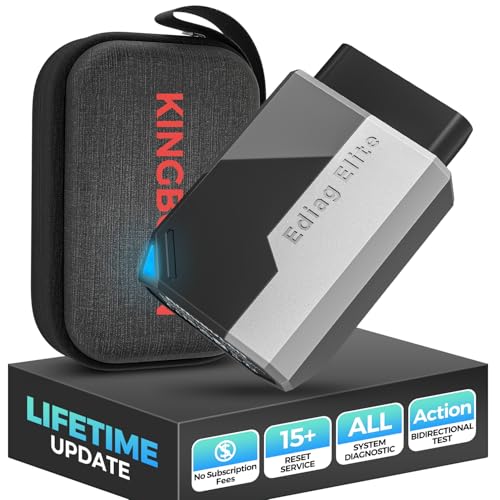
- OBD2 Bluetooth Scanner Lifetime Update: Ediag Elite offers revolutionary Advantage Lifetime Updates with unlimited access to the superior 15+ reset service, bidirectional testing and full system diagnostics.The Ediag Elite is an excellent Bluetooth OBD2 scanner diagnostic tool ideal for DIY's and private car owners.
- Bidirectional Test for Quickly Locating Problems: The Bidirectional Scan tool allows you to send commands directly from your smartphone to your vehicle for active testing. This feature helps to quickly narrow down problems such as air conditioning clutches, windows, doors, sunroofs, etc., reducing diagnostic time for mechanics and helping DIY users locate faults more easily. In addition, Ediag Elite provides fault analysis and repair guidance to help you solve problems efficiently.
- 15+ Maintenance Resets: The current version introduces 15+ popular special features: Oil Reset, Headlight Matching, Bleeding Reset, TPMS Reset, BMS Reset, Gear Box Relearn, Throttle Learning, Injector Coding, SAS Reset and more special functions in system diagnose menu. These functions make it easy for owners to carry out the necessary maintenance and servicing, ensuring that your vehicle stays in top condition, prolonging its service life and preventing common problems and breakdowns. Note: The Special function vary by model& year, Reach us check compatibility.
- Wide Compatibility CANFD & FCA
 Autoauth: Compatible with GM, Ford, Toyota, Chrysler, Honda, Mazda, Nissan, Mitsubishi, Hyundai, KIA with standard OBD2 port from 1996 to newer. More car brands and features will be released gradually. Newest Ediag Elite scanner supports CANFD Protocol and FCA cars. Note: Coverage may vary on different vehicle by model& year ,Please contact us to confirm compatibility before purchase.
 - Perfect for Monitoring The Health of Your Vehicle: Ediag Elite is designed to make vehicle maintenance simple and efficient. With intelligent Auto VIN quick recognition, it is easy to connect to your car without the need for manual input. Real-time data is visualized in a variety of formats, including graphs, numeric, meter displays and clear 4-in-1 data charts, allowing you to effortlessly monitor real-time data. Data logging/reporting is available for playback and further analysis

- No Annual Fees & 2026 Upgraded CAN FD: Why pay $199/year or more for updates? The 2026 newest Kingbolen K7 obd2 scanner features have been upgraded to Lifetime Updates without subscription fees, saving you significant costs in the long run. K7 scan tool also adds the CAN FD protocol for the latest GM models (2019+), enabling faster data transfer, reducing the risk of undetected errors
- 2026 Newest Top-tier Car Scanner: Kingbolen K7 diagnostic scan tool is equipped with most capabilities for daily repair/maintenance: Wireless diagnosis via Bluetooth, Bidirectional Test, ECU Online/Offline Code, 31+ Resets, PMI for Ford, Lincoln, Mazda, Global version for 100+ brand vehicles and 17 languages, no area limit, FCA AutoAuth
- OE-Level Full Systems Scan Tool: K7 professional diagnostic scanner with Auto Vin can do one-click to scan ECUs on most of vehicles, like pcm, ecm, eps, bcm, tpms, sas, a/c system... to read/clear code, view live data, freeze frame, read ecu info. 4-in-1 data stream graphics can make data viewing more intuitive. Detailed diagnostic reports will help you easily master the car situation as it can be shared by bluetooth or email! Adding workshop information can help your customers to know more
- Bidirectional Test/Active Test & ECU Code: Stop guessing and start fixing. Bidirectional scan tool Kingbolen K7 can perform real active test that can send commands to the vehicle's ECU to drive the actuators to work, like window, rear mirrors, sunroof, door, solenoids, wipers, headlamp, etc, helping you quickly find out bad parts and pinpoint faulty issues. K7 bidirectional scanner will be a good choice to save money and time on car repairs when performing complex maintenance and repair
- 31 Reset Functions: Avoid expensive dealership visits for simple services. Experience tells us that just a small repair service may cost a lot of money. Kingbolen K7 is a professional diagnostic scanner with 31 common maintenance services like Oil /SAS/EPB/TPMS Reset, Battery Matching, ABS Bleeding, Injector Code, etc. It effectively handles most of the car reset and relearning jobs, perfect for experienced DIYers and mechanics. Note: Functions in the menu vary across vehicles. Kindly check the compatibility before purchase
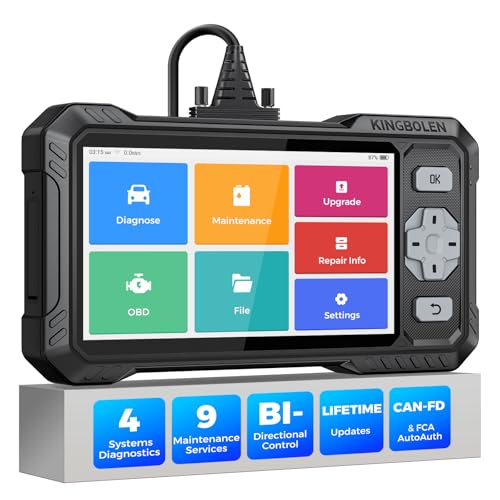
- WHY S608 STANDS OUT:2026 Kingbolen S608 is the only scanner <200 bucks that offers powerful active tests on Engine, ABS, SRS, and Transmission systems. Offers 9 resets,Covers 110+ global brands with a 6.2'' larger touchscreen
- KINGBOLEN'S NEW BIDIRECTIONAL SCAN TOOL: As the 2026 upgraded version of S600, our Newest S608 obd2 scanner has the powerful Bi-directional Control on Engine, ABS, SRS, and Transmission systems. It can send commands to the ECUs of actuators for functional tests and work status checks, such as ABS, fuel injectors, adjusting throttle, coolant pumps, EVAP test, fuel trim reset, etc. No more Guesswork. Quickly identify problem components without teardown, get fuss-free results in seconds.
- 【9 HOT RESET SERVICES CAR SCANNER】Tired of costly mechanic trips for common resets? The Kingbolen S608 obd2 scanner lets you do it yourself, even for beginners—quickly and effortlessly! It offers 9 hot reset functions: Oil/EPB Reset, ABS Bleeding, SAS Calibration, DPF Regeneration, Injector Coding, BMS Matching, Throttle Adaptation, Gear Learning. Stop paying mechanics for 5-minute jobs. Save hundreds per year! 🚗*Function vary from vehicle models. reach us to check compatibility firstly!
- 【4 SYSTEM DIAGNOSTIC TOOL + FULL OBDII FUNCTIONS】Kingbolen S608 is an OBDII scanner and 4 systems diagnostic tool made for home mechanics, DIYers, and professionals. You can access Engine, ABS, SRS, Transmission fault codes, track live data in graphs, and onboard DTC library lookup to find the right troubleshooting procedure, and diagnose with full 10 OBD2 test modes to fix most of emission issues. Give your aging cars routine maintenance to avoid costly repairs, a breakdown, or even a crash.
- 【NEW CAN FD, FCA/RENAULT SGW, 140+ BRANDS】Kingbolen S608 scanner for car supports 140+ vehicle brands, 100,000+ models, 28 languages and can be used worldwide. S608 stays up-to-date with modern vehicles, allows secure access to 2017+ FCA cars and 2015+ Renault cars (📢*Need to purchase an AutoAuth/Renault account by yourself), and supports the latest CAN-FD protocol for 2019+ GM/Chrysler, enabling 2X faster data transfer and more precise diagnostics. 🚗*Check compatibility before purchase.
This product presentation was made with AAWP plugin.
Last update on 2026-05-11 / Affiliate links / Images from Amazon Product Advertising API