
NHTSA ID Number: 10072923
Manufacturer Communication Number: VVT-12-28
TSB/Document Date: 2016-06-22
Summary
SUMMARY TO BE PROVIDED ON A FUTURE DATE.
If the PDF is very large, it may not load in the preview below.
Some older TSBs had multiple PDFs — visit the NHTSA Website to view all PDFs.
If the TSB PDF does not show, download or view it on the NHTSA Website.
Click on the (+) Plus Sign
Then Click on Associated Document(s)
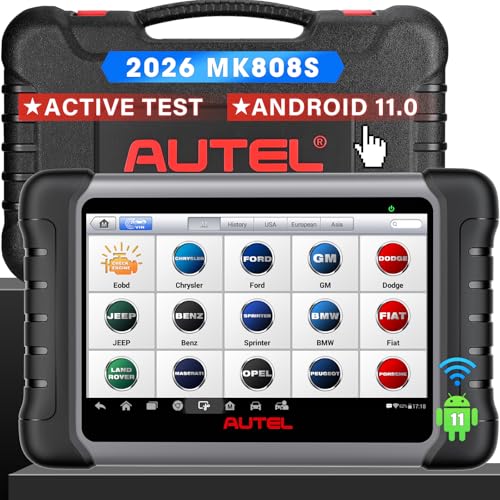
- 💝【Questions? We’re Here Anytime】MK808S is a...
- 🔥🔥🔥【2026 NEWLY RELEASED BI-DIRECTIONAL...
- 【28+ MOST POPULAR RESET SERVICE FOR 150 MAKES】Autel...
- 【ALL SYSTEM DIAGNOSTICS, FACTORY-LEVEL SCANNER】The...
- 【AUT0 SCAN & AUT0V1N, 10X FASTER】How much have you spent...


- 💯【Conta.ct us for Support Directly】If you met any...
- 🔥🔥🔥【2026 AUTEL FLAGSHIP MK900BT MK900-BT, NEW...
- 🚗【3000+ ACTIVE TESTS (50➡3000+), SAME AS MS...
- 🚗【40+ HOT SERVICES FOR 150 MAKES (28+➡40+)】Full...
- 🚗【OE ALL SYSTEM DIAGNOSE, AUTO SCAN 2.0: SCAN LICENSE...
This product presentation was made with AAWP plugin.
Search NHTSA Database for Recalls
Search NHTSA Database for Vehicle Investigations
View Latest Vehicle Investigations
Search NHTSA Database for Vehicle Complaints
View Latest Vehicle Complaints
TSB/Document ID: VVT-12-28
Replacement Service Bulletin Number:
MFR Communication Date: 2012-10-01
MFR Internal Campaign ID/Software Version:
Communication Type: Service Bulletin/Repair Instructions
NHTSA Components: ELECTRICAL SYSTEM:SOFTWARE
MFR Component System:
MFR Component Subsystem:
Previous TSB | Next TSB |
Service Information
VAS Tester
Number: VVT-12-28
Subject: VAS 5052A - System Recovery Instructions
Date: Oct. 23, 2012
Supersedes VVT-12-04 due to addition of ODIS Service to software reinstallation section.
1.0 - Introduction
If a VAS 5052A operating system becomes corrupt or inoperative, i.e.: boots to blue screen, displays
“operating system not found” or similar error messages, does not boot to the Windows desktop etc.,
perform a full operating system recovery using the VAS 505A Recovery DVD. If recovery is necessary,
refer to the following instructions.
These instructions were validated using US/CDN market devices and software. The various operating
manuals included with diagnostic software may contain information that is not applicable to the US/CDN
market. For system recovery etc., the instructions provided here take precedent.
If you requires assistance contact VWGoA Diagnostic Tester Software Support at 1-888-896-1298.
ATTENTION!
These recovery instructions are specific to VAS 5052A diagnostic tablets ONLY. Do not use the
5052A Recovery DVD on other any other VAS diagnostic device!
During the installation / recovery process described here, all data on hard drive C:\ is erased. If
possible, finalize all stored diagnostic sessions and transmit all saved diagnostic protocols prior to
recovery.
Notes:
This procedure should be performed by an experienced user or IT professional.
Please read this entire document before performing operating system recovery.
Heed all prerequisite requirements and notes, and follow all instruction steps (including instruction
steps cross-referenced in other documents posted on ServiceNet).
Perform this procedure in an area that is quiet, clean and without distraction or interruption.
We recommended a printed copy of these instructions be used during the recovery process.
Allow approximately 2 hours to complete the installation / recovery and software reinstallation
procedure.
Perform this procedure with the diagnostic console power supply adapter cable plugged in.
We recommend connecting a USB mouse and keyboard after successful recovery for easier
configuration inputs.
Continued …2/
Page 1 of 6
ver1.3
© 2012 Volkswagen Group of America, Inc.
All rights reserved. Information contained in this document is based on the latest information available at the time of printing and is subject to the copyright and other intellectual
property rights of Volkswagen Group of America, Inc., its affiliated companies and its licensors. All rights are reserved to make changes at any time without notice. No part of this
document may be reproduced, stored in a retrieval system, or transmitted in any form or by any means, electronic, mechanical, photocopying, recording, or otherwise, nor may these
materials be modified or reposted to other sites, without the prior expressed written permission of the publisher.
Service Information
2.0 - General Information
This document does not contain the additional, step-by-step setup, software installation and configuration
instructions needed to put the device back into service. These instructions are located in existing Service
Information documents posted on ServiceNet. Use a dealership PC or laptop connected to a printer to
access the document titles specified in Section 4.0.
If a malfunctioning base station CD/DVD drive prevents running the recovery DVD as described below,
contact Siemens at 800-215-1646 and inquire about a hardware repair / replacement.
3.0 – Windows XP® Recovery
3.1 – Preparation
Media Required:
Ordering Number:
VAS 5052A Recovery DVD
K01.5001.42.21
Current VAS-PC Base Version
Refer to ServiceNet for current version
Current VW Brand DVD
“
“
“
“
“
Prerequisites:
Tablet mounted to base station.
Power adapter connected. Do not attempt recovery on battery power alone!
Ethernet (network) cable disconnected.
All external devices disconnected from USB ports on base station (printer, mouse etc.).
3.2 - Run Recovery DVD
1. Switch on diagnostic tablet.
2. Insert the VAS 5052A Recovery DVD into the CD/DVD drive on the base station.
3. Press and hold the On/Off button until the tablet shuts down.
4. Briefly press the On/Off button to switch tablet on (tablet must boot from the data on the Recovery
DVD).
The Recovery DVD will start automatically. The hard drive is erased and reformatted prior to reinstallation
of the operating system. Various messages are displayed during the installation.
User intervention is not required until the following message appears:
TesterNr: XXXXX
Volume-ID: 1100-xxxx
End of Installation
Remove the CD-Rom and switch the power off
Page 2 of 6
© 2011 Volkswagen Group of America, Inc.
All rights reserved. Information contained in this document is based on the latest information available at the time of printing and is subject to the copyright and other intellectual
property rights of Volkswagen Group of America, Inc., its affiliated companies and its licensors. All rights are reserved to make changes at any time without notice. No part of this
document may be reproduced, stored in a retrieval system, or transmitted in any form or by any means, electronic, mechanical, photocopying, recording, or otherwise, nor may these
materials be modified or reposted to other sites, without the prior expressed written permission of the publisher.
Service Information
5. Remove the Recovery DVD from the CD/DVD drive and press the On/Off Button until the tablet
shuts down completely.
6. Switch the tablet on using the On/Off button. Operating system configuration will continue for a few
minutes.
7. When the configuration is complete, a restart message may or may not be displayed. If so, select Yes
to restart. If no restart message is displayed, restart the tester manually (Start > Shut down >
Restart).
After restarting, the applicable Windows interface (desktop) is displayed on the tablet.
8. From the Windows desktop, launch the applicable Hampshire Control Panel touch screen
calibration application and follow the prompts to calibrate the touch screen.
3.3 – Set Regional & Time Settings
1. From the Windows desktop, go to Start > Settings > Control Panel
2. Select Regional and Language Options
3. In the Regional Options tab, Standards and formats section, select English [United States] from
the dropdown menu.
4. In the Locations section, select United States from the dropdown menu.
5. Select the Languages tab.
6. Select the Details button.
7. In the Default input language section, select English [United States] - US from the dropdown menu.
8. Click Apply / OK
9.
Select the Advanced tab.
10. Select English [United States] from the dropdown menu.
11. Click Apply / OK
12. From the Control Panel menu, select Date and Time
13. Set the Date, Time, Time Zone and Daylight Savings settings as applicable to your location, and
click Apply / OK.
14. Restart the device. Go to Start > Shut Down > Restart.
4.0 – Additional Setup & Diagnostic Software Installation
The following subsections describe additional setup needed prior to placing the device back into service.
Locate and follow the step-by-step setup, software installation and configuration instruction documents
posted in the Workshop Equipment > VAS Tester or ODIS Service > Service Information sections of
ServiceNet. Use a dealership PC or laptop connected to a printer to access the documents specified in
Sections 4.1, 4.4, 4.5 and 4.6 below.
If a referenced document does not appear under the current calendar year listing, look in the previous
calendar year list or enter the document title in the SEARCH function of ServiceNet.
Continued …4/
Page 3 of 6
© 2011 Volkswagen Group of America, Inc.
All rights reserved. Information contained in this document is based on the latest information available at the time of printing and is subject to the copyright and other intellectual
property rights of Volkswagen Group of America, Inc., its affiliated companies and its licensors. All rights are reserved to make changes at any time without notice. No part of this
document may be reproduced, stored in a retrieval system, or transmitted in any form or by any means, electronic, mechanical, photocopying, recording, or otherwise, nor may these
materials be modified or reposted to other sites, without the prior expressed written permission of the publisher.
Service Information
4.1 – Set Computer Name
Refer to VAS Tester – Service Information document title: VAS Diagnostic Device Computer Name
Builder.
4.2 – Network Configuration
For dealership networks using DHCP for Internet access, no configuration is necessary (default setting in
laptop is DHCP). Proceed with Netviewer installation below.
For dealership networks using Static IP configurations for Internet access, the configurations must be
renewed after installation/recovery. Ask your dealership IT professional for details and assistance.
If you are unsure of the type of network configuration used, ask your dealership IT professional, or contact
the VWGoA IT Service Desk at 1-866-892-3375 for assistance.
4.3 – Netviewer Installation
Prerequisite:
Diagnostic tablet is able to connect to internet in order to logon to ServiceNet (DHCP, or static IPs
enabled as per Section 4.2).
1. Connect network/Ethernet cable to tablet.
2. Launch Internet Explorer and logon to ServiceNet.
3. Navigate to the Workshop Equipment > VAS Tester > Software section.
4. Right click / select the link: Netviewer one2one – Telediagnosis Software.
5. Save file to Windows desktop.
4.4 – Reinstall and Configure Diagnostic Software
4.4.1 – Reinstall and Configure VAS-PC Base & VW Brand Software
1. In the Workshop Equipment > VAS Tester > Software section, refer to document title: Current VASPC Software Versions
2. Note the latest current VAS-PC Base and VW Brand software versions and disc ordering numbers
from the software version document.
3. Navigate to the Workshop Equipment > VAS Tester > Service Information section.
4. Refer to the VAS Tester - Service Information document title that covers the installation of the latest
VAS-PC Base software version. Example: VAS-PC Base V19.01.XX Installation Instructions.
5. Retrieve the latest VAS-PC Base and VW Brand version discs noted above from your VAS-PC disc
library, and perform the Base installation and configuration, as well as VW Brand installation steps as
specified in the VAS-PC Base installation instructions.
Continued …5/
Page 4 of 6
© 2011 Volkswagen Group of America, Inc.
All rights reserved. Information contained in this document is based on the latest information available at the time of printing and is subject to the copyright and other intellectual
property rights of Volkswagen Group of America, Inc., its affiliated companies and its licensors. All rights are reserved to make changes at any time without notice. No part of this
document may be reproduced, stored in a retrieval system, or transmitted in any form or by any means, electronic, mechanical, photocopying, recording, or otherwise, nor may these
materials be modified or reposted to other sites, without the prior expressed written permission of the publisher.
Service Information
4.4.2 – Reinstall ODIS Service Software & Security Certificate
Notes:
Reinstallation of ODIS Service after system recovery requires reinstallation of the device-specific
license and security certificates that were requested, saved and installed during the initial ODIS
Service installation process.
When instructed buy the documentation, retrieve and install the saved, device-specific license and
certificate files from either the original or backup USB flash drive.
1. Navigate to the Workshop Equipment > ODIS Service > Service Information section.
2. Refer to ODIS Service – Service Information document titles:
ODIS Service Installation Phase 2 – Software Installation & Configuration Instructions
ODIS Service Installation Phase 3 – Security Certificate Request & Installation Instructions
3. Retrieve the latest ODIS Service installation DVD version and perform the software installation,
configuration, and security certificate request and installation steps as specified in the above
instructions.
4.5 – Renew VAS 5054A Bluetooth and EDIC Configurations
Refer to VAS Tester - Service Information document title: VAS 5054A Transmitter Head - Bluetooth &
EDIC Configuration.
4.6 – VAS 5054A USB Configuration
Refer to VAS-Tester - Service Information document title: VAS 5054A Transmitter Head - USB
Configuration & Function
4.7 – Import GeKo Certificate
System recovery erases all data on the C:\ drive, including the previously-imported VAS GeKo security
certificate. After system recovery, and prior to performing immobilizer adaptations etc., a replacement
certificate must be imported.
Prerequisites:
Network configuration performed and Netviewer installed as per Section 4.2.
Latest VAS-PC Base & Brand versions installed as per Section 4.4.1.
VAS 5054A Bluetooth & EDIC configurations successfully performed as per Section 4.5.
Tablet powered up to Windows desktop and Ethernet cable connected.
1. From the windows desktop, start the VAS-PC application.
2. Select the Administration function.
3. From the Administration header, record the six digit Equipment Number:
Equipment Number:
4. Contact the VWGoA IT Service Desk at 866-892-3375
Page 5 of 6
© 2011 Volkswagen Group of America, Inc.
All rights reserved. Information contained in this document is based on the latest information available at the time of printing and is subject to the copyright and other intellectual
property rights of Volkswagen Group of America, Inc., its affiliated companies and its licensors. All rights are reserved to make changes at any time without notice. No part of this
document may be reproduced, stored in a retrieval system, or transmitted in any form or by any means, electronic, mechanical, photocopying, recording, or otherwise, nor may these
materials be modified or reposted to other sites, without the prior expressed written permission of the publisher.
Service Information
5. Inform the IT Service Desk consultant that system recovery on a VAS diagnostic device was
performed, and request their assistance with importation of a new GeKo security certificate.
6. Provide the VAS model designation and Equipment Number to the IT Service Desk consultant when
prompted.
4.8 – Reinstall Anti-Virus Software (where applicable)
Reinstall anti-virus software as per your dealership’s IT policy where applicable.
Page 6 of 6
© 2011 Volkswagen Group of America, Inc.
All rights reserved. Information contained in this document is based on the latest information available at the time of printing and is subject to the copyright and other intellectual
property rights of Volkswagen Group of America, Inc., its affiliated companies and its licensors. All rights are reserved to make changes at any time without notice. No part of this
document may be reproduced, stored in a retrieval system, or transmitted in any form or by any means, electronic, mechanical, photocopying, recording, or otherwise, nor may these
materials be modified or reposted to other sites, without the prior expressed written permission of the publisher.
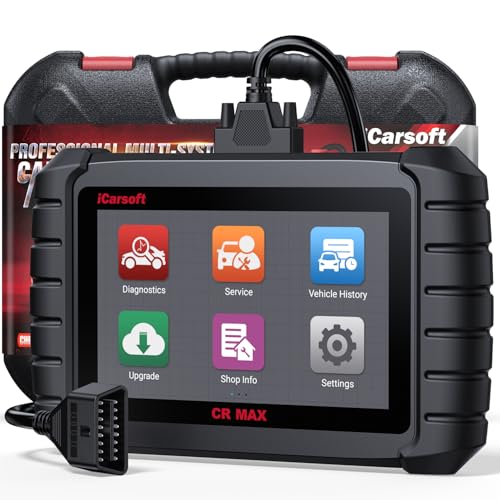
- WHY CHOOSE THE 2025 CR MAX -Upgrade the latest diagnostic capabilities for all vehicles after 1996: upgrade to 49+maintenance services; 46 extra specific functions; real all systems/all control modules diagnose; over 40K+ bidirectional actuation tests for diagnosing all control moduels of cars; Powerful full OBD2 Functions; built-in ECU Coding for BMW
 / Audi/ VW/ RollsRoyce; Fr ee V.A.G Guide Function; Battery retistration for new battery adaptation and more. It covers all vehicle diagnostic services and some special professional vehicle maintenance servces, assists you to do home DIY vehicle maintenance or car repair as a pro technician.
 - NEWEST IN INNOVATION FULL OBD2 SERVICES- iCarsoft auto car diagnostic scanner compatible with CAN-FD, CR MAX can do it all-reads and clears trouble codes, ALL SYSTEM DIAGNOSIS such as engine, transmission, ABS and airbag etc. CR MAX code reader for all cars can perform I/M Readiness, Live Data, Freeze Frame, Vehicle Information, Monitor Test, On-Board Monitor, E vap System Test,O2 Sensor Test,DTC Library Lookup,etc. (Warm Tips: If you car is after 2023,please contact us for compatibility; 3. It comes with 16PIN OBD2 diagnostic adapter, please check your car diagnostic socket if it is 16pin socket, if your car is 14pin diagnostic socket please contact us for the solution.)
- 49 RESET+ 46 SERVICES- Performs: Oil Reset, EPB,SAS,Throttle, D-P - F, Battery, ABS, Injector, TPMS, Suspension, AC, Head Lamp, Body Stablity, Engine, Tramsmission, Airbag, Seat, Door-Win-Roof, Fuel Pump, Door, E-G- R.+21 NEWEST SERVICES( Need update scanner)-AdBlue, Clutch, Crankshaft, High Voltage Battery, Cruise Control, NO xSensor, Rain Sensor, Stop And Start, Turbocharger, Head Up Display, Radar Camera, Vehicle Setup, Cyliner Misfire Check,Speedlimitassist, ControlUnitReset,OxygenSensor, Seatbelt. Extra 46+ extra services based on car brand.(Tips: Quantity of reset/ calibration fucitons are based on car system that your vehicle model has)
- REVOLUTIONARY 40000+BIDIRECTIONAL ACTIVE TESTS: Upgraded CR Max scanner equip with numberous of actuational test items for covering all available vehicle control modules, no longer only do simple light test or window test like other scanners, performs hardware modules test and software control modules test for checking car units or new updated control moduels work well or not after maintenance/ repair/ re-installation/ control system updated (Example for Benz- Roller Sun Blind test; Backup Camera test ;Self-test; EPB test; Transport Mode test;Boost Pressure Positioner test; Fuel Pump test; AND MORE!!).(Warm tip: The available test items are based on control modules your car has)
- ECU CODING+ BATTERY REGISTRATION- Powerful ECU Coding service for BMW/MINI/RollsRoyce / Audi/VW/Seat/Skoda/Bentley/Bugatti/Lamborghini, Improves Engine Power Performance and Optimizes Fuel Efficiency and Match New Hardware Unit to car and Customized a comfortable Driving Modes and Fixes & Updates Original Software Bug. The battery test function for checking car battery health, perform battery reset (BMS ) for replacing a damaged or aging car battery with a new one and register new battery to car ECU

- Scanner POR V2.0 with all obd2 services
- Do the scanning for engine
- Support OBDII/EOBD Ten Modes of Operation

- 【Designed for Most Mercedes-Benz, Sprinter and Smart from 1996-2023】As every car model of Benz has its-owned specific car system and ECUs, not all models are equipped with a complete vehicle ECU, which may cause the scanner to be unable to perform all listed reset services on some models, or even completely incompatible. Like For Sprinter's newer models, it support diagnostic functions only, lacking support for specialized service functions.. So please tell us the car's VIN and required service before purchase for compatibility check. You may also refer to the instructions in the eighth image of the main product photos to perform your inquiry.
- 【Up to 38 Reset Services】MB V3.0 2026 Version diagnostic tool performs Up to 38 maintenance services - Oil Rest , SAS, EPB, ETC, D-P-F, TPMS, ABS, Suspension, Air Conditioner, Head Lamp, Body Stability, Engine Control, Seat, Fuel Pump, Air-Filter, Engine Idle, Door, Im-mo-bilizer, Injector Coding, Transmission Control, Miscellaneous, Adblue, BMS, Cluth, Water Pump, NOxSensor, Rain/Light Sensor, Start/Stop, Radar/Camera, Cylinder Shutoff Test, Speed Limit Assist, Control Unit Reset, Oxygen Sensor, Seat Belt, Cruise Control System, Turbocharger, Crankshaft, Language Setting and etc. (Tips: Please update the software after receiving the product to obtain new service functions)
- 【OE-Level All System OBD2 Scanner】iCarsoft MB V3.0 (2026 Version) diagnostic scanner offers comprehensive OBDII services, allowing you to quickly scan all systems, including the Engine, ABS, SAS, SRS, TPMS, TCM, Fuel Pump System, ESP, EPB, EPS, Suspension, SCM, Adaptive Systems, and more. It supports functions such as reading and erasing codes, checking I/M readiness, viewing freeze frame data, performing O2 sensor tests, conducting on-board monitoring, testing the evap system, auto VIN retrieval, and reading both generic and specific codes, as well as DTCs and battery tests.
- 【Bidirectional Scan Tool】iCarsoft MB V3.0 (2026 Version) Bidirectional scanner supports activate or control a vehicle system or component, allows commanding cars’ modules and receiving info from the ECU to perform active tests on individual components, including EVAP/ABS Motor Pump/Windows/Sunroof and more, to pinpoint fault causes & resolve issues,and allows you to re-learn certain components after making repairs or replacement.
- 【Real Time Record & Graph View】iCarsoft MB V3.0 (2026 Version) can automatically record vehicle text history and identify vehicle information. Preserve real-time data information. View & Graph Live Data. Support Data Review and Print. Multi-language: English, German, Dutch, Spanish, French and so on. We promise to offer Lifetime updates (Lifetime free Update via PC), and confidence in products. We also provide 1 year warranty + extra lifetime hardware free repair if you need it in the future. We prioritize user experience & strive to meet your expectations. Please do feel free to reach out to us if you have any question or problem about the usage, our tech team will service you in time.
This product presentation was made with AAWP plugin.
Last update on 2026-05-12 / Affiliate links / Images from Amazon Product Advertising API