
NHTSA ID Number: 10071046
Manufacturer Communication Number: VOS-13-10
TSB/Document Date: 2016-06-13
Summary
SUMMARY TO BE PROVIDED ON A FUTURE DATE.
Service Information
Offboard Diagnostic Information System Service (ODIS Service)
Number: VOS-13-10
Subject: ODIS Service Installation Phase 2 - Software Installation
& Configuration Instructions
Date: May 21, 2013
Supersedes VOS-12-21 to specify use of Version 1.2.0 and additional information.
1.0 – Introduction
This document describes the complete installation and configuration processes of the latest installation
version of ODIS Service.
Use this document to install and configure ODIS Service on VAS diagnostic devices where ODIS Service
was not previously installed or to perform a complete reinstallation. Specific instructions for each of
these scenarios are included as applicable.
Important prerequisites and preparations must be noted and fulfilled prior to proceeding!
We recommend printing these instructions.
Notes:
The following procedures must be performed by the dealership ODIS Service Administrator or IT
Professional, or personnel qualified to perform software installations.
Perform all instruction steps in the exact order given. Heed all Prerequisites and Notes!
Perform the update in an area that is quiet, clean, and without distraction or interruption.
Total installation time depends on the type of device and CD/DVD drive condition. Allow at least 1
hour for laptops and 1.5+ hours for VAS 5051B, VAS 5052A and VAS 6160/-VPC.
If assistance with specific instruction steps is needed, contact VWGoA DTSS: 1-888-896-1298.
For misplaced or damaged DVDs please contact Arvato Corporation at: www.vw.techliterature.com.
We encourage installers to FIRST read this document in its entirety to become familiar
with the step-by-step processes and prepare accordingly.
1.1 - New Installations – ODIS Service Not Yet Installed
On devices where ODIS Service is not previously installed, completion of the installation and configuration
steps described here is prerequisite to performing ODIS Service Installation Phase 3 - Security
Certificate Request & Installation.
Installation Phases 1 through 3 must be completed on all new devices prior to using ODIS Service for
vehicle diagnosis.
1.2 – Reinstallations – Complete Reinstallation of ODIS Service
On devices where ODIS Service was previously installed, a complete reinstallation can be performed to
update an obsolete “installation” version or to resolve application malfunctions. In these cases, always use
the latest installation version of ODIS Service to perform complete reinstallations.
The device-specific license file that was originally installed must be available in order to perform a
complete reinstallation.
Page 1 of 25
ver1.4
© 2013 Volkswagen Group of America, Inc.
All rights reserved. Information contained in this document is based on the latest information available at the time of printing and is subject to the copyright and other intellectual
property rights of Volkswagen Group of America, Inc., its affiliated companies and its licensors. All rights are reserved to make changes at any time without notice. No part of this
document may be reproduced, stored in a retrieval system, or transmitted in any form or by any means, electronic, mechanical, photocopying, recording, or otherwise, nor may these
materials be modified or reposted to other sites, without the prior expressed written permission of the publisher.
Service Information
2.0 – Preparation
2.1 – Preparation and License Prerequisites
2.1.1 – New Installations
All instructions in the ODIS Service Installation Phase 1 - Preparation and License Request
Instructions document must be completed and all necessary outcomes achieved:
Note the device platform: VAS 5051B console, VAS 5052A / VAS 6160/-VPC tablet or
VAS 6150/X laptop. You will be asked to enter the platform during the installation
routine!
Diagnostic device(s) assigned with unique Device ID.
Diagnostic device Hardware Key generated via eShop and saved/recorded in Master List
Wordpad document on USB flash drive.
License request submitted via eShop.
USB flash drive prepared with Device ID folders containing License and Certificate
subfolders.
License file received via email and copied to applicable Device ID / License subfolder
on USB flash drive.
2.1.2 – Reinstallations
Note the device platform: VAS 5051B console, VAS 5052A / VAS 6160/-VPC tablet or
VAS 6150/X laptop. You will be asked to enter the platform during the installation
routine!
Note the assigned Device ID of the diagnostic device on which the installation is being made.
ODIS Service uninstalled.
License file saved to Windows desktop or other location on device.
Optional: License file saved to original USB flash drive.
2.1.3 – Hardware
VAS 5051B: Must have minimum 1GB standard or upgraded RAM, updated to Windows XP®
ODIS Service Update Version 1.2.0 – Order No. 006.5002.02.21 on hand.
Diagnostic device with functioning CD/DVD drive and USB.
Diagnostic device plugged in to power adapter and booted to Windows® desktop.
VAS 5052A & VAS 6160/V tablets: Connect a USB mouse and keyboard for easier input.
2.2 – Determine CD/DVD Drive Letter Assignment
The procedures that follow require manual entry of the CD/DVD drive letter. As drive letter assignments
may not be consistent between devices, please note and record the existing drive letter as follows:
1. From the Windows desktop, click My Computer:
Page 2 of 25
© 2013 Volkswagen Group of America, Inc.
All rights reserved. Information contained in this document is based on the latest information available at the time of printing and is subject to the copyright and other intellectual
property rights of Volkswagen Group of America, Inc., its affiliated companies and its licensors. All rights are reserved to make changes at any time without notice. No part of this
document may be reproduced, stored in a retrieval system, or transmitted in any form or by any means, electronic, mechanical, photocopying, recording, or otherwise, nor may these
materials be modified or reposted to other sites, without the prior expressed written permission of the publisher.
Service Information
2. Note the letter assigned to the CD/DVD drive: Note that the drive letter illustrated below is an
example only. The drive letter assigned on your device may be different!
3. Record the drive letter here: (
🙂
4. Close the My Computer Window.
You will be instructed to confirm and enter the drive letter recorded above during Post Setup.
Preparation & License Request Prerequisite steps complete
3.0 – Software & License Installation
New installations: Begin by inserting the prepared USB flash drive with saved license file(s) into
available port on diagnostic device. Then continue from Step 1 below:
Reinstallations: Begin with Step 1 below:
1. Insert ODIS Service Update Version 1.2.0 DVD into CD/DVD drive.
2. From the Windows desktop, double-click My Computer
3. Open the CD/DVD drive directory:
130429_828 ( 🙂
4. Wait while the directory contents are read. Then Double-click OffboardDiagSetup-Service_1…:
5. Confirm English (US) is highlighted. Click OK.
Page 3 of 25
© 2013 Volkswagen Group of America, Inc.
All rights reserved. Information contained in this document is based on the latest information available at the time of printing and is subject to the copyright and other intellectual
property rights of Volkswagen Group of America, Inc., its affiliated companies and its licensors. All rights are reserved to make changes at any time without notice. No part of this
document may be reproduced, stored in a retrieval system, or transmitted in any form or by any means, electronic, mechanical, photocopying, recording, or otherwise, nor may these
materials be modified or reposted to other sites, without the prior expressed written permission of the publisher.
Service Information
6. Click Next:
7. No action needed. Click Next:
8. If a Setup – Folder: C:/… prompt appears during a reinstallation, click Yes:
9. No action needed. Click Next:
Page 4 of 25
© 2013 Volkswagen Group of America, Inc.
All rights reserved. Information contained in this document is based on the latest information available at the time of printing and is subject to the copyright and other intellectual
property rights of Volkswagen Group of America, Inc., its affiliated companies and its licensors. All rights are reserved to make changes at any time without notice. No part of this
document may be reproduced, stored in a retrieval system, or transmitted in any form or by any means, electronic, mechanical, photocopying, recording, or otherwise, nor may these
materials be modified or reposted to other sites, without the prior expressed written permission of the publisher.
Service Information
10. If additional user interface languages are desired, select them from the dropdown(s). Note that
selecting additional languages significantly increases the installation time. Click Next:
Note:
Steps 11 and 12 configure the installed software to the diagnostic device platform and diagnostic
interface (connection) method. If diagnostic platform & interface (connection) methods are not
selected correctly, an “Invalid License File” error will appear during the Post-Setup Diagnostic
Data Installation process.
11. Select the applicable diagnostic device (target) platform from the dropdown menu, then click
Next:
Select the applicable device platform from the dropdown menu.
Note:
For VAS 6150A laptops, select Standard PC/Notebook from the
dropdown.
Continued …6/
Page 5 of 25
© 2013 Volkswagen Group of America, Inc.
All rights reserved. Information contained in this document is based on the latest information available at the time of printing and is subject to the copyright and other intellectual
property rights of Volkswagen Group of America, Inc., its affiliated companies and its licensors. All rights are reserved to make changes at any time without notice. No part of this
document may be reproduced, stored in a retrieval system, or transmitted in any form or by any means, electronic, mechanical, photocopying, recording, or otherwise, nor may these
materials be modified or reposted to other sites, without the prior expressed written permission of the publisher.
Service Information
12. Confirm that the applicable diagnostic interface (connection method) appears: Click Next:
13. On diagnostic laptops and tablets only, a Bluetooth interface alert window appears. Click Next:
Continued …7/
Page 6 of 25
© 2013 Volkswagen Group of America, Inc.
All rights reserved. Information contained in this document is based on the latest information available at the time of printing and is subject to the copyright and other intellectual
property rights of Volkswagen Group of America, Inc., its affiliated companies and its licensors. All rights are reserved to make changes at any time without notice. No part of this
document may be reproduced, stored in a retrieval system, or transmitted in any form or by any means, electronic, mechanical, photocopying, recording, or otherwise, nor may these
materials be modified or reposted to other sites, without the prior expressed written permission of the publisher.
Service Information
14. Ensure Copy license to the license folder is checked. Click Search…:
New installations: Navigate to directory for prepared USB flash drive, and then continue from
Step 15.
Reinstallations: Navigate to Windows desktop or other location containing the folder with the
saved license file, and then continue from Step 15:
15. Open the applicable Device ID folder or other folder containing the license file.
16. Open the License subfolder.
17. Select / highlight the license (.dat) file, then click Open (as illustrated).
Note:
DO NOT double click on the license file in its saved location!
Continued …8/
Page 7 of 25
© 2013 Volkswagen Group of America, Inc.
All rights reserved. Information contained in this document is based on the latest information available at the time of printing and is subject to the copyright and other intellectual
property rights of Volkswagen Group of America, Inc., its affiliated companies and its licensors. All rights are reserved to make changes at any time without notice. No part of this
document may be reproduced, stored in a retrieval system, or transmitted in any form or by any means, electronic, mechanical, photocopying, recording, or otherwise, nor may these
materials be modified or reposted to other sites, without the prior expressed written permission of the publisher.
Service Information
18. Ensure the license file directory path is copied to the installation window. Note that the path
illustrated below is an example only! The actual path will be unique to your device. Click Next:
19. No action needed (DO NOT uncheck virtual keyboard). Click Next:
20. No action needed. Click Next:
Continued …9/
Page 8 of 25
© 2013 Volkswagen Group of America, Inc.
All rights reserved. Information contained in this document is based on the latest information available at the time of printing and is subject to the copyright and other intellectual
property rights of Volkswagen Group of America, Inc., its affiliated companies and its licensors. All rights are reserved to make changes at any time without notice. No part of this
document may be reproduced, stored in a retrieval system, or transmitted in any form or by any means, electronic, mechanical, photocopying, recording, or otherwise, nor may these
materials be modified or reposted to other sites, without the prior expressed written permission of the publisher.
Service Information
21. Wait while several different phases of file installation take place:
22. If an existing Windows .dll file overwrite prompt appears during a reinstallation, click Yes for all.
23. If an SVG Viewer version prompt appears during a reinstallation, click No:
24. Click Finish:
25. Close the CD/DVD directory Window.
Software & License Installation steps complete
Proceed with Post-Setup Diagnostic Data Installation: Section 4.0 – Page 10.
Page 9 of 25
© 2013 Volkswagen Group of America, Inc.
All rights reserved. Information contained in this document is based on the latest information available at the time of printing and is subject to the copyright and other intellectual
property rights of Volkswagen Group of America, Inc., its affiliated companies and its licensors. All rights are reserved to make changes at any time without notice. No part of this
document may be reproduced, stored in a retrieval system, or transmitted in any form or by any means, electronic, mechanical, photocopying, recording, or otherwise, nor may these
materials be modified or reposted to other sites, without the prior expressed written permission of the publisher.
Service Information
4.0 – Post-Setup Diagnostic Data Installation
The first time ODIS Service is started after installation via DVD, installation of the Post-Setup Data must
be performed. The post-setup process installs diagnostic data from the DVD. This process takes place in
two parts from two different target directories.
4.1 – Post Setup – Part 1
1. From the Windows desktop, locate and click the DiagStarter.bat…. Icon:
2. Select Offboard Diagnostic Information System Service:
3. Wait while the program starts:
Click Select local directory:
Page 10 of 25
© 2013 Volkswagen Group of America, Inc.
All rights reserved. Information contained in this document is based on the latest information available at the time of printing and is subject to the copyright and other intellectual
property rights of Volkswagen Group of America, Inc., its affiliated companies and its licensors. All rights are reserved to make changes at any time without notice. No part of this
document may be reproduced, stored in a retrieval system, or transmitted in any form or by any means, electronic, mechanical, photocopying, recording, or otherwise, nor may these
materials be modified or reposted to other sites, without the prior expressed written permission of the publisher.
Service Information
4. Expand [+] the My Computer and 130429_0828 ( 🙂 directories and select / highlight the
postsetup folder as illustrated. Then click OK: Note that the CD/DVD drive letter illustrated below
is an example only!
5. Manually type in a backslash character ( / ) to the end of the URL target directory path. Then click
the blue Forward Arrow button:
Continued …12/
Page 11 of 25
© 2013 Volkswagen Group of America, Inc.
All rights reserved. Information contained in this document is based on the latest information available at the time of printing and is subject to the copyright and other intellectual

- 💯【Conta.ct us for Support Directly】If you met any...
- 🔥🔥🔥【2026 AUTEL FLAGSHIP MK900BT MK900-BT, NEW...
- 🚗【3000+ ACTIVE TESTS (50➡3000+), SAME AS MS...
- 🚗【40+ HOT SERVICES FOR 150 MAKES (28+➡40+)】Full...
- 🚗【OE ALL SYSTEM DIAGNOSE, AUTO SCAN 2.0: SCAN LICENSE...

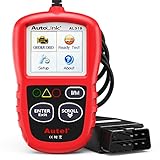
- 【TURN OFF CEL】 This AL319 car scanner diagnostic tool...
- 【EXTENSIVE APPLICATION】 Autel AL319 Compatible with...
- 【FOR END USER & DIYERS】 This error code reader AL319 is...
- 【USER-FRIENDLY DESIGN】 This OBD2 scanner and check...
- 【HIGH-QUALITY SERVICES】 12 months war.ranty from the...
Last update on 2026-06-23 / Affiliate links / Images from Amazon Product Advertising API
If the PDF is very large, it may not load in the preview below.
Some older TSBs had multiple PDFs — visit the NHTSA Website to view all PDFs.
If the TSB PDF does not show, download or view it on the NHTSA Website.
Click on the (+) Plus Sign
Then Click on Associated Document(s)
Search NHTSA Database for Recalls
Search NHTSA Database for Vehicle Investigations
View Latest Vehicle Investigations
Search NHTSA Database for Vehicle Complaints
View Latest Vehicle Complaints
TSB/Document ID: VOS-13-10
Replacement Service Bulletin Number:
MFR Communication Date: 2013-05-21
MFR Internal Campaign ID/Software Version:
Communication Type: Service Bulletin/Repair Instructions
NHTSA Components: ELECTRICAL SYSTEM:SOFTWARE
MFR Component System:
MFR Component Subsystem:
Previous TSB | Next TSB |

- WHY CHOOSE THE 2025 CR MAX -Upgrade the latest diagnostic capabilities for all vehicles after 1996: upgrade to 49+maintenance services; 46 extra specific functions; real all systems/all control modules diagnose; over 40K+ bidirectional actuation tests for diagnosing all control moduels of cars; Powerful full OBD2 Functions; built-in ECU Coding for BMW
 / Audi/ VW/ RollsRoyce; Fr ee V.A.G Guide Function; Battery retistration for new battery adaptation and more. It covers all vehicle diagnostic services and some special professional vehicle maintenance servces, assists you to do home DIY vehicle maintenance or car repair as a pro technician.
 - NEWEST IN INNOVATION FULL OBD2 SERVICES- iCarsoft auto car diagnostic scanner compatible with CAN-FD, CR MAX can do it all-reads and clears trouble codes, ALL SYSTEM DIAGNOSIS such as engine, transmission, ABS and airbag etc. CR MAX code reader for all cars can perform I/M Readiness, Live Data, Freeze Frame, Vehicle Information, Monitor Test, On-Board Monitor, E vap System Test,O2 Sensor Test,DTC Library Lookup,etc. (Warm Tips: If you car is after 2023,please contact us for compatibility; 3. It comes with 16PIN OBD2 diagnostic adapter, please check your car diagnostic socket if it is 16pin socket, if your car is 14pin diagnostic socket please contact us for the solution.)
- 49 RESET+ 46 SERVICES- Performs: Oil Reset, EPB,SAS,Throttle, D-P - F, Battery, ABS, Injector, TPMS, Suspension, AC, Head Lamp, Body Stablity, Engine, Tramsmission, Airbag, Seat, Door-Win-Roof, Fuel Pump, Door, E-G- R.+21 NEWEST SERVICES( Need update scanner)-AdBlue, Clutch, Crankshaft, High Voltage Battery, Cruise Control, NO xSensor, Rain Sensor, Stop And Start, Turbocharger, Head Up Display, Radar Camera, Vehicle Setup, Cyliner Misfire Check,Speedlimitassist, ControlUnitReset,OxygenSensor, Seatbelt. Extra 46+ extra services based on car brand.(Tips: Quantity of reset/ calibration fucitons are based on car system that your vehicle model has)
- REVOLUTIONARY 40000+BIDIRECTIONAL ACTIVE TESTS: Upgraded CR Max scanner equip with numberous of actuational test items for covering all available vehicle control modules, no longer only do simple light test or window test like other scanners, performs hardware modules test and software control modules test for checking car units or new updated control moduels work well or not after maintenance/ repair/ re-installation/ control system updated (Example for Benz- Roller Sun Blind test; Backup Camera test ;Self-test; EPB test; Transport Mode test;Boost Pressure Positioner test; Fuel Pump test; AND MORE!!).(Warm tip: The available test items are based on control modules your car has)
- ECU CODING+ BATTERY REGISTRATION- Powerful ECU Coding service for BMW/MINI/RollsRoyce / Audi/VW/Seat/Skoda/Bentley/Bugatti/Lamborghini, Improves Engine Power Performance and Optimizes Fuel Efficiency and Match New Hardware Unit to car and Customized a comfortable Driving Modes and Fixes & Updates Original Software Bug. The battery test function for checking car battery health, perform battery reset (BMS ) for replacing a damaged or aging car battery with a new one and register new battery to car ECU
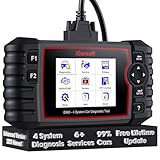
- 【Looking for More Professional Vehicle Scan Tool?】iCarsoft E660 2026 Upgrade Version OBD2 scan tool can do it all-reads and clears trouble codes on Engine system, ABS system, Transmission system and Airbag system, And with 6 reset function. It covers more than 59 vehicle makes from 1996-2023 models ( included most USA/ Asia / EU vehicle brand) with full OBDII. (As every car model has its-owned specific car system and ECUs, not all car models have full car ECUs which may prevent the scanner from performing all listed system diagnostics or reset services. Therefore, please email to us with car VIN and services required to do scanner's services for a compatibility check before purchasing.)
- 【OE-Level 4 Systems OBD2 Scanner】iCarsoft E660 2026 Upgrade Version diagnostic scanner offers comprehensive OBDII services, allowing you to quickly scan Engine system. It supports functions such as reading and erasing codes, checking I/M readiness, viewing freeze frame data, performing O2 sensor tests, conducting on-board monitoring, testing the evap system, auto VIN retrieval, and reading both generic and specific codes, as well as DTCs and battery tests.
- 【4 Systems Diagnosis for 10000+ Vehicles】 iCarsoft E660 2026 Upgrade Version adopts unique diagnostic software, works well for most Porsche, Benz, BMW, US Ford, Land Rover, Jaguar, Audi, VW, Volvo, Honda, Nissan, Infiniti, Toyota, Lexus, Scion, Isuzu, Hyundai, Kia, Daewoo, Mazda, Sprinter, Mini, Seat, Skoda, SAAB, EU Ford, Holden, AUS Ford, Acura, Subaru, Mitsubishi, Dacia, Renault, Fiat, GM, Chrysler, Citroen, Peugeot, Opel, Smart,Suzuki, Vauxhall, Alfa-Romeo, Lancia and etc.
- 【6 Reset Services】iCarsoft E660 2026 Upgrade Version is a diagnostic tool that offers professional maintenance services, including Oil Reset, EPB, BMS, ETC, SAS, TPMS Reset. It can help you easily reset oil change indicators, recalibrate steering angle sensors, relearn replaced electric parking brake and so on. For optimal vehicle performance and maintenance convenience. (Tips: Please update the softwareafter receiving the product to obtain new service functions)
- 【118+ Real Time Record & Live Graph View】iCarsoft E660 2026 Upgrade Version can automatically record vehicle text history and identify vehicle information. Preserve real-time data information. View & Graph Live Data. Support Data Review and Print. 15 languages: English, German, Dutch, Spanish, French and so on. We promise to offer Lifetime updates (Lifetime free Update via PC), and confidence in products. We also provide 1 year warranty + extra lifetime hardware free repair if you need it in the future. We prioritize user experience & strive to meet your expectations. Please do feel free to reach out to us if you have any question or problem about the usage.

- 【All-in-One Diagnostic Tool for Porsche + 2 Extra Vehicle Brands】New POR V4.0 is a professional car scanner specifically engineered with dedicated software pre-installed for Porsche. You can also download 2 additional software packages FOR FREE from 26 supported brands (e.g., for Benz, for BMW, for Audi, for Land Rover).Upgraded to adopt quad-core 1.3GHz processor and HD touchscreen and professional diagnsotic OS for faster& smooth diagnsotic.LIFETIME FREE UPDATES, NO SUBSCRIPTION COST! PLEASE TELL US YOUR CAR INFORMATION TO OBTAIN A LIST OF ALL COMPATIBLE SERVICES FOR YOUR CAR FIRST (FOR EXAMPLE: BATTERY REGISTRATION FUNCTION IS NOT COMPATIBLE WITH PORSCHE 997.2)
- 【29 MAINTENANCE SERVICES FOR PORSCHE SERIES CARS】 It can perform the 29 reset service for Porsche series cars-Oil Reset; SAS; EPB; BMS; ETC; DP ; ABS Bleeding; Injector Coding; TPMS; Air Suspension; Air Conditioner; Head Lamp; Body Stablity Control; Engine Control; Transmission; AirBag; Seat; DWR; MIS; EG; ODO; Clutch; High Voltage Battery; Cruise Control; Radar/Camera; Vehicle Setup,etc. Up to 49 vehicle-maintenance-services for the extra 2 vehicle brands you installed (Tip: Not all services will be worked on every car mode. Some vehicle models may be lack of certain ECU-control modules to make some services may not work).
- UPGRADE SERVICES: Breaks down 29 services to 234 sub-service for car owners/machinist to perform maintenance based on corresponding sub-modules! The detailed sub-service for sub-modules assist to perform precise vehicle maintenance.Improving the accuracy of car maintenance and reducing potential failure risks caused by whole-module maintenance to main modules.such as Oil Reset is refined into Reset maintenance interval/Reset service interval/Service Reset; Engine Control Reset is refined into Delete adaptation data/Short tests/System tests/Swirl-flap actuator/Bleeding high temperature coolant circuit and more.(sub-services vary based on vehicle model/year)
- 【EXTRA VEHICLE MAINTENANC SERVICES FOR SPECIFIC SYSTEMS】Have no ability to perferm calibration to special/specific systems/modules? This OBD2 scanner solve your troubles- for common systems/modules & for specific sytems/modules, assist you to perform diagnsing/calibration/reset/relearn services for non-common modules to finish your car maintenance/ diagnostic (eg: Central Computer system/module :Function activation/Multimedia interface test/AM Field Strength/Current FM Field Strength/FM Field Strength/MOST system reserve/Self-test/Deactivate Production Mode/Reset to factory settings/MOST System Test). (Tip: The services vary based on the vehicle brands)
- 【 MORE PROFESSIONAL BI-DIRECTIONAL ACTUATION TESET 】Exclusive POR V4.0 comes with powerful bidirectional testing capability,do actuaction test for deeper unit-checking after replacement or overhaul (1333 test items for Porsche, like:Fuel high-pressure fuel injector 1-4, Empty tank, Radiator fan, OTA-FC Connectivity, backrest, Backup battery, and more; 2136 test items for Audi; 1670 test items for Benz; 1599 test items for Volvo; 1360 test items for VW; 2705 test items for GM etc.). Help to check your car units work well or not after vehicle maintenance or daily car-body check, keep drives always in safety.(Warm tip:The quantity of test item is based on the units your car has)
Last update on 2026-06-23 / Affiliate links / Images from Amazon Product Advertising API
This product presentation was made with AAWP plugin.